Chapter 14
Party Games
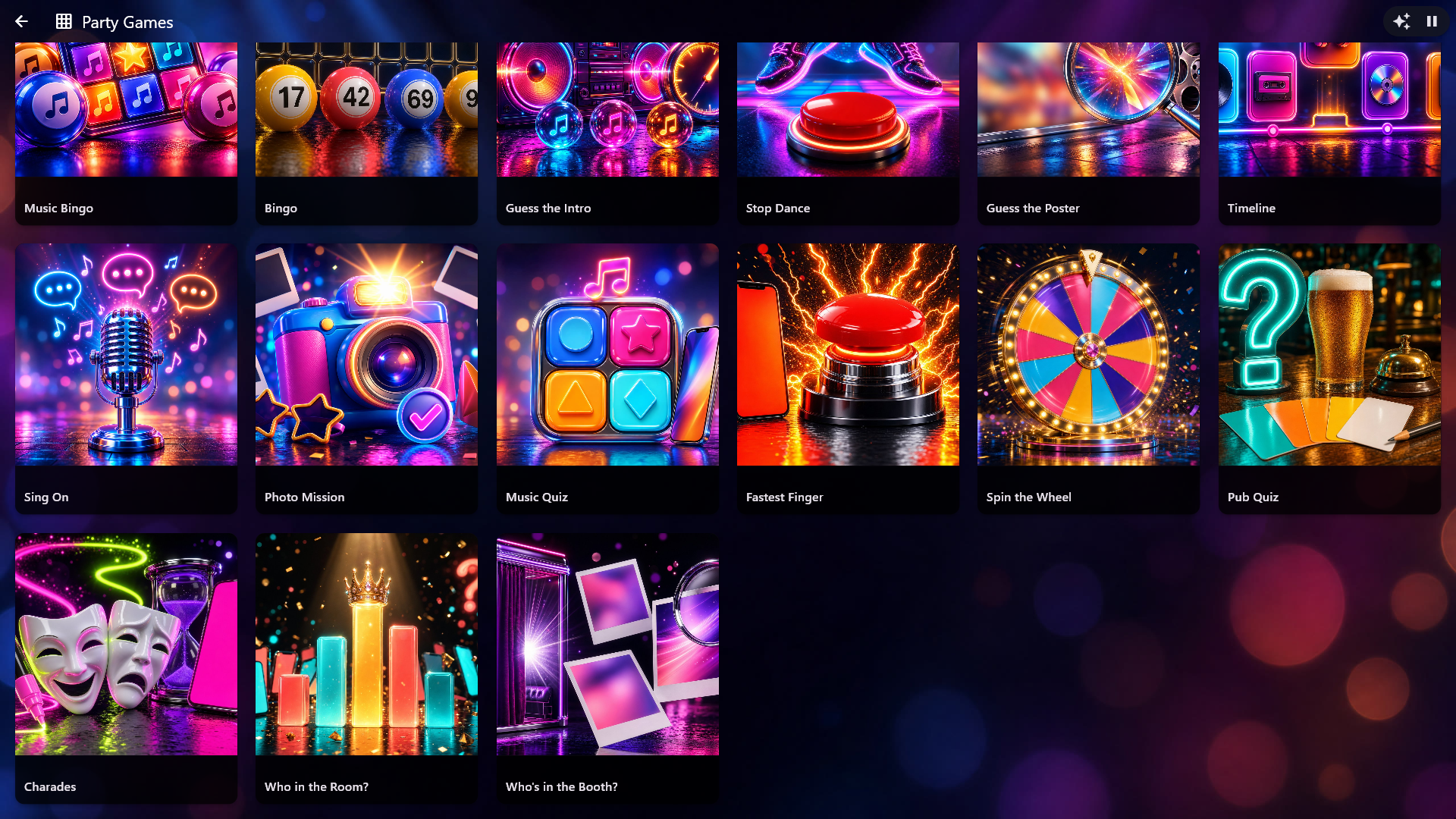
Party Games are games for the party, played on your own music, with you as the host: Music Bingo, Bingo (with the numbers 1-90), Guess the Intro, Stop Dance, Guess the Poster, Timeline, Sing On, Photo Mission, Music Quiz, Pub Quiz (your own questions, no music), Fastest Finger, Spin the Wheel, Charades (act, draw or describe words), Who in the Room? and Who's in the Booth? (the evening's own Photo Booth pictures). The center is part of the Home and Professional editions. Party Games has a fixed look of its own with its own pictures, so it looks the same whichever skin you use.
Your logo follows the same switches as in the rest of Digital Center (Administration → Brand & logo): on the big screen it stands discreetly at the top, beside the buttons in the top right corner, when Logo on playback is switched on, and on the screensaver and the extra screens it stands in the corner when Logo on screensaver is switched on.
Open Party Games on the front page. There is a cover for each kind of game, and the page can be shown with the same effects as the other cover pages. Tap a cover, and the game gets its own page with a big picture, a short description and the button New Game. Tap New Game, and the games you have made stand as a list on top of the game's picture, each with how it stands (ready, going on or finished). Guests can look, but only the host can start a game, and Back takes you one step back. When the text below says "Open Party Games → Guess the Intro and tap the game", it means: tap the game's cover, tap New Game, and tap the game you made.
One game at a time. Only one game can be going on at once. While a game is going on, Party Games opens straight into it, and tapping its cover does the same. If you choose another game, the screen says which game is going on, and you can go on with it or end it and move on. Pressing back in the middle of a game asks what you want: Go to the main menu leaves the game running, so you can come back and go on, and ending the game shows all the games again.
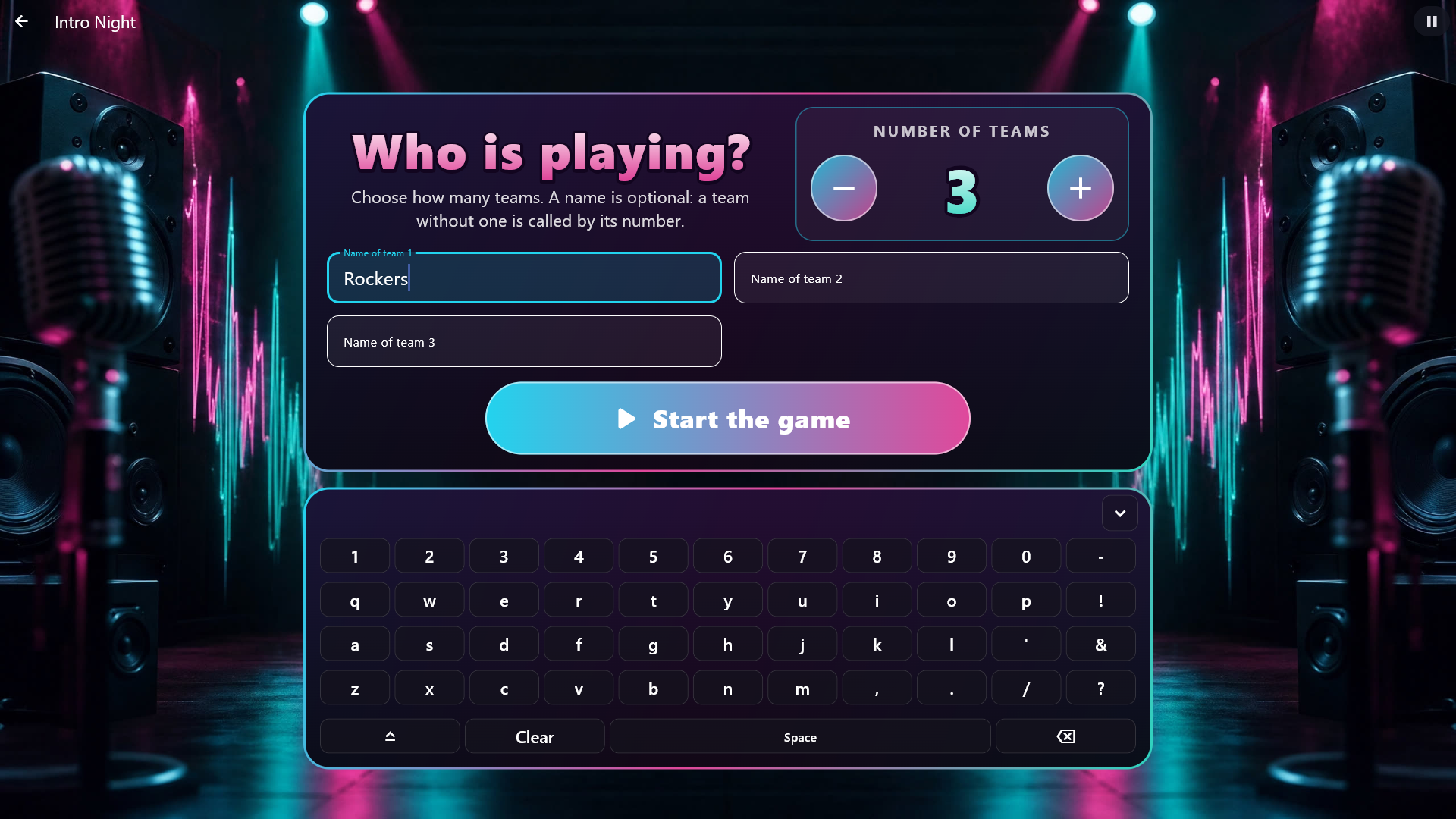
The teams are chosen when a game starts, not in Administration. When you tap a game with teams (every party game except Music Bingo, Bingo, Stop Dance, Spin the Wheel and Who in the Room?), one screen appears: Who is playing? Choose the number of teams with the big − and +, and give the teams a name if you like; a team without a name is simply called by its number. Start the game stands right under the names. When the on-screen keyboard is switched on, it stands in its own panel under the teams: tap a name field and type. The field the keyboard writes in lights up in the game's colour, and Start the game and the keyboard are always in view, also with many teams. The screen remembers the evening's teams, so the next game suggests the same ones, and with the same people it is enough to tap Start the game. Play again does not ask: it is the same teams. If a game does not have songs for that many teams (in Timeline, for example, where every team must be able to reach the goal), you cannot choose more, and the screen says how many the game has songs for. A game started from your phone plays with the teams chosen last.
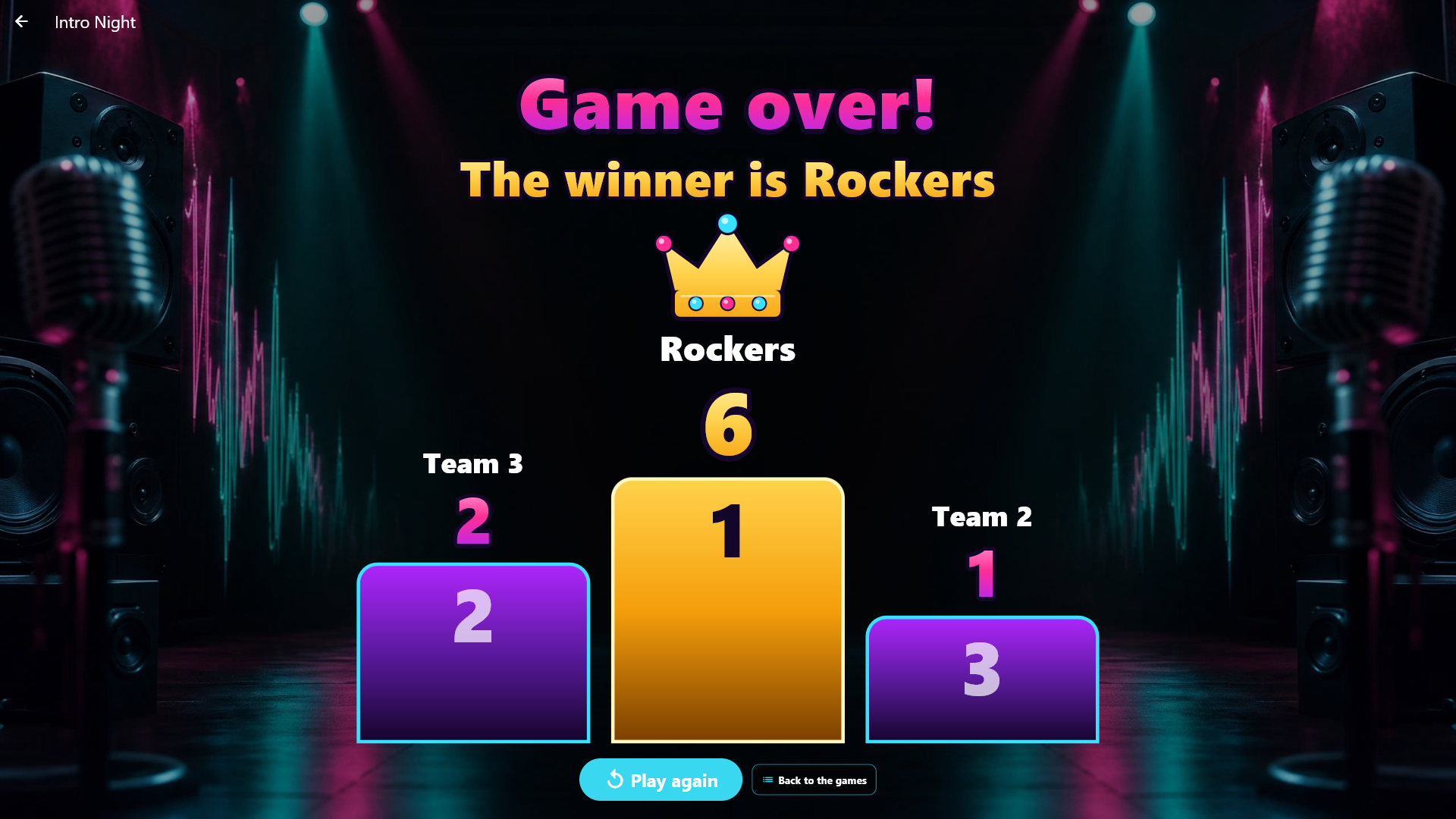
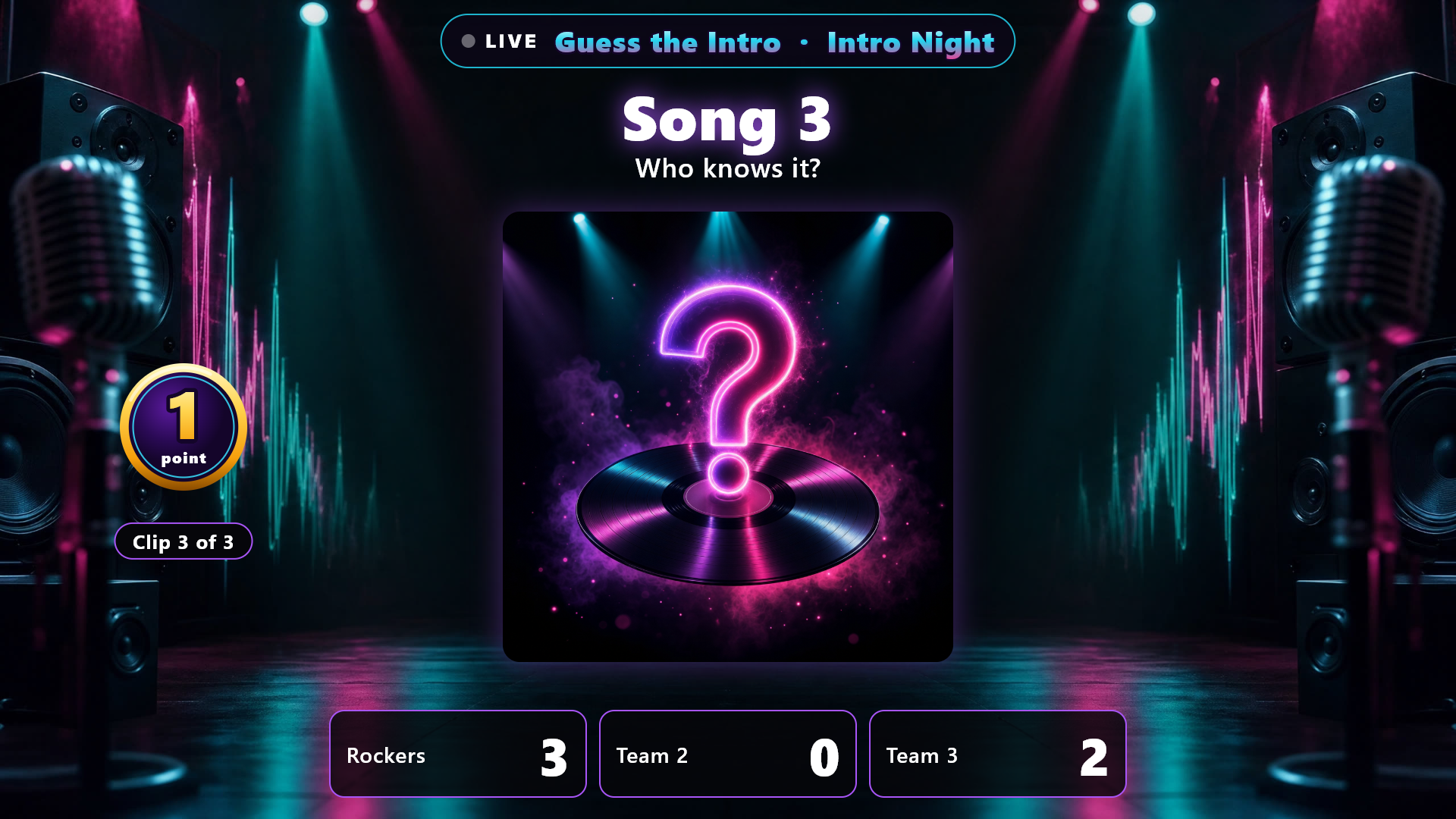
A game show. The games with points (Guess the Intro, Guess the Poster, Who's in the Booth?, Timeline, Sing On, Music Quiz and Pub Quiz) run as a game show: the teams stand in big panels with their points along the bottom of the screen. When a team gets points, the number counts up and the panel briefly lights up gold; take points back, and it quietly counts down. Tap Show the song, and the cover turns over to show the song. Your buttons as the host fade back when you are not using them and light up again as soon as you touch the screen. When the game ends, the finale fills the screen: "Game over!" and the winner in big glowing letters, and the teams on a big podium with the winner at the top under a crown and confetti. A draw shares the top step, and with no points at all, the scoreboard is simply shown.
The whole room can follow along. While a game is going on, the screensaver and the extra screens set to What's playing show the game itself: the teams' points, what the song is worth, the bingo goal, the timelines, the quiz question and so on, with a glowing LIVE band at the top and the same effects as on the big screen (points that count up, confetti, the podium). What only the host may show, such as the sharp cover in Guess the Poster, is only shown on the main screen. The song in Guess the Intro and the words in Sing On reach the extra screens the moment you tap Show the song or Show the words. The guests' phone remote follows along too: while the screen stands on the first page of Party Games, the phone shows its picture and "Choose a game on the screen", and when you go into a game, the phone shows that game's picture and name, just as with the Arcade.
Music during the game. The games that play no music of their own (Guess the Poster, Who's in the Booth?, Photo Mission, Fastest Finger, Spin the Wheel, Pub Quiz, Charades and Who in the Room?) each have a choice under Administration → Party Games → the game → While it plays → Music during the game: Let the music play as it is, Turn the music down (a slider chooses how loud it plays during the game, 20 % by default) or Pause the music (it carries on when the game ends, or when you leave the game). New games start by turning the music down to 20 %; games you made before let the music play as they always have. Your own volume is never changed, and the game's sound effects are not turned down.
Ticking clock. Guess the Poster, Who's in the Booth?, Charades and Pub Quiz play against a clock without music. With Ticking clock switched on under While it plays, a clock ticks when the last quarter of the time is left, faster and louder in the last seconds. The clock stops at once when the answer is shown, a team gets points, the time is up, or the game is paused. It only sounds on the main screen and only with Sound effects switched on. It is switched on, also in games you made before, until you switch it off yourself; once switched off, it stays off.
Making a game
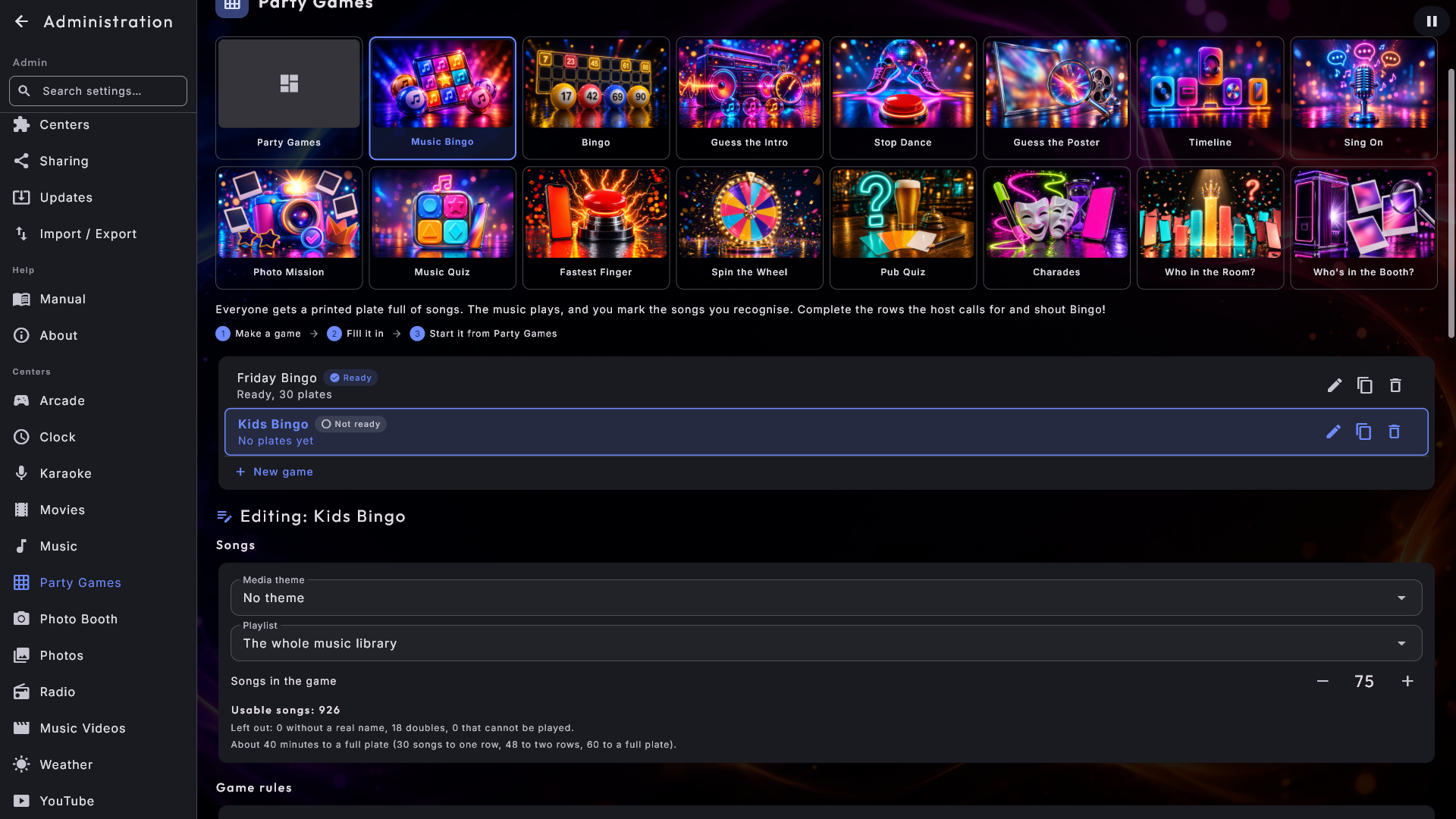
You prepare the games beforehand under Administration → Party Games. At the top you pick a picture for each kind of game, and every page is built the same way: your games, each marked Ready or Not ready, and the game you are working on highlighted. You can make, rename, copy and delete games. Under the list, the blocks follow in a fixed order: Songs, Game rules, Ready to play?, Print the plates (the two bingo games only), While it plays and The host's phone. Only the bingo games have a button under Ready to play? (Make plates); every other game is marked Ready by itself as soon as it has enough to play with, and if not, the page says what is missing. A new or copied game becomes the one you are working on at once. The page opens on the first picture, Party Games, where you choose the sound effects, the effect on the first page of Party Games and the host's phone. If you tap Go to Administration from a game without anything in it, you land straight on that game's page.
The songs are drawn when the game starts. In Guess the Intro, Stop Dance, Guess the Poster, Timeline, Sing On and Music Quiz you only choose what the game may use (theme, playlist, number). The songs themselves (or covers) are drawn at random the moment the game is started, both when you start it on the screen and from your phone as the host, and afresh each time it is started as a new game. So new songs in the library come along by themselves, and no two evenings are alike. Tap Play again right after a game, and you keep the same songs. If the library is still being read in (for example just after startup), the game waits: the screen says to try again in a moment, so nothing is ever drawn from half a list. If there are too few songs, the screen says why, and the game does not start.
Games on the Party Games page. On the first picture, Party Games, you also find Games on the Party Games page: a tile for each game, and a tile that is switched on means the game has a cover on the first page of Party Games. Switch off the games you do not use, so the guests only see the ones you want to show. A hidden game stands grey in the row of pictures at the top and cannot be chosen until you switch it on again. A game that is already going on can always be continued, even if it is hidden. If you hide every game, the first page of Party Games simply says they are hidden and where to show them again.
Add many at once. In Pub Quiz, Photo Mission, Spin the Wheel,
Charades and Who in the Room? the button Add many at once stands beside the
button that adds one at a time. Type or paste the list into the field, one per line;
empty lines are skipped. In Pub Quiz each question goes on one line like this:
Question | *right answer | wrong answer | wrong answer, with 2-4 answers and a star in
front of the right one. To let an AI (such as ChatGPT) write the list, tap Copy the
AI instruction: a ready instruction in your language is now on the clipboard, with
the game's limits for length and number. Paste it into the AI, write your topic, and
paste the answer into the field. If it is easier to move the answer on a USB stick,
save it as a text file and tap Load from a file. In Pub Quiz you can also load a
spreadsheet, saved as a CSV file or as text from Excel: one question per row, the
question first and then the answers. Put a star in front of the right answer, or
leave it out: if there are no stars in the whole file, the first answer in each row
counts as the right one, and it says so clearly when you check the list. A first row
of headings (such as "Question") is skipped.
Tap Check the list: you see how many are ready, which lines are skipped and why (with the line number), and how many there was no room for if the list would grow too long. Then choose Add to the list (what you have already stays) or Replace the list (what you wrote yourself is removed; our own suggestions stay), and tap the button at the bottom. Replace asks first. Nothing is saved until you tap. Lines that are already on the list do not come along twice, and a line that is too long is cut short just as when you type it yourself.
Sound effects are switched on from the start: a drum roll when bingo is called, a fanfare and applause for a true bingo, a buzzer for a false one, a fanfare when a team gets points and the game over sound for a wrong answer. In Spin the Wheel a drum roll plays while the wheel spins, and a fanfare when it lands. The music never stops for a sound effect. Switch them off for every game with Sound effects on the first picture, Party Games.
Music Bingo
Everyone gets a printed plate full of songs. The music plays, and the guests cross off the songs they recognise.
- 1
Make the game
Under Administration → Party Games, choose Music Bingo, tap New game and give it a name.
- 2
Choose the songs
Use the whole music library, a Media theme and/or a Playlist. Choose what the Squares show and how many Songs in the game there are (75 by default); the game draws that many at random. If there are fewer usable songs, all of them are used, and the page says so.
- 3
Choose the plates
Choose Songs per plate: 9, 12, 15, 18 or 21 (always 3 rows), and the Number of plates. The page keeps showing how many songs can be used and roughly how long the game lasts. Songs without a real name and duplicates are left out by themselves. If the music library is still being read in, the page says so, and the number rises by itself.
- 4
Make the plates
Tap Make plates.
Squares show can be Song title and artist (the default for new games), Song title or Artist. No two squares in a game ever say the same thing: with artists, each artist is in once; with titles, each title is in once; with both, the same song on two albums is in once, while two artists with the same title may both be there. Which of several songs comes along is chosen at random each time you make plates.
The plates are locked once they are made: you can print exactly the same plates again, also after a restart. You may change the name, the title on the plate, the look, the plates per page and the seconds afterwards without the plates changing. If you change something that shapes the plates, the page says they are out of date; they still apply until you tap Make new plates, which always asks first, because plates you have already printed stop being valid.
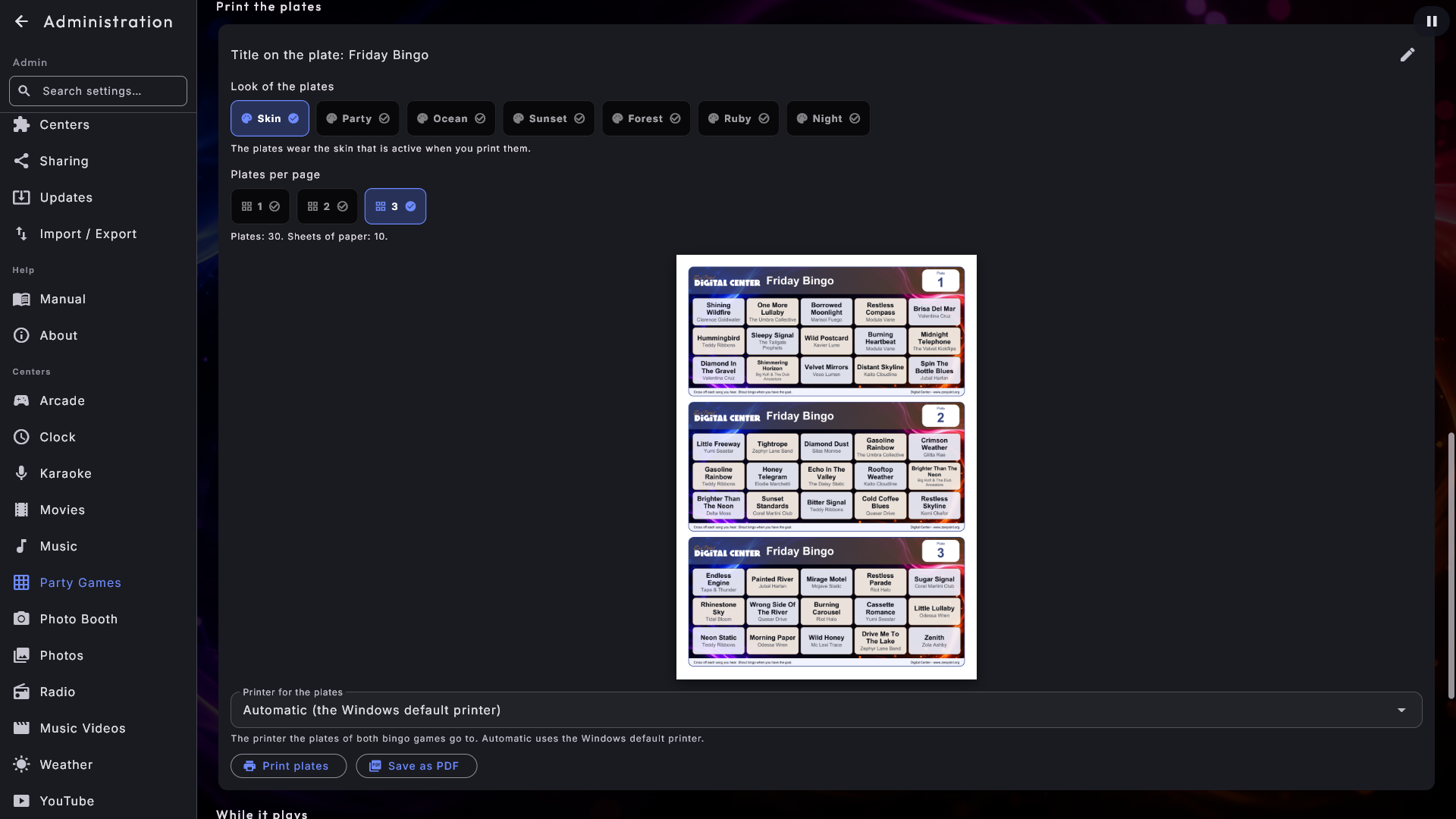
Under Print the plates you choose the title on the plate and a look, and you see a real plate. Skin is the default for new games: the plate gets the active skin's background picture and colours, the squares stay light so the guests can write on them, and the skin that is active when you print is the one that counts. If the skin only has a video, the plate uses the skin's colours. The six other looks are fixed colours. The mark on the plate follows Brand & logo. The squares are all the same size, and long titles get smaller so they fit. With Song title and artist, the title stands large at the top and the artist smaller and lighter underneath.
Plates per page can be 1, 2 or 3 (the default). The fewer plates on a page, the bigger the plate: squares, bands and text grow, so the paper is filled and the titles are easier to read. With 1 plate per page the sheet is printed sideways. The line underneath says how many sheets of paper the plates take. It only concerns printing, so you can change it at any time without making new plates. The preview shows the whole sheet as it comes out of the printer: your real plates once they are made, otherwise an example with songs from the game.
Above the buttons, choose under Printer for the plates which printer the plates go to; the choice applies to both Music Bingo and Bingo with numbers. Automatic uses the Windows default printer (a "printer" that only saves to a file is never used). Tap Print plates, or Save as PDF and choose a folder. When the plates have been sent, the page says which printer they went to. If nothing comes out, look at the printer's queue in Windows, or save the plates as a PDF and print that. You only print here in Administration.
How long each song plays (40 seconds by default) and how far into the song it starts (30 seconds by default) are chosen per game under While it plays. In the same place you find three choices that only apply to Music Bingo and never change the plates:
- Show the song by itself: Off (the default, you show the song yourself), When the song's time is up, or After a number of seconds (5-60, 15 by default, counted from when the song starts). The song is shown exactly as when you tap Show the song, only on the big screen, and you can still show it earlier. After Let it play!, the song is shown when it actually ends. If the song's time is shorter than the chosen seconds, it is shown when the time is up.
- Pause between songs: 0-30 seconds (4 by default). At 0 the next song starts at once.
- Fade in and Fade out: 0-5 seconds (0 by default, no fade). The song rises from silence and fades out so it is gone exactly when its time is up. If bingo is called while it fades out, it just carries on down.
Starting. Open Party Games → Music Bingo and tap the game. Say which plates you have handed out with the big − and + buttons at From plate and To plate: only those plates can win. Hold a finger on a button and the number runs, and the bar underneath shows which plates are in play. Tap the big Start the game button. If the music for some of the plates' songs is no longer in the music library (moved, deleted or renamed, or the machine it was on cannot be reached), the screen says which songs they are, and you choose whether to go on: those songs are then not played, and you ask the guests to cross them off straight away. If half the songs or more are missing, the screen also suggests making new plates first. If none of the plates' songs exist any more (for example because the music library has been replaced), the game cannot start: the screen says so and asks you to make new plates first, and there is no button to go on. The host's phone gets the same answer if the game is started from there. In the other song games the screen says the same, and the songs are skipped if you go on.
During the game. The screen is a stage with a mystery cover in the middle. Each new song rolls in as a glowing bingo ball with the song's number, which lands and becomes the cover. A glowing ring around the cover runs empty with the time left of the song, and for the last five seconds it glows red. On one side stands a small glowing bingo plate with as many squares as the guests' plates: the rows that count for the round's goal light up (one row, two rows or the full plate), with the goal in big letters underneath. On the other side stands the time left. At the bottom, your visualizer dances freely on the floor. The screen says "Song 23", but never the song's name - not on extra screens, the screensaver, the phone or Windows' media controls either. The only exception is when you tap Show the song yourself: the cover turns over like a card and shows title, artist and cover on the main screen, until the next song starts. A song counts as soon as it has started. When a plate reaches the goal, the screen says there is bingo in the room.
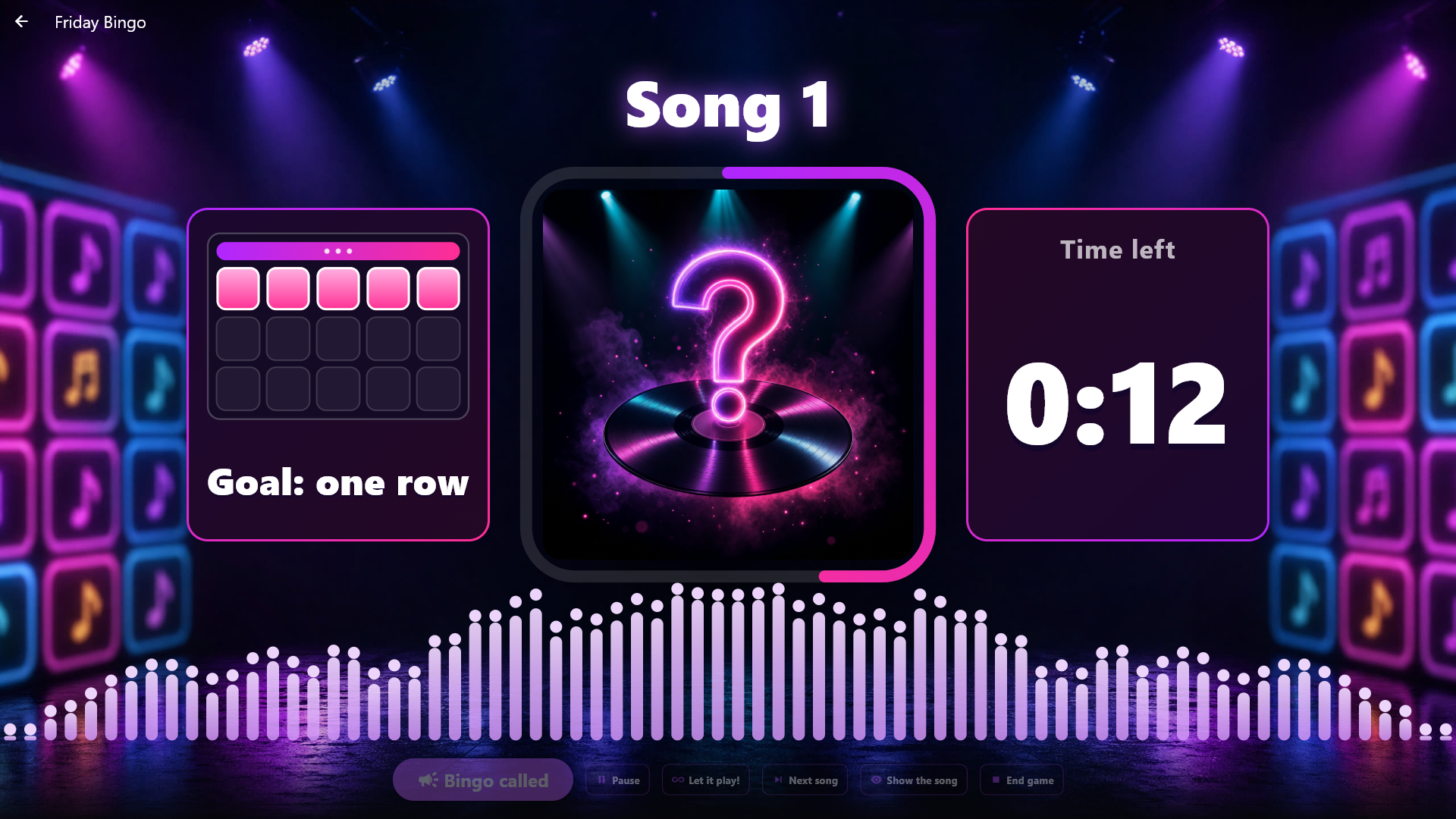
If the room is having fun with a song, tap Let it play!: the countdown stops, the screen says "Extra turn!", and the song plays until you tap Next song or until it ends. Then the game goes on as always.
If the game is going too slowly or too quickly, you can change how long each song plays while the game runs or is paused: tap Slower (5 seconds longer) or Faster (5 seconds shorter) in the bar at the bottom of the screen or on the host's desk on the phone. Beside the buttons it says how long each song plays now. The song playing now plays to the end as it was, and the new length applies from the next song. Songs can play between 15 and 90 seconds; at the limit the button is grey. The pause between songs does not change, and the plates stay the same. The new length is saved in the game, so you also see it under While it plays in Administration.
When a guest shouts bingo, tap Bingo called. The music fades down, the lights dim, spotlights sweep across the stage, and a big "BINGO?" beats along with the drum roll while you type the plate's number and get the answer: yes or no, and which squares have been played. A true bingo bursts into a golden "BINGO!" with confetti; a false one makes the screen shake while the word turns red and folds up. A number that was not handed out does nothing on stage. If the kiosk uses light graphics, the movements are simpler and without spotlights and confetti. When it is right, the game moves on to the next goal: one row, two rows, full plate. When it is wrong, the music fades up again and the game goes on where it left off.
When the game is over, or you tap End game, choose Play again (the same plates, a new order, everything else starts over) or Back to the games. A finished game stays in the list, and when you choose it again later, it starts over. If you leave the screen in the middle of a game, the game is paused, and you go on later from Party Games → Music Bingo.
Being the host on your phone
You can run every game from your phone instead of standing by the screen. The phone remote must be switched on. If someone else is to be the host, such as a hired DJ, you do not have to give away the admin password: on the first picture, Party Games, under Administration → Party Games, stands one host code for all of Party Games, with a picture to scan. Scan it with the phone and the host's desk is ready. The code can also be typed in the panel, which you find through the link in the phone remote as soon as a game is ready. If the host would rather use a computer, tap Copy link and paste the link into a browser on the same network. The link contains the host code, so only give it to the host. The code never opens Administration. New code stops the old one at once, also in the middle of a game. The admin password still works on the desk.
The phone always follows the game the screen is on: choose another game on the screen, and the host's desk changes with it. That is also the game you can start or play again from the phone. If there is no game on the screen, the phone says No game started, and the same happens when a game is over and the screen leaves it. You can manage the whole evening from the phone: say which plates are handed out and tap Start the game. The phone tells you if something playing will stop, if some songs cannot be played, or if the screen cannot start right now (for example because Administration is open). The screen then goes to the game by itself, whatever it was showing.
The desk is made for a thumb in a dark room, and the whole game is run from one screen without scrolling. It wears the game's own colours, with a glowing clock that turns red for the last five seconds, point coins and a colour for each team. In Music Bingo you see the song's number, the round's goal, the time left and the numbers of the plates that have already reached the goal, so you notice a winner nobody has called. Below sit Pause / Continue, Next song, Let it play!, Show the song on the screen, Songs played and End game, while the game runs also Slower and Faster, the sound effects, and at the bottom the big BINGO! button. A grey button cannot be used right now. Tap a plate to see how far it has come. Songs played shows the song playing now, which song each plate reached the goal on, and the songs played so far; you also find Leave the desk there. Guests with the phone remote see none of it.
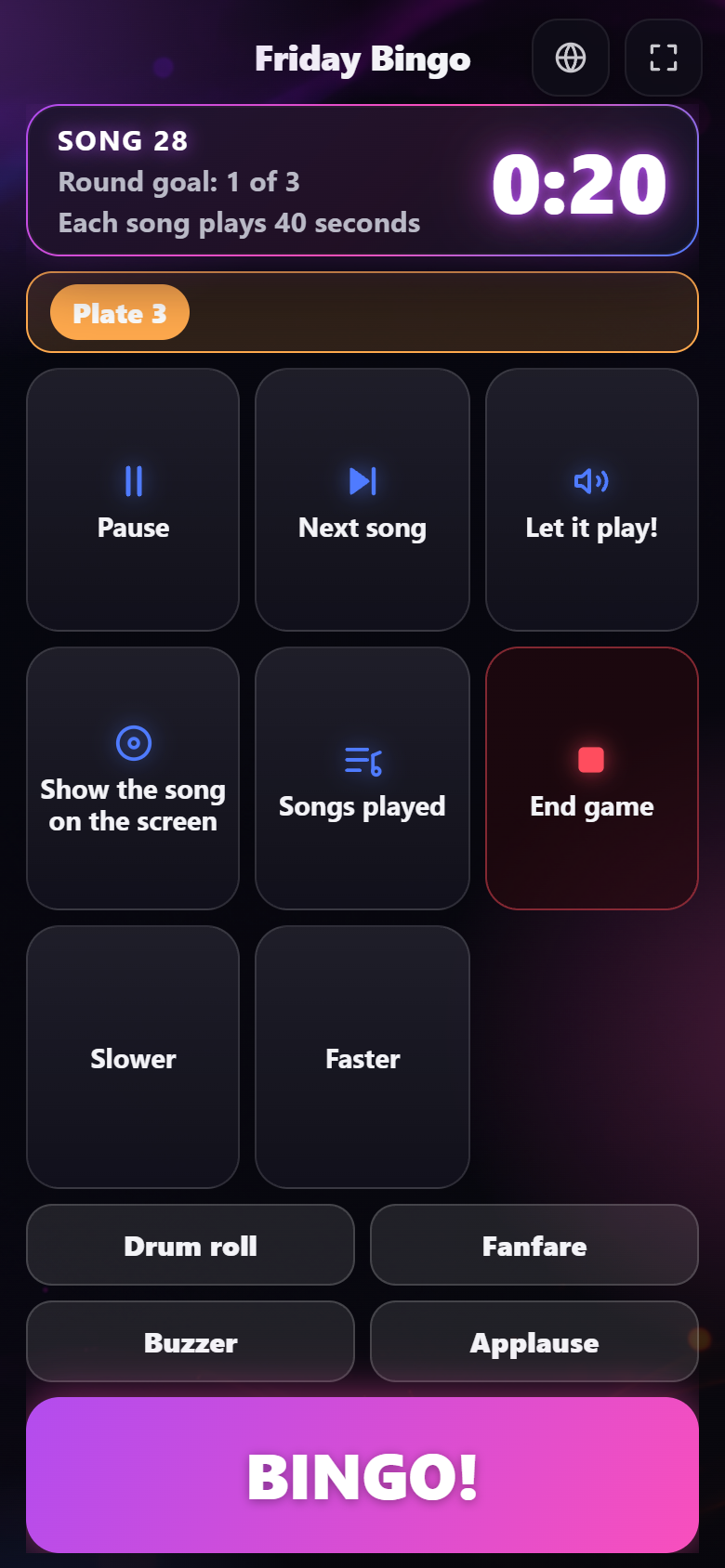
There is only one organizer at a time. The first phone that opens the desk sits at it, whether it came in with the host code or the admin password. Another phone is told that another host is already running the game, sees nothing of the game, and gets in by itself as soon as the desk is free: when the host taps Leave the desk, or 15 seconds after the phone stopped answering. If the host reloads the page, the phone gets straight back in. When an organizer is connected, it says so under Administration → Party Games, and Remove takes the phone off the desk at once, for example if it has been lost. New code also takes off the phone that uses the host code. The screen's own buttons are not part of the desk and always work.
Bingo (the numbers 1-90)
Classic bingo with 90 balls: the host draws the numbers, and the guests cross them off on their plates. Under Administration → Party Games, choose Bingo at the top and make a game with a name. Choose which plates you play with:
- Digital Center makes the plates: choose the number of plates and tap Make plates. Each plate has 3 rows and 9 columns with 15 numbers, 5 numbers in each row, and the numbers stand in their own column (1-9, 10-19 and so on up to 80-90). No two plates are alike. The plates are printed or saved as a PDF the same way as Music Bingo's, with the same looks and plates per page, and the numbers stand big and bold so they fill the square and are easy to read. The kiosk can check a plate when bingo is called.
- We use our own plates: no plates are made or printed, and the game is ready at once. When someone calls bingo, you check their plate against the board yourself and tap Yes, bingo! or Not yet.
Under While it plays you can switch on Draw numbers automatically: a new number then comes by itself after the number of seconds you choose, and you can still draw one yourself at any time. The first number comes right after the caller has said "Eyes down", and after a pause right after he has said the game goes on (without the caller, after a couple of seconds), so you do not wait a whole interval when the game starts or carries on. With Colour per group of ten switched on (off by default), every ball and every lamp on the board gets its group's colour: 1-9, 10-19 and so on up to 80-90, one colour for each column on the plates, so the guests quickly see where on the plate to look. The number always stands there, so nobody depends on seeing the colours, and the extra screens show the same colours. The printed plates get the same colours: over each column stands a thin coloured stripe with the column's numbers written in it, so it also works when the plates are printed in black and white. With Keep the music playing off (the default), music that is playing is paused when the game starts and comes back when the game ends or you leave the screen. Switch it on, and the music plays on quietly during the game at the volume you choose, and afterwards it is back at its own volume. Your own volume setting is never changed.
The caller. Under While it plays you also choose the Caller: Off, Numbers only or With nicknames (the default for new games). With the caller on, a voice calls out each new number just as the ball has landed, for example "Two little ducks... twenty-two!". The voice also says "Eyes down" when the game starts, when you pause and carry on, which goal has been won when you approve a bingo, and that the game is over. If the numbers are drawn automatically faster than every 8 seconds, it only says the number, so there is time to say it. The caller speaks the kiosk's own language when that voice is on the machine, otherwise English; the card Caller language under the choice says which language the voice speaks.
More languages are found in the same card: it shows the languages you can download, with the voice's name and size. Tap Get beside a language; once it is downloaded, the caller speaks it at once if it is the kiosk's language. When a new version of a language comes out, it says Update, and Remove takes the language off the machine again (you can always get it again). The buttons are only shown when the kiosk is not locked. It needs the internet and an active license; if either is missing, the card says so. The caller only plays on the kiosk itself, never on the extra screens, and a kiosk with the sound turned all the way down stays silent.
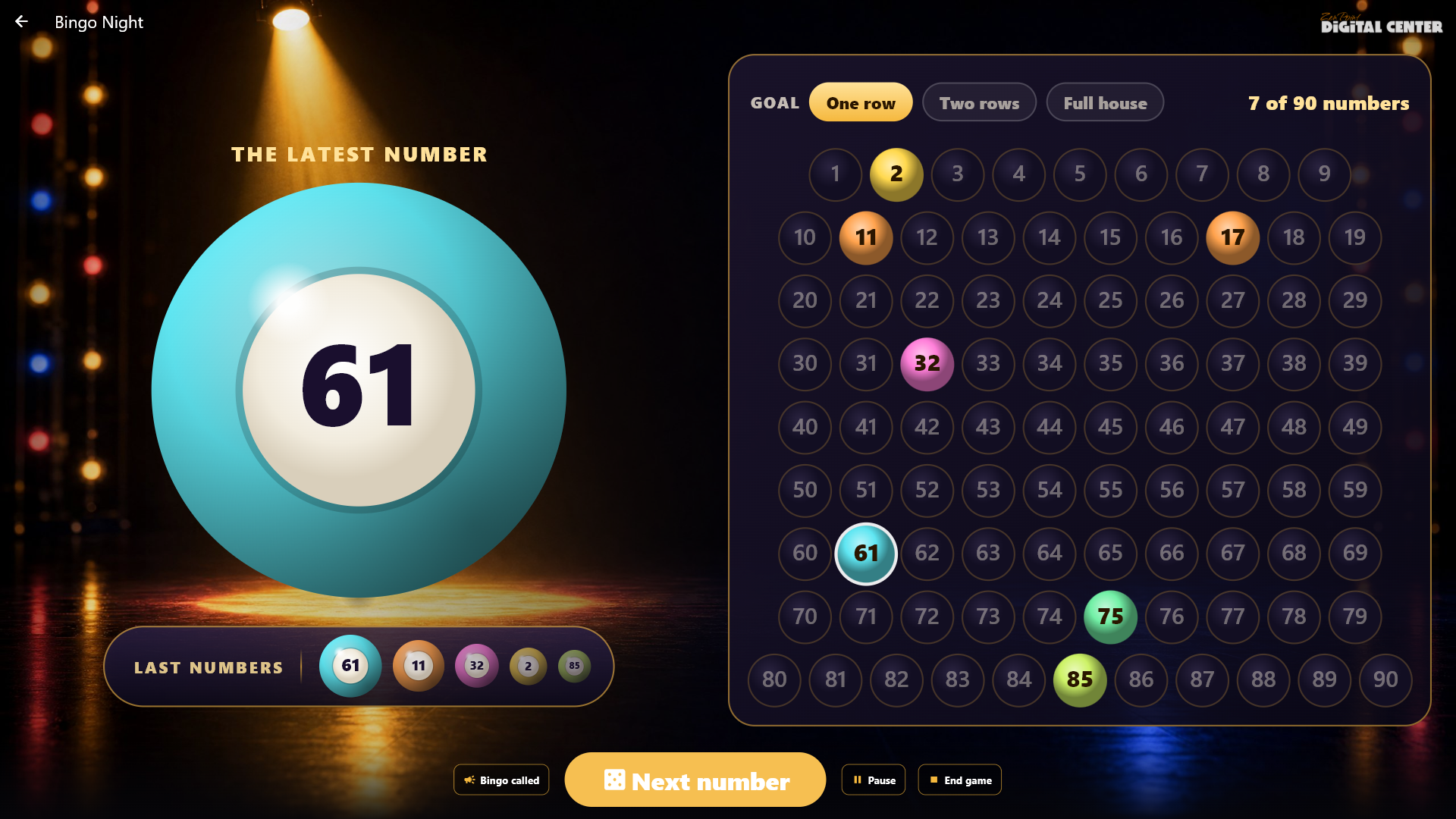
Playing. Open Party Games → Bingo and tap the game. If you play on printed plates, choose which plates have been handed out; then tap Start the game. Tap Next number for each new number. In the middle of the stage floats a glowing golden tumbler full of balls, and on the right stands a board with all 90 numbers as lamps. The latest number lies as a big ball right in front of the tumbler and covers it. When you draw a number, the old ball zooms into the tumbler, the tumbler turns, the balls swirl, and the new ball comes out and grows until it covers the tumbler again. A streak of light flies to the number's lamp on the board, which lights up in coral, while the numbers drawn before glow gold. Under the ball the latest five numbers stand in a small glass capsule, the newest largest. The top of the board shows the round's goal (one row, two rows and finally a full house) and how many numbers have been drawn. If you play on Digital Center's plates and two or more plates are only one number away, it says so in the capsule under the ball, for example "4 plates need just one number!". Between two numbers everything stands still, and with light graphics the number is shown at once without animation. When a guest calls bingo, tap Bingo called: with printed plates you type the plate's number and the kiosk answers; with your own plates you answer yourself. The screensaver and the extra screens show the board and the bingo ball, so the whole room can follow along.
If the numbers are drawn automatically, Slower and Faster stand in the host's bar beside a line that says how often a number comes: each tap makes the pause between numbers 2 seconds longer or shorter (between 5 and 120 seconds), also while the game is paused. The new pace applies from the next number and is counted from the latest number, so a tap never draws a number at once. The pace is saved in the game, so it also stands in the setup next time. At the limit the button is grey. You can also run the game from the phone with the same host code as the other party games: the big button draws the next number, and Slower and Faster are there too.
Guess the Intro
The teams guess a song from its first seconds. Under Administration → Party Games, choose Guess the Intro at the top and make a game with a name. Choose a theme and/or a playlist and how many songs the game should have. The songs are drawn when you start the game, and afresh each time it is started, so new songs in the library come along by themselves. The page says whether the game is Ready and how many songs it can use.
Open Party Games → Guess the Intro and tap the game. Each song plays from the start in three ever longer clips: 2, 5 and 10 seconds. What the song is worth right now stands as a big coin (3 points before the first clip). While a clip plays, the cover pulses, sound waves spread out from it, and a thin line under it runs empty; when the clip ends the cover flashes briefly, so everyone knows it is time to guess. The next clip turns the coin down to its new value. The teams shout the answer, and you tap the panel of the team that was right: 3 points on the first clip, 2 on the second and 1 on the third, and the coin flies into the team's panel. Tapped the wrong team? Tap the right one, or tap the same team again to take the points back. When you give a team points, the song is shown by itself and stays until you tap Next song. If nobody guesses it, Show the song shows it. After the last song the scoreboard shows the winner, and a draw makes both teams winners.
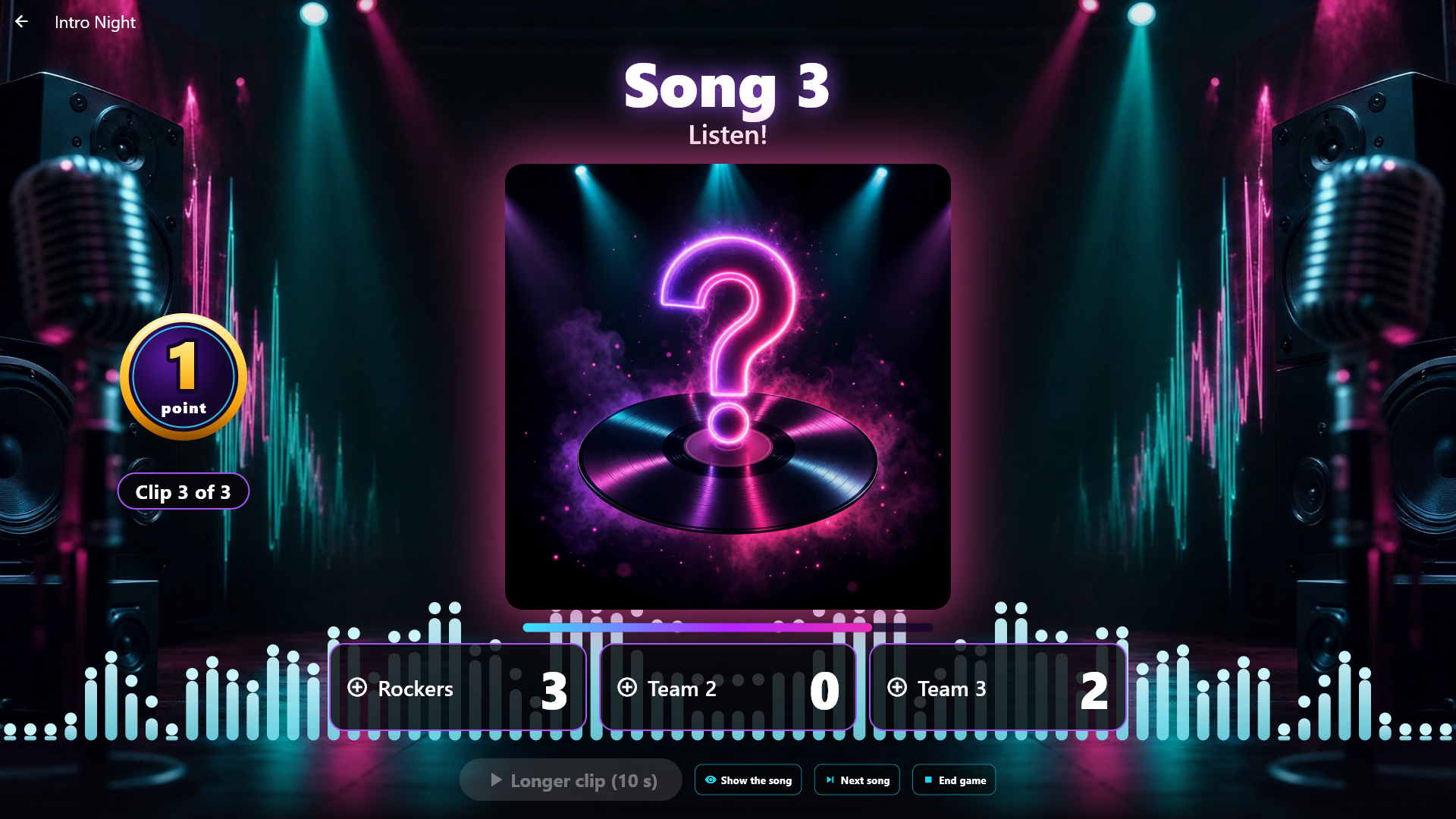
A wrong answer can cost a point. Under While it plays you can switch on A wrong answer costs a point for each game. Then the screen asks Right or Wrong when you tap a team. Wrong costs the team 1 point (never below 0), the song stays hidden, and the team sits out the rest of the song, so the others can keep guessing. It also applies after another team got the points: tap another team, and Right moves the points, while Wrong costs that team a point and the points stay where they are. Tapping the team that has the points takes them back. The same goes for Guess the Poster and for your phone as the host.
Teams buzz from their phones. Under While it plays you can switch on Teams buzz from their phones in Guess the Intro, Guess the Poster and Who's in the Booth?. The screen then shows a QR code and a short code for each team until every team is in (and again when you tap Team codes). Each team scans its code with one phone, and the phone becomes a big buzzer in the team's colour, just as in Fastest Finger. The phone remote must be switched on. The buzzers open once a clip has played or the picture has appeared. The first team to press wins: at that moment the clip stops, or the picture and the clock stand still, and the team's name strikes the screen with a drum roll. The song or picture is still worth what it was when the team pressed. Choose Right or Wrong (on the screen or on your phone as the host). Right gives the team the points, exactly as if you had tapped the team yourself. Wrong sends the team out for the rest of the song or picture (it only costs a point if A wrong answer costs a point is also switched on), the buzzers open again for the others, and in Guess the Poster the picture and the clock carry on where they stopped; in Guess the Intro you play the next clip as before. You can still tap a team yourself, so a team without a phone is never left out.
Stop Dance
The music plays, and at a random moment it stops: the screen shows a big STOP!, and everybody must freeze. Under Administration → Party Games, choose Stop Dance at the top and make a game. Choose the songs, the Shortest time between stops and the Longest time between stops (15 to 40 seconds by default), and the Length of a stop (5 seconds by default). Switch on Wait for the host after each stop if the music should only start again when you say so. The songs are drawn when you start the game, and afresh each time it is started, so new songs in the library come along by themselves. The page says whether the game is Ready and how many songs it can use.
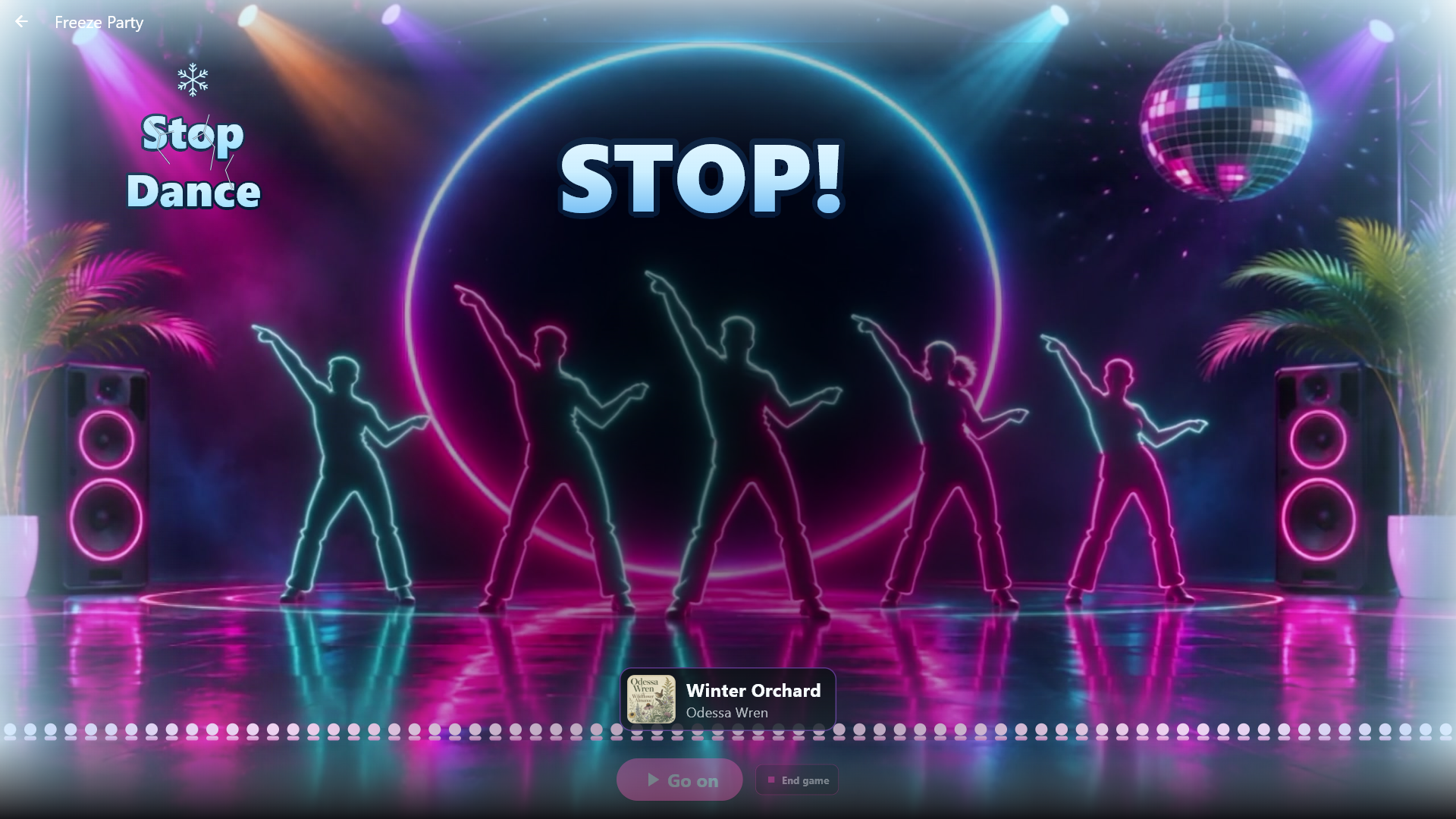
Open Party Games → Stop Dance and tap the game. As in every game, the music only starts when you start it. You can stop the music yourself, go on, go to the next song and end the game. There are no points, and the songs go round until you end the game. On the screen a crowd of neon dancers dances with the music. Before the music starts, the game's logo stands large in the middle; when the music plays, the logo slides to the top and a giant DANCE! fills the middle. When the music stops, the whole stage freezes: STOP! turns to ice and frost creeps in from the edges of the screen until the music comes back. The song is no secret here, so its cover and name stand in a small strip above your buttons. No countdown to the next stop is shown. On a weak machine, in light graphics or with live backgrounds switched off, the stage is a still picture.
Guess the Poster
The teams guess a film or an album from a cover that starts completely blurred and gets sharper. The game uses no sound of its own; what happens to music that is playing is your choice (see Music during the game above). Under Administration → Party Games, choose Guess the Poster at the top and make a game. You can choose a Media theme, so the game only uses the films and albums the theme lets through, and Where the covers come from (The film library, Music albums or Both). The list shows the themes that apply to what you chose, and if a theme only covers films or only music, the other kind is left out of the game (it says so right under the field). Choose how many covers the game should have and how long until the cover is almost sharp (15-60 seconds, 30 by default). The covers are drawn when you start the game, and afresh each time it is started. The page says whether the game is Ready and how many covers it can use. Only films and albums with a real cover and a real name come along, each name once. A film that only has a picture from the film itself does not come along, and neither does a film from another machine.
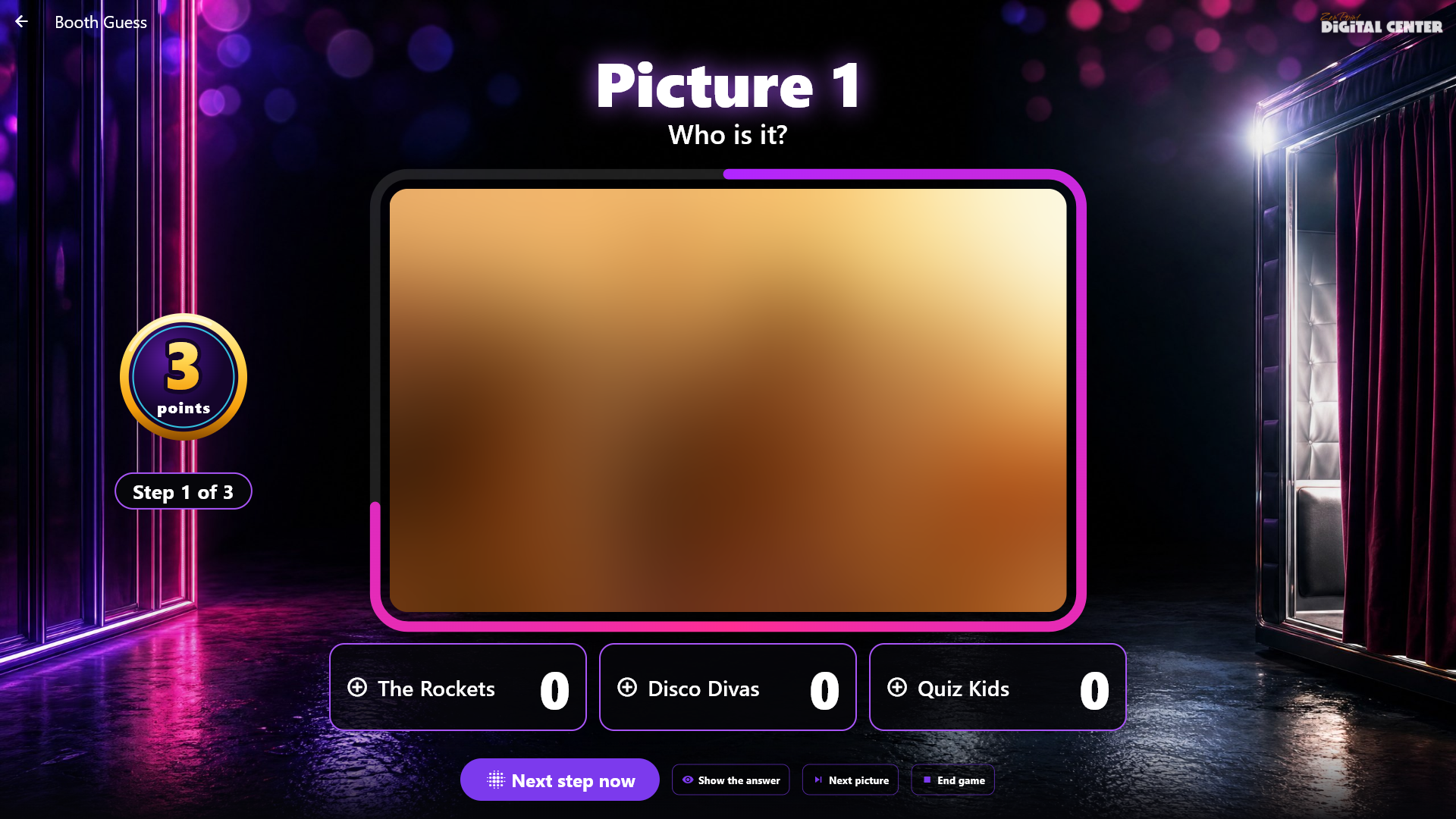
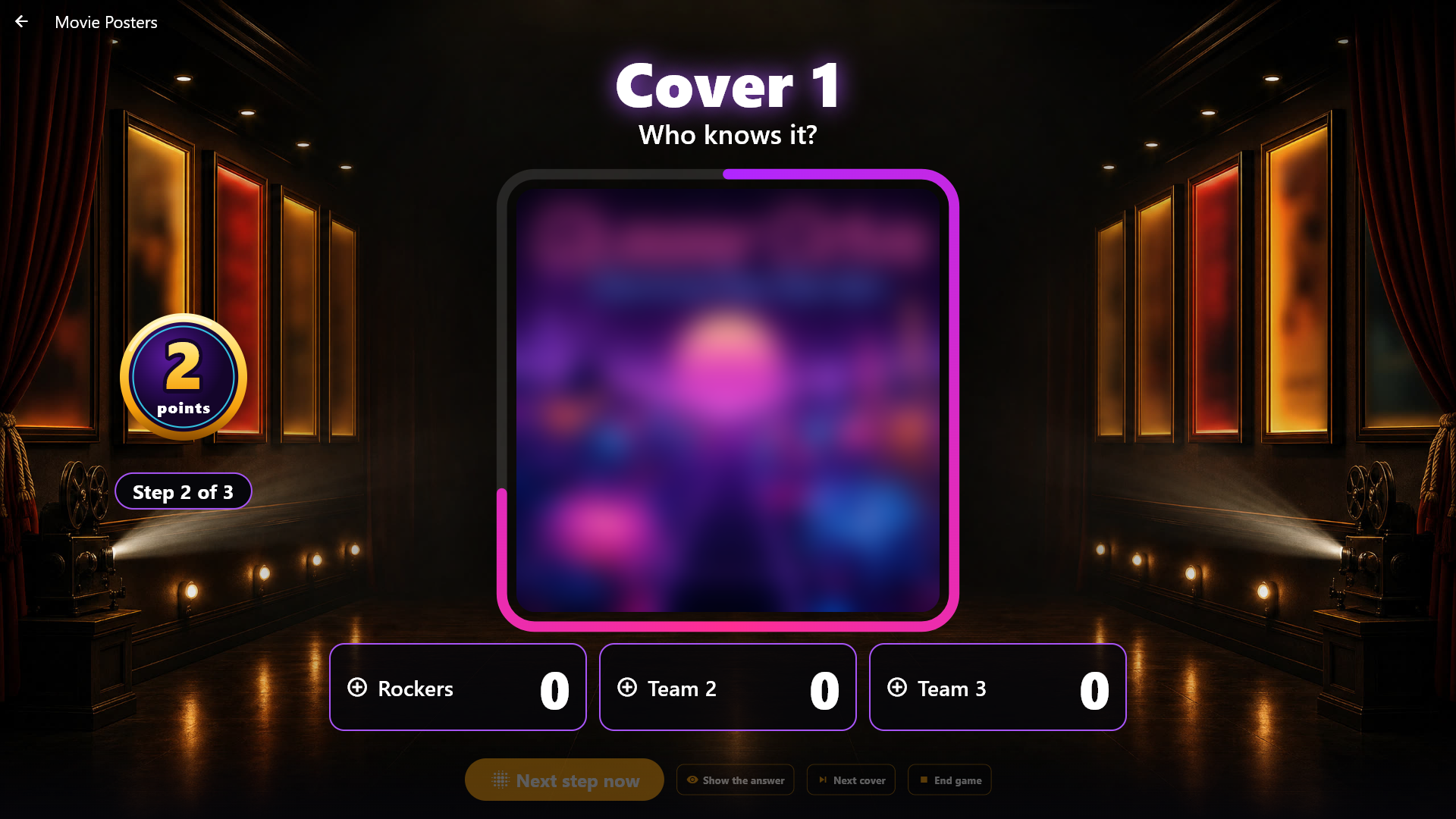
Open Party Games → Guess the Poster, tap the game and tap Show the cover. The cover gets sharper by itself in three steps, and you can take the next step at once yourself. A glowing ring around the cover runs empty with the step's time, so everyone can see when it gets sharper; on the last step the ring turns red for the last seconds. The teams shout, and you give the points: 3 on the first step, 2 on the second and 1 on the third, shown as a coin that turns down at each step and flies into the team's panel when you give the points. A new tap moves the points, and the same tap takes them back. When you give a team points, the sharp cover and the name are shown by themselves and stay until you tap Next cover. If nobody guesses it, Show the answer shows them.
If the time runs out on the last step without any team getting points, the screen shows the sharp cover and the name by itself, the game over sound plays, and a big red "Time's up!" hits the screen. It is then too late to give points for that cover: the team buttons turn grey, also on your phone. Points you already gave count as before. If you leave the show in the middle of a cover, the time waits until you come back. After the last cover the scoreboard is shown. While the game runs, the extra screens show the blurred cover and the same ring around it, but never the sharp cover or the name.
Timeline
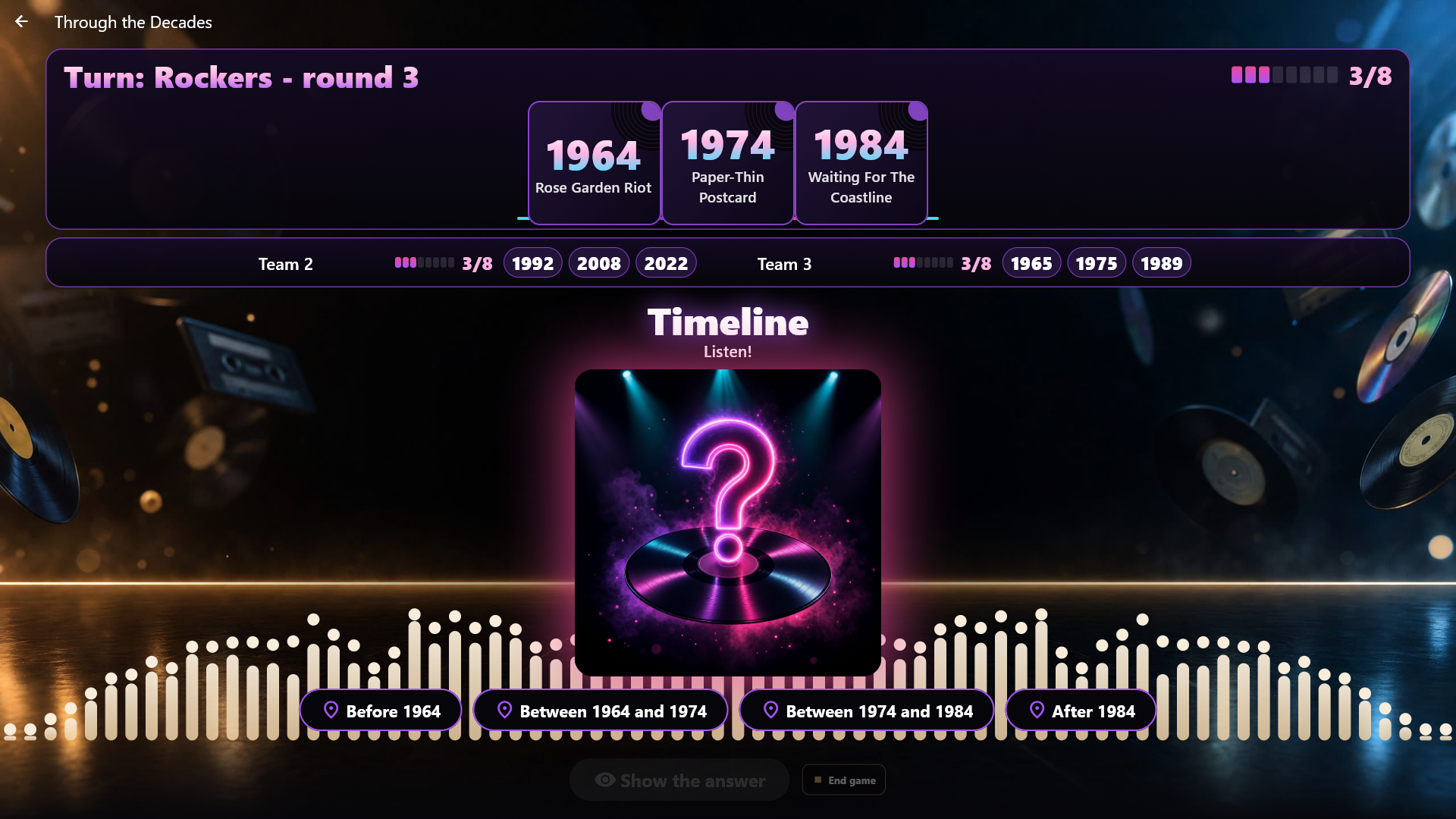
Each team builds its own row of songs in order of year. Under Administration → Party Games, choose Timeline at the top and make a game. Choose a theme and/or a playlist, how many songs the game may draw from, the Cards to win (5 to 15, 8 by default), how many seconds each song plays (30 by default), and whether to Start a little way into the song, so the first notes do not give it away. The songs are drawn when you start the game, and afresh each time it is started, so new songs in the library come along by themselves. The page says whether the game is Ready and how many songs it can use.
The game uses the year on the songs. If a song has its original release year in the file (as MusicBrainz Picard writes it, for example), that is the year used, so a 1974 song on a compilation from 2014 counts as 1974; otherwise the song's ordinary year is used. Music still shows and sorts by the ordinary year. Under the game in Administration it says how many of the songs the game draws from have their original release year, for example "12 of 99 songs have their original release year". If fewer than half have it, a line also says that you can add it in ZenPoint Media Manager, because without it the song's ordinary year is used, which is often the year of a re-release (see ZenPoint Media Manager). Songs without a usable year are left out, and the page says how many. There must be enough songs for every team to reach the goal, and songs from at least five different years; otherwise the page says so, and the game is Not ready.
Open Party Games → Timeline and tap the game. Each team starts with one turned card with a year. On a team's turn, tap Play the song. The team says where the song belongs in its row, and you tap the place, for example Between 1975 and 1990. The place can be changed, and the song can be played again, until you tap Show the answer. If the song is in the right place, the card stays in the row; if not, the card is gone and the song is used. A song with the same year as the card next to it is right on both sides. Tap Next team.
The teams can also place the songs from their own phones, as in Music Quiz. Before the first song the screen shows a QR code and a short code for each team. Each team scans its code with one phone, and a tick appears by the team. The phone shows the team's own row of cards and whose turn it is. On the team's turn, once the song has played, a big button stands between the cards, such as Between 1975 and 1990, and the team taps where the song belongs. The place shows on the screen at once and can be changed. When the team is sure, it taps That's our answer: the answer is shown on the screen at once, and the phone shows whether it was right and the song's year, but never the song's name before the screen has shown the answer. You can also tap Show the answer yourself, and you can place the song for a team without a phone. Before a song you can show the Team codes again. Guests who are already on the phone remote can also choose Join your team's game and type the code.
When the answer is shown, the song fades out so the fanfare or the game over sound gets the screen to itself. The screen counts down 5 seconds ("Next team in 3"), and then the game moves on to the next team by itself and plays the song, so you do not have to tap. After the last turn it goes to the finale. Tapping Next team, pause or end yourself always wins. If you open the show again on an answer that is already shown, nothing happens by itself.
When a team reaches the goal, the round is played to the end, so every team has had as many turns. Teams with the same number of cards at the end share the win. If the songs run out, the game ends, and the most cards win.
Sing On
A karaoke song plays with the words on the screen. At a chosen place the music stops, the words disappear, and the team sings on without help. Under Administration → Party Games, choose Sing On at the top and make a game. Choose a theme and/or a playlist from karaoke, how many songs the game should have (12 by default), and What the team sings: One whole line, A number of words or A number of seconds. The songs are drawn when you start the game, and afresh each time it is started. When you start, the kiosk reads the words of a few songs at a time to find those with a good place to stop, and the screen says meanwhile that the game is being made ready. That can take a moment on a big library.
Only songs with timed words can be used. Songs whose words are part of the picture (CDG songs and karaoke videos) are left out, because their words cannot be hidden. So are songs without words and, when the songs are drawn, songs without a good place to stop. The page says how many were left out and why, and if there are too few songs for the teams, the game is Not ready.
Open Party Games → Sing On and tap the game. On a team's turn, tap Play the song. The music starts a little before the stop and stops by itself, and the screen says Sing on!. When the team has sung, tap Show the words: the right words appear, and the music goes on briefly so everyone can hear it. Then tap Yes, a point or No point, and then Next team. You can change your mind until the next team. It is always you who judges: nothing listens to the singing, and there is no score for the singing itself. Every team gets as many songs, and the most points win; teams with the same points share the win. The song's title and its own cover stand on the screen, but the words after the stop are shown nowhere until you tap Show the words - on your phone as the host you can see them all the time.
Photo Mission
The teams get a list of missions and take a picture for each mission in the Photo Booth. You can use the game when the Photo Booth is switched on and the machine has a camera; if something is missing, the game says so.
Under Administration → Party Games, choose Photo Mission at the top and make a game with a name. The game comes with 20 ready missions, such as "Everyone with their arms in the air" and "The oldest and the youngest together". You can switch them off one at a time and write your own, and you choose how many missions the game should have. The game is ready as soon as it has at least one mission: every change you make is saved, and the game is ready at once, without a button to remember.
Open Party Games → Photo Mission and tap the game. What happens to music that is playing is your choice (see Music during the game above). The screen shows the missions as cards with a drawing of what to do and a big camera button. A team taps its own panel at the top and then a mission. The card shows whether the picture is waiting for you, approved or to be taken again. The Photo Booth opens with the mission as a big heading and takes one single picture, without a frame, without a choice of layout, motif, filter or decorations, and without the row of the party's other pictures. When the picture is taken, the team sees it first and chooses Keep or Retake. Retake gives the camera back without saving anything; Keep hands the picture in, the screen goes straight back to the game, and the mission gets a big tick. If the team walks away from the picture without tapping, the booth closes by itself, and nothing is handed in. The team can retake the picture later too: the newest one counts.
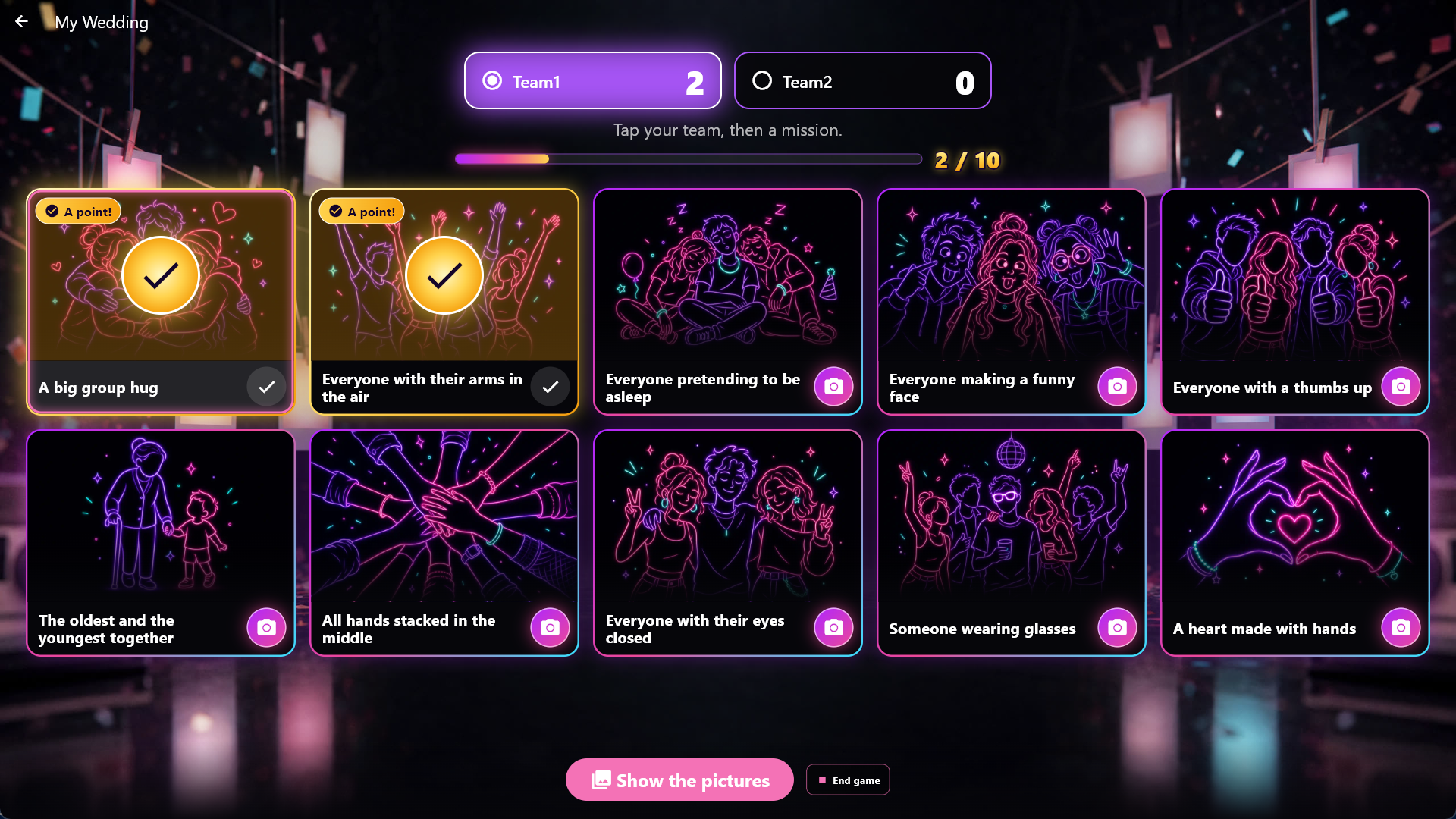
You give the points one picture at a time, on the screen or on your phone, where you can also see the picture. Give the team its point, or tap Try again to hand the mission back to the team. You can change your mind as long as the game runs.
The pictures never come up by themselves. Tap Show the pictures, and they run as a slideshow on the main screen with the team's name and the mission; Back takes them down again. Until you have shown them, they are neither in the Photo Booth's own row, on the extra screens nor on the phone. You still find them under Administration → Photo Booth, and they are in your normal capture folder. Pictures you said Try again to only come back to the Photo Booth when you delete the game. If you delete a picture, the mission is open again and its point goes.
Music Quiz
A song plays, and four answers stand on the screen. The teams answer on their own phones as fast as they can. A right answer gives a point, and the fastest right answer gives one more.
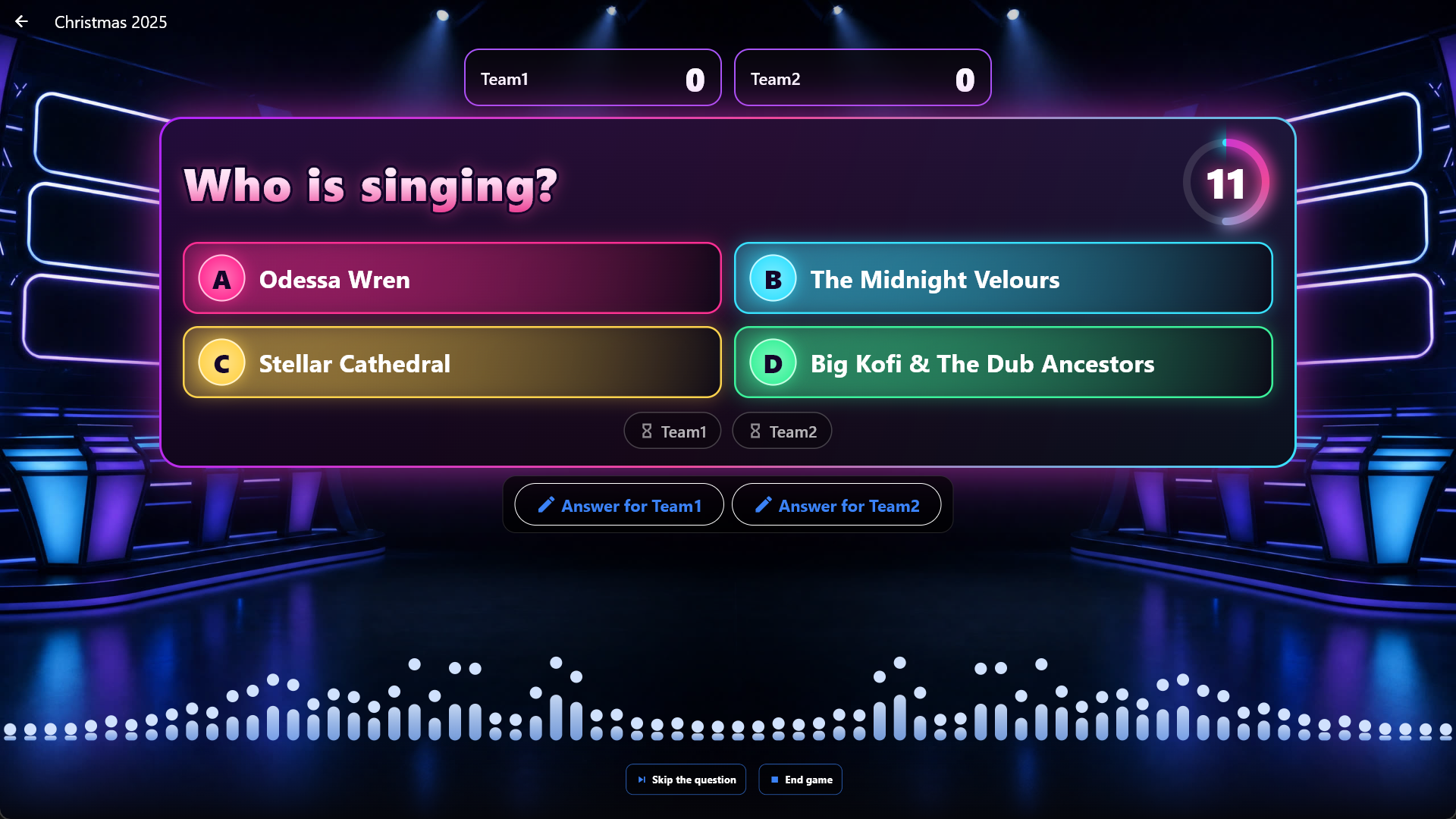
Under Administration → Party Games, choose Music Quiz at the top and make a game with a name. Choose a theme or playlist, how many questions the game should have (15 by default) and the Seconds to answer (20 by default). You also choose what is asked: Who is singing?, What is the song called? or both. The wrong answers come from the same songs. If there are too few different artists or titles, the page says so, and the game is Not ready. The questions and answers are drawn when you start the game, and afresh each time it is started.
Open Party Games → Music Quiz and tap the game. The screen shows a QR code and a short code for each team. Each team scans its code with one phone, and a tick appears by the team. The phone remote must be switched on; otherwise you answer for the teams yourself. Guests who are already on the phone remote can also choose Join your team's game and type the code.
Tap Play the question. The song plays, and the time counts down on the screen and on the phones. Each team answers once, and the answer cannot be changed. When everyone has answered, or the time is up, the screen shows the right answer and who had it, and the scoreboard is updated. At the same moment the song fades out, so the fanfare or the game over sound can be heard. Tap Next question to go on. Skip the question goes on without points, and between two questions you can show the Team codes again. If a team loses its phone, a new phone can scan the code after a moment. For a team without a phone you answer yourself: tap Answer for the team on the screen, or choose the team on your phone, and tap the answer. After the last question the screen and the phones show the winner, and teams with the same points share the win.
Fastest Finger
A game without music and without a library: you ask the questions out loud yourself (your own, or from a quiz game or a book), or let the screen show them from a pub quiz or your own list, and each team's phone becomes a big buzzer. The team that presses first gets to answer. So the game can be played even if there is no music or film on the machine.
Under Administration → Party Games, choose Fastest Finger at the top and make a game with a name. The game is ready at once.
Questions on the screen (optional). In the block Questions you choose Where do the questions come from?. I ask my own out loud is the default, and then no question is shown on the screen. From a Pub Quiz uses the questions from one of your Pub Quiz games (the ready quizzes included); only the question and the right answer are used, and the wrong answers are skipped. My own list lets you write your own questions, each with one answer (the question at most 200 characters, the answer at most 80, up to 100 questions). With Mix the order of the questions they come in random order. The game takes a copy of the questions when you save, and again when a new game starts, so it follows your pub quiz as it is now. If you delete the pub quiz, the game keeps the questions it already has. The game has as many questions as the list, and after the last one Next question gives the final result.
The question stands large on the big screen and the extra screens, and the teams' phones show it too. Only you see the answer, on the host's desk on your phone, so you can judge Right or Wrong. The big screen never shows the answer before the question is settled: when a team has answered right, or every team is out, the answer appears on the screen and on the teams' phones. Without your phone as the host's desk, you must know the answer yourself or wait for it to be shown.
Open Party Games → Fastest Finger and tap the game. Choose the teams and tap Start the game. The screen shows a QR code and a short code for each team until every team is in. Each team scans its code with one phone, and the phone becomes a big round button in the team's own colour. The phone remote must be switched on.
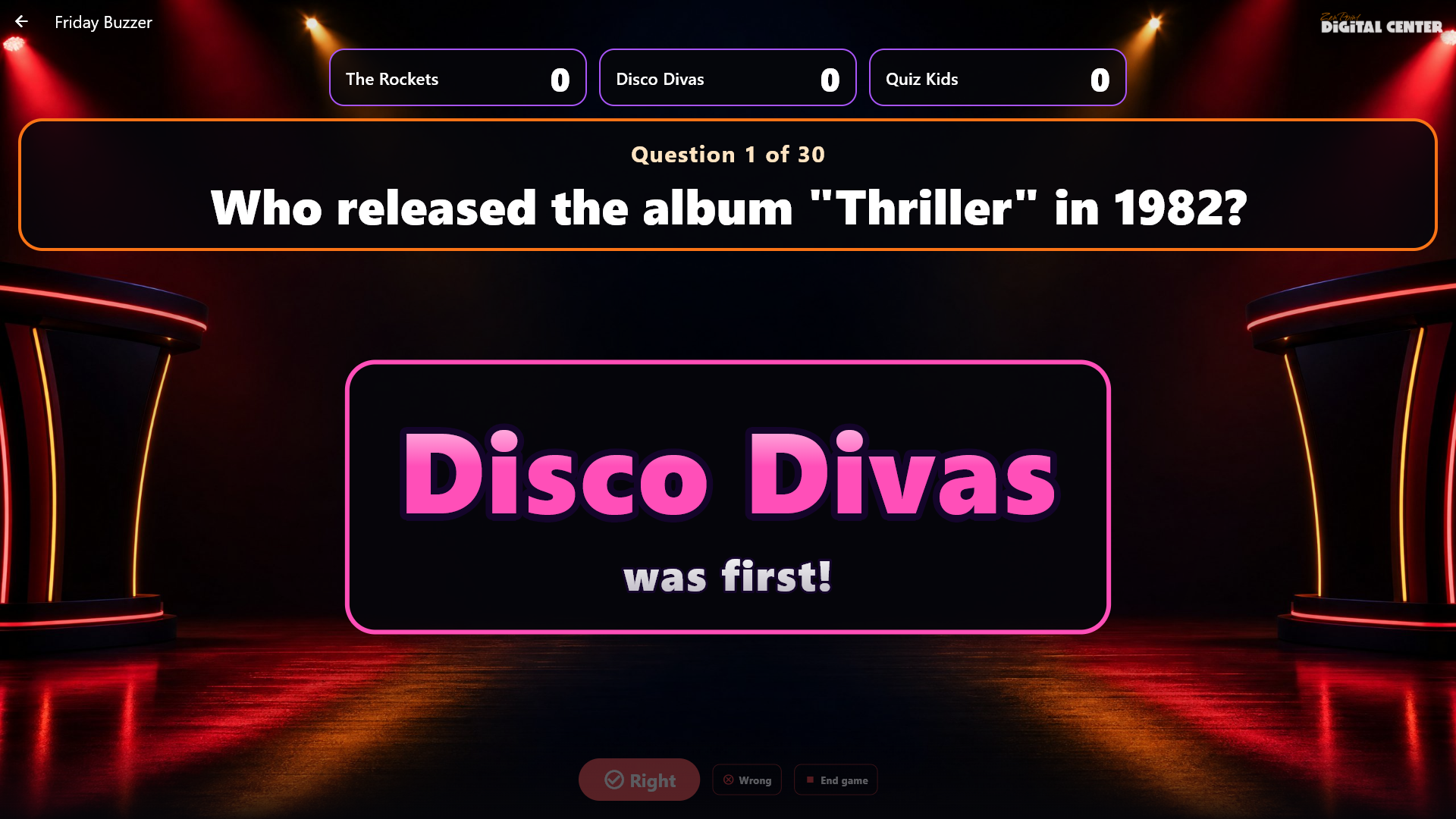
Ask a question. The buzzers are open, and the team that presses first wins the turn: what counts is the order in which the presses reach Digital Center, not the phones' own clocks. The team's name strikes the screen in the team's colour, and a drum roll plays. The team answers, and you tap Right or Wrong. Right gives the team a point (with a fanfare), and the question is over. Wrong costs no points, but the team is out for the rest of the question (with the game over sound), and the buzzers open again for the others. If every team is out, the question is over without points. Once the question is settled, Right and Wrong disappear and Next question appears. Tap Next question whenever you like, also if nobody has answered. Until at least one team's phone is in, Next question is grey and a line above the button says so, so the game does not run away from the teams; if the teams have no phones, you tap the team that was first, and once you have judged, you can go on. With the phones switched off, the button is never grey. The phones always show whether the buzzers are open, whether the team was first, who was first, or whether the team is out.
If a team has no phone, they raise their hands, and you tap the team's panel on the screen while the buzzers are open. You can also run the game from the host's desk on your phone: it shows who was first and has the buttons Right, Wrong and Next question. The game ends when you tap End game, and then the teams stand on the podium. With light graphics the same is shown, just without flashes and movement.
Spin the Wheel
A big wheel full of your own challenges, such as "Sing a song", "Dance for 30 seconds" or "Swap seats". The game uses neither music nor songs, so it can be played without a music library; what happens to music that is playing is your choice (see Music during the game above). It also works well as a "forfeit wheel" beside the other games. There are no teams and no points.
Under Administration → Party Games, choose Spin the Wheel at the top and make a game with a name. The wheel starts with our 8 segments, which you can switch off one at a time, and you can write your own (at most 60 characters each). A wheel must have at least 2 and at most 24 segments. Under While it plays you can switch on Remove a segment once it has been hit: the segment the wheel lands on then leaves the wheel at the next spin, so each one only comes up once. The wheel is ready as soon as it has at least 2 segments, and when you change the segments, it is ready with the new ones at once. With too few segments it says Not ready and what is missing.
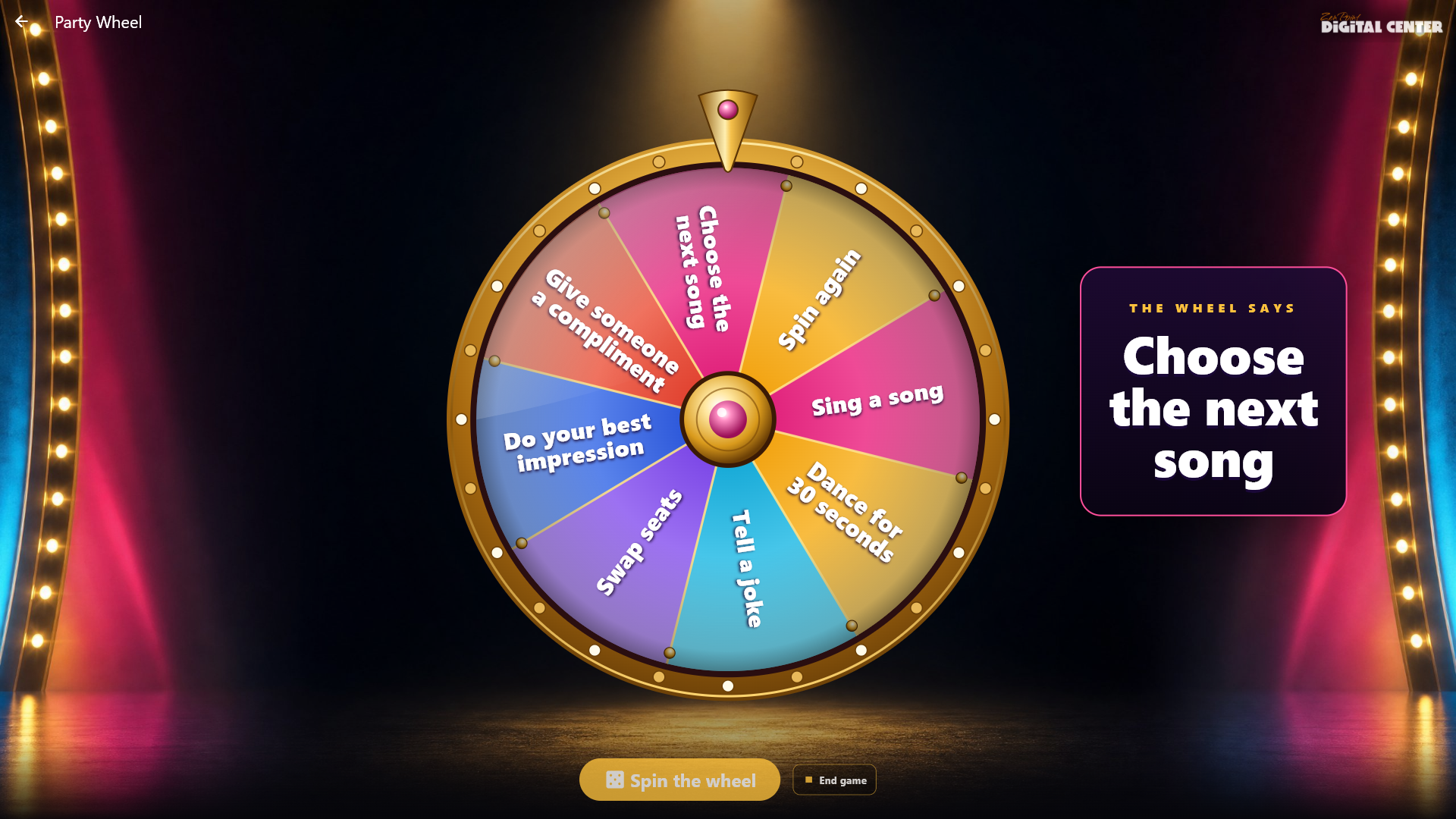
Open Party Games → Spin the Wheel and tap the game. Tap Spin the wheel. The wheel spins under a drum roll, slows down and lands with a fanfare and confetti, and the screen shows in big letters what the wheel says. The button rests while the wheel spins. It is always Digital Center that decides where the wheel lands, so the screen, the host's phone and the extra screens show the same. The screensaver and the extra screens set to What's playing show the wheel and its spin, so the whole room can follow along. You can also spin the wheel from the host's desk on the phone with the same host code as the other party games; the phone shows the segment once the wheel has stopped. When every segment has been hit, the screen says so, and you end the game or play it again. With light graphics the wheel spins briefly and without lights and confetti.
Pub Quiz
A quiz with your own questions. You do not need a music library: you write the questions yourself, and each question has two to four answers. The teams answer on their own phones, exactly as in Music Quiz, and the points are the same: a point for the right answer and one more for the fastest right answer.
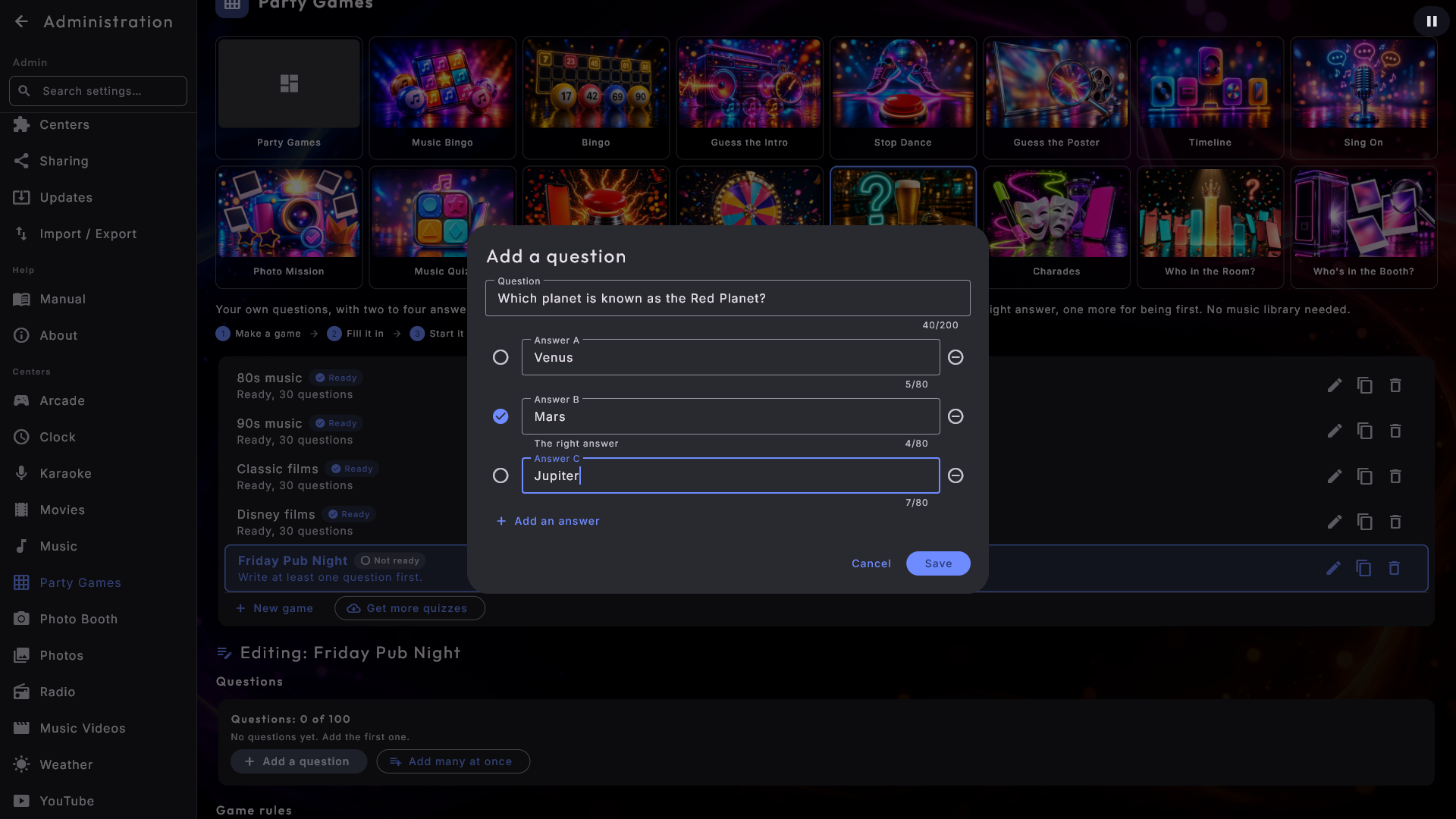
Under Administration → Party Games, choose Pub Quiz at the top and make a game with a name. Tap Add a question. Write the question, write the answers (you start with two and can add up to four with Add an answer), and tap the circle beside the right answer. Save can only be tapped when the question is complete: under the fields it says what is missing, for example "Two answers are the same.". A question can be up to 200 characters long and an answer up to 80, and a game can have up to 100 questions. In the list you can edit a question, delete it and move it up or down with the arrows.
Under Game rules you choose whether the questions come in the order you wrote them (the default) or mixed, with Mix the order of the questions, and whether the answers are mixed so the right one is not always in the same place, with Mix the order of the answers (on by default). Under While it plays you choose how many seconds the teams have to answer (30 by default, from 10 to 120). The game is ready as soon as it has at least one question: everything you write, change or put in with Add many at once is saved, and the game is ready at once. Without questions it says Not ready and what is missing.
Ready quizzes. The first time you open Pub Quiz, four ready quizzes are waiting as games in your language: Disney films, 80s music, 90s music and Classic films, each with 30 questions. They are yours: you can change, copy and delete them as your own games, and a quiz you delete does not come back. As long as you have not changed one of them, it follows the kiosk's language: change the language, and the quiz changes too the next time you open Party Games. When a new edition of a ready quiz comes with an update, a quiz you have not changed gets it too, for example more questions. If you change the name or a question, the quiz is yours, and it stays in the language it has. You get them even if you have already made Pub Quiz games of your own, and they keep their own name. When more ready quizzes come with a new version, they are added the next time you open Pub Quiz.
Get more quizzes. Tap Get more quizzes beside New game (only when the kiosk is not locked). You see the quizzes we offer in your language, with how many questions they have. Tap Get: the quiz becomes a new game that is ready at once. You have it means you already have it, and New edition means we have made a newer edition; get it again, and it becomes a new game beside it, while the game you already have is left alone. The library needs an internet connection and an activated license.
Open Party Games → Pub Quiz and tap the game. The teams scan their codes as in Music Quiz. Tap Show the question: the question and the answers appear on the screen and on the teams' phones, and the time starts counting down. No song is played; what happens to music that is playing is your choice (see Music during the game above). The rest works as in Music Quiz: when everyone has answered, or the time is up, the screen shows the right answer, and Next question shows the next one.
Charades
A game without music and without a library: the teams take turns, and on the team's turn one player acts out, draws or describes words while the rest of the team guesses as many words as possible before the time runs out. So the game can be played even if there is no music on the machine; what happens to music that is playing is your choice (see Music during the game above).
Under Administration → Party Games, choose Charades at the top and make a game with a name. The game has our 60 starter words (everyday things that are easy to act out, draw or describe, and that follow the screen's language), which you can switch off with one switch, and you can write your own words (at most 40 characters each and up to 200). A game must have at least 10 words. Under Game rules you choose How the words are played: Act it out (no words, no sounds), Draw it (on paper, without letters and numbers) or Describe it (without saying the word). You also choose the Seconds per turn (30-120, 60 by default), the Turns per team (1-5, 2 by default) and whether to Limit skips (by default there is no limit). The game is ready as soon as it has at least 10 words, and when you change the words, it is ready with the new ones at once. With too few words it says Not ready and what is missing.
Open Party Games → Charades and tap the game. Choose the teams and tap Start the game. The screen shows a QR code and a short code for each team until every team is in. Each team scans its code with one phone. The phone remote must be switched on.
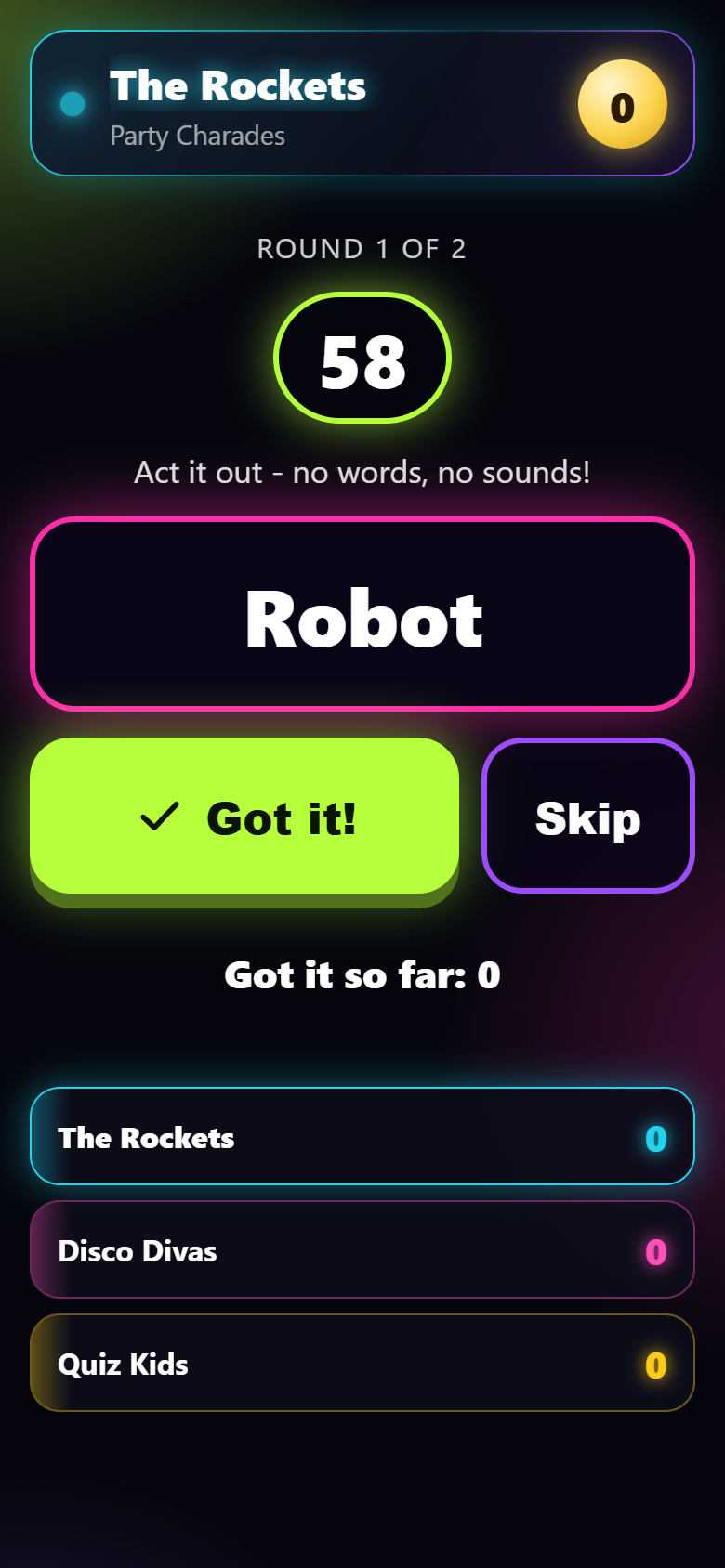
The screen shows which team's turn it is. One player from the team takes the team's phone and taps Start (or you tap Start the turn). Now the time counts down in a big ring on the screen, and only the player's phone shows the word: large, with the buttons Got it! and Skip under the thumb. When the team guesses the word, the player taps Got it!: the team gets a point, and the next word comes at once. Skip gives a new word without a point. The other teams' phones only show who is playing, and the screen never shows the word while the turn is going on: only the team, the time and how many words the team has guessed, which pops up with each word. For the last five seconds the ring turns red. When the time is up, "Time's up!" hits the screen, and the turn's words are shown (guessed and not guessed). The turn ends with applause, but if the team guessed nothing, or skipped more words than it guessed, the game over sound plays instead. Tap Next team.
Each word is only used once in a game. Every team gets as many turns, and after the last turn the teams stand on the podium with a fanfare and applause. If the words run out, the game ends after the turn being played. If a team has no phone, the host's desk on your phone shows the word to the player, and you tap Got it! and Skip there. With light graphics the same is shown, just without flashes and movement.
Who in the Room?
Who in the room would survive a zombie apocalypse? Every guest votes on their own phone for the guest a question fits best, and the big screen reveals the answer with a crown. There are no teams and no points, and you do not need a music library; what happens to music that is playing is your choice (see Music during the game above). The phone remote must be switched on, because the guests take part on their own phones.
Under Administration → Party Games, choose Who in the Room? at the top and make a game with a name. The game has 40 ready, friendly questions in the screen's language, which you can switch off with Our starter questions, and you can write your own with Add a question (up to 120 characters each, at most 100); they are shown exactly as you write them. Under Game rules you choose whether the order of the questions is mixed (on by default) and whether Guests may vote for themselves (off by default). Under While it plays you choose how long there is to vote (10-60 seconds, 20 by default). The game is ready at once; you do not have to tap a button to make it.
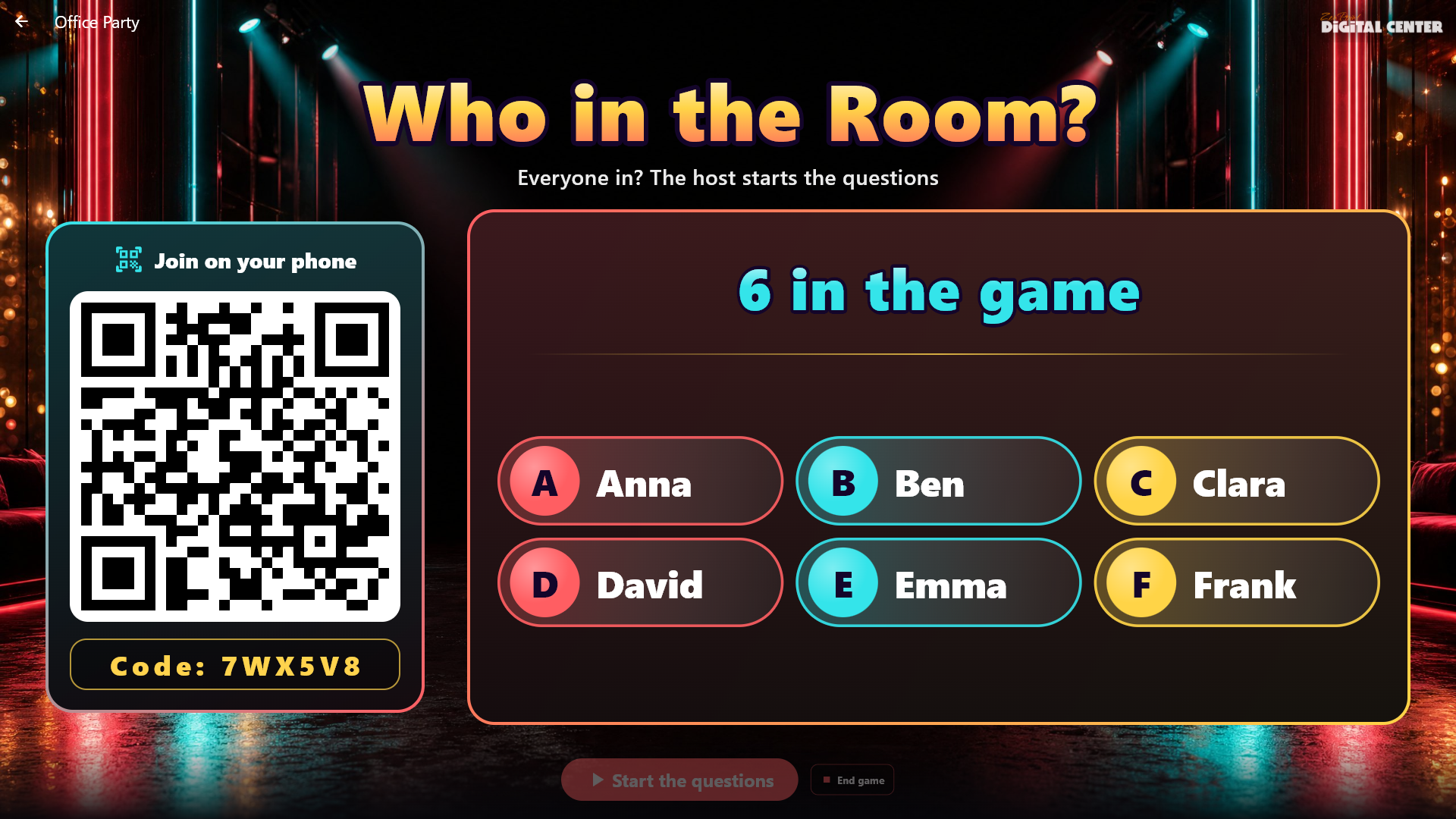
Open Party Games → Who in the Room? and tap the game. The screen shows a big QR code and a short code. The guests scan the code, type their first name and are in; the names pop up on the screen. Two guests cannot have the same name: the phone asks for another. When at least 3 guests are in, tap Start the questions. The question stands large on the screen, and each guest's phone shows the other guests' names. Each guest taps one name; the vote cannot be changed. The screen shows the time and how many have voted, but never who voted for whom: the votes are secret, also from you. When everyone has voted, or the time is up, the names climb as glowing bars with their votes, and the winner lands large with a crown, confetti and a fanfare; in a draw they share the crown. Tap Next question. When you end the game, or the questions run out, the screen shows The evening's titles: each question and who it fitted best. A guest who leaves the game with Leave the game keeps the vote already given. The screensaver and the extra screens set to What's playing show the same as the big screen, also the QR code while the guests are joining. From the host's desk on the phone you can start, go to the next question and end the game, and the desk shows how many have voted. With light graphics it is all shown without lights, climbing bars and confetti.
Who's in the Booth?
The evening's own pictures from the Photo Booth come up one at a time, first very blurred and zoomed in close on a part of the picture, then a little clearer and wider, and finally the whole picture, still a little blurred. The teams shout who is in the picture: the sooner they get it right, the more points (3, 2 or 1). The game uses no sound of its own; what happens to music that is playing is your choice (see Music during the game above). The Photo Booth must be switched on, but no camera is used while you play: the pictures were taken earlier in the evening.
Under Administration → Party Games, choose Who's in the Booth? at the top and make a game with a name. Under Game rules you choose how many Pictures in the game (10 by default, from 5 to 30). Under While it plays you choose how long it takes before the picture is almost sharp (30 seconds by default, from 15 to 60), and whether a wrong answer costs a point. The game is ready as soon as the Photo Booth is switched on; there is nothing to draw in Administration.
The pictures are only drawn when you start the game, so all the pictures taken during the evening come along. They are only the evening's own pictures (from 6 in the morning to 6 the next morning, so pictures from before midnight still count), never the Photo Booth's example pictures, never moving pictures, and never pictures a Photo Mission is still holding back. Collages and strips are used as they are. If there are fewer pictures than you chose, the game uses them all and says so. With fewer than 3, the game cannot start yet, and the screen says so.
Open Party Games → Who's in the Booth? and tap the game. Choose the teams and tap Start the game. Tap Show the picture: the first, most blurred part appears, and a ring around the picture counts the time down to the next step (the ring also stands on the extra screens). Give the points to the team that guessed right by tapping the team; the sharp picture then appears, and the room can see who it was. Show the answer shows the sharp picture without giving points, and Next picture goes on. If the time runs out on the last step without anyone getting points, the screen says Time's up! and shows the picture. A picture that has been deleted in the meantime is skipped. On the host's desk on the phone you see the picture straight away (only you), so you know who it is and can give the points from there. The screensaver and the extra screens only show the blurred steps, and the sharp picture after Show the answer; the pictures are never shared with the guests' phones.