
Chapter 14
Maintenance & troubleshooting
A Digital Center machine is built to run unattended for long stretches, but a little routine care keeps it healthy: staying up to date, starting cleanly when the machine powers on, and knowing where to look when something feels off. This chapter covers the everyday operations side - updates, starting with Windows, checking how the machine is doing, playback statistics, and a practical list of fixes for the problems you are most likely to meet.
Software updates
When Digital Center is online, it checks on its own - at startup and once a day - whether a newer version is available. An update can arrive at one of three levels, depending on how important it is.
- Forced. For a critical update, an unclosable full-screen message appears and the update installs straight away. Everyone sees this, and there is nothing to decide - the program updates itself and restarts.
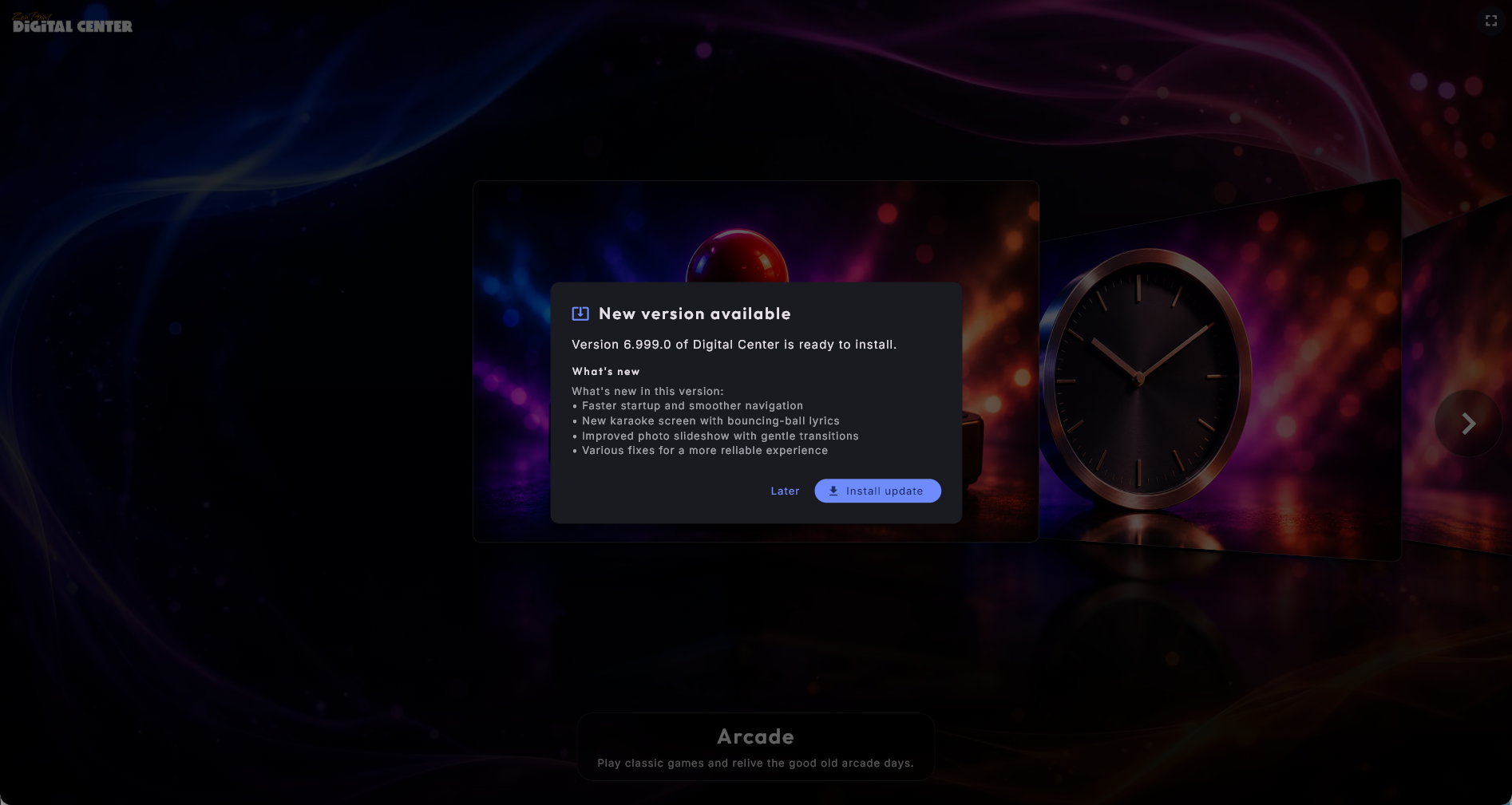
- Normal. For an ordinary update, only the administrator is notified. You see a message that a new version is ready, with a summary of what it contains, and two buttons: Install update downloads and installs it right away, restarting when it is done; Later dismisses the message so it comes back another time. Ordinary guests never see this.
- Silent. For a low-priority update there is no message at all. It simply waits quietly until you go and install it yourself under Administration → Updates.
Watch the download - and never lose your place
While an update downloads you can follow how far it has got - the megabytes fetched and a progress bar. If the connection drops mid-download it resumes from where it stopped the next time, rather than starting the whole download over, so even a large update gets through on an unreliable line.
If the machine stops before installing
Just before the new version is installed, the program makes one last safety check. If that fails, nothing is installed and the machine carries on with the version it already has - nothing is lost. It does not keep trying on its own: with a forced update it calmly shows The update is waiting with a Try again button, and Administration → Updates explains in plain words what happened, with the same button. When a newer version comes out, the waiting state goes away by itself.
The Updates page
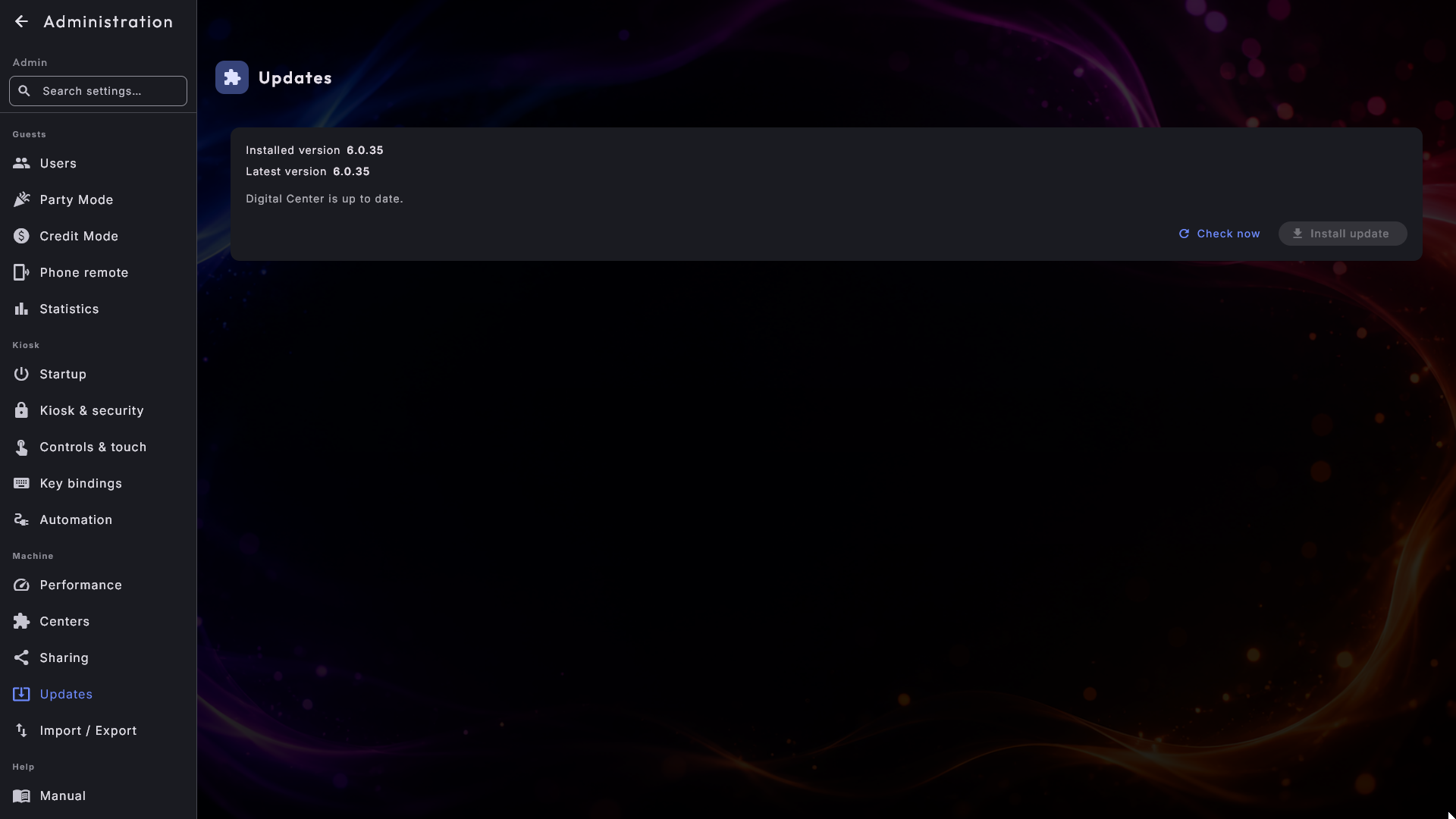
Under Administration → Updates you can check for and install updates yourself at any time, without waiting to be notified. The page shows the current version and, when one is available, the new version together with its release notes. Two buttons drive it: Check now looks for a newer version, and Install update downloads and installs it - the program restarts on its own when it is done.
You can leave the page while it downloads. Press Install update and go somewhere else, and the download carries on in the background; come back and the progress bar is there again. Once the update has been downloaded, Install update is ready - press it and it installs straight away, without being fetched again. Check now can always be pressed. A downloaded update is also remembered if the program restarts in the meantime.
Updates keep your setup
An update never touches your own settings, playlists or media - it only replaces the program itself. After it restarts, everything is exactly as you left it.
One release at a time, in your language
If a machine has been switched off for a while it can be several versions behind. The message then lists each release separately, newest at the top, and you unfold the one you want to read, instead of one long block of text with the version numbers buried in it. Each set of notes is shown in your own language, the notes scroll on their own if they are long, and Later and Install update stay put at the bottom where you can reach them.
A damaged download is spotted before it is used
A download can arrive damaged without anything looking wrong. The file is now measured and checked against the release itself before it is used at all. If it does not match, it is deleted and you are told plainly that the update arrived damaged, so pressing the button again starts a clean download rather than installing something broken.
Back up and move your setup
Under Administration → Import / Export you can save your whole configuration to a single file - and load it back later, or onto another machine. It is the quickest way to keep a safety copy, or to set up a second machine exactly like the first without doing all the settings over again.
- Export setup writes one file with your settings, playlists, themes, saved places and favourites, your play history (the Popular, Recently played and Most played lists, and what has been listened to in Radio and YouTube), your Favorites from Music, Music Videos, Karaoke, Movies and Arcade, your saved games in Arcade (high scores too), external programs and the current appearance. Your license and your media files are not included - only the configuration. The games themselves do not come along either, only where you got to in them.
- Import setup replaces the setup on this machine with the contents of a file you exported earlier. It asks you to confirm first, because the current setup is replaced and cannot be brought back - so export this machine first if you want to keep what is on it. When the import is done, Digital Center has to start again before the restored setup takes effect: press Restart now on the page, and it closes and starts again for you. (On a machine where Digital Center is not installed in the usual way, a line tells you to close it and start it again yourself.)
The Photo Booth pictures only come along if you ask
The guests' Photo Booth pictures can take up a lot of space, so they are only included when you tick Include the Photo Booth pictures just above the export button. The tick is off every time you open the page. Tick it if the pictures should go to a new machine too - and expect the file to be large and the export to take a while. On import, the pictures are put back in the Photo Booth's folder; pictures already on the machine are left in place.
A backup is not a license move
Import / Export carries your settings, not your license. Moving the license itself to another computer is a separate step you do on the website - see Moving to a new computer in Installation, license & activation.
Automatic backup
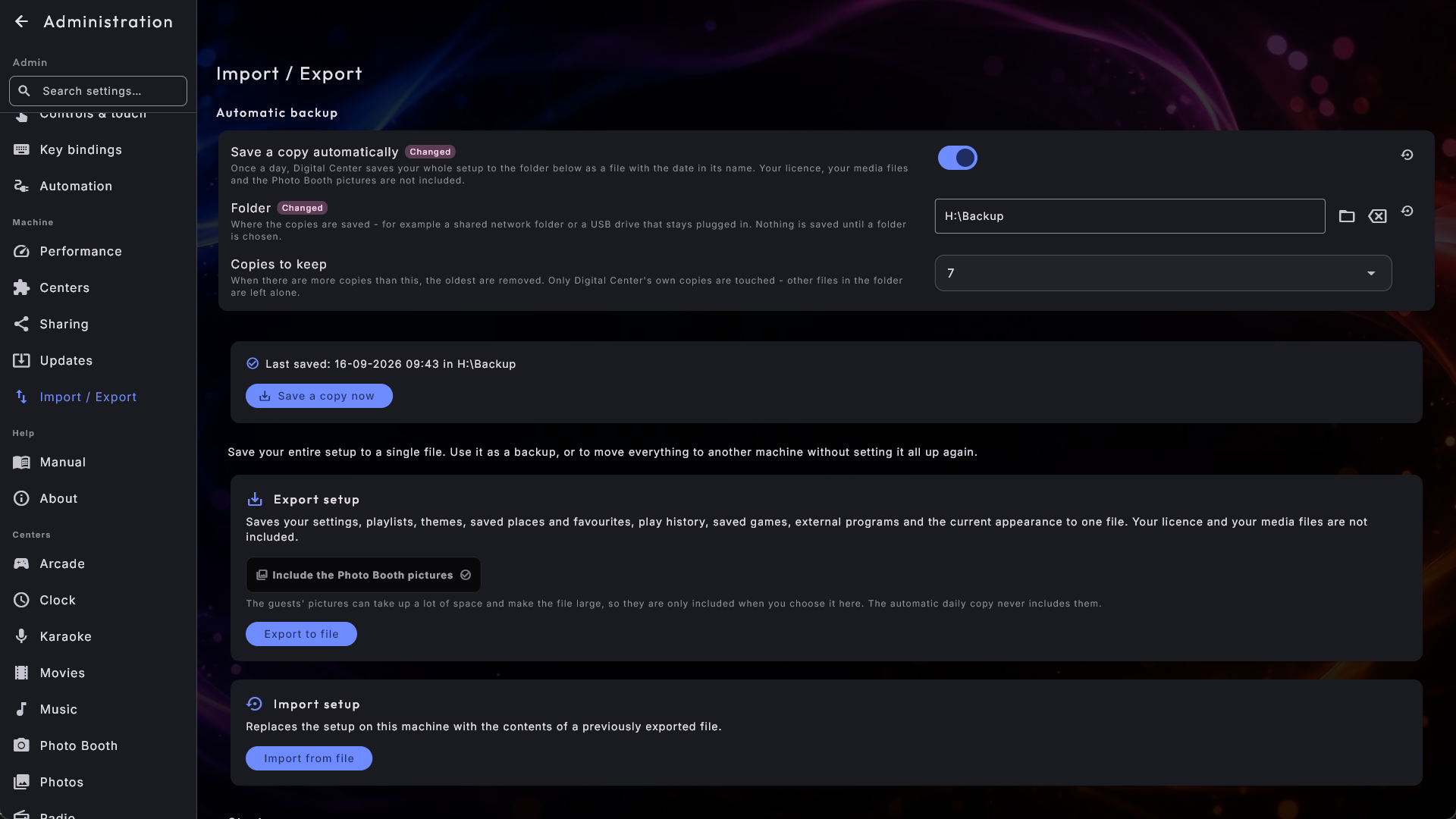
At the top of the page, under Automatic backup, you can let Digital Center save a copy of your whole setup by itself - once a day, without you having to remember it. It is the same file Export to file makes, just saved automatically:
- 1
Switch it on
Switch on Save a copy automatically.
- 2
Choose a folder
Choose a Folder with the button beside the field - for example a shared folder on the network, or a USB drive that stays plugged into the machine. Nothing is saved until a folder has been chosen.
- 3
Choose how many to keep
Choose how many Copies to keep (3, 7, 14 or 30). When there are more, the oldest are removed automatically. Digital Center only touches its own copies - other files in the folder, including ones you exported yourself, are left alone.
Each copy is named with the date and time, so you can always see when it is from. If the machine has been switched off, the next copy is only saved once a day has passed since the last one, so you do not get a new copy every time the machine is turned on.
Below the fields, a line tells you how it is going:
- Last saved: with the date, time and folder - all is as it should be.
- Not saved yet - the folder is chosen, but the first copy has not been made yet.
- Could not save: the folder cannot be reached - typically because the network drive is switched off or the USB drive has been taken out. Digital Center tries again by itself; all you need to do is make sure the folder is there again.
If the switch is off while a folder is still chosen, the line says so too: a copy is then only saved when you press Save a copy now yourself. You can use that button whenever a folder is chosen - for example just before you make bigger changes.
What the automatic copy leaves out
The automatic copy holds the same as an export and leaves out the same: your license and your media files are not included. The Photo Booth pictures are never included in the automatic copy either - you can only take them along with an export.
Start over
At the bottom of the page you can put the machine back the way it was just after the installation. There are two buttons, and they do not do the same thing:
- Reset the settings - for when the setup has got messy, or you simply want to begin again. All the settings, playlists and themes you made yourself are removed, and the machine comes up as it did when it was new: the demo music and the playlists that come with Digital Center are there again, and the language follows the computer. Your favorites, your history, your saved games and the Photo Booth pictures stay - only the setup is put back.
- Reset everything - for when the machine is moving on to a new place or a new customer. Everything above, and on top of that what the guests have left behind: favorites, history, saved places, saved games in Arcade, the Photo Booth pictures, the external programs you added, and the statistics. This button is only offered on a properly installed Digital Center.
A copy is always saved first. When you press either button, you are first asked where the copy should be saved - for example on a USB stick - and then whether you are sure. What will disappear is named in the question, so you can see what you are saying yes to. Nothing at all is removed until the copy has been saved: if the copy cannot be saved, nothing is reset. Afterwards the path to the copy is shown on screen - keep it, because it is the way back. If you change your mind, bring it back with Import from file just above.
Reset everything makes a large copy
With Reset everything, the Photo Booth pictures go into the copy - they have to, because they are deleted. Expect the file to be large and the copy to take a while.
Never touched:
- Your license. The machine does not need to be activated again afterwards.
- Your media files - music, films, videos, karaoke songs, photos, games and the game machines you have downloaded. A reset never touches your collection.
- The Photo Booth's motifs, decorations and collage templates that come with Digital Center.
When the reset is done, Digital Center has to start again. Press Restart now on the page, and it closes and starts again for you. (On a machine where Digital Center is not installed in the usual way, a line tells you to close it and start it again yourself.) The next time it starts, it is like the very first time - you are also taken through the setup guide again.
Next to the button is the receipt for the reset, and the page scrolls down to it by itself so you cannot miss it. Read it: it tells you where the copy of your old setup was saved, and that copy is the only way back.
Starting with Windows
On a kiosk that should simply be ready the moment the machine is switched on, let Digital Center start by itself when you sign in to Windows.
- 1
Open the setting
Go to Administration → Startup and find Start Digital Center automatically when Windows starts in the Windows Startup section at the top.
- 2
Turn it on
Switch it on. From now on, Digital Center opens on its own every time you sign in to Windows. Switch it off again to start the program manually.
Only on an installed copy
This option is available on a properly installed Digital Center. It is switched off by default.
Checking how the machine is doing
If Digital Center ever feels slow, you can call up a small information panel that tells you, in plain numbers, how the machine is coping right now.
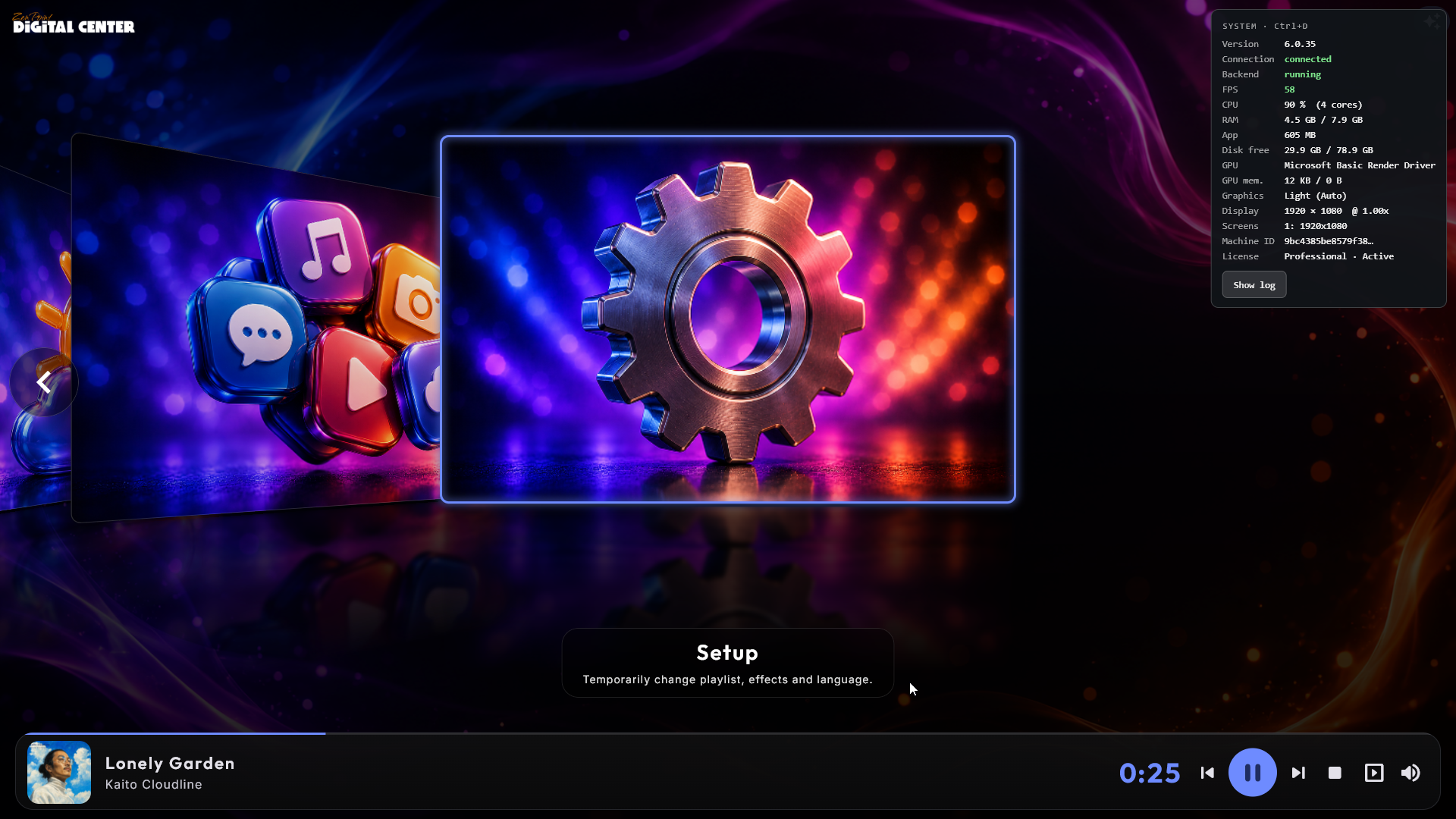
Press Ctrl + D to show the panel in a corner of the screen. It shows:
- Which version of Digital Center is running. It sits at the very top, before any of the numbers, so you - or whoever is helping you - can see at a glance which build you are on. It also travels with the log automatically (see below), so nobody has to ask.
- Whether the program can reach its own background service, and whether that service is running at all - which tells apart "it is not running" from "it is running but cannot be reached".
- How smoothly the picture is running (frames per second).
- How much of the processor is in use.
- How much memory is in use, and how much of it Digital Center itself uses.
- How much disk space is free.
- The graphics in use, and how much graphics memory is taken.
- The screen the program is drawing on.
Press Ctrl + D again to close it. The panel does not get in the way - you can click and tap as normal while it is open. If the numbers are running close to their limit, that is a strong hint the machine is short on resources for what you are asking of it. You can move this shortcut to another key under Administration → Key bindings.
Send the log to support in two taps
The panel carries a Show log button. It gathers today's log into a box you can read on screen, with a Copy button beside it - so you can paste the whole thing into an e-mail without hunting for files. The copy begins with the same snapshot the panel shows (version, connection, background service, processor, memory, graphics and screen), so support gets that for free. The log is read straight from the disk, which means Show log still works on a machine where the background service is down - exactly when you need it most.
About this machine
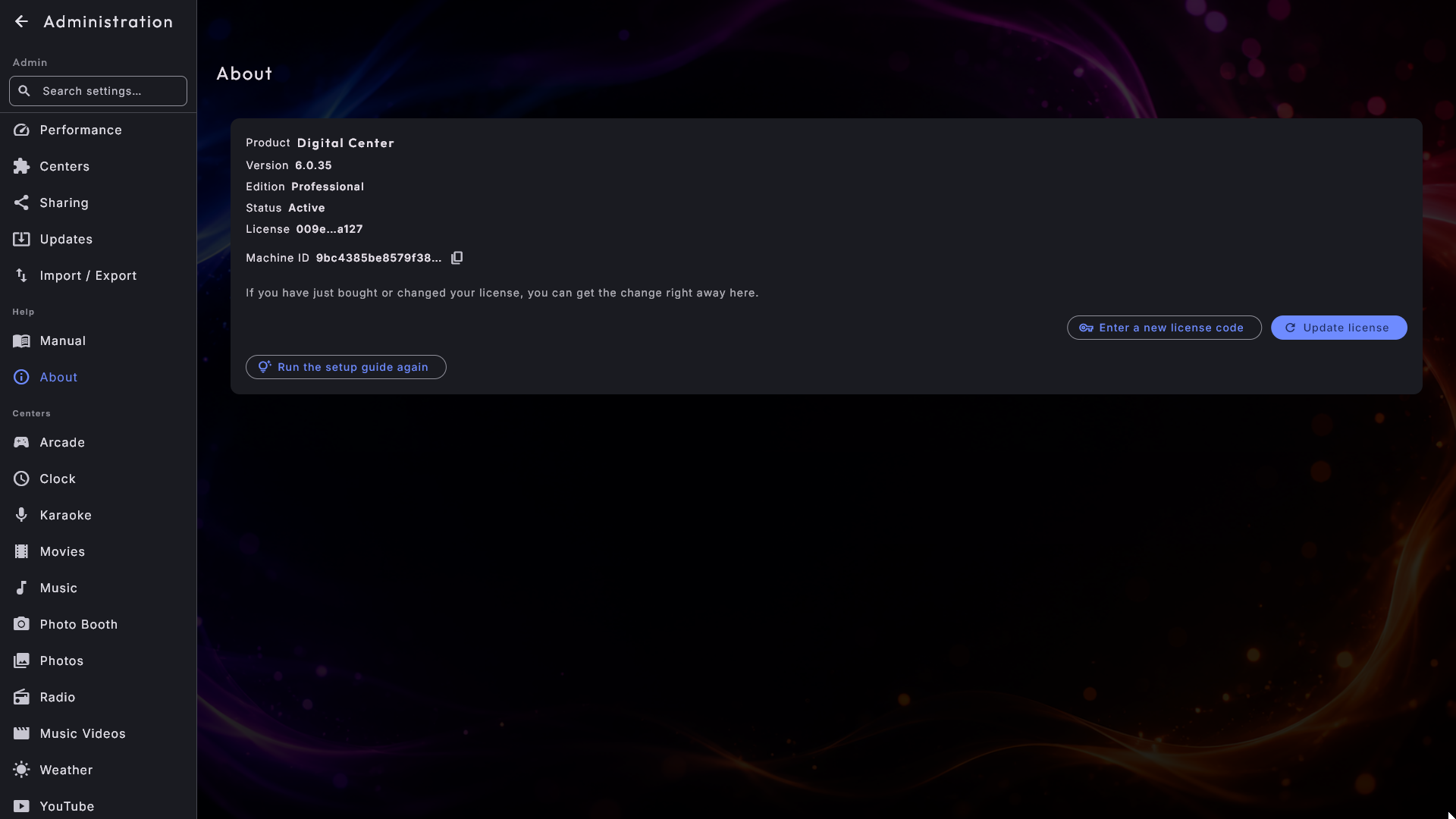
Administration → About answers, on one short page, the questions support is going to ask you:
- Product and Version - what is running on this machine.
- Edition and Status - which edition the licence is for (Room, Home or Professional), and whether it is active, a demo version or something that could not be confirmed.
- Licence - which of your licences this machine runs on, shortened to the first and last few characters. That is enough to tell your own licences apart, and short enough that a photograph of the screen gives nothing away.
- Machine ID - the machine's own identification. With several machines, this is what tells support which one a log came from. A small copy button puts the whole value on the clipboard, even though the screen shows a shortened version.
The page also carries Update license. If you have just bought a licence, or moved up an edition, press it and the change takes effect straight away instead of waiting for the nightly check. Close Administration and open it again afterwards, so any new menu items appear.
Have you bought a different licence for the machine - say Home for a screen that runs Room, or Professional instead of Home? Press Enter a new license code. You get the same window as when a licence is activated the first time: type or paste the code (or choose the licence file) and press Activate. The window says that the new code replaces the current licence, and which edition the machine has now. Your settings and content stay as they are. When the code is accepted, the page says which edition the machine now runs; the front page and the centers change at once, while the Administration menu follows the next time you open it. Entering the licence the machine already has changes nothing, and if a code cannot be used, the window says why. The button is there during a demo too. See also Installation & licensing.
If the machine does reach the internet but the renewal is turned down - for example because the subscription has ended, or the licence has been deactivated - the page says what has happened and what to do about it (renew the subscription at zenpoint.org, or contact ZenPoint support). Just below, it shows the date the licence keeps working until, and close to that date a small reminder also appears at the top of the screen. If the machine's clock is wrong, the page says that too: set the date and time in Windows, and the licence works again.
With Run the setup guide again, the short setup guide from the very first start comes back, so you can go through it once more.
The Machine ID is on the lock screen too
The same Machine ID is shown at the bottom of the message you get if the licence ever blocks the machine. Administration cannot be opened then, so without it there would be no way to tell us which machine was stuck.
Playback statistics
If you want to keep track of what gets played, you can switch on playback statistics under Administration → Statistics. It is off by default, and nothing is stored until you turn it on.
Once it is on, every time a piece of music, a video, a karaoke song or a film starts playing, it is recorded in a history. On the same page you can then review, for any day you choose:
- The number of plays that day.
- Plays per hour - a graph of when the busiest times were.
- Plays per media center - how many came from music, video, karaoke and film.
- Most played - the titles that were played most often.
- All plays - a full list with the time, title, artist, center and playlist for each one.
Past days are kept
Statistics are only collected while the switch is on, but earlier days stay available to look back at even if you later turn collection off again.
Troubleshooting
Here are the issues you are most likely to run into, and what to do about them.
Covers or pictures are not loading
Check that you have added the right folders under that center's settings. Each center detects new, changed and removed files on its own and keeps the library up to date - you do not have to do anything. If the media sits on a network drive, it can take a couple of minutes for changes to appear.
The library is slow to appear the first time
The first time a center opens a large library, it goes through all the files. While it does, the center shows a progress bar with how many files have been processed ("N / M") - just wait for it to finish. After that the library is remembered and comes up instantly next time; only new or changed files are looked at again. This works the same way in Music, Music Videos, Karaoke, Movies and Arcade.
A short message says something is not working right now
If a radio station, a game, the Photo Booth camera, the weather or another center cannot do what you ask, Digital Center shows a short, calm message about what has happened - for example that the station is not answering right now, or that something can no longer be found. Try again in a moment, or choose something else. The technical explanation is kept quietly in the background, so support can see it if you contact us.
The kiosk closed by itself and came back
If Digital Center ever closes unexpectedly, it starts again by itself, so the screen does not stay empty. If it keeps failing right after starting, it comes back in a safe mode for that session: the cover pages use the plain Grid effect, no video backgrounds play, and the graphics run in the lighter mode. Your own settings are not changed - the next ordinary start (for example the next time the machine is switched on) is normal again. While safe mode is on, the Ctrl + D panel shows it on its own line. If it happens more than once, send the log to support (see Checking how the machine is doing above).
The app feels slow
Press Ctrl + D to see whether the machine is short on resources (see Checking how the machine is doing above). Then, under Administration → Performance, set Graphics mode to Light: live backgrounds are left out and the cover pictures are shown at a slightly lower resolution, which is usually enough on a modest machine. The front page effects stay as they are, so you can also turn off Sharp carousel images on the same page, or choose a lighter home effect such as Grid, Push or Dissolve, to lighten the load on the front page.
The playlist has finished - are the songs gone?
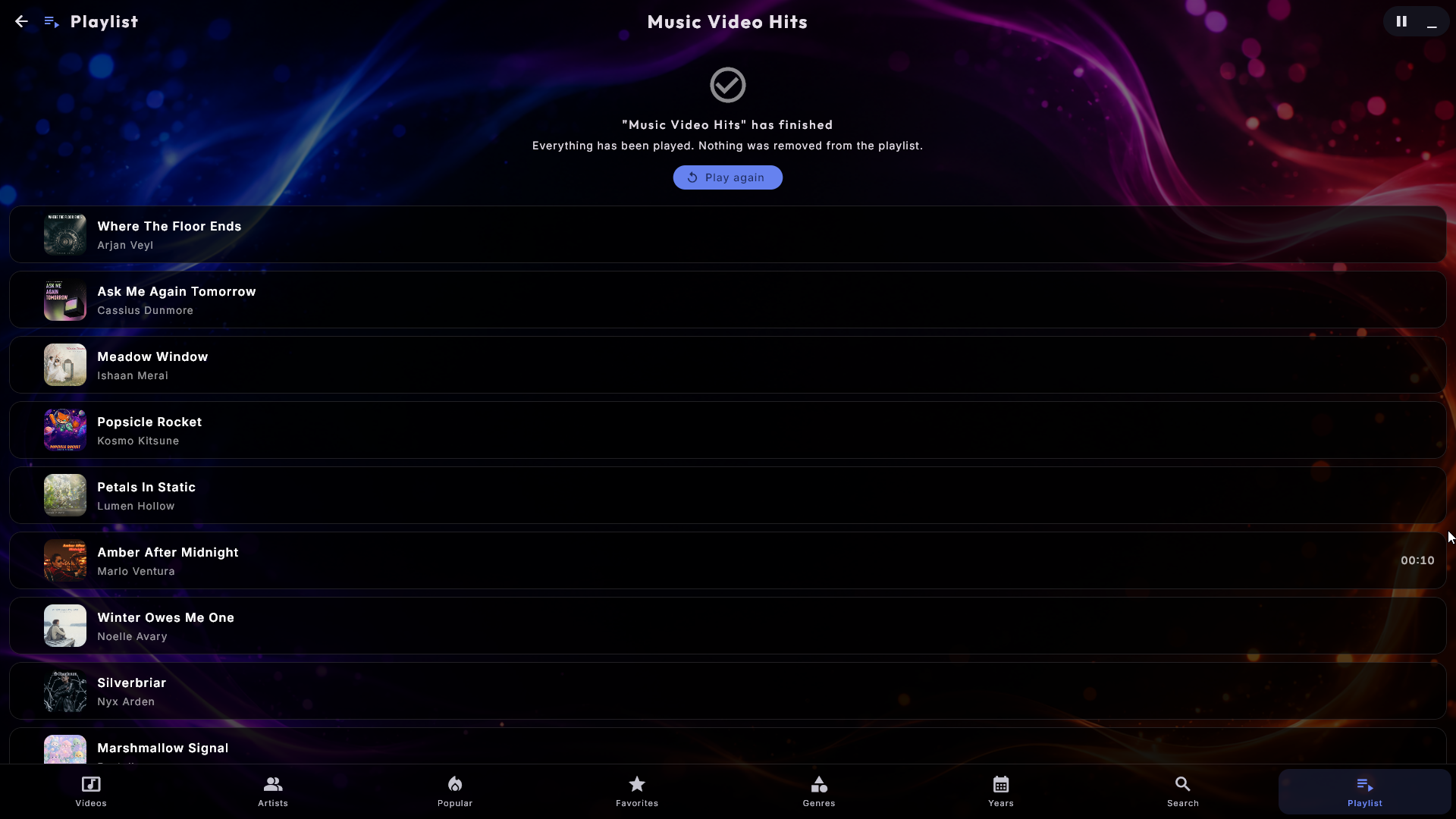
No. When a playlist without Repeat has played its last song, the Playlist page in the center says that the playlist has finished, and all the saved songs are still listed below. Press Play again to start the playlist over from the first song. The button is not shown to guests in Party Mode if the playlist does not let them start playback, and never on a playlist that requires payment. If the page says instead that the playlist is empty, it really has no songs.
The music stops when the queue is empty
Switch on Always Playing on your playlist under Administration → Playlists, and choose a fallback source.
Guests wait too long for their song
With Always Playing switched on, the automatically fetched song normally plays to the end before the guest's choice begins. Switch on Guest songs start right away under Administration → Playlists, and the guest's song takes over at once.
A film plays sound but shows no picture
Very occasionally a film will play its sound while the screen stays black. Digital Center notices, leaves the film running and puts a calm message on the screen instead of just showing black, so you know it is the file and not the machine. Try another film: if that one is fine, the first file is one Windows cannot show, and re-saving it in an ordinary format solves it.
YouTube asks "are you a robot"
If YouTube starts asking to confirm you are not a robot and videos will not play, give Digital Center a sign-in. When Firefox is installed, it is one click:
- 1
Open YouTube in Firefox
Go to Administration → YouTube and press Open YouTube in Firefox.
- 2
Sign in
Sign in to YouTube in the Firefox window that opens.
- 3
Import the login
Return to Digital Center and press Import login from Firefox. That is all - the sign-in is now in place.
Using a different browser
If you do not use Firefox, you can still sign in - point Digital Center at a saved sign-in file from your browser instead of the one-click Firefox flow.
Use a separate account
Prefer a separate account (not your private one), since in rare cases an account used automatically this way can be blocked. A sign-in does not last forever either - if videos stop playing again one day, just import the sign-in once more.
License or renewal prompts
An activated machine renews its license quietly in the background, as long as it can reach the internet now and then.
- "Connect to the internet to renew the license": a gentle reminder appears at the top if the machine has been offline for a while and the license is due for renewal. As soon as it is back online, it sorts itself out.
- "License expired" / "License needed": if renewal does not succeed in time, or the machine has no valid license, a screen asks you to connect to the internet or activate a license. It disappears on its own once the license is in order again. If the machine has just come back online, press Update license on that screen to fetch the license straight away.
- "This machine's clock is wrong": the license is judged by the machine's own clock, so a wrong clock can stop a perfectly valid license. Set the date and time in Windows, and the license works again.
- "The license could not be renewed": the machine reached the internet, but the renewal was turned down. Administration → About tells you why and what to do.
For a machine in a fixed spot without steady network - a party venue, for example - give it internet access from time to time so it can renew in good time. Full details are in Installation, license & activation.
The license stopped working after setting it up on another machine
A license runs on one computer at a time. If the same license is activated on a second machine without being moved first, the system may block it automatically - the safeguard that stops one license being copied onto many machines. The machine then behaves as if it has no valid license.
Once a license is blocked, you cannot release it yourself: Move in My Licenses no longer works on it. Contact whoever set up your Digital Center - a blocked license can always be unlocked for you, and once it is, you activate the computer that should keep it with your license file or code as usual. To avoid it next time, always move the license first: the full procedure is under Moving to a new computer in Installation, license & activation.
A "No connection" screen appears
If the app ever briefly loses touch with its own background service, it pauses and shows a full-screen No connection message. There is nothing to do - it clears itself automatically the moment the connection is back, and picks up right where it was. Nothing is lost.
The Screens page shows no main screen ticked
Windows knows each monitor by an identity of its own, and that identity changes when you swap a monitor, move the cable to another port, install a new graphics driver - or simply leave a screen switched off while the machine boots. The main screen you saved earlier can then no longer be found, and nothing on the page is ticked.
The page now falls back on its own: it ticks the system's primary screen, or the first one connected, so there is always a main screen and Digital Center keeps running normally. All you have to do is press Apply to save the new choice.
The screensaver keeps coming on (or never does)
After a period without input (2 minutes by default) a full-screen screensaver
starts and shows what is playing. Touch the screen, move the mouse, scroll or press
a key to dismiss it; press s to start it immediately. While you are playing an
arcade game the screensaver never appears, so a game is never interrupted. You can
turn the screensaver off entirely, or change the delay, under Administration →
Screensaver. See also Settings & administration.
Getting out of a game or out of kiosk mode
- Leave a game: press Esc, or move the mouse/touch the screen to bring up the Back button in the top-left corner.
- Switch between full screen and a window: press F12. In window mode Digital Center behaves like an ordinary program window you can move and resize; press F12 again to return to full screen. Window mode also shows an on-screen back-to-full-screen button, so you can return with a click or a tap even without a keyboard. F12 is your emergency exit - it works even when a dialog is open. On a locked machine (Party Mode, or a paid playlist running), it first asks for the admin password.
I can't open the settings (the gear is gone)
Party Mode is probably on. Sign in with the admin password to get access. See Party Mode.
Built-in pickers and dialogs seem to hide
The system runs on top in full screen, so all windows are kept inside the app. Always use the built-in pickers - no separate Windows windows will pop up.
Still stuck?
For anything not covered here, contact whoever set up your Digital Center.