
Chapter 9
Phone remote control
Your guests can follow along and join in straight from their own phones - with nothing to install. It is perfect for parties, where people like to see what is playing, queue the next song, or just watch the screen from where they are sitting. This chapter shows how to switch the feature on, share it with your guests, and what they can do once they are connected.
The short version
Make sure the kiosk and the phones are on the same WiFi network, show the access code from the Setup tile, and let your guests scan it. The phone then mirrors whatever center is open on the big screen - every center, not just the music - with no app, no login, no fuss.
Turning it on
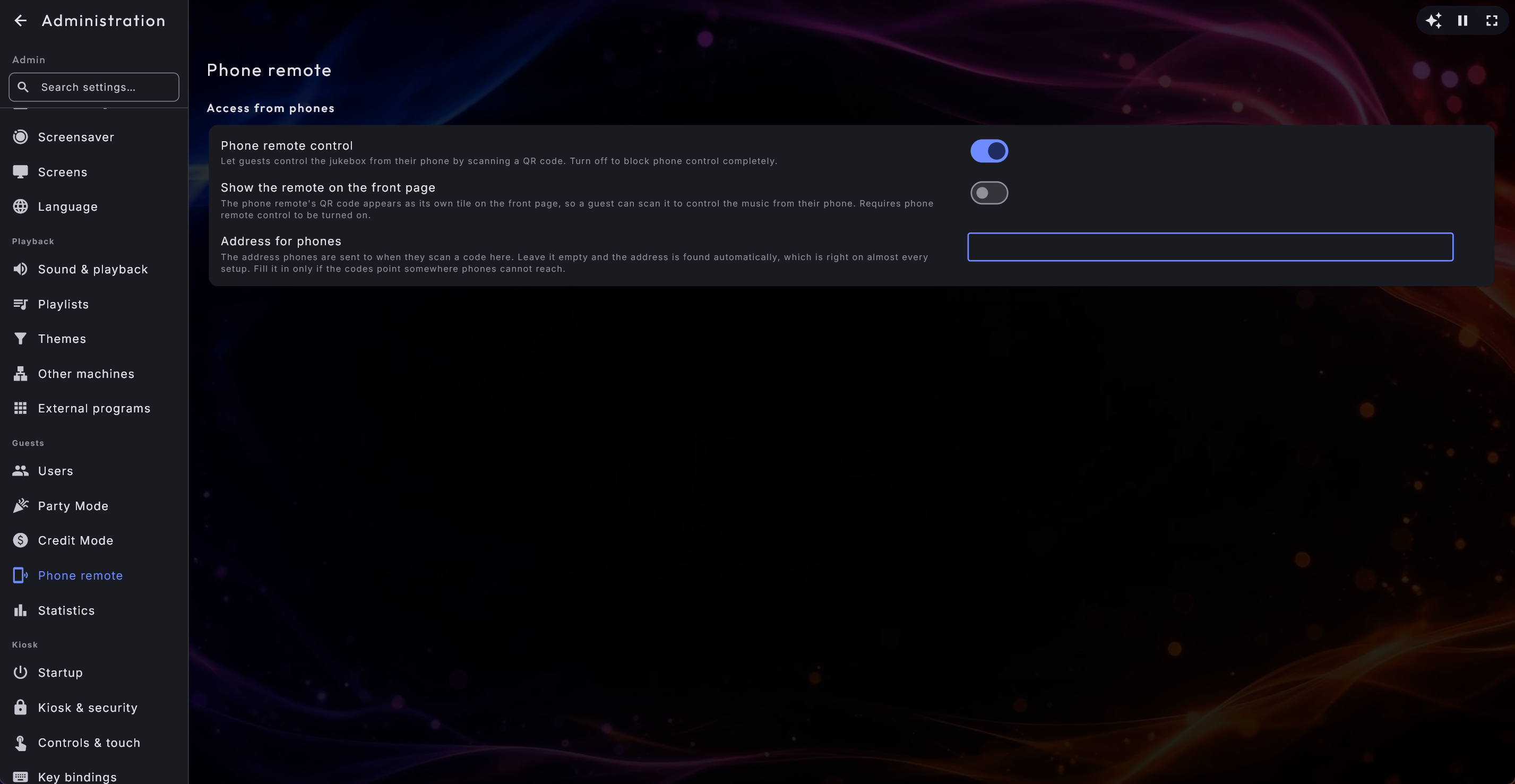
Phone remote control is on by default, so most of the time there is nothing to do. If it has been switched off, you turn it back on under Administration → Phone remote → Phone remote control (the page sits in the Guests group).
When it is off, nobody can control the jukebox from a phone, and the Remote control option in the Setup tile shows a short message inviting you to switch it back on instead of a code. If you switch it off for a moment and on again, your guests do not have to scan the code again: the phone calmly says that the remote has been switched off on the screen, and comes back by itself as soon as it is on.
Sharing the code with your guests
Everything a guest needs is a single code shown on the big screen.
- 1
Get everyone on the same WiFi
Make sure both the kiosk and your guests' phones are connected to the same wireless network. The phone and the screen talk to each other directly over that network, so nothing needs to reach the internet.
- 2
Open the code
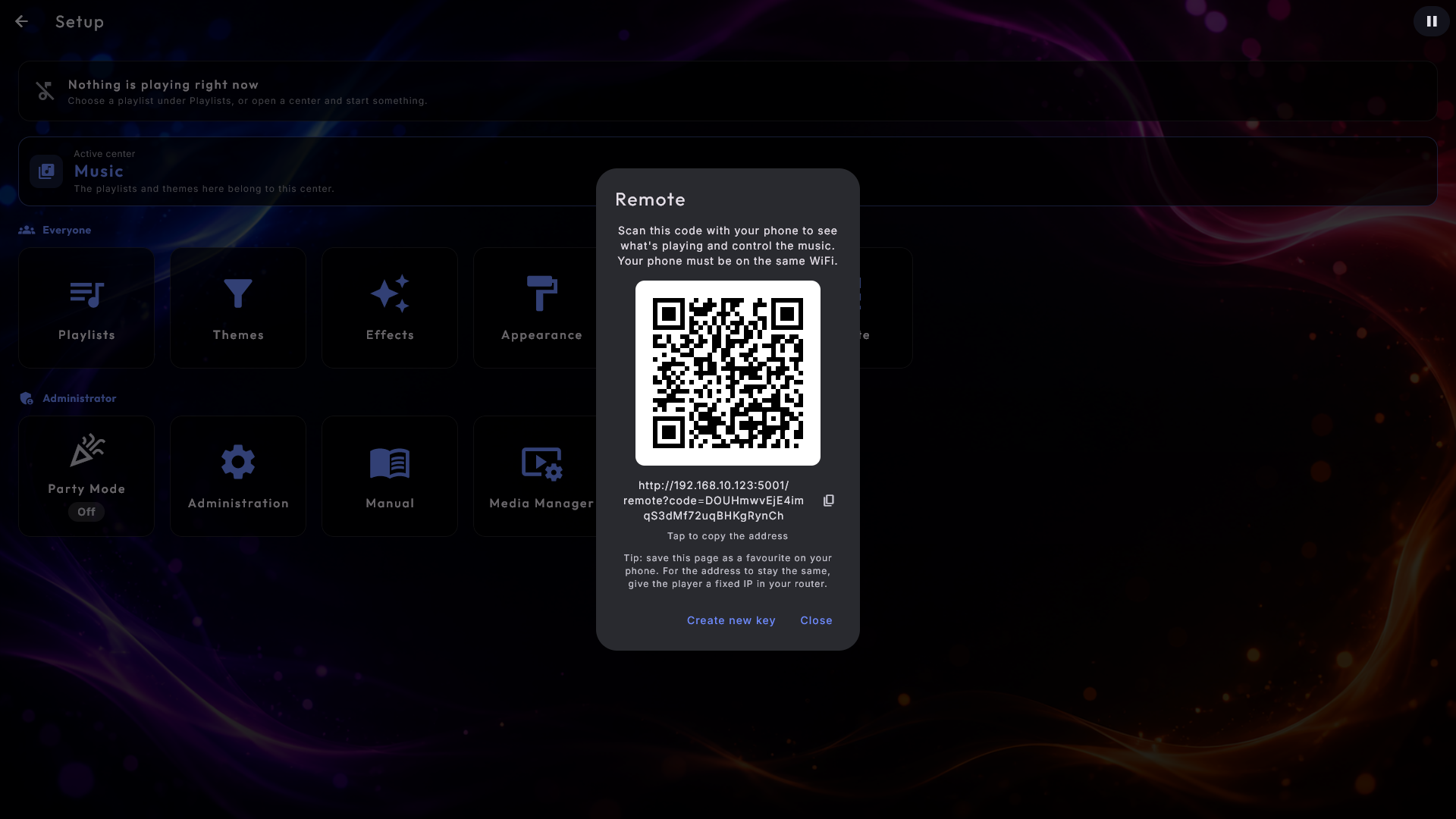
On the front page, open the Setup tile and choose Remote control. A scannable code appears, with a built-in access key that is created for you automatically. The code is all a guest needs - your real password is never shown and never shared.
- 3
Let the guest scan it
The guest scans the code with their phone camera or a scanner app. The phone opens a modern jukebox page right in the browser - there is nothing to install.
The code right on the front page
With Show the remote on the front page (on the Phone remote page in Administration), the code gets a tile of its own on the front page, so guests can scan it without opening Setup. On a large tile a short explanation stands above the code - the whole text, including that the phone must be on the same WiFi. The smaller the tile, the less is shown. The address itself is never on the tile; a tap opens the code in full size.
Scan once, then save it as an app
The phone remembers the access code, so a guest only has to scan the code once. After that the plain address works on its own and can be saved as a favourite - handy for the household, or for a phone that lives beside the machine as a permanent remote. Even better, choose Add to Home Screen in the phone's browser (on an iPhone it is under the share button in Safari). The remote then gets its own proper icon on the home screen and opens in full screen without the browser's address bar, just like an app, and it goes straight into the jukebox without a new scan. If you later create a new key, the guest scans the new code and saves the app again. If you want the address to keep working for good, give the machine a fixed address in your router, so it does not change the next time it is switched on.
Revoking access with a new key
When a party is over and you want to end access, open the same window and choose New key. The code is given a fresh access key, and every code or link your guests have already scanned stops working immediately. It is a clean way to lock out the room without changing any password.
The key is never your password
The access key built into the code is a dedicated, random key - never your admin or party password. Sharing it lets a guest into the jukebox page only; it can never be used to reach your settings.
The phone follows the big screen
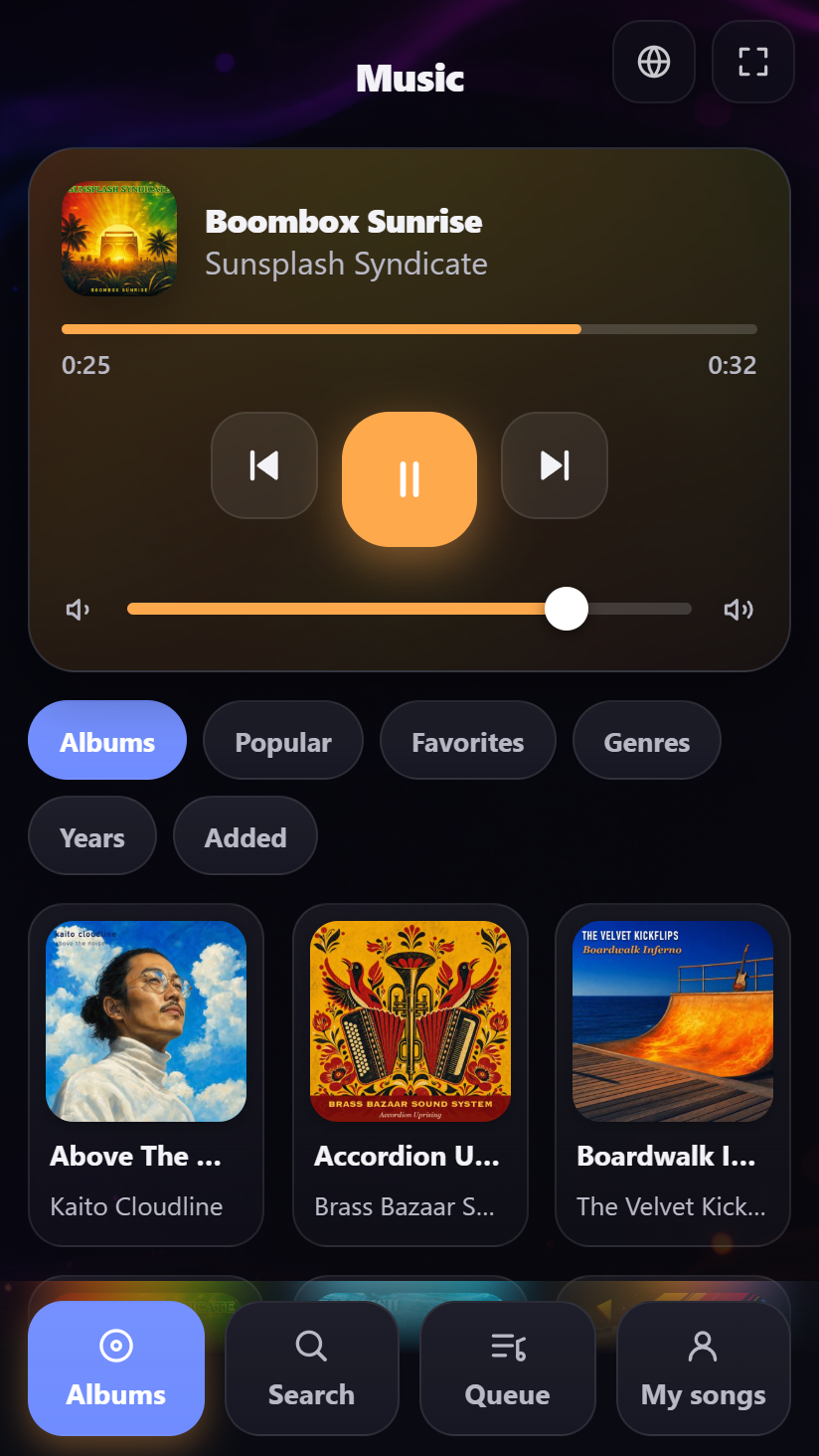
The phone always follows the big screen. It shows exactly the center you have opened on the main display, and only that center's content. Guests do not pick a center on the phone themselves - that choice stays on the screen.
If you have not opened a center yet, the phone shows a friendly waiting screen. The moment you open a center, the phone jumps straight into it. This works for every center - not only the ones with a playlist. What the phone offers depends on which center is open: Music, Music Videos, Karaoke, Movies or YouTube lets guests browse, search and queue; Photos and Photo Booth let them browse the pictures; the radio can be steered from the phone; and Arcade, Clock and Weather appear as a matching read-only view. If you switch to another center on the screen, the phone follows along instantly, even if the guest was in the middle of searching.
If you have put a theme on a center (say, only 80s music), the phone shows only that theme's content - exactly the same selection as the screen. When a guest switches center on the phone (which a mixed playlist allows, see below), the theme that belongs to that center applies, so the list shows exactly what can be queued there and nothing more.
The phone also wears the same look as the big screen - it picks up the colours and background from your chosen appearance, so it feels like part of the same product - and shows everything in the same language as Digital Center. A guest who does not read that language can pick their own language with the globe button in the top-right corner: the languages are listed by their own names (for example "Deutsch", "Español"), and Follow the screen (the standard) goes back to the screen's language. The choice only applies to that phone - the big screen and the other guests' phones keep their language. The text is also made to be read in dim light: muted text stands out clearly against the background, even with a light appearance, and the smallest text is a little larger. If the big screen slips into its screensaver while music is playing, guests can still steer the jukebox from their phones.
It also wears your own brand, not a fixed supplier logo. The browser tab's title, the waiting screen and the wide desktop layout all pick up the display name or logo you have chosen for the machine, exactly as the kiosk itself does. If you have switched branding off altogether, no mark is shown anywhere.
And it fits whatever the guest is holding. The remote comes in three sizes: a phone, a tablet and a desktop. On a tablet the page grows wider with larger cover tiles; on a desktop it splits into two columns, with the navigation and the now-playing card down a rail on the left and the content to the right. Plenty of owners keep the remote open on an iPad or a PC beside the machine, where it used to sit as a narrow phone column in the middle of an empty screen.
Switching between the house's screens
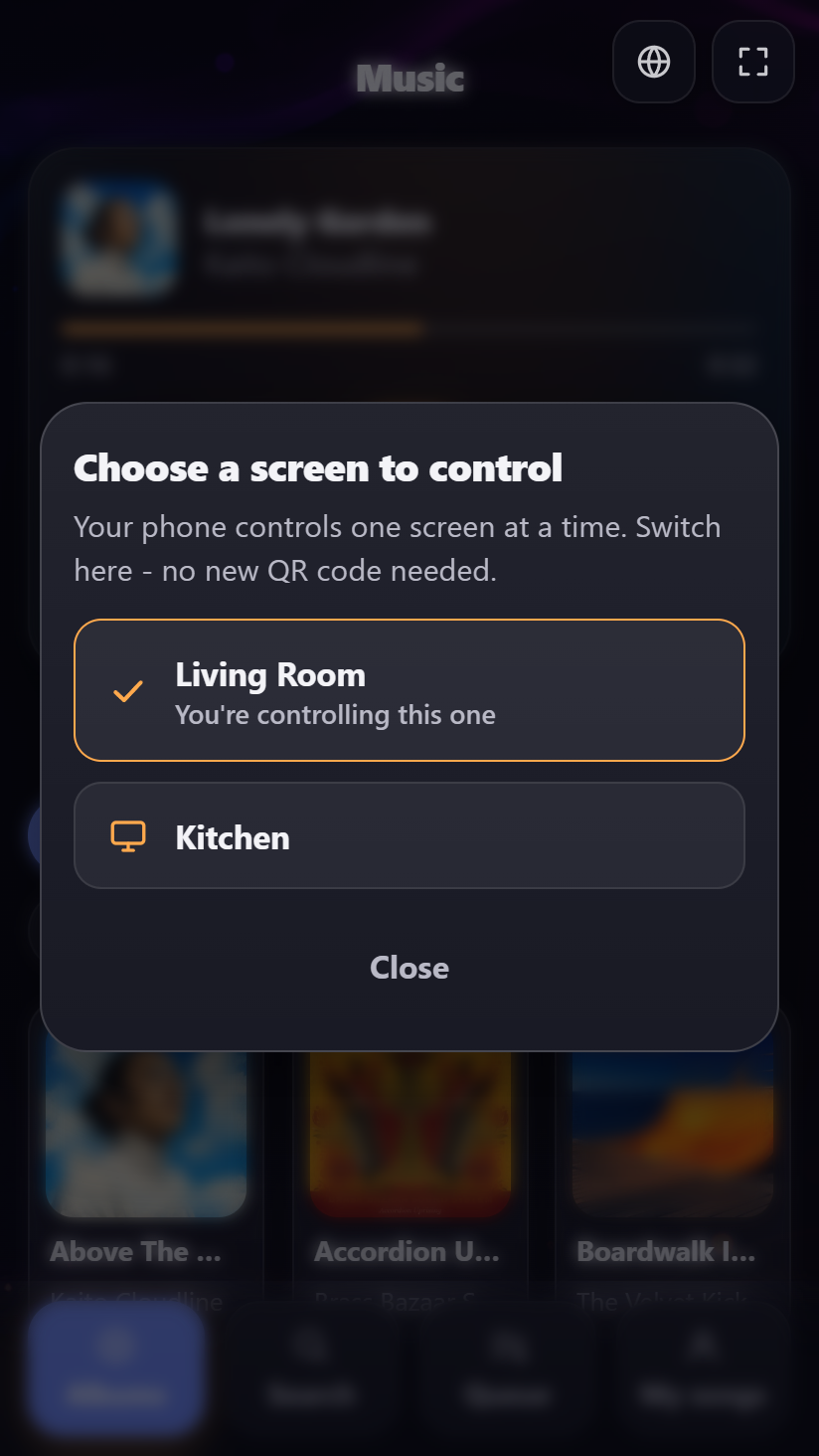
If you have several Digital Center screens, where one gets its media from another, a guest can switch to another screen straight from the phone - without walking over and scanning a new code. It works both ways: from the screen that gets the media and from the one that shares it. The top of the phone then shows which screen it is controlling right now (for example Controlling: Living room). Tap it and choose another screen from the list. At the top of the list, Back to … always leads back to the screen where the guest scanned the code. A screen that is not answering is shown dimmed with the words Not answering right now.
Only screens whose owner has said yes appear on the list: on each screen a phone should be able to switch to, turn on Let phones on the other screens switch to this one under Administration → Sharing. On the new screen its own rules apply, exactly as if the guest had scanned its own code. Access through the list lasts one evening at most, and stops at once if the owner switches the setting off. With only one screen, the guest sees no difference.
What guests can do
What a guest can do on the phone depends entirely on which center is open on the big screen. The centers fall into three groups: the ones with a playlist (where guests can really join in), the photo centers (where they browse on their own phone), and the passive centers (where the phone simply mirrors what the screen shows).
In a playlist center - join in
When you open Music, Music Videos, Karaoke, Movies or YouTube, the phone becomes a proper jukebox remote. A guest can:
- See what is playing now, with artwork, and control playback: pause and play, skip forward and back, and turn the volume up and down. A bar under the title shows how far the song has got, with the time played and the song's length (for example 1:23 and 3:45); it stands still while the music is paused. The radio has no bar, since a station has no length.
- Browse the content. In music, music videos and karaoke the content appears as a gallery of covers; tapping an album opens its own page with the titles. In movies, each film is shown on its own - tap a film to pick an action right away. YouTube has a Videos tab that shows the clips from your trusted sources, just as the big screen does, plus a Search tab if you allow guests to search. If you close the search while a guest is using it, the phone says calmly that searching is not open right now, and the tab disappears.
- Tap the cover in the action window to jump straight to the song's album. The cover is only active where the answer is certain - in a center whose groups really are albums. Karaoke groups by artist, so it is not offered there.
- Browse by genre, year, date added or what is popular. Above the gallery sits a row of buttons - for example Albums, Popular, Genres, Years and Added - with exactly the views the center has on the big screen. Tap a genre, a decade (for example "1980s") or a period to see its songs. Popular shows Recently played and Most played (in karaoke Most sung). If you have switched a view off for the center in Administration, its button is not on the phone either.
- Play the favourites. The songs you have starred on the screen (in Music, Music Videos, Karaoke and Movies) are on the phone too: tap Favorites in the row of buttons. A guest can play them and queue them, but cannot add or remove a star - you do that yourselves on the screen. If you have hidden the Favorites page for a center (under Pages in the bottom menu), the button is not on the phone either. A favourite whose song is not in the library right now (say, because another machine is switched off) is left out, but stays on the list and comes back by itself.
- Search the content from the search tab - by title, artist or album. The phone searches exactly the way the big screen does: type several words in any order (beatles let finds "Let It Be" by The Beatles), and there is no need to get the accents or symbols right - beyonce finds Beyoncé, acdc finds AC/DC and guns n roses finds Guns N' Roses. While a mixed playlist is running, the phone searches all of its centers at once and shows the results grouped by center.
- Add similar songs. If the playlist allows Add Similar, the choice is in the phone's window too: the jukebox finds up to 10 songs that are alike on its own, and says afterwards how many made it into the queue.
- See and manage the queue from the queue tab.
- Switch between the content, Search, Queue and My songs using the bar at the bottom. The first tab is named after what the center holds: Albums, Videos or Films.
- Add or play something by tapping a title (or the plus next to it). A small window opens in the middle with Add to playlist, Play now and Play next - each choice is only active when the playlist allows it.
- See which titles are already queued - they are marked In queue, and the window says the song is already in the queue instead of offering Add to playlist. Karaoke is the exception, since the same song can be sung again by another singer.
- Remove a title from the queue by tapping it in the queue and choosing Delete in the window that opens (when the playlist allows it).
- Give their name for a karaoke song. If the playlist asks who is singing, the same name field appears on the phone as on the big screen, so a guest can queue themselves without walking over. The phone remembers the name, so it only has to be typed once for the evening, and the field starts with the guest's own name if they have given one.
- Shuffle the queue with the Shuffle button at the top of the queue, when the playlist allows it and there is more than one item left. The whole queue is given a new random order, exactly as the Shuffle button on the machine itself.
- Move between the centers of a mixed jukebox. When a mixed playlist is running, a small bar at the top lets a guest switch between the centers the jukebox holds - music, music videos, YouTube and, if you have chosen them, karaoke and films - and add from all of them to the one shared queue.
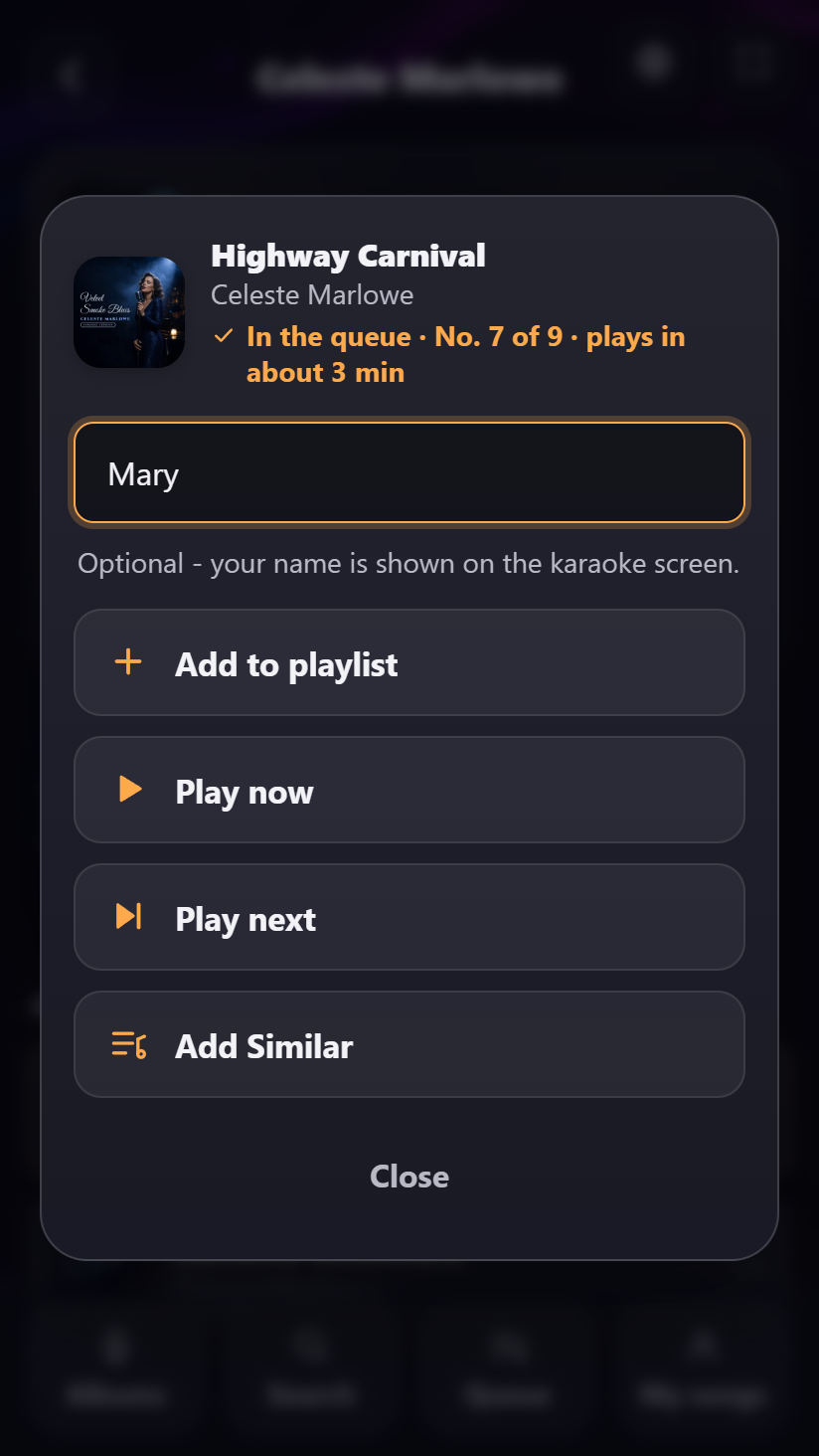
Add all in one go. An album page on the phone - and in karaoke an artist's page - has an Add all button that puts the whole lot into the queue as a single request, instead of tapping one title after another. The phone only sends the name of the album or artist, and the screen finds the songs itself, so it works just as well on a big album or an artist with a great many songs. The phone asks first how many songs it is about, and the receipt afterwards is honest: if a party limit, an empty credit wallet or the singer's name in karaoke only let part of it in, it says Added to the queue: 8 of 14 rather than a blank "added".
The phone sees the whole library, including the other screens. If this machine borrows music, films, videos or karaoke from another screen in the house, the guest in the sofa browses the same mixed library as the person standing at the machine, covers and all. There is nothing to switch on and nothing to choose: what the big screen shows, the phone shows.
Your own songs - when will it play?
When a guest queues a song from their phone, the phone remembers that it was theirs. On the phone's Queue page those songs carry a small Yours badge and say when they will play: Playing in about 4 min, or Playing soon when there is less than a minute to go. When the song is next in line, a calm banner at the top of the queue page says Your song is next, and when it starts: Your song is playing now. The phone vibrates briefly at both moments (it never makes a sound), so a guest can put the phone down and still have time to get up. In Karaoke the singer's name is used: You're next, Anna. The marks survive a reload of the page, but they belong to that phone and that evening - another phone does not see them, and the kiosk never shows them on the big screen. If someone moves the song forward with Play next or Play now, it keeps its mark.
"Requested by Anna". The first time a guest queues a song from the phone, a small field appears: Your name (optional). If the guest types their name, Requested by Anna is shown next to every song they queue - in the queue strip and the playlist on the big screen, when somebody taps the song in the queue, on the screensaver while it plays, and on the other guests' phones. The field can simply be left empty, and the song is queued without a name. The name is remembered on the phone and can be changed under My songs. In Karaoke the singer is shown instead (the one who sings is the one who asked for the song), so a song never shows both a singer's name and "Requested by". The name gives no rights and changes no rules. If you do not want guests' names on the big screen, turn off Show who asked for each song under Administration → Sound & playback - the phones still show them.
My songs. Every center on the phone (and YouTube) has a My songs tab. It lists the songs this particular phone has queued tonight: the one Playing now, the ones Waiting in the queue (with when they will play) and the ones Played tonight. At the top the guest can type or change their name. The list belongs to the phone and the evening: if the guest closes the tab in the browser it starts afresh, and a song that played while the phone was switched off is not included.
If Karaoke records the songs (see the Karaoke part of Operating Digital Center), a singer who queued the song from their phone also finds the saved recording under My songs, in Your recordings, with Listen and Download. Only the phone that queued the song can see it - other guests' phones cannot.
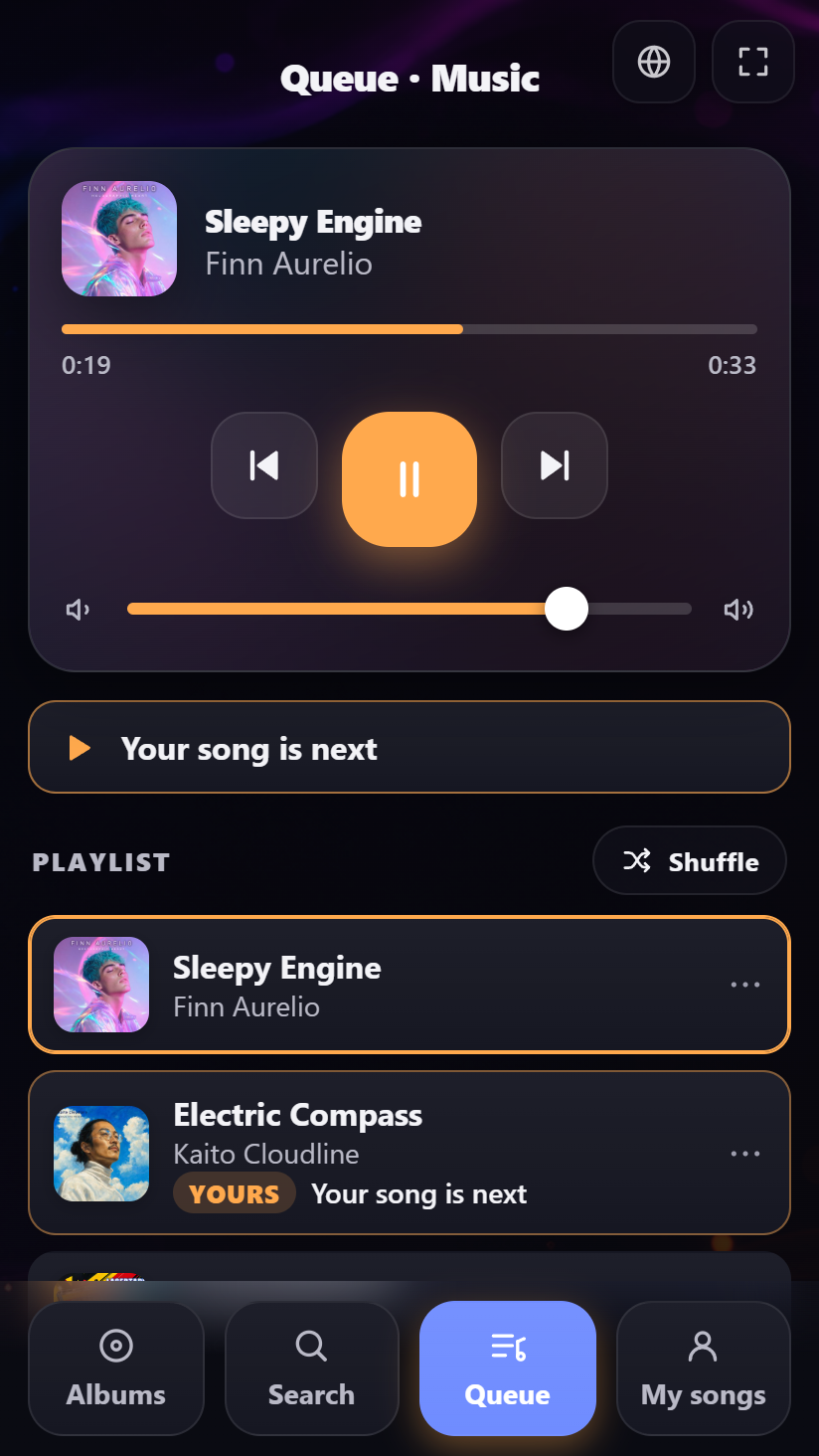
Voting a song up
If you turn on Allow voting songs up on a playlist (in the playlist's details under Administration → Playlists), every waiting song on the phone's queue page gets a small vote button with an arrow. One tap is one vote; each phone can vote only once for the same song, and not for its own. The number of votes is shown on the song for everyone - also guests who may not vote themselves. A song with more votes than the one just ahead of it moves one place forward per vote. It never passes the song playing, never a song someone has set to play next, and on a paid list nothing moves at all - there the guests have paid for their place. The votes are forgotten when the program restarts. The setting applies whether or not Party Mode is on, and to every phone - also one that is signed in: with it off, there is no vote button. Guests at the machine itself can vote too, as described in Party Mode.
In Photos - browse the pictures
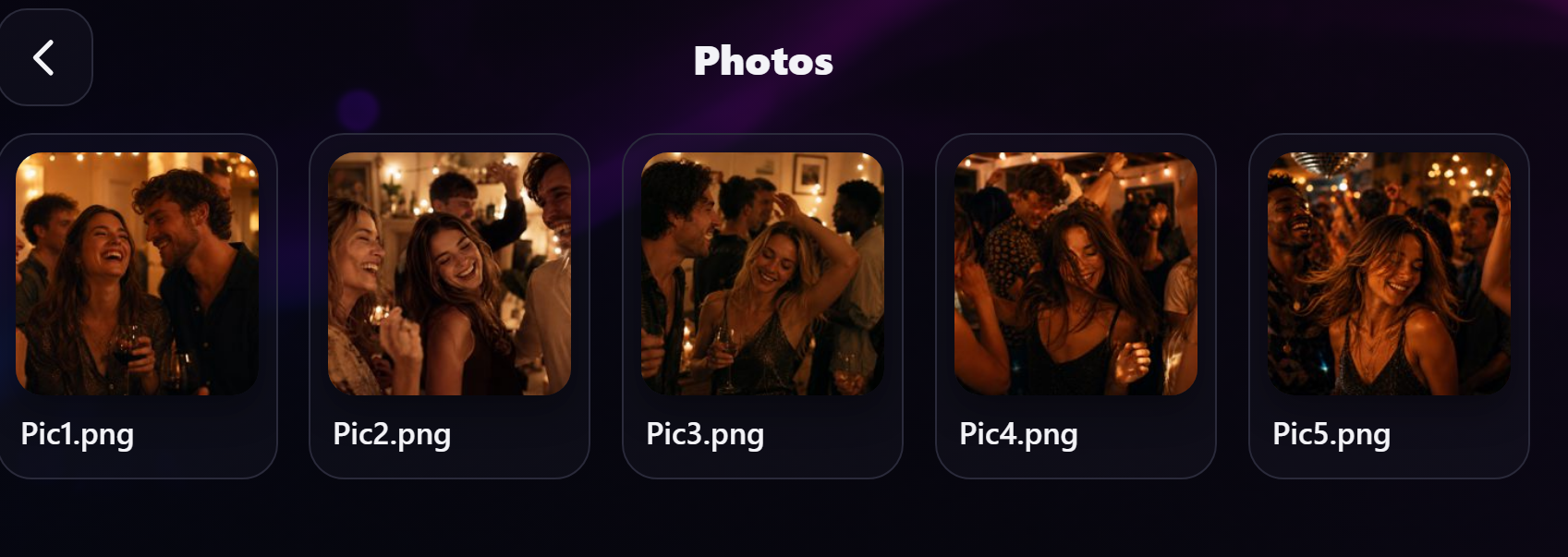
When you open Photos on the screen, each guest can browse the photo folders on their own phone and open the individual pictures and video clips - tap a picture to view it large (swipe to the previous or next one), or a clip to play it. This is a pure look-along experience on the phone: it does not control the photo display on the big screen - the phone shows the media itself.
In Photo Booth - see the day's captures
When Photo Booth is open, the phone shows a grid of the day's captures. Tap any picture to see it fullscreen. As with Photos, this is read-only on the phone - a handy way for guests to look back through the photos taken during the event.
Control the radio from the phone
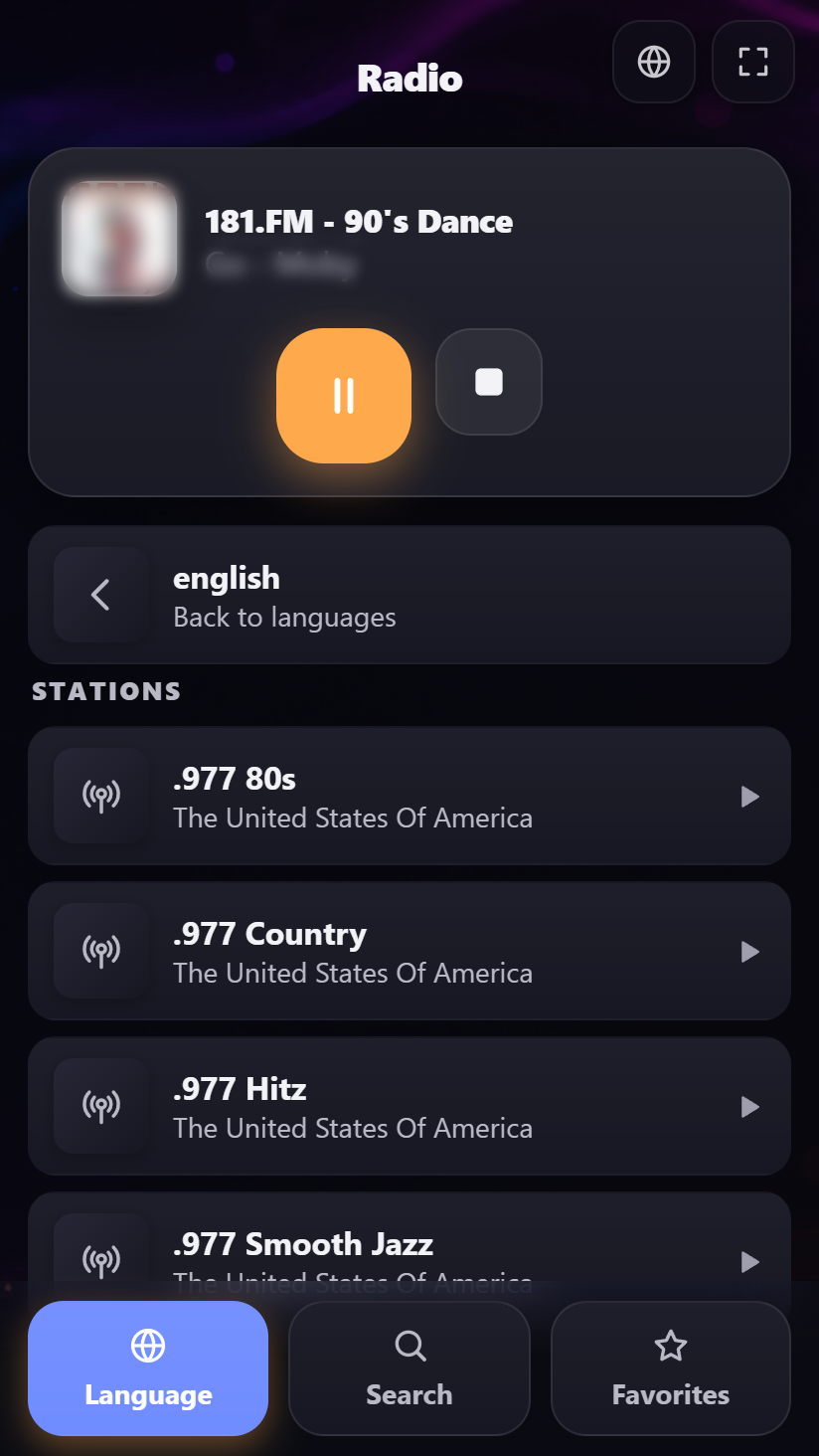
Radio Center is the one non-playlist center a guest can actively steer. When the radio is open, the phone's radio page shows three tabs at the bottom that mirror the menu on the screen:
- Language - pick a language, then choose from its stations.
- Search - search freely for a station by name.
- Favorites - your saved stations.
The station playing now always sits at the top. Tapping any station plays it on the big screen straight away - this is real control, not just a view.
Arcade, Clock and Weather - a passive view
For these three centers the phone simply mirrors what the screen shows and does not control anything:
- Arcade - the phone shows the running game's cover, large, with its name. Between games it shows a "pick a game on the screen" waiting view.
- Clock - the phone redraws the same clock faces the screen shows: your local time and any world clocks you have saved.
- Weather - the phone shows the same forecast: the current conditions and the day-by-day outlook for your chosen place.
A fullscreen button and a hidden extra
The remote page has a fullscreen button in the top-right corner - tap it and the jukebox fills the whole phone screen with none of the browser's edges, handy when a phone is a permanent controller by the machine. A long press on a queue row no longer pops the phone browser's own page menu over the remote either, so a guest who holds a finger down a moment too long is never left closing a menu they did not ask for. And an administrator who signs in on the phone gets one extra: from the credit panel they can nudge the shared coin balance up or down by one coin, so you can top someone up without walking to the screen. See Credit Mode.
Party and Credit rules apply on the phone too
Guests get exactly the same possibilities they would have at the screen in Party Mode. If a playlist does not allow skipping songs or removing them, guests cannot do that from the phone either. And if adding a song costs credit, it costs the same from the phone. In other words, the rules you set for a playlist are enforced everywhere - at the screen and on every phone.
When a guest adds a song, the phone says Sending… until the screen has taken it, and only then Added to the queue (or Playing now / Playing next). If the song was already there, or the screen could not take it just then, the phone says so. If the screen does not answer at all, the phone says after a few seconds: The screen didn't respond - try again.
If a guest cannot add a title right now, the phone says why instead of simply removing the button: the queue is full, the credit is used up, or the paid songs are still playing. When the queue is full, the numbers are included: "There is room for 10 songs in the queue, and there are 12 right now - you can add again when there are fewer." That way the guest can see both how big the limit is and how far there is to go, instead of wondering whether the jukebox is broken. The number is the whole queue, including the song playing right now.
Guests can sign in on the phone too
While Party Mode is on, a guest can sign in on their phone with the party password to get full party access - the same login they would use at the screen. As a safety net, a phone that has been signed in is logged out automatically after about a minute of inactivity, so a phone left lying around does not stay signed in. The guest can always sign in again. After too many wrong attempts, the phone says how long to wait before trying again, rather than "wrong password". (Signing in is only possible while Party Mode is on; with it off, everyone already has full access.)
Remote control needs the same WiFi
The phone only works while it is on the same wireless network as the screen. Guests who leave the network - or hop onto mobile data - lose the connection until they rejoin the WiFi. If the phone loses contact, it shows a calm band at the top after a few seconds (Can't reach the screen - trying again…), and the band disappears by itself as soon as the connection is back. If it lasts a while, the phone switches to a Connection lost page instead of letting anyone operate a jukebox it cannot reach - and reconnects on its own the moment the system is back.
For more on the playlist rules that govern what guests may do, see Party Mode.