
Chapter 1
Welcome to Digital Center
Welcome, and thank you for choosing Digital Center. This manual is written for you - the person who sets the system up and runs it day to day. You do not need any special technical background to follow along. We will start gently, explain what Digital Center is, and then walk you through everything from the first run to the finer points of running it at a party or in a venue.
What is Digital Center?
Digital Center is an all-in-one entertainment screen for Windows. It gathers a whole range of "centers" in one place, so that from a single front page your guests can:
- play music from your own collection with rich sound visualization,
- sing karaoke,
- watch movies and music videos,
- play arcade games,
- take fun pictures in the photo booth,
- browse your photos and start slideshows,
- listen to internet radio from all over the world,
- check the weather and see world clocks, and
- search and play from YouTube.
The system runs in fullscreen ("kiosk mode"), so it fills the entire screen without an ordinary window frame. That makes it a natural fit for a living room, a party venue, or an exhibition stand - a screen that is simply ready to entertain the moment it is switched on.
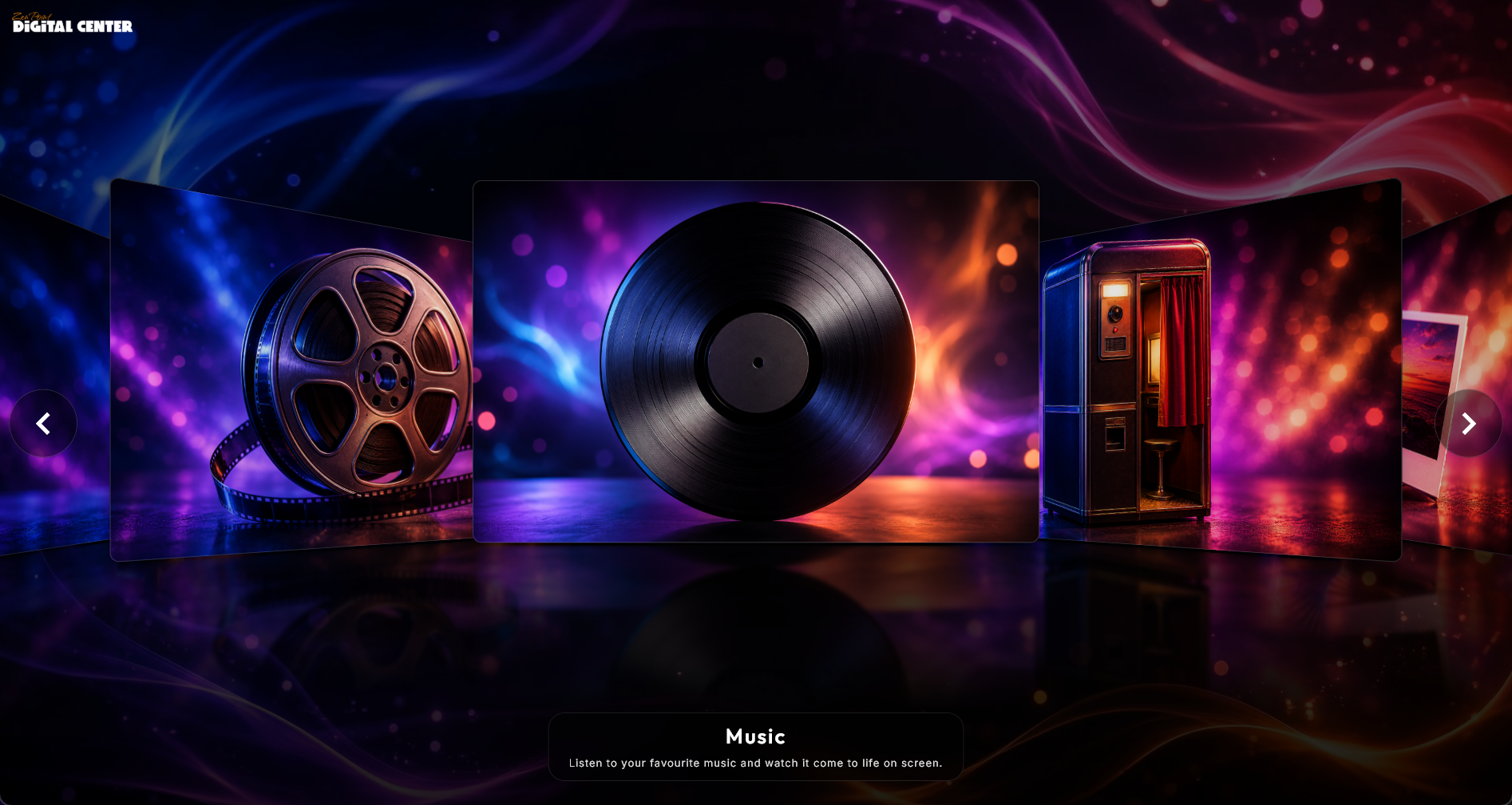
One screen, many centers
Every center is a self-contained part of Digital Center. You decide which ones appear on the front page and which ones your guests are allowed to use, so the system can be as simple or as full-featured as you like.
Two programs work together
This is the most important thing to understand as an administrator: your product comes as two programs that work hand in hand.
- Digital Center is the kiosk itself - the fullscreen experience your guests see and use. This is what runs on the screen in the room.
- ZenPoint Media Manager is the administration tool. You use it behind the scenes to organize your media: tidy up titles and other information, choose cover pictures, look details up online, and prepare karaoke songs. Your guests never see it.
Both programs are installed together, and they share the same license, so once Digital Center is up and running, ZenPoint Media Manager is ready too.
Where each program fits
Think of Digital Center as the stage and ZenPoint Media Manager as the backstage. You prepare and organize your media backstage, and the polished result is what your audience enjoys on the front page.
What this manual covers
The manual is organized so you can read it from start to finish the first time, then come back to any single topic later. Here is the map:
- Installation, license and activation - installing the product, activating your license (or running the free trial), and starting and closing the program day to day.
- Getting started: first-time setup - the short setup guide that greets a fresh installation, and the first choices a new administrator makes, including language, appearance, which center opens on startup, and starting automatically with Windows.
- Your media libraries - pointing the system at your own folders of music, movies, music videos, karaoke, photos and games. See Your media libraries.
- ZenPoint Media Manager - editing information and covers, looking details up online, and creating karaoke songs.
- Settings & administration - a tour of the administration menu and the most important settings. See Settings & administration.
- Party Mode - turning the system into a guest-friendly jukebox with three roles: administrator, party guest, and locked guest.
- Credit Mode - turning the kiosk into a pay-to-play coin machine.
- Remote control from a phone - letting guests browse and add to the queue from their own phones.
- Screens and the screensaver - using several screens at once and what each one shows.
- Appearance, language and effects - changing the look (skins), the language, and the visual effects on the front page. See Appearance, language and effects.
- Operating Digital Center - the hands-on guide to the front page, playlists and every single center, day to day. See Operating Digital Center.
- Photo Booth - the party photo booth in full: layouts, motifs, decorations, collage templates, branding, printing and sharing. See Photo Booth.
- Maintenance and troubleshooting - updates, backing up your setup, checking how the machine is doing, and what to do when something feels off. See Maintenance and troubleshooting.
You do not have to master all of this at once. The next two chapters get you from a fresh install to a system that opens exactly the way you want - let's begin.