
Chapter 10
Displays & screensaver
Digital Center is built to be left running all day. When nobody is using it, a screensaver keeps the screen alive and on-brand; and if you have more than one display, you can decide exactly what each screen shows. This chapter covers both.
The screensaver
When the screen has not been touched for a while - two minutes by default - a full-screen screensaver starts on its own. What it shows depends on what is happening at that moment.
- Music: your chosen background (image or video, from Appearance) behind a live audio spectrum along the bottom, with the cover shown large and mirrored, together with the title, the artist and how far the song has played. A title or artist name too long to fit glides slowly back and forth, so the whole name can be read.
- Movies and video: the picture itself, full-screen, with the title at the bottom.
- Karaoke: the lyrics full-screen with the bouncing ball (or the on-screen graphics) just as during playback.
- Nothing playing: your logo large in the middle of the screen - as on the startup screen - with a big clock and the date just below, over your chosen background.
If the machine runs as a coin-operated terminal, the screensaver also carries the guest's credit balance, so they can see how many songs are left no matter where on the machine they are standing. The extra screens do not show it - nobody is standing at them, and the coin slot is on the main machine. See Credit Mode.
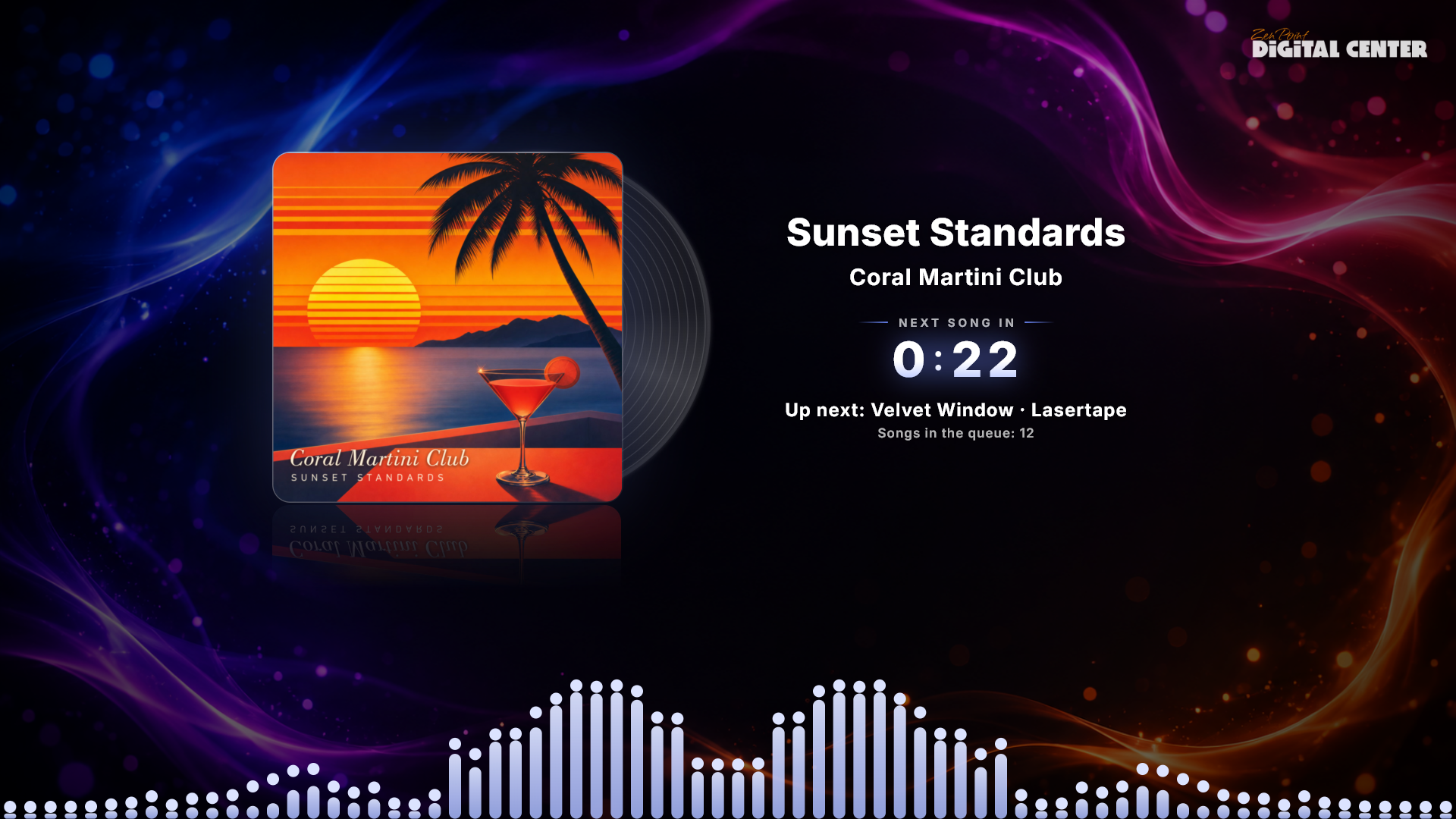
The music screensaver in detail
The music screensaver is the one your guests will look at most, so it is worth knowing what it can do.
- A record beside the cover. A classic black record slides out from behind the album cover and turns while the music plays. When the music pauses it glides back in behind the cover while the spin winds down, so it never freezes half way out. It is on by default and can be switched off under the Music settings.
- Sing-along lyrics. If the song has words, they appear as a wide band along the bottom of the screen: the line being sung stands out in the album's own colour, with the line just gone above it and the one coming up below, rolling one step at a time. It is a concert subtitle, not karaoke - there is no bouncing ball and no word highlighting. The visualization dims a little while the words are on screen so everything stays easy to read. You control all of this under the Music settings; see Settings & administration.
- The countdown steps back. The time left in the song is still there, just quietly, so it never competes with the cover and the words.
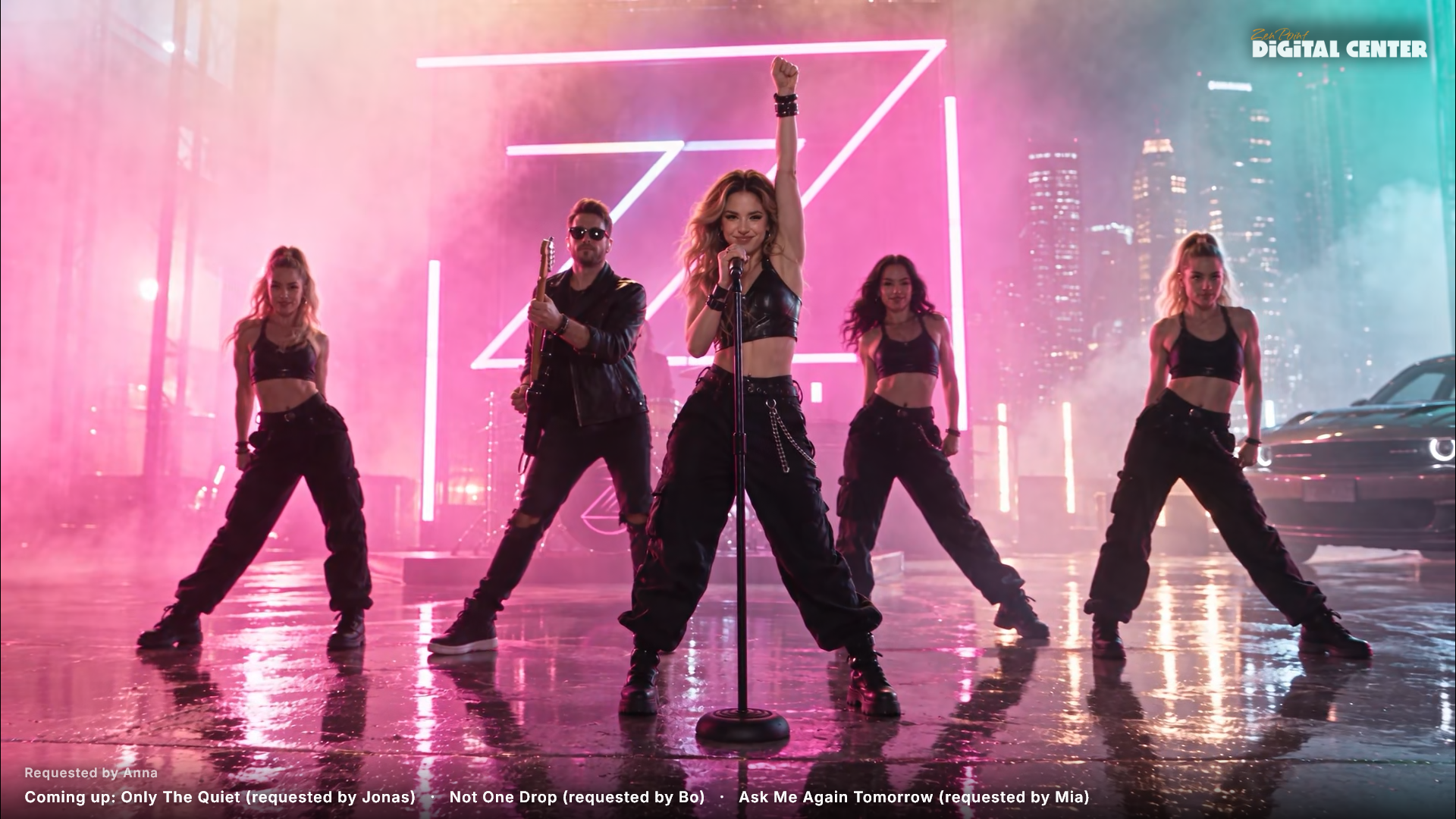
- Who asked for the song. If a guest typed their name on the phone remote when they added the song, Requested by Anna is shown under the song while it plays. You can keep guests' names off the screen with Show who asked for each song under Administration → Sound & playback; the phones still show them.
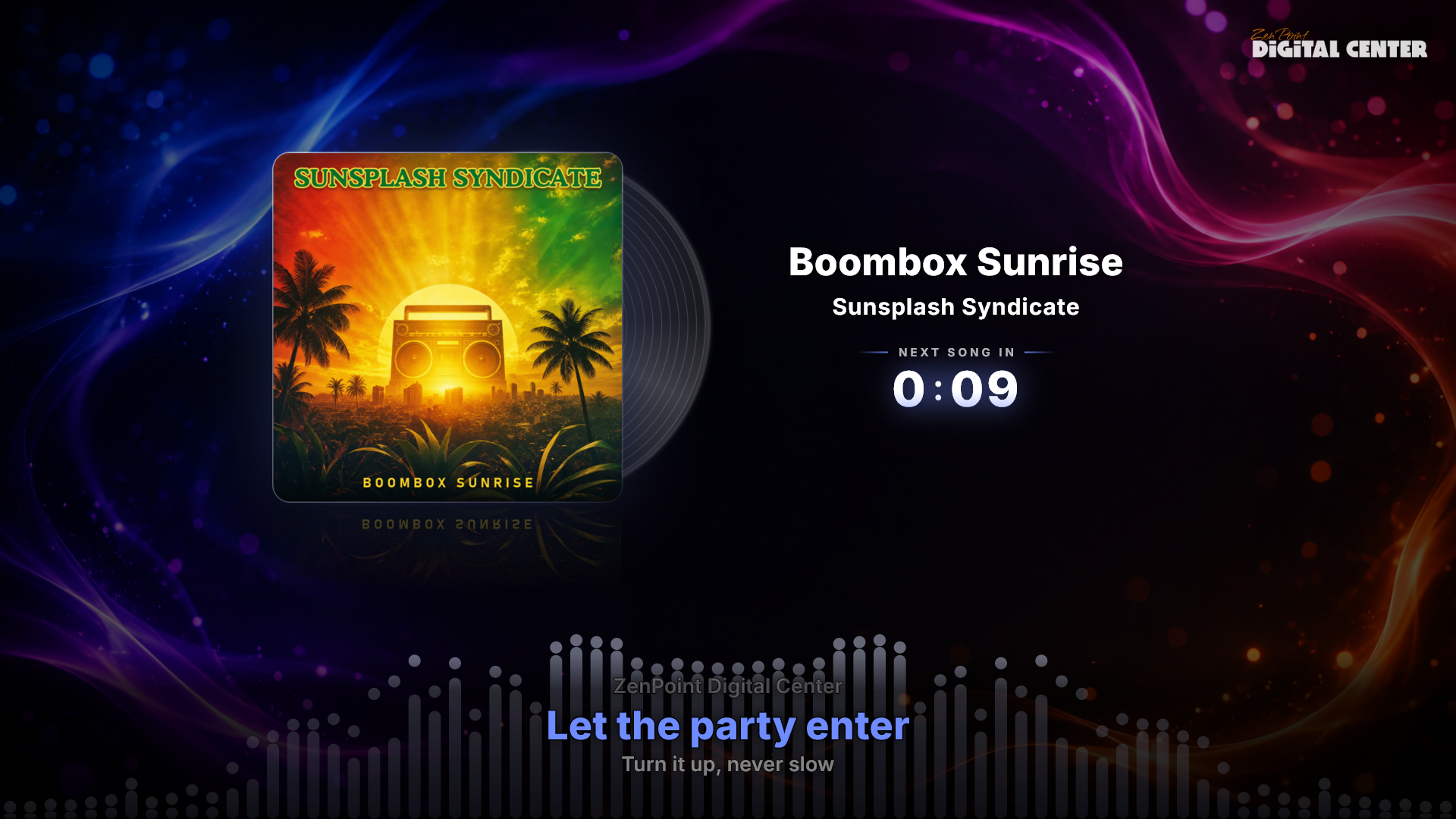
The screensaver as a notice board
When music from a playlist is playing and more songs are waiting, the screensaver also shows what comes next, just under the countdown: Up next: with the title and the artist, and Songs in the queue: 5 with the number that are waiting. If the next song is karaoke with a singer's name, the name is shown too. The lines only appear when songs really are waiting - not on the last song, and never as a guess at what Always Playing might pick afterwards. Your extra screens show the same lines. A line that is too long to fit glides slowly back and forth instead of being cut off.
Guest names on music videos
With Guest names on music videos under Administration → Screensaver (off by default), the screensaver - also on your extra screens - shows who asked for the music video that is playing (Requested by Anna), and one calm line at the bottom with the next songs guests have asked for from their phones (Coming up: Song (requested by Bo)). The line only glides along if it is too long for the screen, and only songs where the guest typed a name are included (five at most). It applies to music videos and YouTube - never to films or karaoke - and only while Show who asked for each song is on.
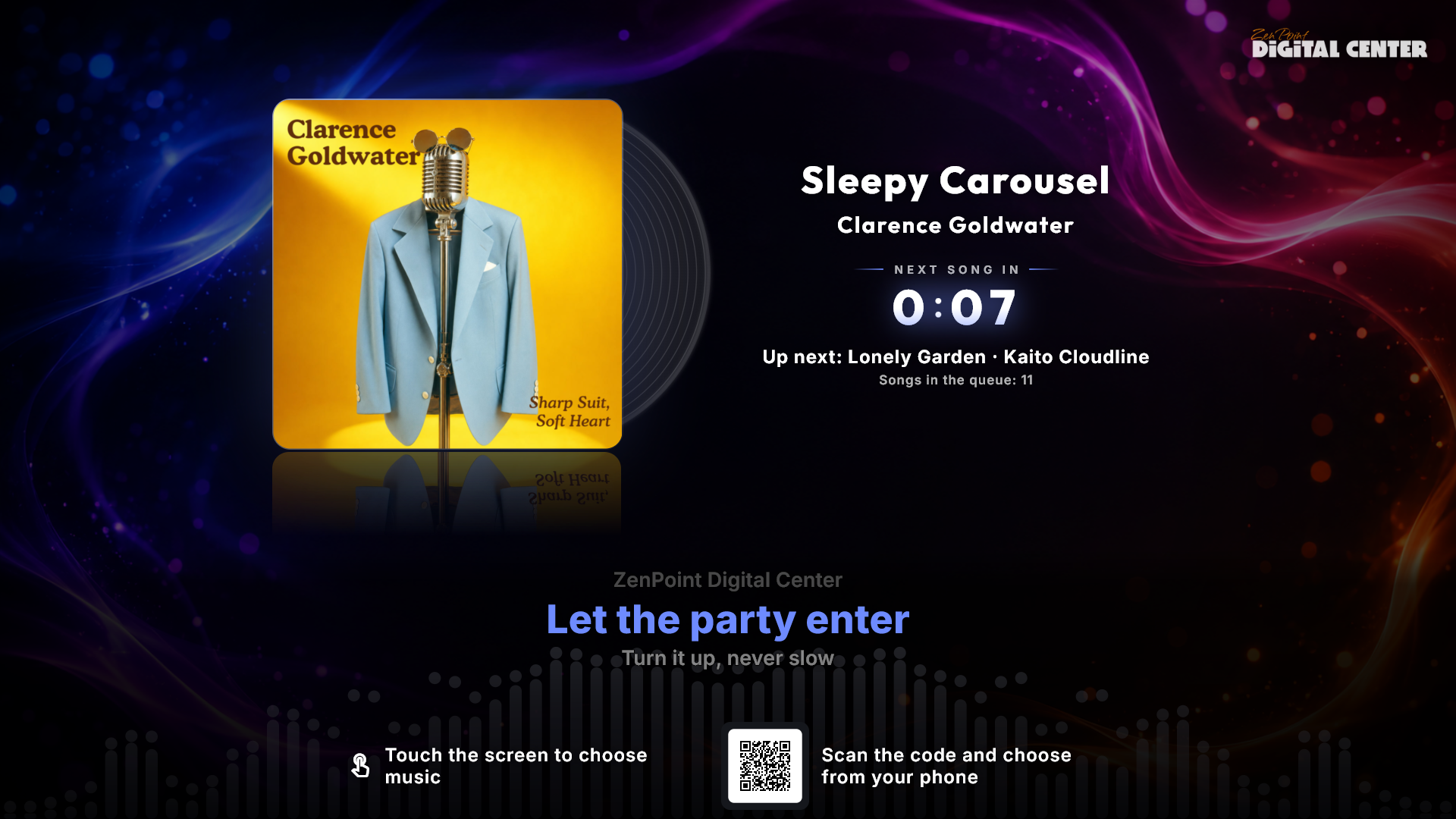
Inviting guests to choose music
The screensaver can also tell guests how to get their own music on. Choose under Administration → Screensaver → Invitation on the screensaver:
- Off (the standard) - no invitation.
- Touch the screen - a calm line at the bottom: "Touch the screen to choose music". It is only shown on the main screen, since the extra screens cannot be touched.
- Scan the code with a phone - a small QR code with "Scan the code and choose from your phone", so guests can pick music on their own phone. The code is only shown while Phone remote control is switched on (if it is off, a note just under the setting says so), and it appears on the extra screens as well.
- Both - both lines.
The invitation never sits on top of a movie, a music video or the karaoke lyrics, never appears in the music player's full-screen view, and steps aside while a karaoke singer's ready screen, the countdown or the applause is on screen.
Karaoke on the screensaver
The screensaver - and every extra screen - follows the karaoke player exactly. So while the player shows the ready screen for the next singer, or counts 3 - 2 - 1, the other screens show precisely the same card instead of rolling lyrics for a song that has not begun. And when a song is finished, the applause with the singer's name and the confetti appears on every screen, so the whole room joins in.
Gentle movement (and how to switch it on)
The clock and the now-playing card can drift very slowly across the screen, so a screen left on for days never holds a still picture in one place where it could burn in. It is off to begin with, because the panels used in most kiosks do not need that protection and a picture standing still looks calmer. If your screen does need it, switch it on under Administration → Screensaver → Gentle movement on the screensaver.
The big idle clock
When nothing is playing, the screensaver shows a large clock and the date. It uses a 24-hour format by default, but you can switch to a 12-hour display with AM/PM under Administration → Screensaver → Screensaver clock format.
Showing the title per center
The name of what is playing (the title of the video, movie or song) is shown on the screensaver for Music Videos, Movies, Karaoke and YouTube. You can turn this on or off for each of these centers under Administration → (the individual center) → Show name on screensaver. To begin with, only Karaoke shows the name - that is where a singer looks for it; the other three keep the picture clean.
Your logo also appears discreetly in the top corner of the screensaver while something is playing - the same corner as during full-screen playback, so it never jumps sides - and large in the middle over the clock when nothing is playing. You can turn it off under Administration → Brand & logo → Logo on screensaver.
What the main screen shows when it is resting
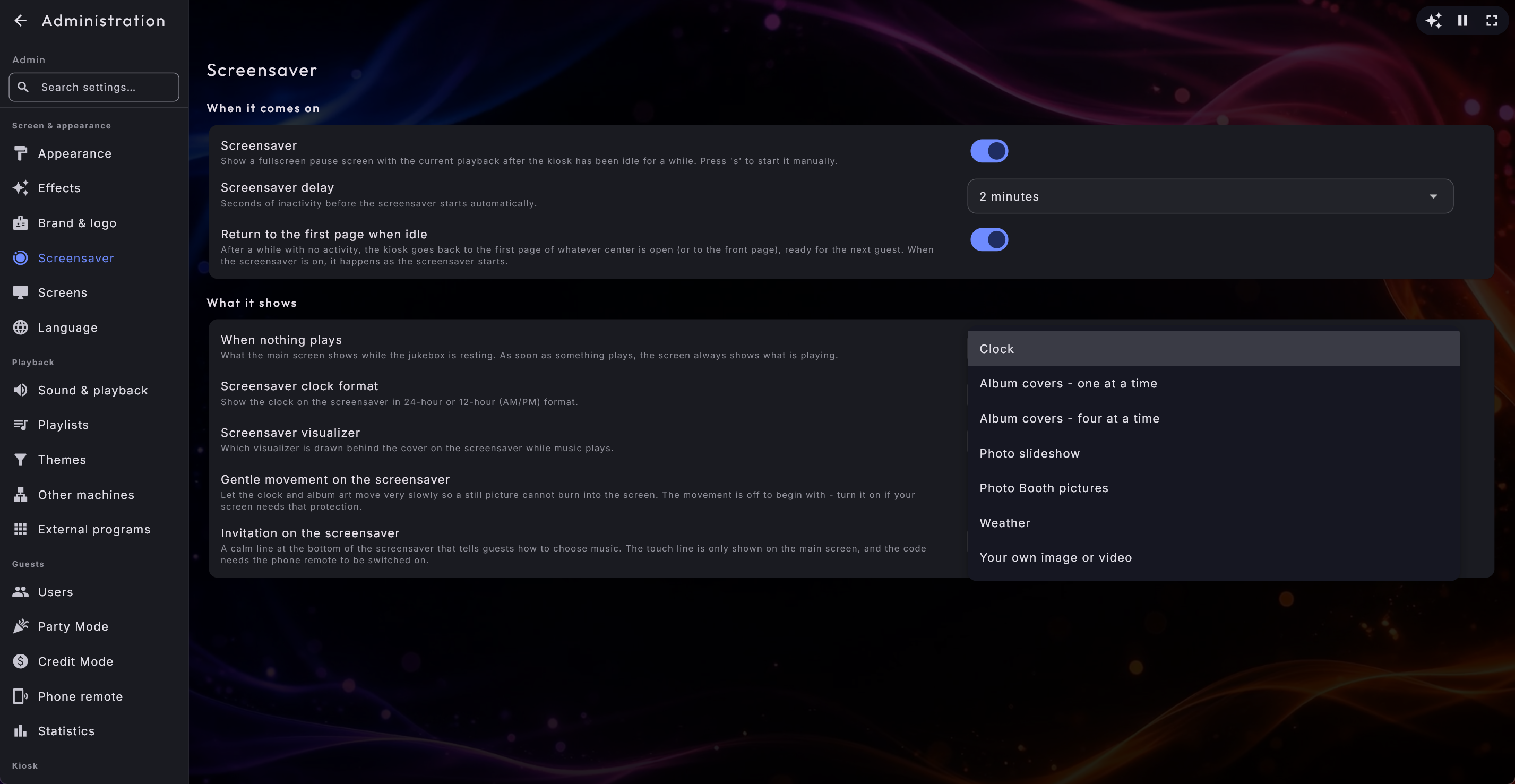
When nothing is playing, the main screen normally rests on your logo, the big clock and the date. You can choose something else for those quiet stretches under Administration → Screensaver → When nothing plays:
- Clock (the standard) is exactly what you have always had.
- Album covers - one at a time and Album covers - four at a time show a calm slideshow of the covers in your music library, whether or not anything is playing.
- Photo slideshow and Photo Booth pictures show the pictures from those two centers.
- Weather shows the forecast for the screen's own place (This screen's place), or otherwise your first saved place.
- Your own image or video shows a picture or a looping video of your own, which you point at with Image or video file just below.
The moment something starts playing, the screen always shows what is playing - the choice only ever applies while the jukebox is resting.
Karaoke and credit always come first
The main screen carries three things the extra screens deliberately do not: the singer's Start button, a paying guest's credit balance and the now-playing picture. So the ready screen, the countdown and the applause always win over your own idle material, and a singer can never be left looking at a slideshow with no way to start their song.
Starting, stopping and turning it off
You dismiss the screensaver by touching the screen, moving the mouse, scrolling or pressing a key. You can also start it instantly by pressing s on the keyboard - or, with no keyboard at hand, by tapping the Now playing screen button in the player bar at the bottom of the front page.
The whole screensaver can be switched off - and its delay changed - under Administration → Screensaver. The delay goes all the way down to 15 seconds, which is what you want on a machine that should show off the cover of what is playing almost as soon as nobody is touching it.
Arcade games are never interrupted
While an arcade game is running, the screensaver never appears, and the s key is used by the game itself - so a game is never cut short.
Using more than one display
If the computer has several screens connected, Digital Center can stretch a single window across your main screen plus any extra screens you choose. Each extra screen then shows whatever you have picked for it. You set this up under Administration → Screens.
Choosing what each extra screen shows
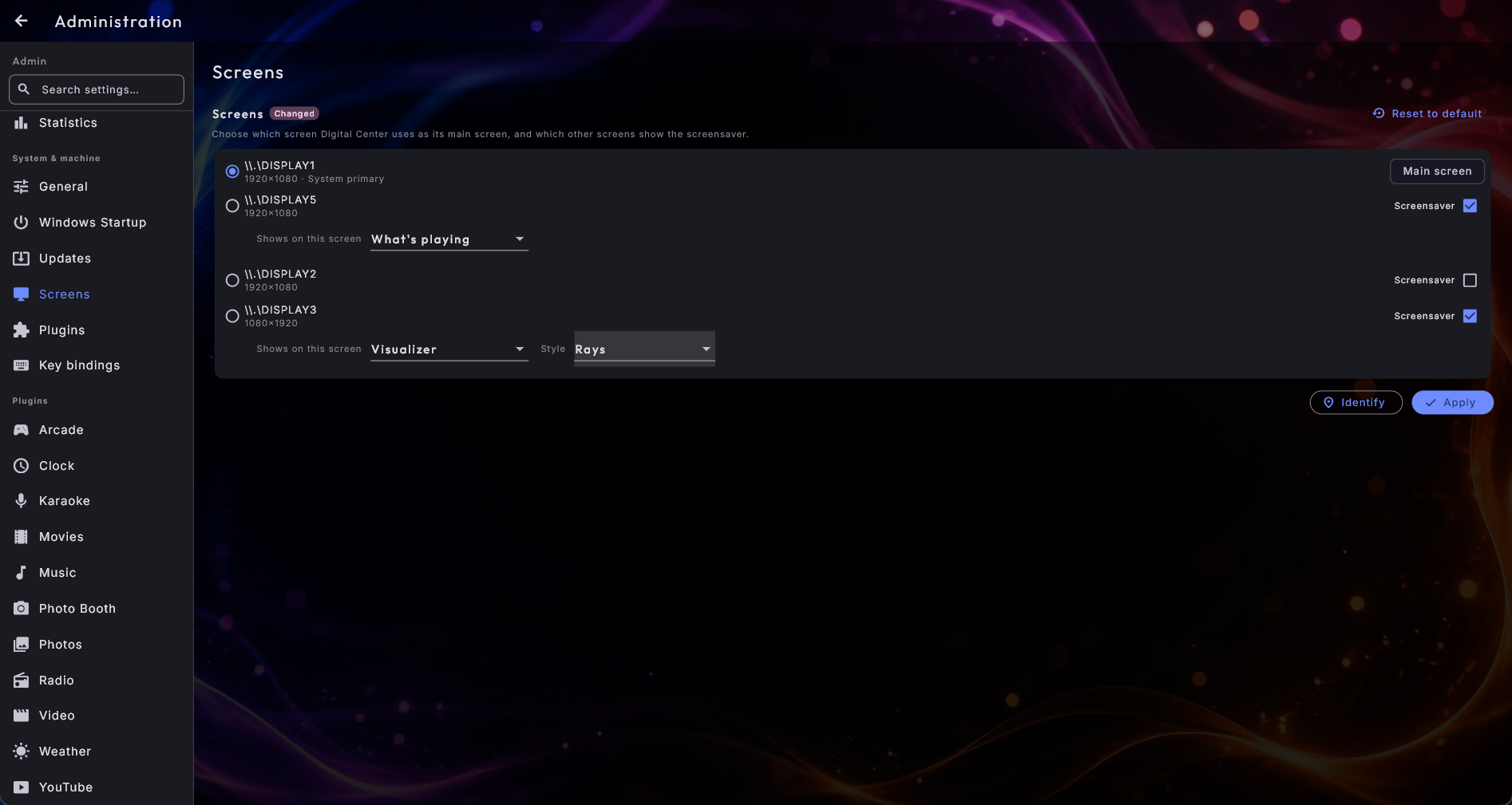
Under Administration → Screens, for each extra screen you have enabled the screensaver on, you can choose exactly what it shows:
- What's playing (default) - the same as the main screen: music, movies, video, karaoke or the clock, whatever is going on.
- Photo slideshow - an automatic slideshow of the pictures from your Photos center.
- Photo Booth pictures - a slideshow of the pictures your guests have taken in the Photo Booth.
- World clock - the same view as the World clock center: the local time as a large clock with the date, and below it a row of clocks for your saved cities and time zones.
- Weather - the forecast for the screen's own place (This screen's place) in your Weather center, or otherwise the first saved place.
- Visualizer - a striking sound visualization that radiates from the middle of the screen and dances with the music, over your chosen background and in your colors. It makes a perfect ambient light show on a spare screen at a party.
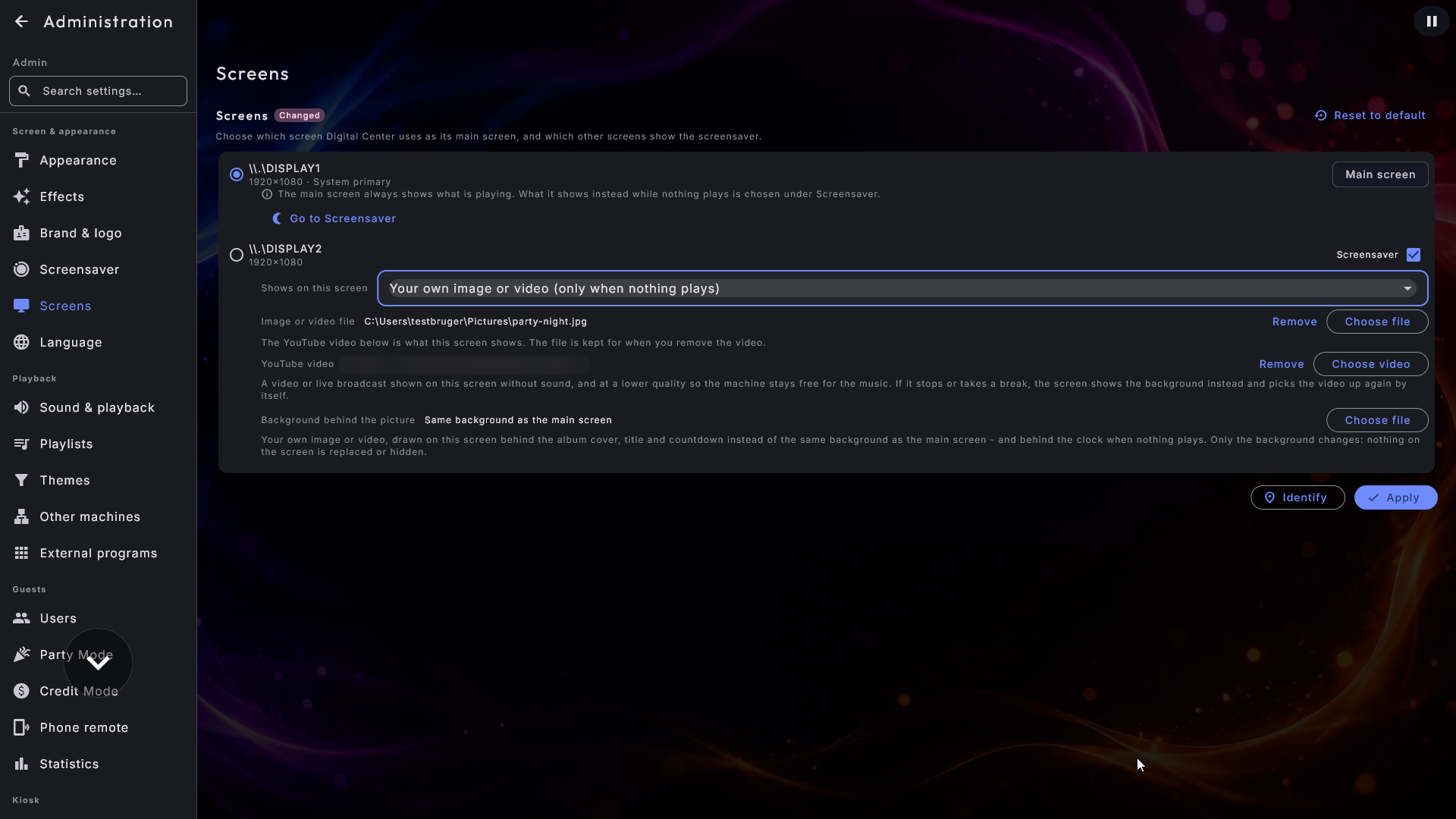
- Your own image or video (only when nothing plays) - your own picture, or a video that loops, shown whenever nothing is playing. The moment something starts playing, the screen switches over to what is on the main screen, and it goes back to your own material when the music stops again. The screen waits a couple of seconds before it changes back, so a short gap between two songs cannot make your material flash up and vanish again; going the other way, to what's playing, is instant. It turns a spare screen into a sign for the venue: a menu, an offer, a welcome, a house video. Pick the file with the built-in Choose file button. If the welcome music is switched on, the video plays silently so the two do not talk over each other; with the welcome music off, the video brings its own sound.
- Your own image or video (always) - exactly the same, but your picture or video stays up all the time, even while music or a video is playing. The screen gets a fixed look of its own and no longer follows what happens on the main screen at all. This is the choice when you want your poster, your menu or your advert standing permanently on screen 2 while the jukebox runs on screen 1. Here a video is always silent - it would otherwise play on top of the music; if you want sound, use the choice above. Switch between the two and the system remembers the file you already picked.
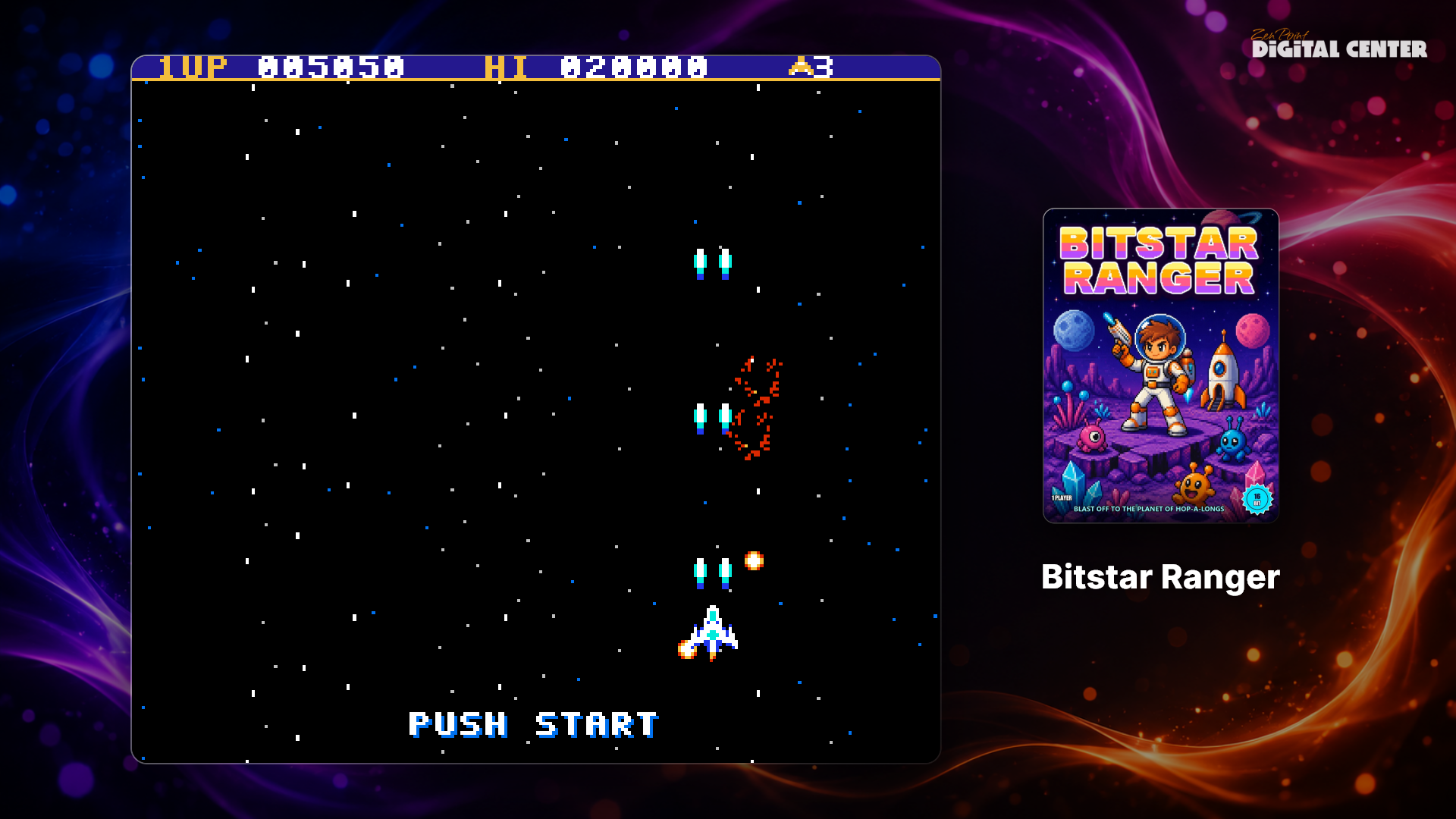
- Arcade game - a watch-along screen for a games cabinet. Turned or upright games are shown the right way up, exactly as on the cabinet itself. See A watch-along screen for the arcade below.
When you pick the Visualizer, you can also choose a style for that particular screen, so each screen can have its own look:
- Rays - beams that fan out from the center.
- Circle equalizer - a circular spectrum.
- Ripples - rings that pop on the beat and spread gently outward.
- Wave - a flowing wave.
- Morphing blob - a soft shape that pulses with the sound.
- Equalizer bars - a bar spectrum along the bottom.
- Center line - glowing bars rising from a center line with a reflection below.
- Spread center line - the same center line, mirrored symmetrically so the deep tones sit in the middle and the bright tones fan out toward both edges.
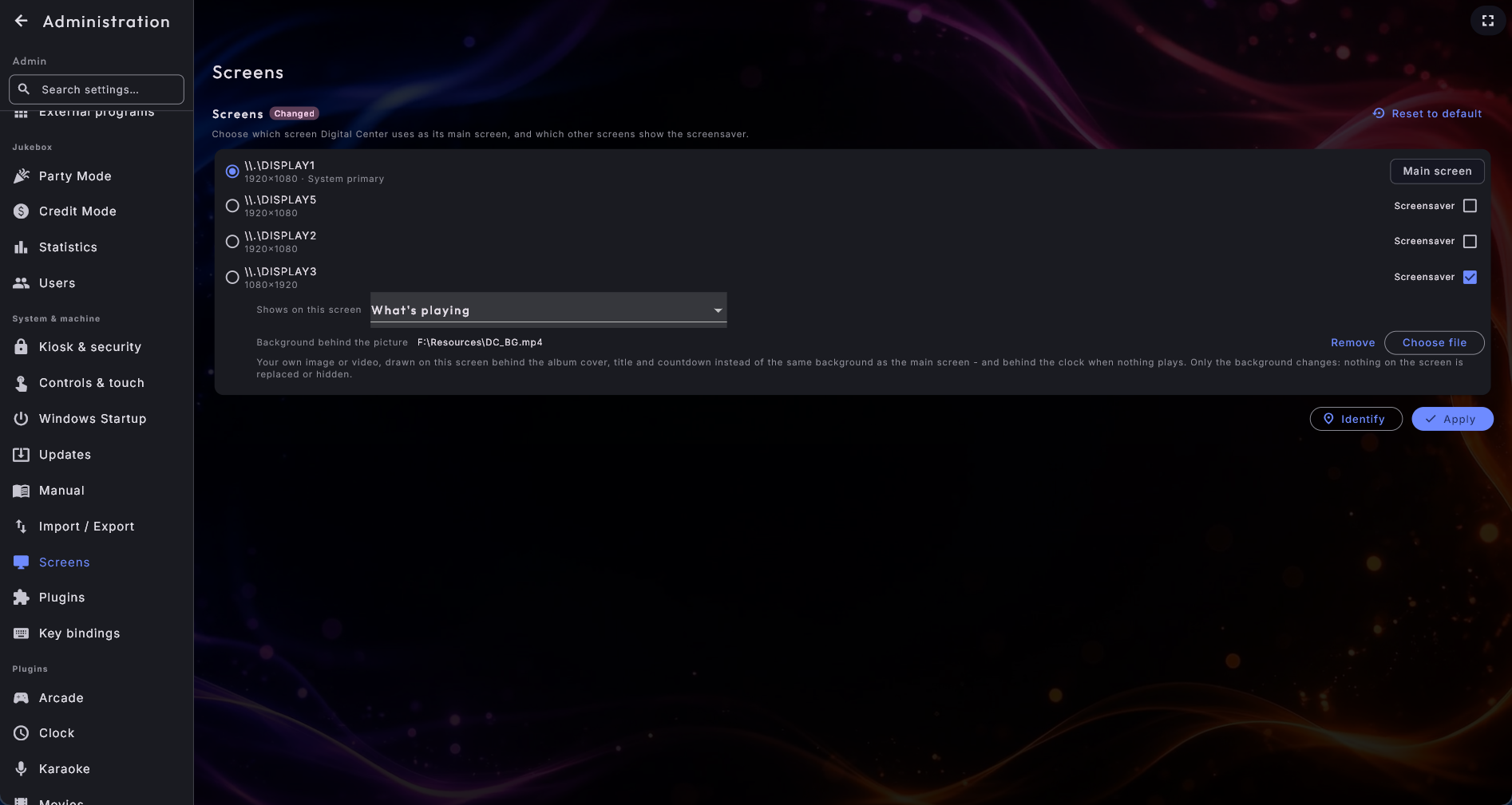
Give an extra screen its own background behind the picture. When an extra screen shows What's playing (or Your own image or video - only when nothing plays), it has so far used the same background as the main screen behind the album cover. If you would rather it had one of its own, look just below the choice for a line called Background behind the picture: press Choose file and pick your own image or your own video. That one screen then uses your background - both behind the album cover while something plays, and behind the clock when nothing does. Remove puts it back to the main screen's background.
Note the difference between the three, so you pick the right one:
- Background behind the picture sits behind. The album cover, the title, the artist and the countdown all stay exactly where they are - only the background changes.
- Your own image or video (only when nothing plays) replaces the picture, but only while nothing is playing.
- Your own image or video (always) replaces the picture the whole time.
You can happily use two of them on the same screen - your poster while nothing is playing, and your own background behind the album cover once somebody puts music on. The system remembers both files separately. A video used as a background is always silent; it would otherwise play on top of the music. And if the file you picked cannot be shown, the screen simply falls back to the main screen's background as before.
A YouTube video instead of a file
The two Your own image or video choices can just as well take their picture from YouTube - an ordinary video or a live broadcast. That is how you get a live street camera or a mood video running on screen 2 while the music plays on screen 1.
- 1
Find the YouTube line
Under Choose file there is a line called YouTube video. Press Choose video.
- 2
Pick a video
A list opens with Your favorites and Your sources from the YouTube center. Tap a source to see its videos, and tap the video you want. If the video you have in mind is on neither list, paste its address under Or paste a link at the bottom and press Use.
- 3
Apply
Press Apply at the bottom of the Screens page, as for any other change there.
A few things are worth knowing:
- The video always plays without sound. It would otherwise play on top of the music.
- It plays at a lower quality, on purpose. A background video should not take power from the music or from the main screen. It does not change the quality guests see in the YouTube center.
- The screen looks after itself. If the broadcast ends, the channel takes a break or the internet drops out, the screen calmly shows your background instead, and picks the video up again by itself when it is back. You do not have to do anything, and no error message appears on the screen.
- If you have chosen both a file and a video, the video is shown. A line above the choice says so. Your file is remembered and comes back if you press Remove next to the video - which is also how you go back to your own file.
A watch-along screen for the arcade
An extra screen set to Arcade game lets the people standing around follow the play.
- While a game runs, the game is shown large, as a real screen with soft corners and a reflection on the "floor" below it, with a faint glow in the colours of the cover. Beside it (below it on an upright screen) stands a small card with the cover and the game's name. If the name is too long for the line, it glides slowly back and forth. A running game is always shown, also when music keeps playing during the game.
- While a guest browses the game list, the screen shows the selected game the same way: a picture from the game itself on the screen with the cover on the card, and if you have added a video of the game, it plays (without sound, over and over) once the guest has rested on the game for a moment. A game with neither picture nor video shows its cover. If a song or a video is playing while the guest browses, the screen shows what is playing instead.
- When the Arcade is closed, the screen shows what is playing, if anything is. Otherwise it runs an attract mode, as in a real arcade hall: every 12 seconds a random game from your library that has a cover, a picture from the game or a video is shown the same way, and a game with a video stays a little longer (20 seconds). Every game is shown once before any is repeated. If none of your games has a picture (or there are no games), the screen shows a calm row of mood pictures that fade into each other instead. The same happens when the Arcade is open but has no games to show.
With Graphics mode set to Light (under Performance), the reflection and the glow are switched off, and no videos are shown in attract mode; everything else looks the same.
Your own pictures and videos from the game. You can give each game a picture from
the game and a short video yourself, and your own picture always wins over a fetched
one. The names follow the game file - for Pac-Man.zip they are:
- Next to the game: the picture
Pac-Man.snap.png(or.jpg,.jpeg,.webp) and the videoPac-Man.mp4(or.webm,.mkv). - In a folder called
snapsorvideos, directly inside one of your game folders, with the same name as the game file - for examplesnaps\Pac-Man.pngandvideos\Pac-Man.mp4. That way you can add a whole collection at once.
If a file lies in both places, the one next to the game is used. A video always plays without sound and only starts once the guest has rested on the game for a moment, so quick browsing does not make the screen flicker. Videos are never fetched for you - only the ones you have added are played. A new or replaced picture or video turns up by itself. Pictures from the game can also be fetched automatically, together with the covers (Find covers automatically in the Arcade settings).
Mix and match your walls
You could, for example, run a photo slideshow on one wall screen and the world clock on another. The main screen - the one you touch - always shows what is playing, so it jumps back to the app the instant anyone touches it.
When a theme decides what a screen shows
A theme can decide for a while what an extra screen shows - for example a Christmas video on screen 2 while the Christmas theme is active (see Settings & administration under Themes). While a theme decides a screen, a line under that screen on the Screens page says which theme it is. Your own choice on this page is never changed: it shows again when the theme is switched off, or straight away when you press Apply. The main screen is never touched by a theme.
The screensaver can show on all the screens you choose at once, even when nothing is playing - so the extra screens display content over your background, like the main screen, instead of going black. Your logo also appears discreetly in the top corner of these extra ambient screens - the same corner as always - as long as Logo on screensaver is switched on.
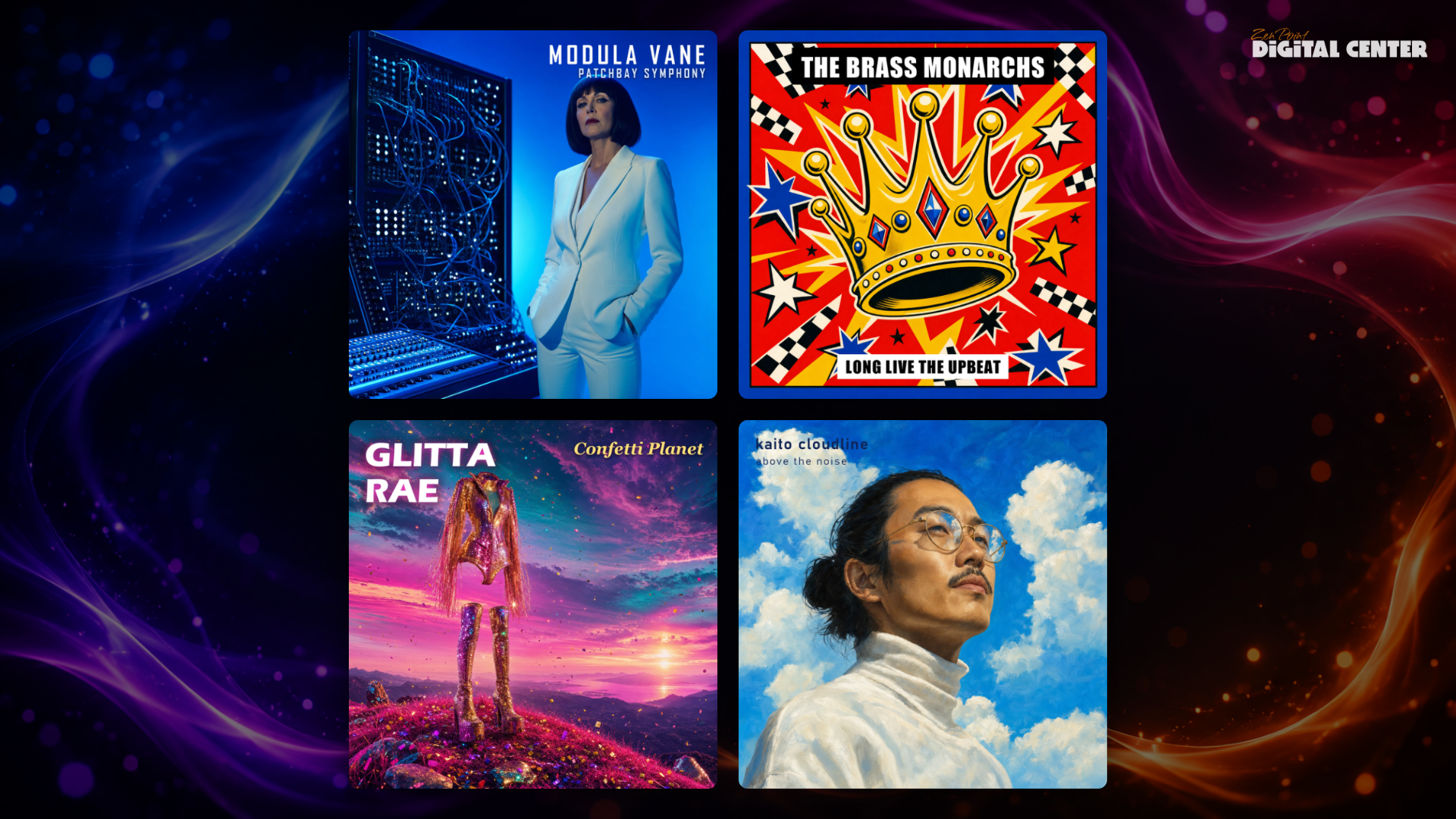
Album covers on an extra screen
Album covers is a content choice of its own for an extra screen. It shows a slow, quiet slideshow of the covers in your music library, with the album and the artist as a discreet caption underneath. It runs whether or not anything is playing and takes no notice of the queue, so it is atmosphere rather than information: a wall that looks like a record shop all evening.
Under the choice sits a Layout:
- One cover at a time (the standard) is the quiet version, one large cover with its caption.
- Four covers at a time makes a two by two wall. Only one of the four changes at a time, going round in turn, so the wall never flickers, and the wall carries no caption - four captions changing separately is restlessness rather than atmosphere.
There is no slow drifting motion here; only the crossfade between two covers moves, which is what keeps a screen left on for days from costing anything. With fewer than four albums the wall falls back to one at a time by itself.
For all the related settings - timeouts, logos, clock format and per-center options - see Settings & administration.