
Chapter 4
Your media libraries
Digital Center plays your content - your music, your films, your karaoke songs, your photos and your games. For that to work, the system needs to know where on the computer (or on your network) those files live. This chapter shows you how to point each center at the right folders, so everything you own shows up automatically on the big screen.
The short version
Open Administration, pick the center you want (for example Music), and add the folder or folders that hold your files. That is all there is to it - the center scans the folders and fills itself with your content.
How your content reaches the screen
Each center keeps its own list of folders to read from. You do not copy your files into Digital Center; you simply tell it where they already are. The same folder can hold thousands of items, and you can point a center at several folders at once - handy when your collection is spread across more than one place.
When a center has at least one folder, it goes through everything inside it - including any sub-folders - and builds a neat, browsable library with cover art, titles and the rest. You never have to import anything by hand.
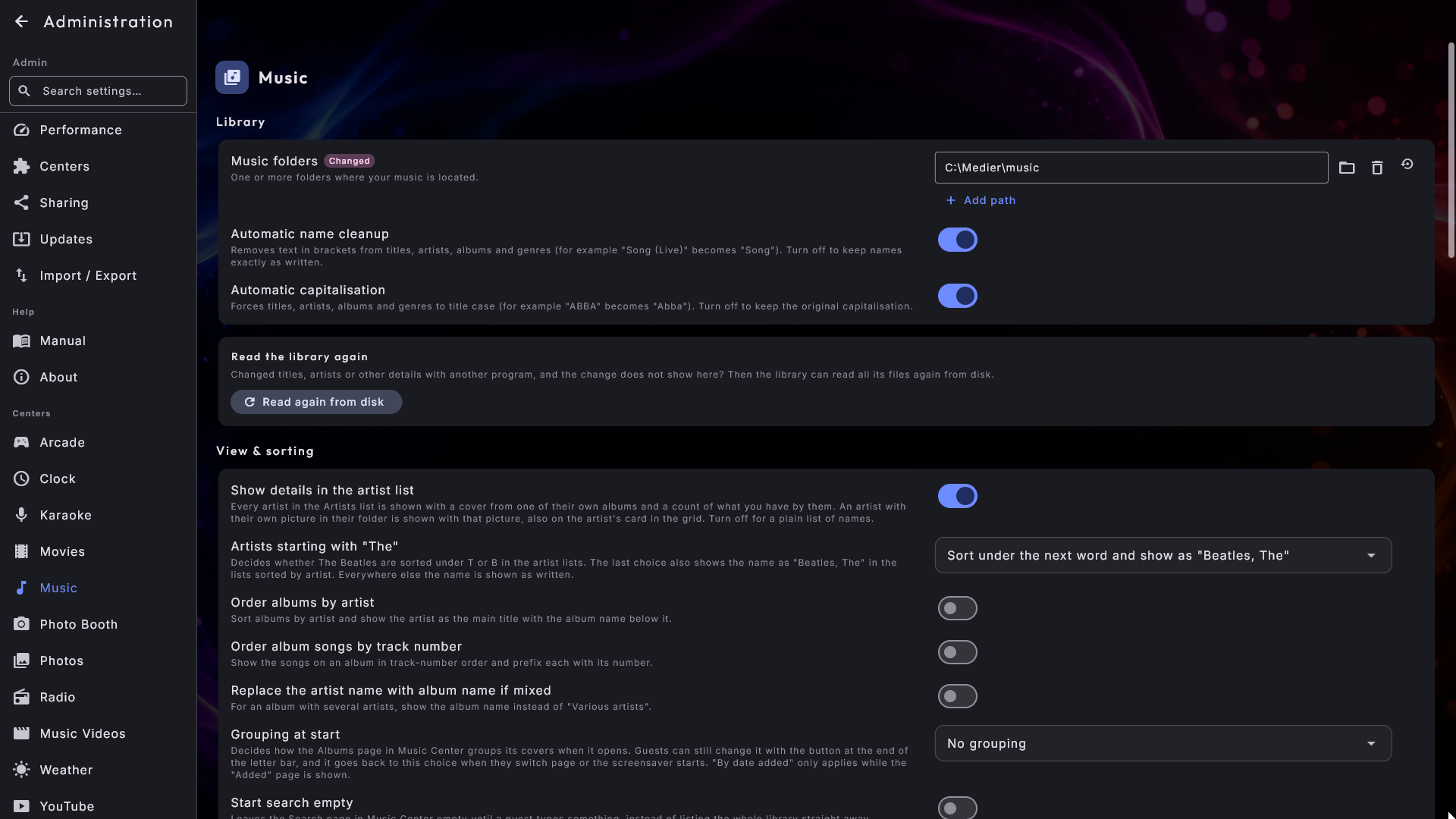
Where you set it up
You configure folders from the admin area:
- 1
Open Administration
On the front page, open the Setup tile and choose Administration (visible to an administrator). See Settings / Administration for the full tour of this area.
- 2
Pick the center
In the menu on the left, choose the center whose content you want to manage - for example Music, Movies, Music Videos, Karaoke, Photos or Arcade.
- 3
Add your folders
Find the folder list (for instance Music folders) and add one or more folders. A folder picker opens inside the app, so you can browse your drives and folders right there on the screen - even in full-screen mode and even without a mouse.
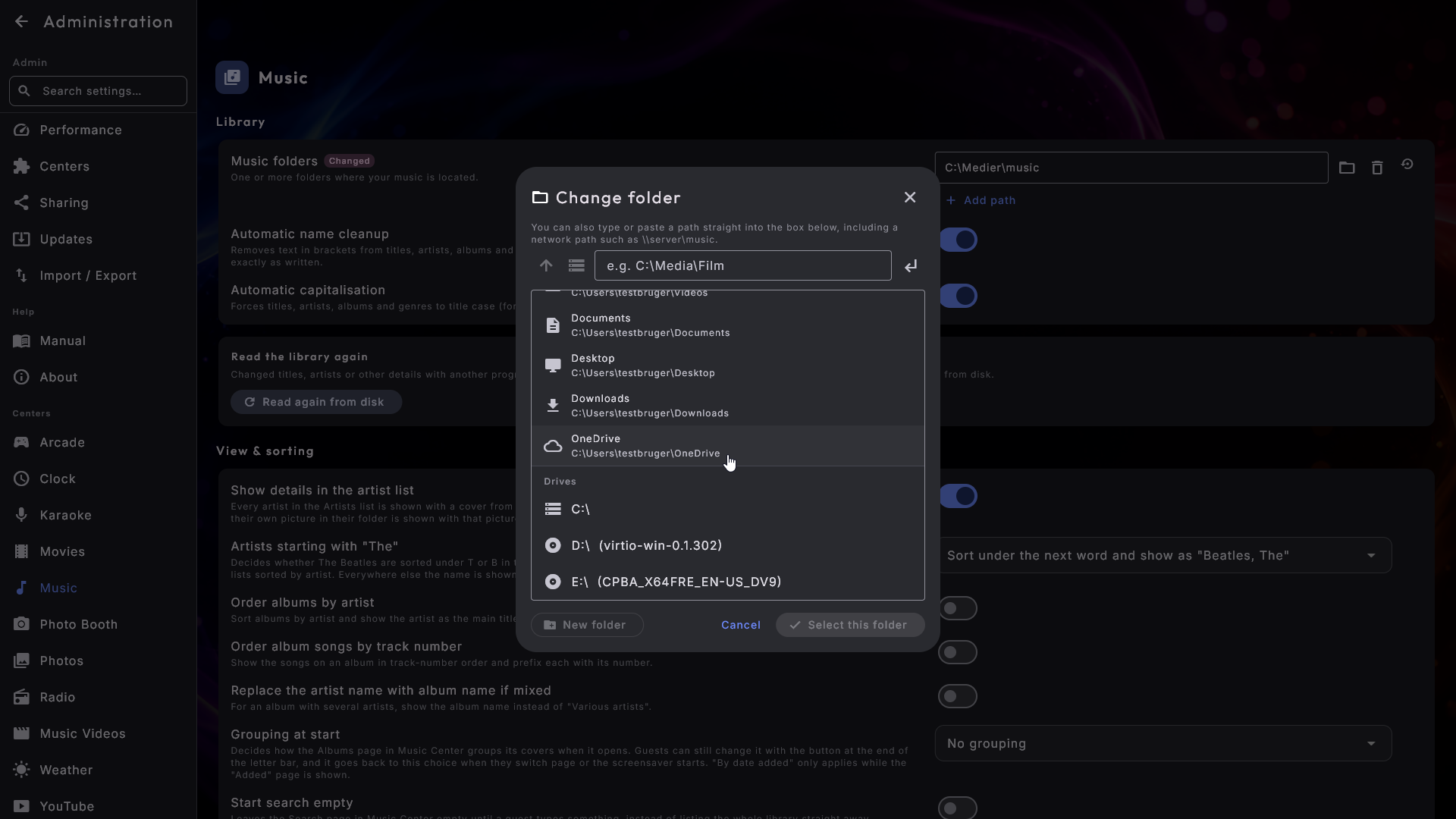
Your own folders are right at the top
The folder picker lists every drive in the machine - the built-in disk, a USB stick, a network drive - and above them it puts shortcuts to the folders you are most likely to want: Music, Pictures, Videos, Documents, Desktop, Downloads and OneDrive if you use it. Folders that OneDrive looks after for you are shown just like any other, so a collection kept in OneDrive is no harder to add than one on the disk. There is also a plain address field, which is the way in to a network folder that has no drive letter of its own.
Bottom left there is a New folder button, which creates a folder inside the one you are standing in. Type a name, press Create, and the new folder opens ready to be chosen - handy when a backup needs somewhere new to live. If the name won't do, you are told straight away instead of finding out afterwards.
The same shortcuts and the same list of drives now also appear in the Select file window - the one you use for your own logo, a picture for an extra screen or an external program - and not only when you are picking a folder.
Add as many folders as you like
A folder list can hold several entries. Keep your rock collection in one folder and your jazz in another? Add both - the center merges them into a single library. You can remove a folder again at any time without touching the files themselves.
What each center reads
Here is the kind of content each center expects you to point it at.
| Center | What to point it at |
|---|---|
| Music | The folders that hold your music. |
| Movies | The folders that hold your films. |
| Music Videos | The folders that hold your music videos. |
| Karaoke | The folders that hold your karaoke songs. |
| Photos | The folders that hold your pictures. |
| Arcade | The folders that hold your games. |
The Photo Booth also has a folder - but that one is the place where the pictures it takes are saved, rather than a library you bring with you.
Zipped karaoke songs are found as they are
Many karaoke songs are sold and shared as a single zip file that holds the song and
its graphics together (for example Artist - Song.zip). Just put them in your
karaoke folder as they are: Digital Center finds them and plays them straight from
the zip file, graphics and all, without you unpacking anything, and your zip file is
never changed. If the same song also lies unpacked in the same folder, it is shown
only once. A zipped song cannot be edited (name, cover, lyrics or removing the lead
vocal); if you want to do that, unpack the song first.
Karaoke videos are included when you say so
Karaoke songs that come as a video file, with the words already in the picture, can lie in your karaoke folder too. They are left out until you switch on Include karaoke videos under Administration → Karaoke (section Library); then they appear as ordinary songs after a few seconds, without a restart. If the same song also lies as an audio file with the same name in the same folder, only the audio file is shown. See Operating Digital Center for what a karaoke video can and cannot do.
Nothing added yet?
You won't start with empty centers. A fresh install comes pre-loaded with a little demo media for several of the centers - music, karaoke, movies, music videos and photos - so there is always something to show while you explore. It is never in the way and stays until you remove it; simply add your own folders to bring in your real collection.
Files on a network drive
Your content does not have to sit on the same computer. If your films or music live on a shared network drive - a common setup when one big drive serves the whole house or venue - you can point a center straight at it, exactly as you would a local folder.
Network drives can be slower
Reading from a network drive takes a little longer than reading from the computer's own disk, so the first scan of a large collection may take a while. This is normal. The center opens straight away and shows what it already knows while it says that the library is being read, and the rest arrives as it goes. If the kiosk is closed in the middle of the first scan, what it has read so far is kept, so it does not start from scratch next time. Once the library is built, browsing stays smooth, and the system is careful never to let a slow drive get in the way of playback.
Sharing between screens
If Digital Center runs on more than one screen in the house - one in the living room, one in the kitchen, one in the workshop - they no longer each need their own copy of your collection. One machine can hold the media and lend it to the others, and what it lends becomes part of their libraries. It works for music, films, music videos and karaoke songs.
The short version
On the machine that holds the media, open Administration → Sharing and press Share and show a code under Share with all my screens. Then, on the other screen, open Administration → Other machines, press Search for machines, choose the first machine and type the six-digit code. Its media turns up in the libraries there.
The machine that lends out
Everything on the lending side sits under Administration → Sharing. The page is split into three cards, so you can see at once how things stand: This machine (what the machine is called on the other screens, and the address they need), People who may connect (who may play from here) and Let a screen in (the two ways to give a new screen access, and the list of screens that already have it). At the top of the first card, one line tells you whether the machine is sharing right now, how many people are set up and how many screens are connected.
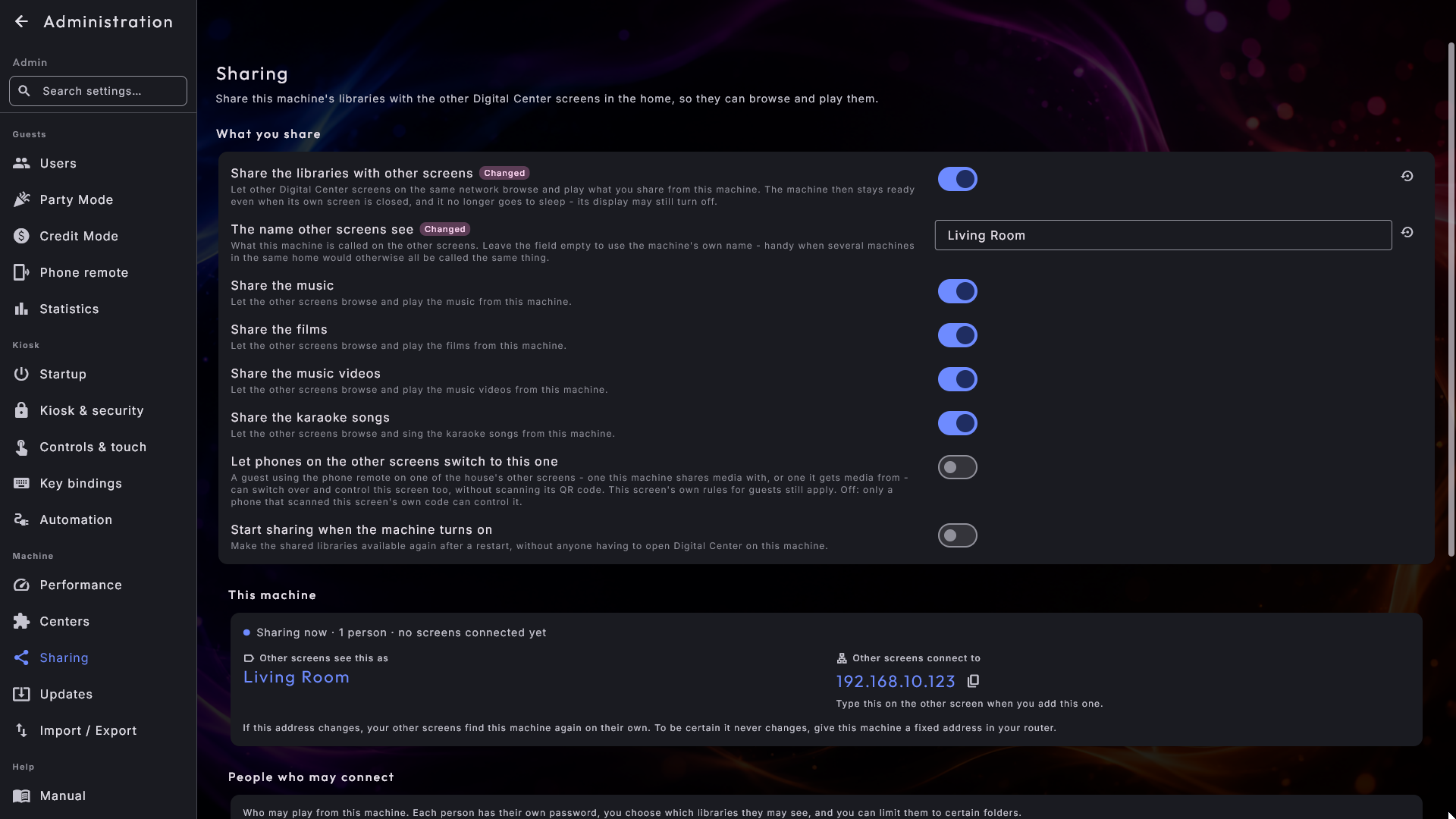
The quickest way in a home: Share with all my screens
Under Let a screen in you find Share with all my screens. As long as sharing is switched off, it is the only thing the page shows, because that is exactly what it sets up for you. One press on Share and show a code switches sharing on, creates a person called Home with access to everything the machine shares, and shows a six-digit code straight away. On each of your other screens, go to Other machines, press Search for machines, choose this machine and type the code. One code lets one screen in, so for the next screen you press New code. Pressing the button again later uses the same person - no more are created. Home has no password for you to remember; the way in is the code.
If you would rather set it up yourself, these are the parts of the page:
- 1
Turn sharing on
Switch on Share the libraries with other screens. Nothing at all leaves the machine before you do, so a machine you have not set up shares nothing. Once it is on, the machine also stays ready when its own screen is closed and no longer goes to sleep, so the other screens can still reach it. The display itself may still turn off.
- 2
Give the machine a name
The name other screens see is what the machine is called on the other screens. Leave it empty and the machine's own name is used. Give it the name of the room it stands in, and the list on the other screens reads Living room and Kitchen instead of the same product name three times over.
- 3
Choose what it shares
Four switches decide what is lent out: Share the music, Share the films, Share the music videos and Share the karaoke songs. All four are on, so the switch above is what protects you; turn off here anything the other screens have no business seeing.
- 4
Let it start with the machine
Start sharing when the machine turns on makes the shared libraries available again after a restart, without anybody having to walk over and open Digital Center on that machine.
The address the other screens need is shown in the This machine card next to the machine's name, with a button beside it that copies it, so you do not have to read the numbers off by hand. Below it, the page tells you that if the address changes, your other screens find the machine again on their own. To be certain it never changes, give the machine a fixed address in your router.
Who is allowed to play from it
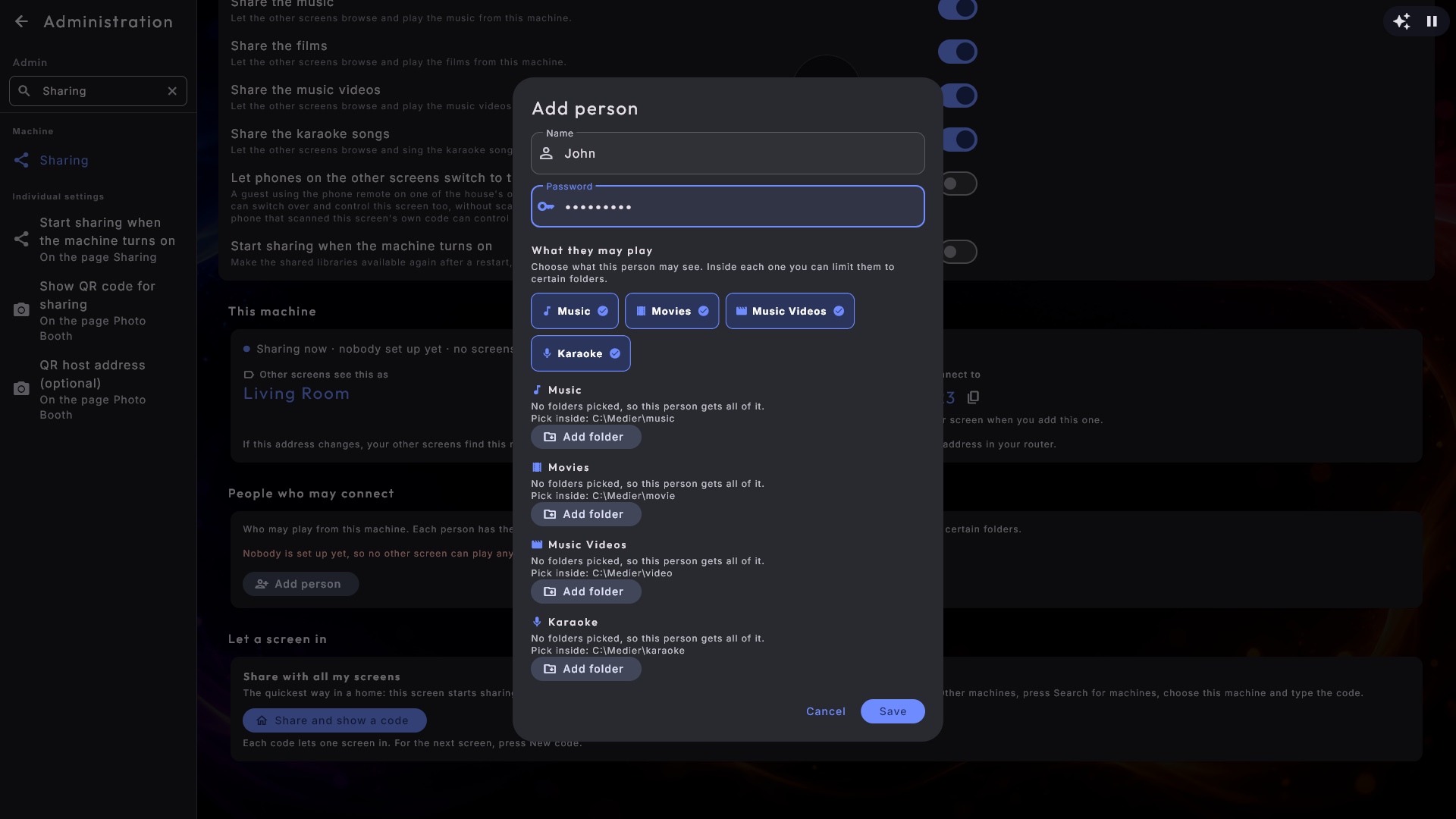
Nobody can reach the machine until you have set up a person. Under People who may connect you add one entry per person, or per room, with:
- A name and a password of their own. Two children can have one each, so you can shut one out later without breaking anything for the other.
- What they may play. Tick the libraries this person gets: music, films, music videos, karaoke. A new person starts with everything the machine shares, so you switch off what they should not have rather than hunting for what they should.
- Folders, if you want to narrow it down. Inside each library you can point at particular folders, and then only what lies there is offered. Pick no folders at all and the person gets the whole of that library.
Under each name, a short line says what that person may play. If they have everything, it simply reads All 4 libraries; if something has been narrowed down, it says exactly what and how much instead, because that is what is worth noticing.
Letting a screen in with a code
Connect a screen with a code is the easiest way to let a new screen in. Choose which person the screen is let in as (if there is only one, it is already chosen), and press Show a code. Six large digits appear, with a countdown and the address as text. Go to the other screen, choose Other machines → Add a machine, type the address and the six digits, and press Add. The code works for five minutes and only once: as soon as a screen has used it, it is spent, and that screen appears under Screens with access with the person you chose. New code makes a new one and cancels the old one, even if it has not been used. If the two machines stand far apart, write the address and the code down, or take a picture of the screen with your phone. The card only appears once at least one person has been set up, since a code always lets a screen in as a particular person.
Taking access back from one screen only
Under Screens with access you can see every screen that has been let in, by the name it gave itself, with the person it was let in as and when that happened - so you can tell an old screen from one that arrived today. Remove one and that screen alone is shut out; the person's other screens carry on untouched. Changing somebody's password, or removing the person, shuts out all of their screens at once, which is the gesture you want when a person should no longer be let in at all.
Let phones switch between the house's screens
Let phones on the other screens switch to this one lets a guest who uses the phone remote at one of the house's other screens switch over and control this screen too, without scanning its QR code. It works both for the screens that fetch media from here and for the screen this machine fetches from, and this screen's own rules for guests (Party Mode, payment) still apply. It is off to begin with: in a bar, the guest at the bar should not be able to control the office. This one switch is always visible and usable, also on a screen that shares nothing - so you do not need to set up sharing both ways to switch both ways. Turn it on for each screen a phone should be able to switch to; the screen appears on the phone's list within a minute. If the phone remote is off on this screen, a note under the switch says so, with a button that takes you to where you turn it on.
The screen that borrows
On the screen that should borrow, open Administration → Other machines.
- 1
Add the machine
Press Add a machine. The form has two fields: the address of the other machine (it is shown on the other screen under Sharing) and a six-digit code, which you get on the other screen with Show a code (or Share and show a code). If the two are on the same network you can press Search for machines instead: the address fills itself in, and you are ready in the code field. Nothing is tried until you press Add. If the address does not fit, or the code is not six digits, you are told next to the field and the rest of what you typed stays put. If the code does not match or has run out, you get a calm message to ask for a new code on the other machine - nothing is saved until the code has been accepted.
- 2
Or use a name and password
Would you rather use a user name and a password you set up over there? Press Use a user name and password instead, and the two fields fold out in the same form. Use a code instead folds them back.
- 3
Tick the ones you want included
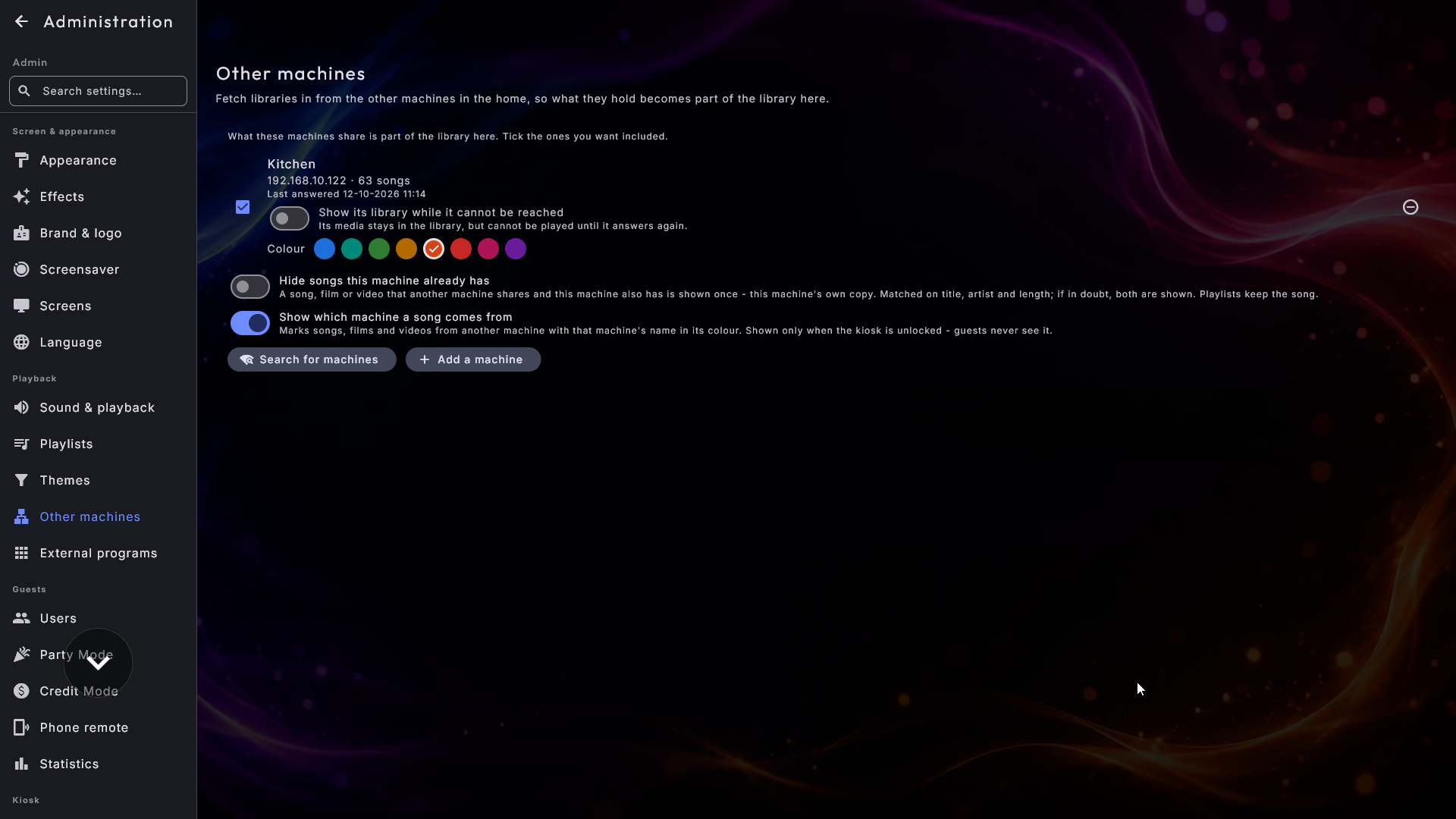
Every machine you have added carries a tick box. Ticked, what it lends is part of the library here; unticked, it is left out without being forgotten. The line also tells you how much each machine contributes - for example 4 210 songs · 96 films - and when it last answered, also while it is not answering. If a machine has not answered for more than three days, a quiet line says Has not answered since with the date; if it is not coming back, untick it or remove it.
A machine that moves is found again
If the other machine gets a new address on the network - a router can do that, for example after a power cut - this screen looks for it by itself once it has been silent for a while. When it finds the machine somewhere new, the machine first has to prove that it really is the same one before anything is sent to it; then the address is moved on its own and the media comes back, without you having to add the machine again. Another machine that merely claims to be the same one is not let in.
Two switches for all the machines. Below the list sit two switches. Both are off until you switch them on:
- Hide songs this machine already has. If both this machine and another one have the same song, it would otherwise be listed twice. With the switch on it is shown once, as this machine's own copy, so it plays even when the other machine is switched off. The same goes for films, music videos and karaoke songs. Two songs count as the same when title and artist (and for music and karaoke the album too) match, including anything in brackets, and the length is nearly the same; for films, title and year are compared. If in doubt, both are shown. A playlist never loses the song: if it points to the other machine's copy, the copy here plays instead.
- Show which machine a song comes from. Puts a small label with the machine's name on songs, films and videos from another machine, on covers and in the song lists. An album only gets the label when all its songs come from the same machine. The label is only shown while the kiosk is unlocked, so guests never see it. With the switch on you can pick a Colour for each machine under its name; otherwise each machine gets a colour of its own.
It is simply one library
Once a machine is ticked, there is nothing more to learn. The borrowed material is mixed straight into your own library: it sorts in among your own titles, it turns up in search, in the groupings, on the A to Z bar, in Popular and Added, and it can go into playlists exactly like everything else. Guests are never asked where something comes from, and there is no source to pick - a song is a song.
New files arrive in seconds. Put new music, films, music videos or karaoke songs on the machine that shares, and they appear on the other screens within a few seconds, with no restart needed. If the other machine is busy fetching album covers for a large library, the new covers come along about once a minute.
Always Playing works across the lot too. A playlist set to keep going can pull its next item from the whole shared collection, so a small machine with almost nothing on its own disk can still play all evening.
When the other machine is switched off
A machine that stops answering is not a fault. After about half a minute, what it lends out quietly leaves the library, so nobody is offered a song that cannot be played, and any such items drop out of the running queue. The moment the machine answers again, its whole library is back in one step. Administration is the only place that says a machine is away, so the guests at the screen never see anything break.
The screen remembers it across a restart: a machine that was away when the screen last ran is not included from the start, but joins as soon as it answers. Meanwhile the screen keeps listening for it, so a machine switched on after the screen is back within about a minute, and opening Other machines tries again straight away.
Under each machine sits Show its library while it cannot be reached. Switch it on, and what the machine lends stays in the lists while it is switched off, which is handy for a machine that sleeps at night. Its songs and films can be played again as soon as it answers.
Karaoke brings everything with it
A borrowed karaoke song is not just a sound file. Its lyrics, its on-screen
graphics and both of its recordings travel with it, so the ready screen, the
bouncing ball and the o key that switches between the original vocal and the
backing track all work exactly as they do on a song of your own.
New files appear on their own
You do not need to restart anything when your collection grows. Drop new songs, films or videos into a folder a center already watches, and they show up by themselves - often while you are still looking at the screen. The library keeps itself up to date in the background.
When the content sits on a network drive, give it a minute or two; the new items will arrive shortly after.
Polish the details in ZenPoint Media Manager
Pointing a center at the right folders is enough to start playing. When you want to tidy up titles, choose nicer cover art, look up missing information, or prepare karaoke songs, you do that in the companion program ZenPoint Media Manager - see ZenPoint Media Manager.
With your folders in place, every center is filled with your own content and ready to use. Next, we look at how to make that content shine.