
Chapter 5
ZenPoint Media Manager: media & metadata
ZenPoint Media Manager is the workshop where you get your collection looking its best. Digital Center plays your content; ZenPoint Media Manager is where you organize it - fixing titles, choosing cover art, looking up missing details, editing many items at once, and preparing karaoke songs so people can sing along. It is installed together with Digital Center, and this chapter walks you through everything it can do.
Two programs, one collection
You only ever edit your media in ZenPoint Media Manager - there is no editor hidden inside Digital Center itself. Whatever you change here shows up on the big screen automatically, usually within moments.
Opening the program
The easiest way to open ZenPoint Media Manager is straight from Digital Center:
- 1
Open the Setup tile
On the front page, open the Setup tile.
- 2
Choose Media Manager
Pick Media Manager (an administrator-only choice). Digital Center steps aside while the program is open and comes back by itself the moment you close it again. If you have made Digital Center an ordinary window yourself (F12), it stays a window, and the screensaver is held back while Media Manager is open.
It shares Digital Center's license
ZenPoint Media Manager uses the same license as Digital Center, so it only opens when the license is in order. If the license has expired or has not been activated yet, the program says so and asks you to sort it out in Digital Center first, then press Try again. While you are on a free trial, you will see a small Demo badge in the program. The program also never runs twice at once - if it is already open, asking for it again simply brings the existing window to the front.
Finding your way around
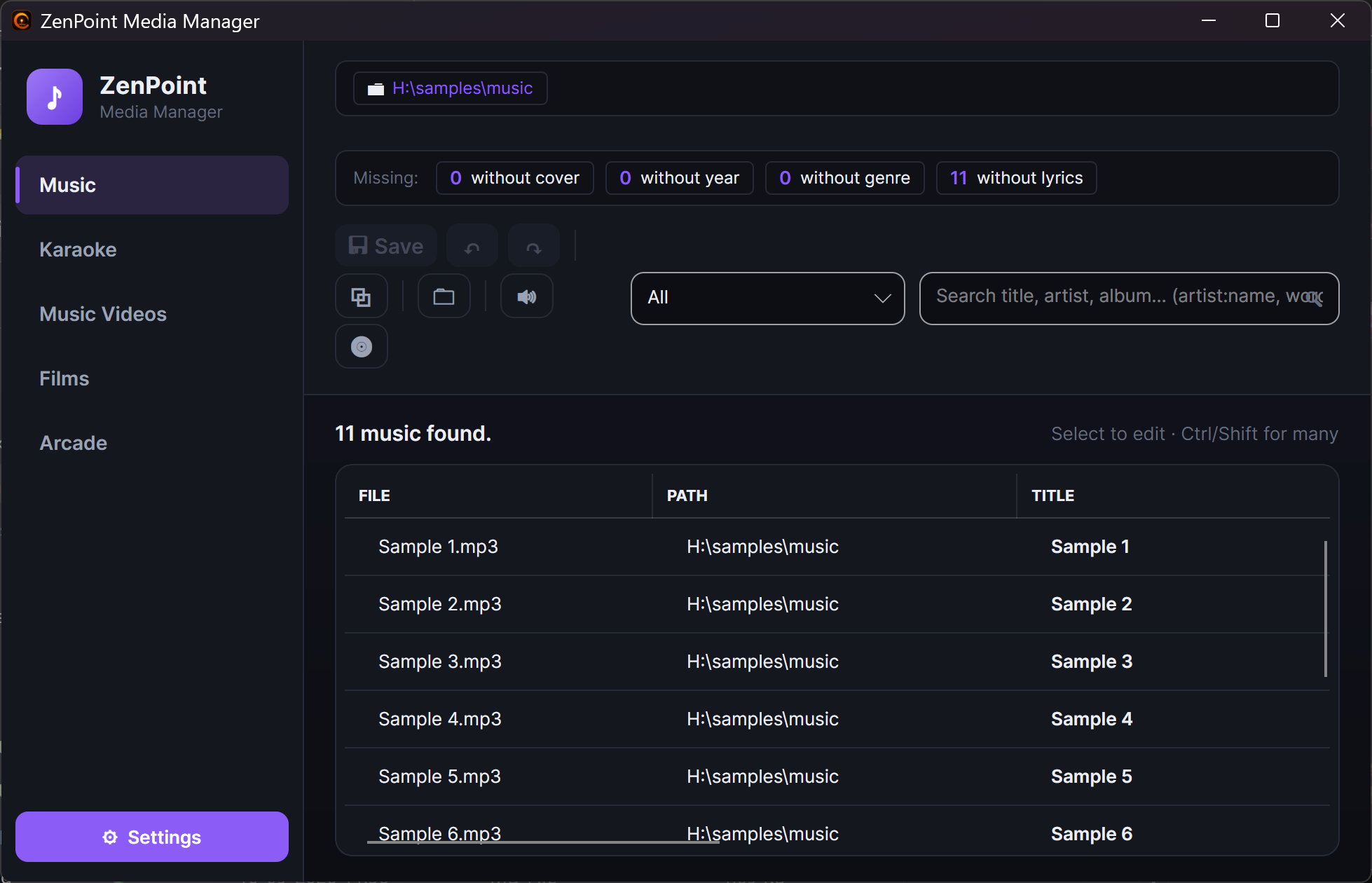
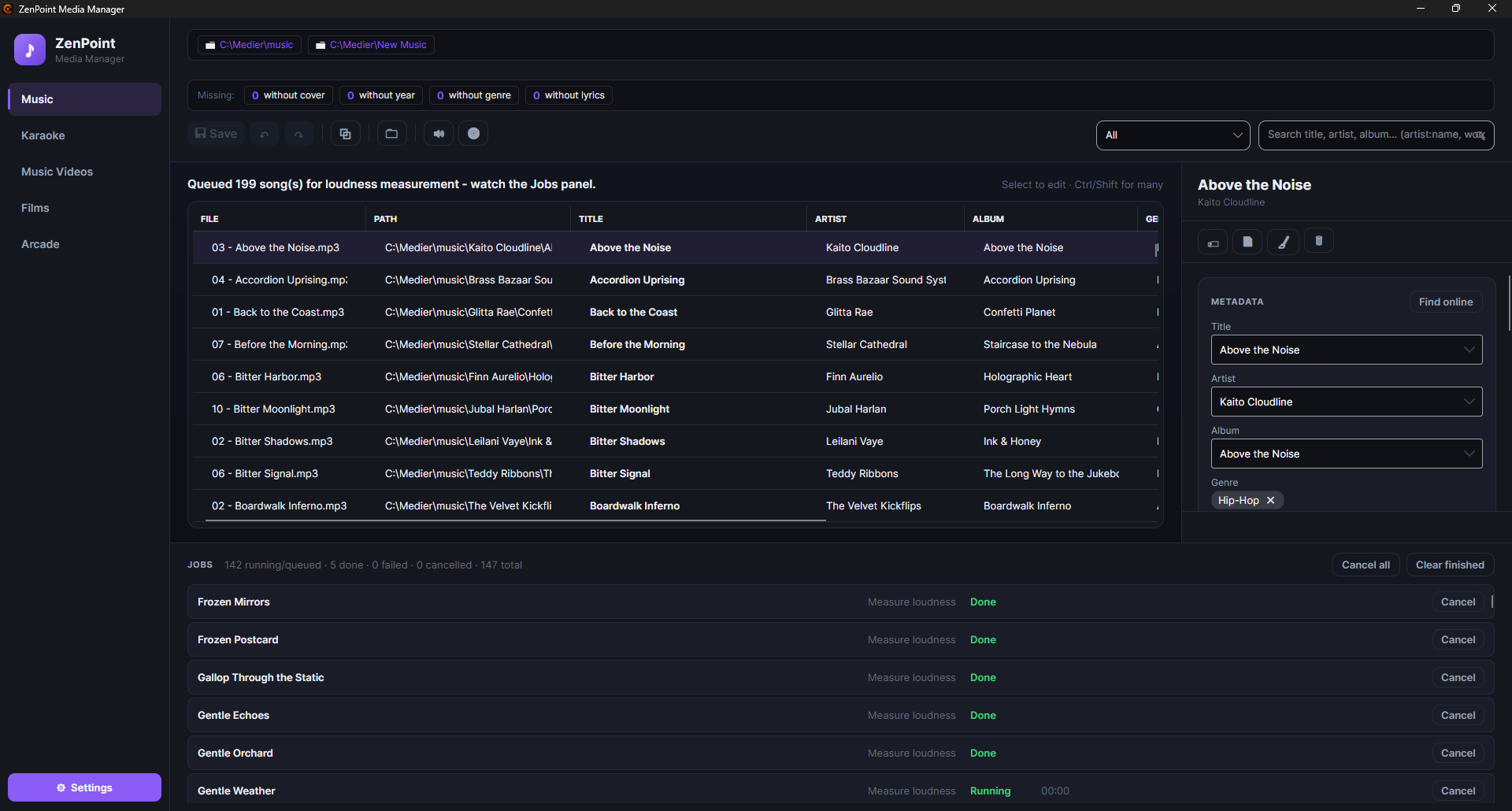
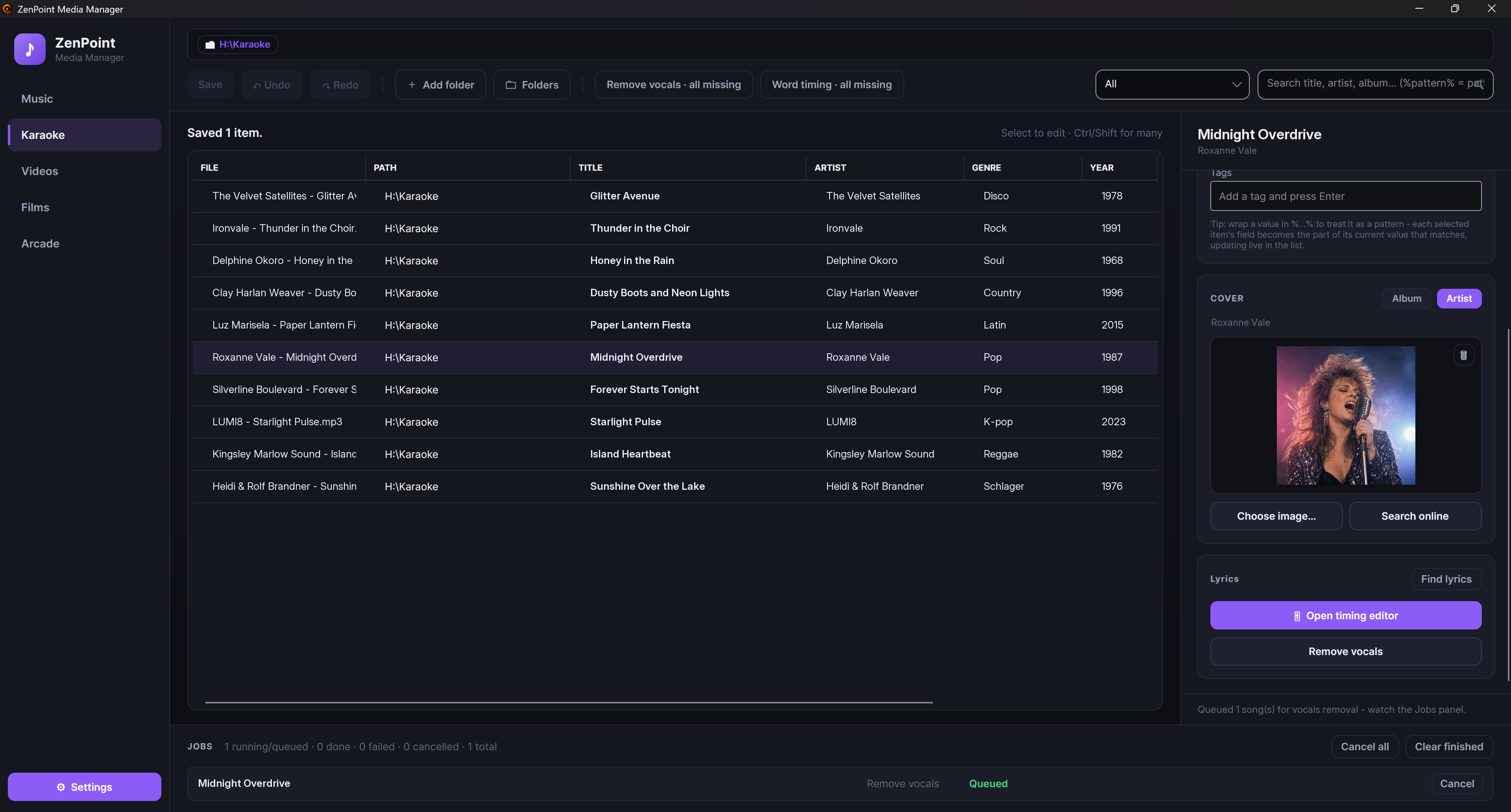
The program is organized by media type. Along the top you switch between Music, Karaoke, Music Videos, Films and Arcade. Each tab shows that type of content as a tidy list in the middle of the window, with an editing panel down the right-hand side.
- The library list shows everything in your folders for that type, with handy little marks showing which items already have cover art, lyrics, timing and so on. You can sort by clicking a column, widen columns to taste, and select one or many items at once. A small dot next to a row means it has unsaved changes. Numbers inside names sort by their real value, so 01, 02 … 10, 11 line up in order instead of putting "10" before "2"; whichever column you sort by, ties are broken by the file name so the order stays predictable.
- The editing panel on the right is where you change the selected item's details and cover.
- Right-click an item for quick actions: rename it, delete it, play it, open its folder, or show only its album, artist, genre or year (see below).
Show only what's missing
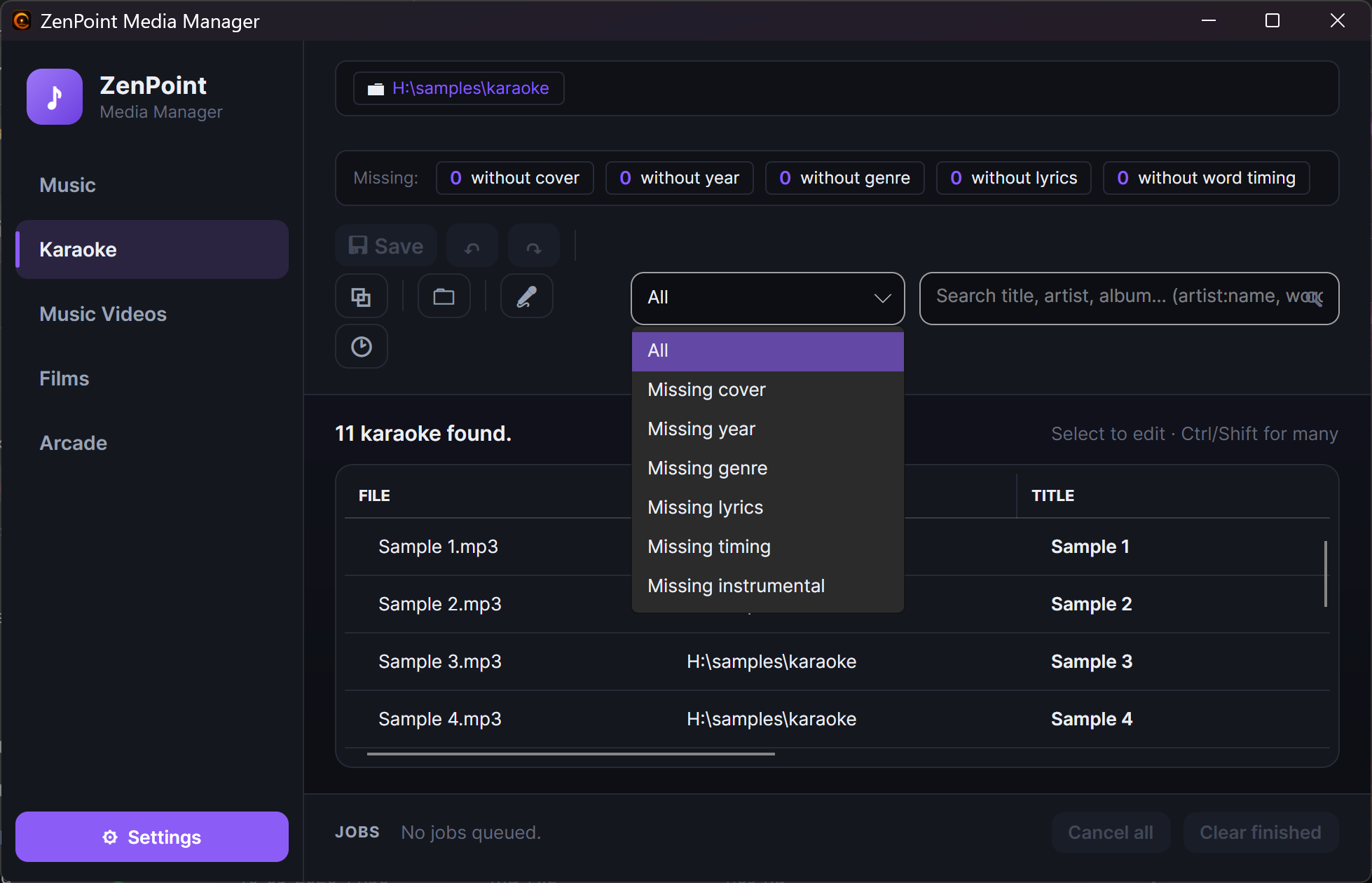
Next to the search box is a small Show only what's missing dropdown. Pick a choice to narrow the list to items that still need attention - Missing cover, Missing year or Missing genre, and for karaoke also Missing lyrics, Missing timing or Missing instrumental. (Which choices appear depends on the media type: the karaoke ones are only on the Karaoke tab.) It works together with the search box, so you can look for missing covers and a search word at the same time. It resets to All when you switch tabs.
See what is missing at a glance
Above the list sits a row of numbers headed Missing: - for example 12 without cover · 40 without year · 3 without genre (on Karaoke also without lyrics and without word timing; on Music also without lyrics). The numbers count the whole tab and are brought up to date when the list is read in again or you save. Click a number, and the list shows only those items - the same as choosing, say, Missing year in the dropdown next to the search box. Click the highlighted number again to see everything.
Find what you have twice
Press the ⧉ button in the toolbar, or right-click a row and choose Show only
duplicates. The list then shows only the items that exist more than once: the same
title and the same artist (for films and games: the same title and year) and almost
the same length. The duplicates are placed right after each other, and the
GROUP column shows which belong together (#1, #2 …). A ? after the number
means the program could not measure the length of one of the files and has only
compared title and artist - take a second look. The PATH column shows where each
copy lives, so you can decide which one should go and delete it the usual way
(right-click → Delete file…) - the program never deletes anything by itself. The
status line tells you how many duplicates there are in how many groups. The filter is
shown as a small tag at the top; click it to see all items again. It also goes away
when you switch tab.
Filter the list by folder
At the top of the library sit small chips, one for each of your content folders. They are on/off filters, and they all start switched on, so you see everything. Click a chip to switch that folder off and hide its items; click it again to bring it back. A switched-off folder shows dimmed and struck through. Switch a few off to narrow a big library down to just the location you care about - and it works alongside the search box and the "missing" dropdown. Ctrl+click a folder chip instead to open that folder directly in Windows' file browser.
Show only one album, artist, genre or year
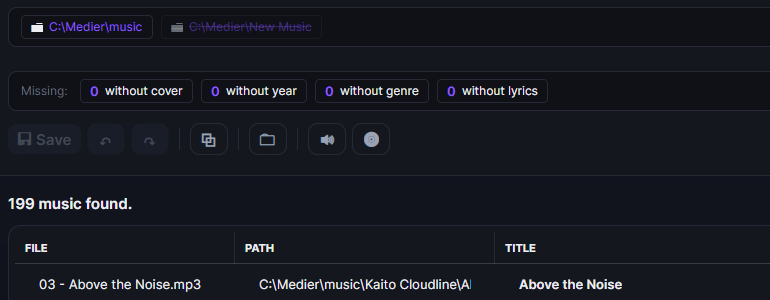
A search for an artist can give two hundred songs from a dozen albums in one long list. To get down to exactly one of them, right-click a row and choose Show only the album …, Show only the artist …, Show only the genre … or Show only the year … - the menu writes the row's own value in, so you can see what you are about to pick. On the Films and Music Videos tabs you are offered the director instead of the artist, and a song with several genres gets one item for each of them.
What you have chosen is shown as a small tag at the top, next to the folder chips, so it is always clear why the list is short. Click a tag to remove that filter, or press Clear filters to remove them all. Several filters apply together - the artist and the album - and they work alongside the search box, the "missing" dropdown and the folder chips. The filters are cleared when you switch tab.
This is the quick way to select a whole album with Ctrl+A and set something on all of it at once, such as a tag.
Exact, not approximate
A filter matches exactly the value you chose, so the album Gold never pulls in Gold Deluxe Edition, and the genre Pop never pulls in Pop Rock. To look more broadly, use the search box.
Searching the library
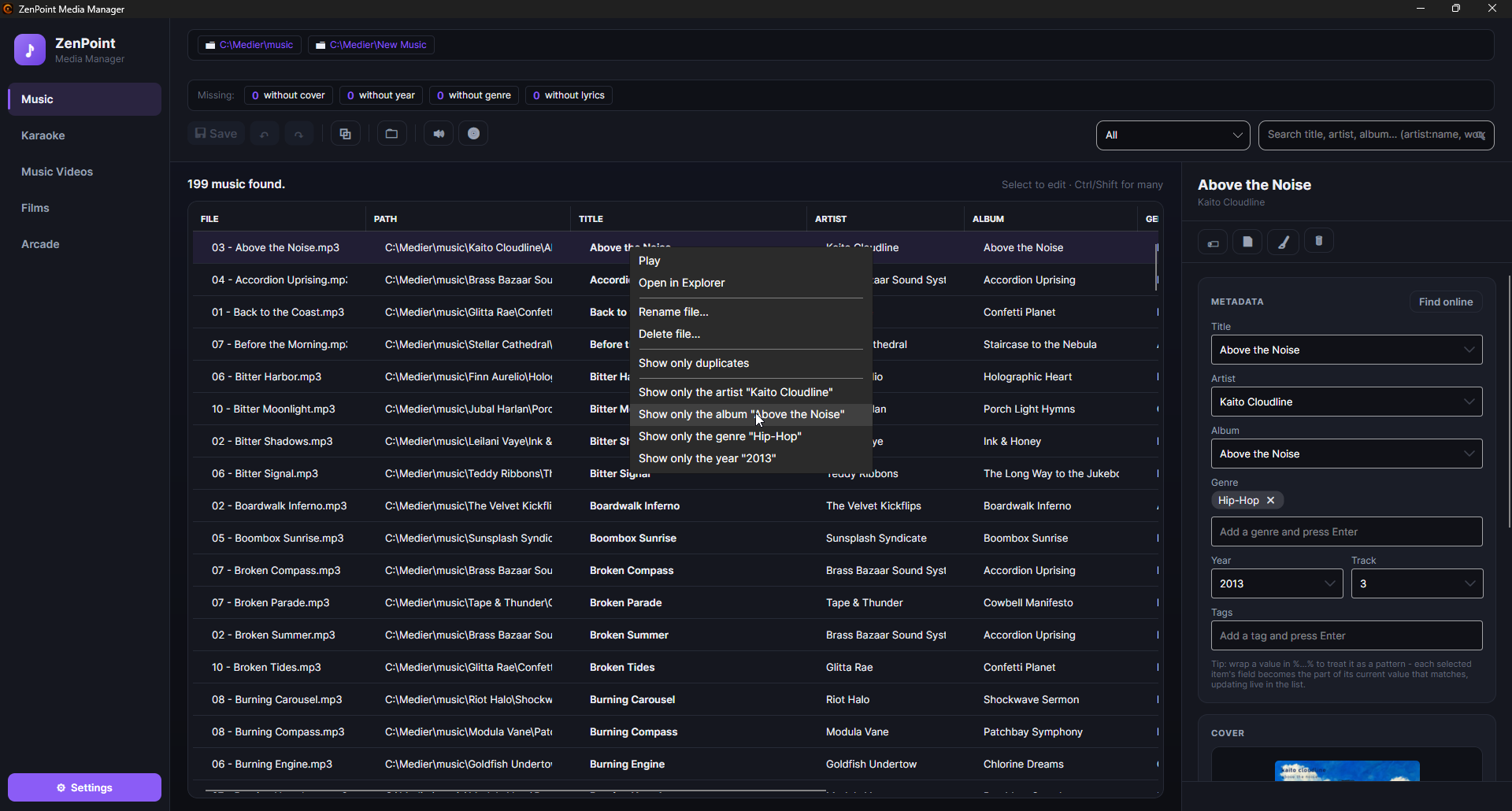
The search box understands more than a single word, so two half-remembered pieces of an artist and a title are enough:
| You type | You get |
|---|---|
helmig star | Rows where both words are found - one may be in the artist and the other in the title. |
"thomas helmig" | Rows where exactly that text is found, all together. |
artist:thomas | Only the artist column is searched. A column can also get a whole phrase: artist:"thomas helmig". |
artist:helmig genre:pop 1995 | All three demands at once. |
-live | Leaves out every row where "live" appears anywhere. It also works on a column and a phrase: -artist:thomas, -"greatest hits". |
A vertical bar between two words means either one: helmig|larsen finds every row
with "helmig" or "larsen". On a column the column applies to both, so
artist:helmig|larsen is "the artist is one or the other", and after a minus it means
neither: -live|demo keeps only the rows where neither word appears.
You can use a column's name as it is headed in the list, and the English names -
title, artist, album, genre, tags, year, track, director, system,
file and path - always work, whatever language the program is set to. Upper and
lower case make no difference, and tags can be searched too (tags:live), even
though they have no column of their own.
A word without a column name is looked for in the title, artist, album, genre, tags,
year, director and system, so a plain 1999 finds both the song called "1999" and
everything released that year. Track number, file name and folder are only searched
when you write the column name in front, such as track:3 or path:christmas -
otherwise they would fill the list with matches you did not ask for.
A few details worth knowing:
- Put the vertical bar right against the words, with no spaces. A bar with spaces around it does nothing, and it cannot join two whole demands.
- A minus or a bar inside a word, or inside quotation marks, is ordinary text, so
rock-n-rolland"rock|roll"are searched for as they are. - A plus in front of a word is simply ignored, because a space already means "and":
+helmigis the same ashelmig. - Something that only happens to contain a colon, such as a folder path, is searched for as ordinary text.
Hold the mouse over the search box for the full overview.
Several words used to be one piece of text
The search box used to treat everything you typed as one continuous piece of text,
so thomas helmig only found rows where exactly that stood together. To search that
way, put the text in quotation marks.
The list keeps itself current
Just like the big screen, the library list updates on its own when files change in your folders. There is no "rescan" button to remember - add or change a file, and it appears here shortly after. Clicking a different tab shows that list straight away as you last left it, while the program checks it against the disk in the background and quietly corrects anything that has changed - so a large film collection on a network drive no longer keeps you waiting. Edits you have not saved yet survive the switch.
Editing details and cover art
Select an item in the list, and its details appear in the panel on the right - title, artist, album, genre, year and so on. Change whatever you like.
An item can carry several genres. Music and karaoke show them the way your files already store them, separated by a semicolon; films and videos come from the single comma-separated line those files already use. Either way you edit them as small clickable labels, and saving writes the whole list back - so saving something completely unrelated can no longer quietly reduce three genres to one. Find online keeps all the genres it finds too, instead of only the first.
Films with information files from Kodi
If your films come with the information files that Kodi and similar programs make (movie.nfo, or a file with the film's own name and .nfo at the end), the Films tab reads them exactly as the Movies center on the big screen does: title, year, description, genres and director are shown from the file. A file with the film's own name always counts; movie.nfo only counts when the folder holds a single film.
When you save, only what you have changed yourself is kept as your own. Everything else still comes from the information file, so a later correction made in that file still shows up. Your own changes always win over the file, and the automatic look-up never overrules it. A Director you correct here is also the one shown in Movies in Digital Center.
Choosing cover art
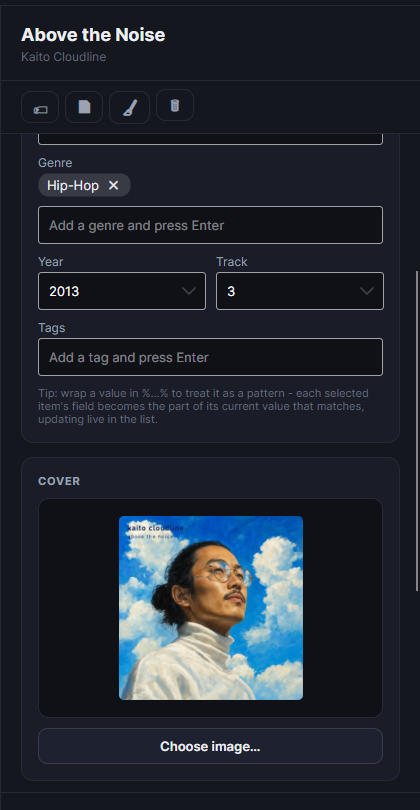
Every item can have its own cover (a poster for a film, album art for a song). There are two easy ways to set one:
- 1
Pick an image
Use Choose image in the cover area and pick a picture from your computer.
- 2
…or drag one in
Drag any image file straight onto the cover area. This works on every tab and on any selected item.
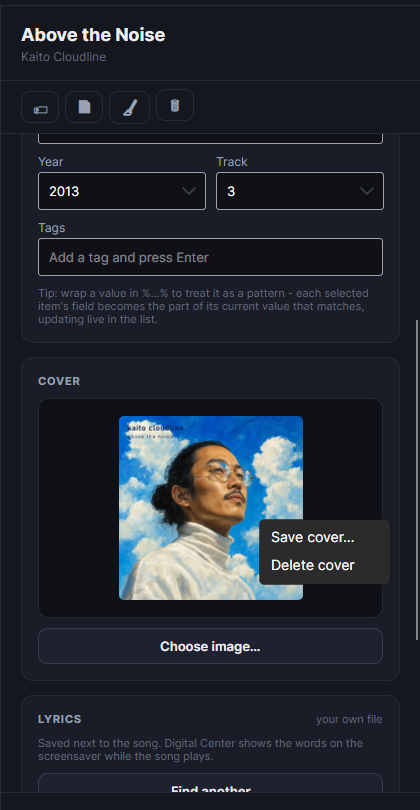
The cover preview always shows the whole picture, never a cropped corner, so you can see exactly what you are choosing. To remove a cover, hover over it and click the small bin icon in the top corner.
Looking up information online
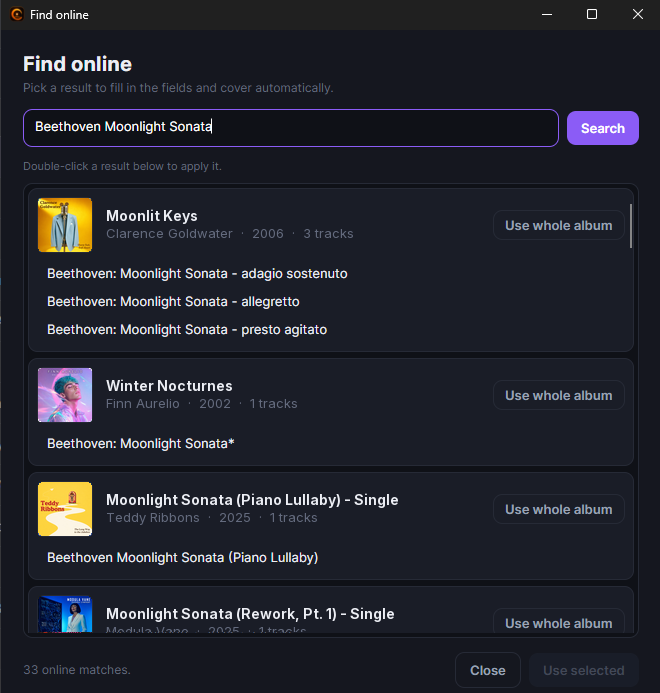
If an item is missing its details, you can let the program look them up for you. Press Find online in the panel, and a search window opens and looks straight away for matches.
- For music, results are grouped by album, each shown with its cover and the songs it contains. You can pick a single song to fill in that one item, or use Use whole album to apply the album's cover, name, artist, year and genre to every song you have selected at once - perfect after selecting a whole album's worth of tracks.
- For films, you get a list of posters to choose from; pick one and the title, year, director, genre and description (plus the poster) are filled in.
If there is no internet connection or nothing is found, you simply get a short message and can type the details in by hand.
Editing many items at once
You rarely fix things one at a time. Select several items in the list - a whole album, an artist, or anything you like - and the panel edits them all together.
- A field that already differs between the selected items shows a Keep marker. Leave it on Keep to leave each item untouched, or type a new value to set it on all of them at once.
- Your changes are gathered up and written only when you press Save. Until then, edited rows are marked with a small dot and show their pending values live, so you can see what you are about to change.
- You can undo and redo your edits freely before saving, and if you try to close with unsaved changes, the program offers to save, discard or cancel.
Undo the save you just made
Pressed Save and then realised it was a mistake? Undo last save sits both in the toolbar and next to the "Saved N items" message - for ten minutes, or until you save again. It writes the previous titles, artists, years, genres, tags, covers and lyrics back exactly as they were. Afterwards the button turns into Redo last save, in case you wanted the change after all. The program is careful: if even one of the files has been changed since the save (for example by another program), or the copy of the old values is missing, nothing happens, and the status line tells you why. Deleting and renaming files cannot be undone here - deleted files are in the recycle bin.
A quick way to set the same cover or detail everywhere
Select all the songs from one album, look up the album online, and choose Use whole album - every track gets the same cover and album details in one go.
Tags - your own keywords for themes
Alongside the usual details, you can give items your own free keywords, called tags - words like summer, party or christmas. Tags are the building blocks for the themes you set up in Digital Center, letting you create, for example, a "Summer" collection that gathers everything you tagged that way. Tags are added here in the workshop, not inside Digital Center itself.
Tags and genre are both edited as small clickable labels, and both suggest values you have already used elsewhere in the library as you type - so 80s Pop, 80's Pop and 80’s Pop stop turning into three genres nobody meant. Type or pick a value and press Enter to add it (Add a tag and press Enter, Add a genre and press Enter); click the cross on a label to remove it.
With several items selected, a value only some of them carry is shown faded with the note Only on some of the selected - click to add it to all. One click gives it to every selected item, and the cross takes it away from all of them. Two songs tagged with the same values in a different order now count as the same, instead of the labels all disappearing.
Keeping the volume even across your music
So that songs do not jump up and down in loudness from one track to the next, ZenPoint Media Manager can measure the loudness of your music. Select a song (or use measure all), and the program listens through it and notes how loud it feels - it never changes your music files. Digital Center then gently turns down the louder songs during playback (never up, so the sound can never distort), as long as the matching setting is on. Songs you have not measured simply play as before.
The first time, the program needs a small audio tool to do the measuring. When you press Measure loudness without it, a window asks first: press Install and measure, and the tool is fetched and the measuring starts, all in one go. It needs the internet that one time, and your music files are never changed. You can also install it beforehand under Settings → Music with Install loudness measuring.
Importing music from a CD
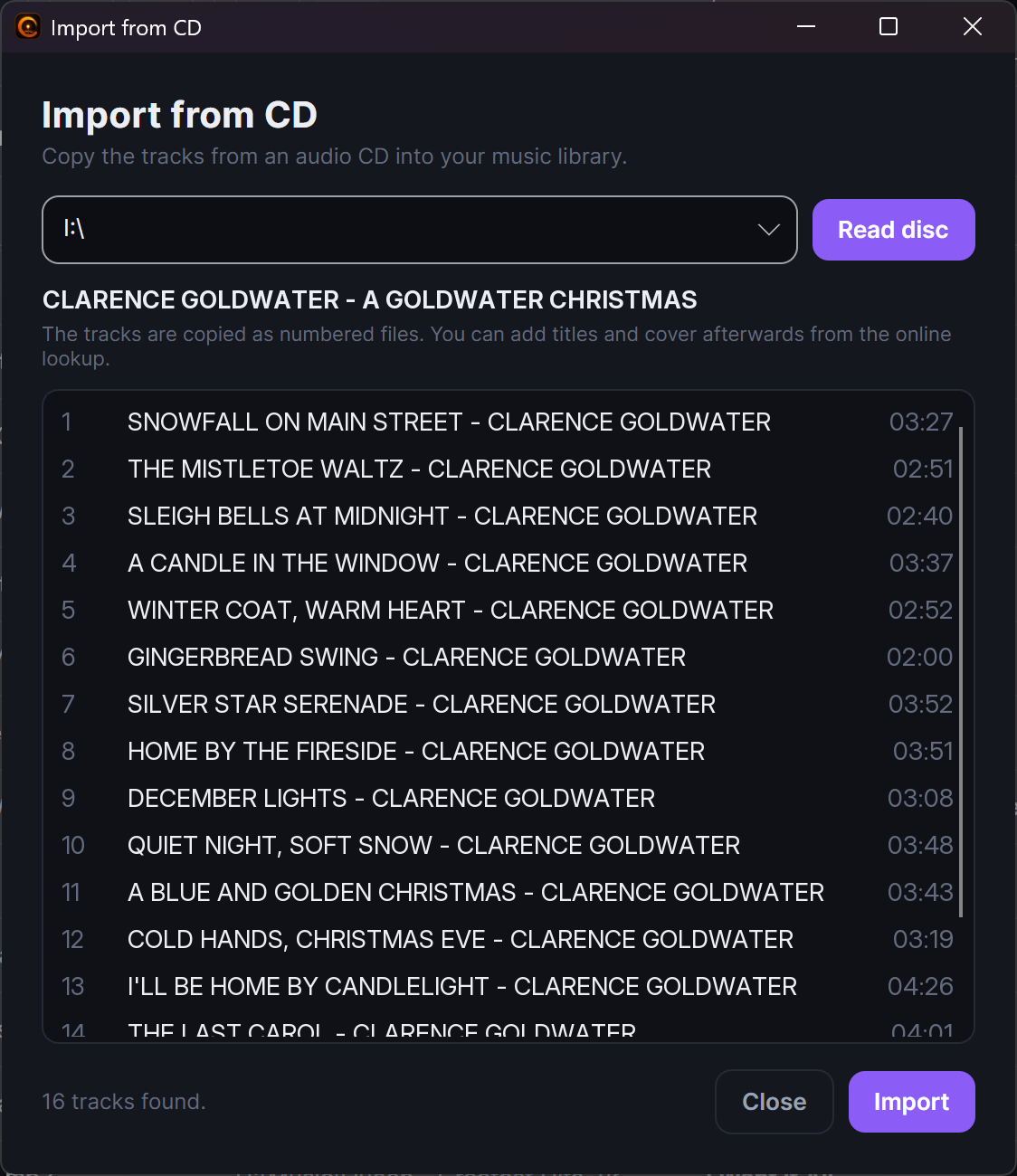
If you still have music on CDs, you can bring it into your collection without leaving the program. On the Music tab, press Import from CD. The program reads the disc and copies its tracks as numbered files straight into your first music folder, so they join the rest of your library.
The tracks come in named simply by their number to begin with. To give them proper titles and cover art, select them and use Find online - then Use whole album fills in the album's name, artist, year, genre and cover for every track at once (see Looking up information online above).
One-time setup
The very first time you import from a CD, the program needs a small one-click download to be able to read discs. You start it from the program's Music settings, exactly like the one-click setup for the karaoke tools. You only do this once.
Renaming from tags, and reading tags from file names
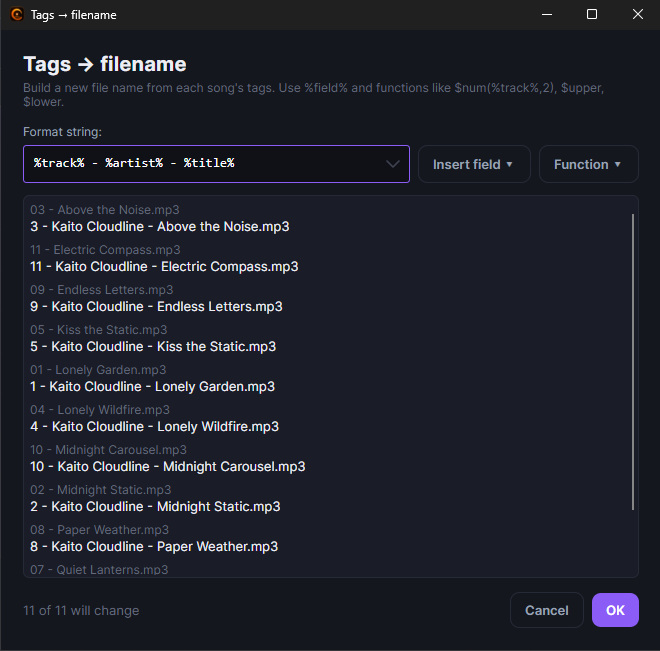
Sometimes the details and the file names do not match - the titles are right but the files are a mess, or the other way around. Every media tab's selection toolbar - Music, Music Videos, Films and Karaoke - has two buttons that fix this in bulk, both working on whatever you have selected:
- Tags → filename builds tidy file names from the details. You write a
pattern using placeholders like
%track%,%title%,%artist%,%album%,%genre%and%year%, and the program renames the files to match. This one renames straight away. - Filename → tags does the opposite: it reads the details back out of the file names using the same kind of pattern, and fills in the missing titles, artists and so on. These land as pending changes (marked with the little dot) and are written when you press Save, so you can review and undo them first.
Before anything happens you get a live preview across all the selected files, so you can see exactly how every name (or every detail) will turn out and adjust the pattern until it looks right.
Cleaning up the details
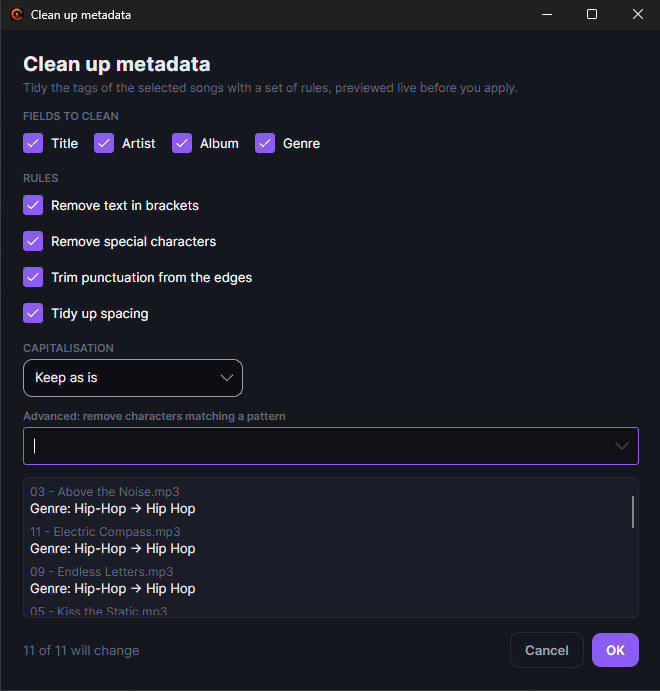
That same selection toolbar - again on every media tab - has a third button, Clean up metadata (the little broom, 🧹). It tidies the details of whatever you have selected by a few simple rules, so a batch of messy titles and artist names comes out neat in one go. You choose which fields to tidy - title, artist, album, genre - and the program:
- Trims extra spaces and stray punctuation, so double spaces and odd leftover characters disappear.
- Fixes the capitalisation the way you pick: keep it as-is, Title Case, UPPERCASE or lowercase.
- Offers an optional advanced "remove this pattern" step for anything else you want gone, and it remembers what you used last time so you do not have to type it again.
It is completely safe
Like the other bulk tools, cleaning up only stages the changes as pending edits (shown with the little unsaved dot), so you can review them, undo them, and they are written only when you press Save. It also never empties a field - if a rule would leave a title or artist blank, it simply leaves it as it was.
Clearing details you do not want
Sometimes the fastest way forward is a clean slate. A fourth button in the same toolbar, Clear all details (the little bin, 🗑), empties every editable field on everything you have selected in one go - useful when a batch of files came in with nonsense in them and you would rather start from nothing. Like the other bulk tools it only stages the change, so you can look it over, undo it, and it is written when you press Save.
The cover has its own Delete in the right-click menu beside Save. A cover picture that sits next to the media file is moved to the Windows recycle bin rather than deleted for good, so a mistake can always be undone; a cover stored inside the file itself is simply removed from it.
Your old details are kept, just in case
Before the program overwrites the details, the lyrics or the cover of a file, it quietly puts the old version aside. If something turns out wrong later, the previous version is still there. You reach it with Open backup folder in the program's general settings.
You see exactly what is in the files
This is a workshop, so the program shows the details raw - precisely what is written in your files, with no automatic tidying or capitalisation. That is on purpose: you cannot fix what you cannot see. Digital Center itself still tidies names up on the big screen if you have asked it to; the two are independent.
Lyrics for your music
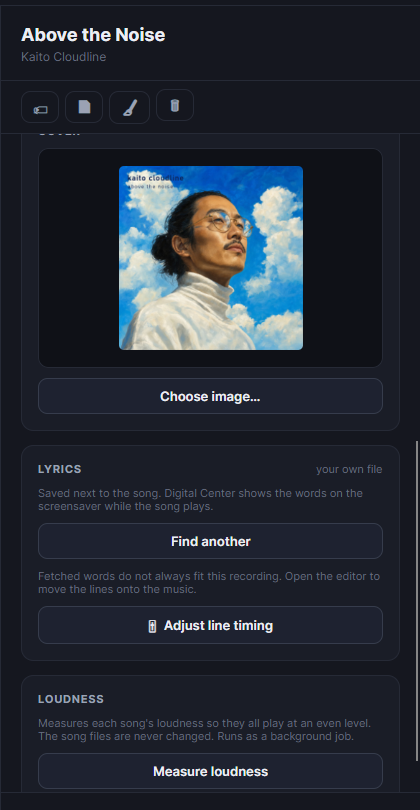
Digital Center can show the words of a song on the screensaver while it plays (see Displays & screensaver). It finds most of them by itself, but when it picks the wrong version - or none at all - this is where you fix it. On the Music tab the panel has a Lyrics card:
- Find lyrics looks the song up and shows you what it found, so you choose the right version yourself.
- Fetch lyrics for all goes through everything you have selected and takes only the matches it is confident about, skipping anything doubtful rather than risk the wrong words. Perfect for a whole album at a time.
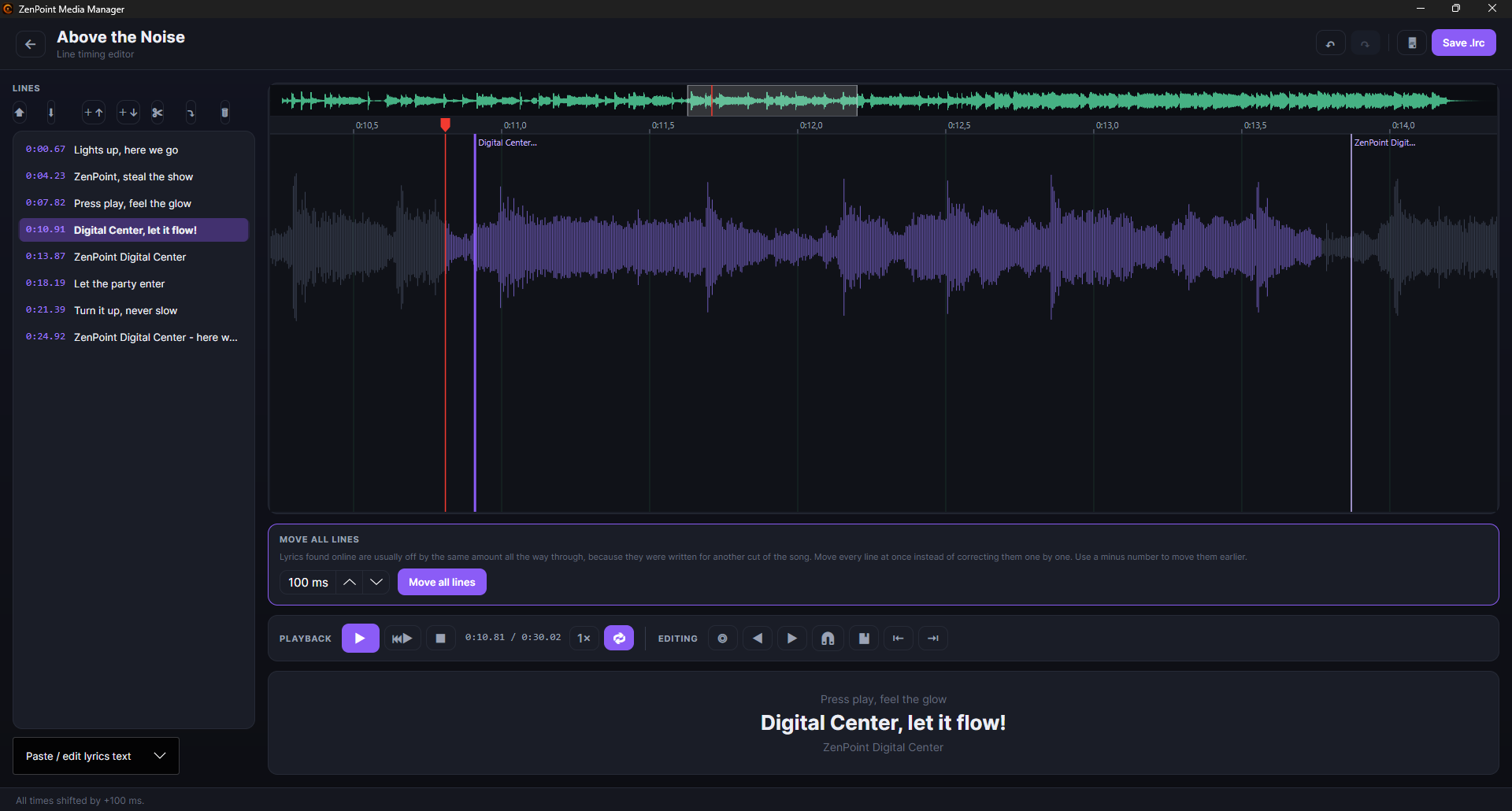
- Adjust line timing opens the timing editor in a simplified mode where you move whole lines, which is all a music screensaver needs: the waveform, play, repeat a line, and drag the lines onto the music. The word-by-word tools are left out on purpose, because a music screensaver scrolls whole lines - there is nothing for them to do. Instead, Move all lines sits front and centre, and it is nearly always the only thing you need: lyrics fetched online were written for another cut of the song and are usually off by the same amount the whole way through. A minus number moves them earlier.
The card also tells you where the words come from: your own file next to the song, from your lyrics folder, fetched by Digital Center, or not found yet. If they come from your lyrics folder, editing them leaves that file untouched - the changes are saved as a copy next to the song, and that copy is what gets used from then on. If a song already has lyrics, you are asked before new ones are fetched over them.
The words land as a pending change like any other edit and are written beside the song when you press Save, as a file that is then yours to keep and edit.
Preparing karaoke songs
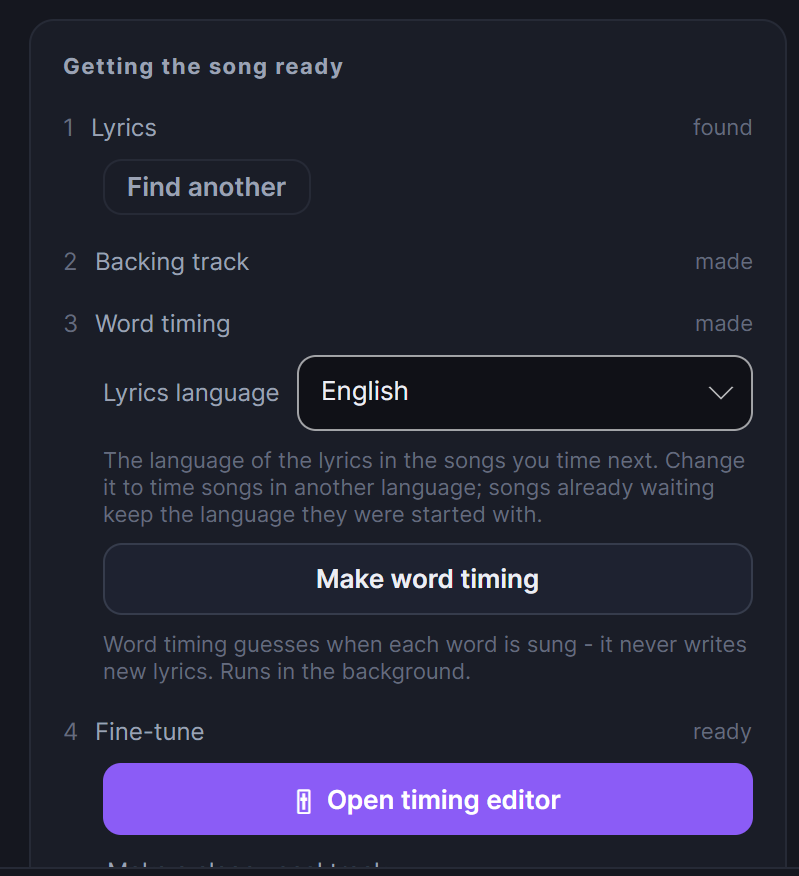
The Karaoke tab is where you turn ordinary songs into proper sing-along tracks. The work always follows the same four steps, and the panel now shows all four at once with their state beside them, highlighting exactly the one that is next for the song you have selected:
- 1
1. Lyrics
The song needs its words before anything else can happen. Look them up online from the panel, or write them yourself in the editor.
- 2
2. Backing track
A version of the song without the lead singer, so someone else can sing it.
- 3
3. Word timing
Work out when each word is sung, which is what gives the bouncing ball.
- 4
4. Fine-tune
Open the editor and put the last details right by hand.
Select many songs instead of one and you get the same four steps with honest numbers next to them ("47 still missing"), so you can see at a glance what the library needs.
Waiting is not the same as forbidden
The order is a guide, not a cage. Only word timing is actually held back until the song has its lyrics and its backing track, because without them it would either have nothing to time or would have to do the same heavy work twice. Everything else stays available - the editor, for instance, is also where you write lyrics by hand.
One-time setup
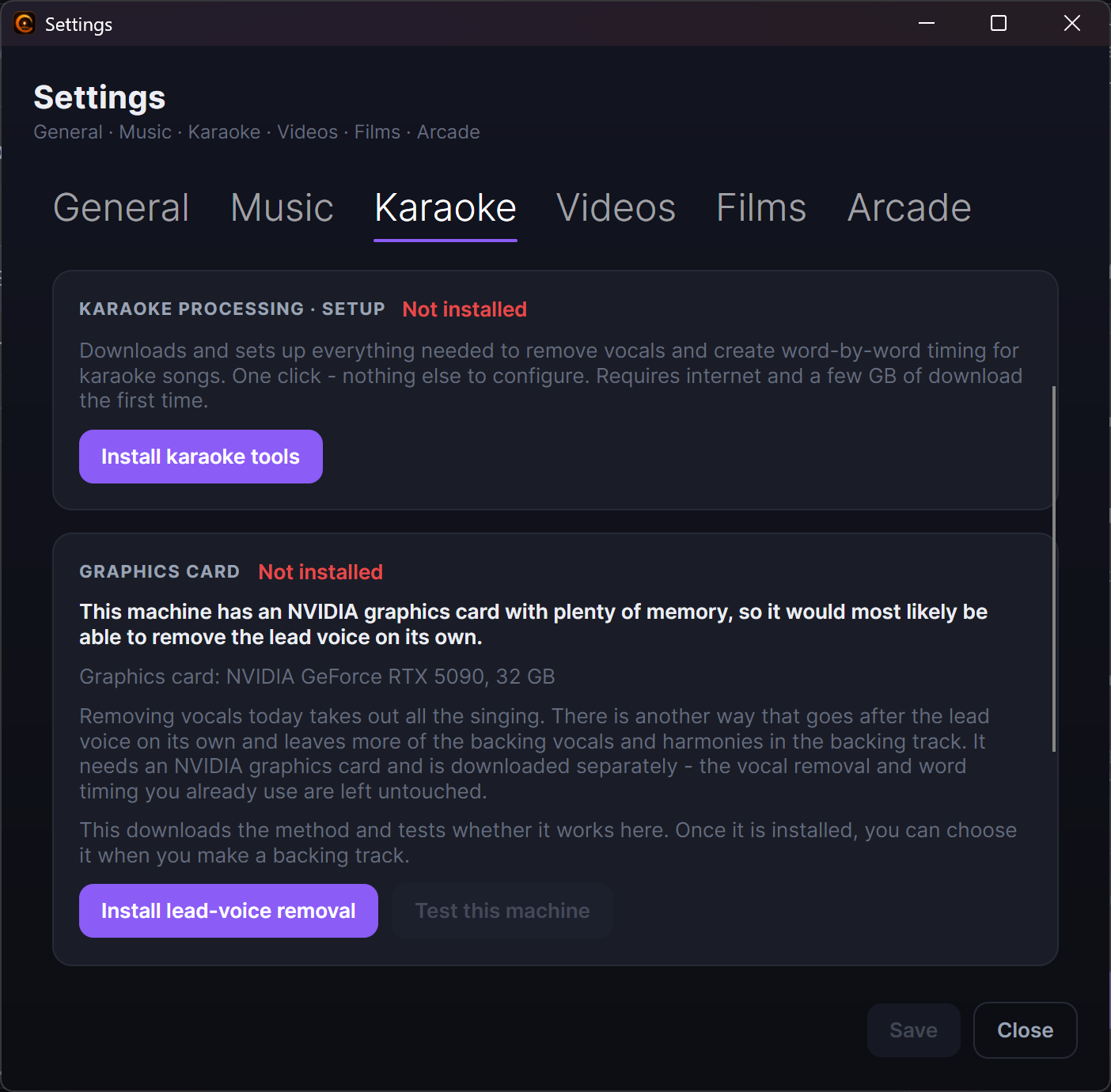
The first time you prepare karaoke songs, open the program's settings and run the one-click setup for the karaoke tools. It downloads and sets up everything needed to remove vocals and create timing, with a live progress log so you can watch it work. You only do this once.
Karaoke videos on the Karaoke tab
When Include karaoke videos is switched on in Digital Center, the karaoke videos in your karaoke folders are on the Karaoke tab too. Their title, artist, genre and cover are edited just like a music video's, and the video file itself is never changed. The four karaoke steps are not offered for a video - the words are already part of its picture - and the panel says so. A video never counts as missing anything. Switch the setting on in Digital Center first; the tab reads it each time you open it.
Backing tracks without an original on the Karaoke tab
When Show backing tracks without an original is switched on in Digital Center, those songs are on the Karaoke tab too. If the original was found in your music folders, you can create word timing: it listens to the original and saves only in the karaoke folder. Title and cover are then edited on the Music tab, and the song cannot be renamed, because the original is found by its file name. Without an original you can find and save the lyrics, but not create word timing, and the panel says why. A name you correct here is saved in the backing track and wins from then on.
Fetching lyrics for a whole batch
Beside the ordinary Find lyrics there is Fetch lyrics for all. It goes through every selected song, and accepts only the version it is sure fits - anything doubtful is skipped rather than risk giving a song the wrong words. The results land as pending changes, so you can look them over and undo before pressing Save.
Making the backing track
To let someone sing the lead, you need a version of the song without the original singer. Choose a song and start Remove vocals. The program creates a backing track alongside the original, leaving your file untouched. Once it is ready, the singer in Digital Center can switch between the original recording and the backing track on the fly while the song plays.
You can do this one song at a time, or kick off all the songs that are still missing a backing track in one batch.
Beside the button sits a Method picker with two ways of doing it:
- Take out all singing - the usual way. Everything sung disappears, choir and harmonies included.
- Keep backing vocals and harmonies - goes after the lead singer alone and leaves more of the backing vocals in the track, which many songs sound far better for. It takes noticeably longer, because the song is run through several passes, and it needs an NVIDIA graphics card. The choice only applies to what you start now; it is never saved as a new default.
The picker only appears when the machine can actually do it, so a choice that would quietly do nothing is never offered. If a song fails on the new method, it is finished off the ordinary way rather than left undone.
Creating word-by-word timing
This is what gives you the classic bouncing ball that hops from word to word in time with the music. Choose a song that already has its lyrics, and start Create word timing. The program listens to the singing and works out exactly when each word is sung, then writes that timing back into the song.
Next to the button is a Lyrics language picker. Getting it right matters: the wrong language gives poorer timing without ever reporting an error. It starts on the language you have set in the program's settings, and the language is captured when the job is queued, so changing it half way through a long batch never affects the jobs already waiting.
It needs the lyrics first
Word timing fine-tunes lyrics the song already has - it never writes the words for you. If a song has no lyrics yet, add them first (you can look lyrics up online from the panel), then create the timing.
Letting the graphics card do the heavy work
The two heavy karaoke jobs - removing the vocals and creating the word timing - can use an NVIDIA graphics card instead of the processor, which on a measured machine took a song from about two minutes down to around twenty seconds. A whole library is the difference between an evening and a coffee break.
You find it under the program's settings, on the Karaoke tab:
- A quiet panel first tells you what graphics card this machine has, and whether it looks like one that can help. Reading it installs nothing.
- Add the faster way then sets up the faster versions of the two tools. They are installed beside the ones you already have and never replace them, so a failed or interrupted installation can never cost you a setup that works today. It is a large download, so start it when you have the time.
- Test this machine gives you one clear yes or no afterwards, and only offers the technical details when something did not work.
- A switch decides whether the graphics card is actually used. If a job fails on the graphics card, it is quietly run again on the processor, so a job may cost time but never gets lost.
Fine-tuning the timing by hand
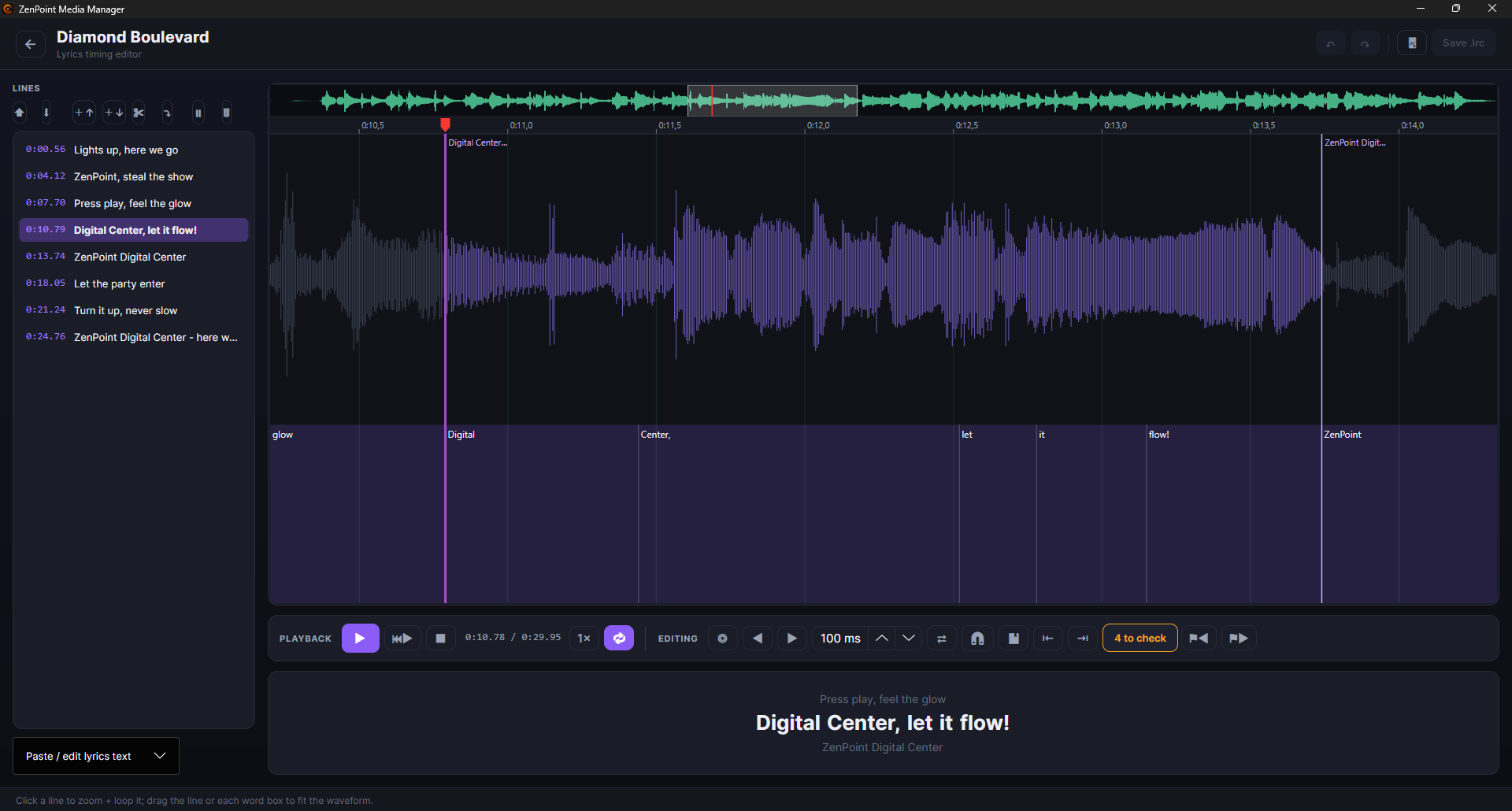
If you want a song to be perfect, open the timing editor. It shows the song as a waveform with the words laid out along it, so you can:
- Play and loop the line you are working on, so you hear it over and over while you adjust.
- Drag the edges of a word to make it start or end a touch earlier or later.
- Tap along to the beat, nudge words a hair in either direction, and split a word in two.
- Zoom and scroll smoothly, with a small overview strip at the top showing where you are in the whole song, and drop bookmarks to jump back to tricky spots.
Every change can be undone, and the editor offers to save before you close.
The words it was unsure about
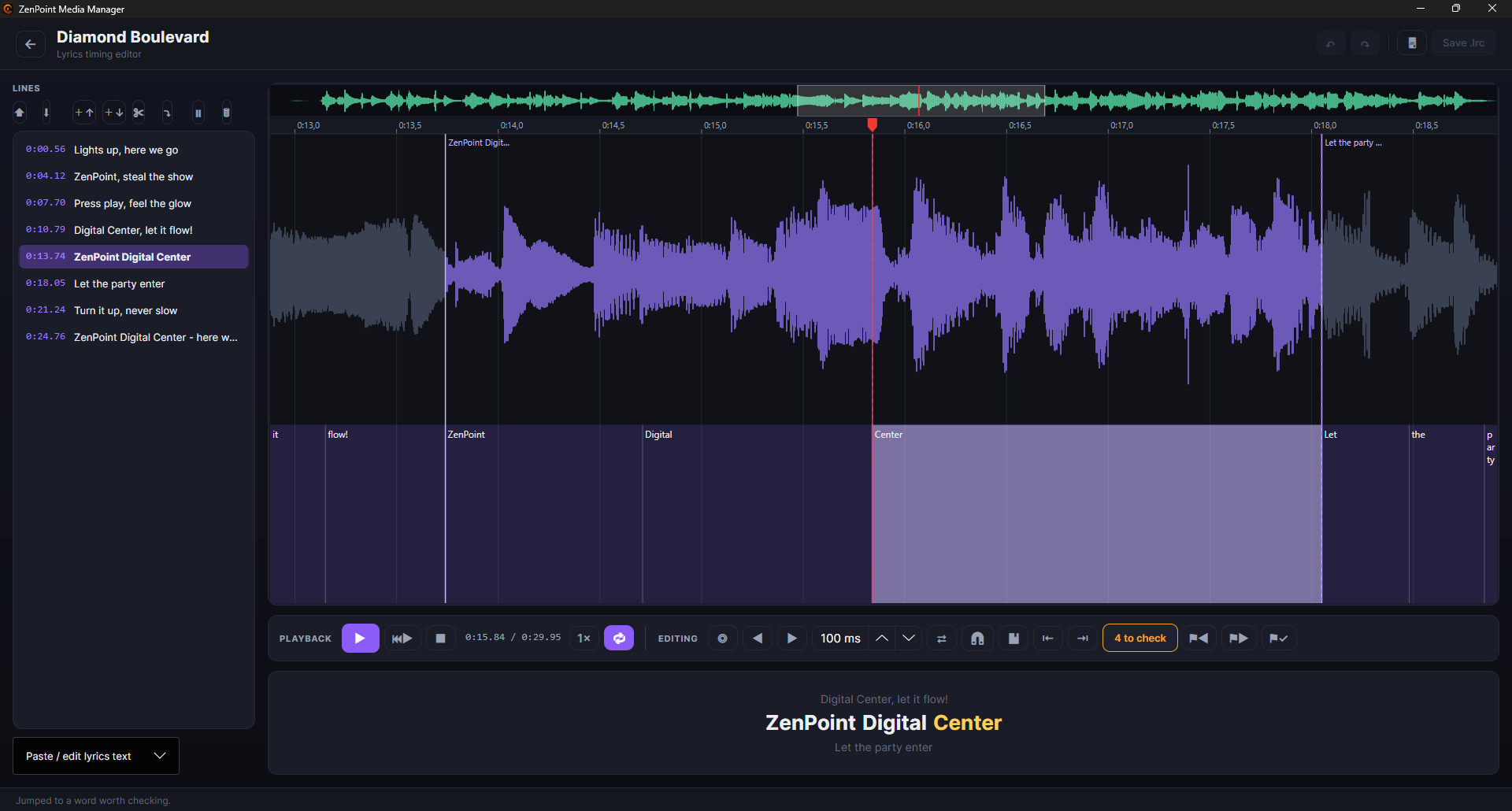
When the program works out the timing, it also notes how confident it was about each individual word. Open the editor afterwards and the words it was unsure about are drawn in amber on the waveform, with a counter and two buttons to jump to the previous and next one. Instead of listening through the whole song, you go straight to the handful of places that might be wrong.
The marks are a checklist you tick off as you work. A word loses its mark the moment you actually re-time it, and if a word is already right you can mark it as checked with the small flag-and-tick button beside the jump buttons, which takes the mark off without changing anything. Checked words are remembered, so the checklist is still where you left it the next time you open the song. Saving the song by hand clears the marks altogether, since by then the words may have changed and the old notes no longer fit.
Plain lyrics without timing
If a song has only plain text without any timing - for example lyrics you just looked up online - the timing editor now opens them as untimed lines you can tap the rhythm onto yourself and save (previously the editor stood empty for songs like that). And if you fix just a single word in the text, Apply text keeps all the timing the song already has - only what you actually changed is touched, so a small correction never costs you the whole song's timing.
Check before you save
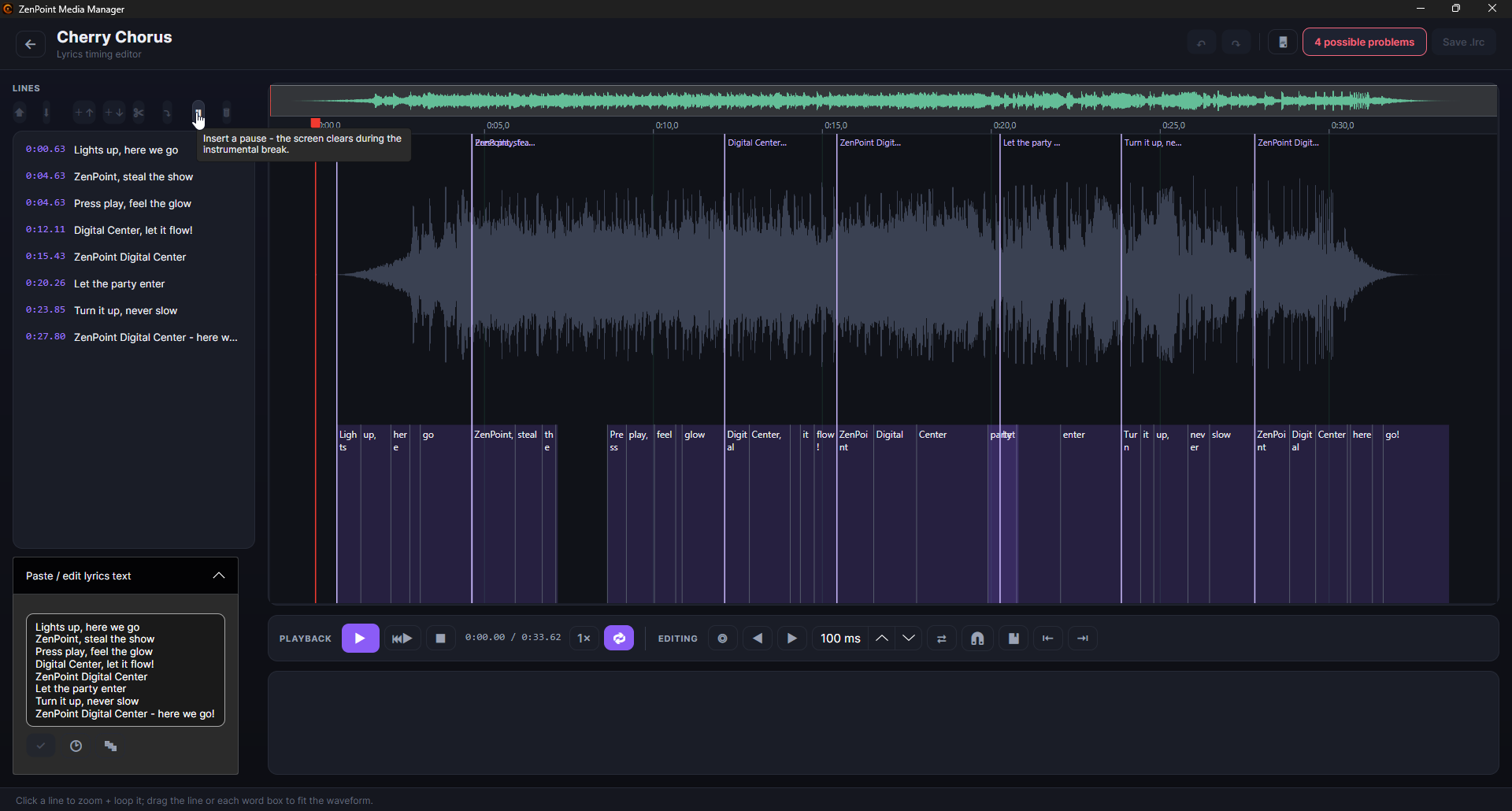
As you edit, the program keeps a quiet eye out for the classic timing slips - lines or words that ended up out of order, empty lines, or two things landing on the exact same moment. If it spots anything, a small N possible problems marker appears in the toolbar; click it to see the list and jump to each one. It is only ever advice - it never gets in your way and never blocks you from saving.
Clearing the screen during instrumental breaks
When a song has a long instrumental stretch, you usually want the big screen to go blank rather than leave the last line hanging. Put the playhead where the break begins and press Insert pause (the ⏸ button). This drops a blank marker into the song, and from that point the on-screen lyrics stay empty until the next real line comes in. The pause behaves just like any other line - you can move it, delete it, or undo it - and it is kept with the song so it works the same on the big screen.
Renaming and deleting files
You can tidy up the files themselves from here too. Right-click an item to rename or delete it. The program is careful to keep everything that belongs together - when you rename or remove a song, its lyrics, timing, cover and instrumental move or go with it, while folder-wide cover pictures shared by many items are left alone. Deleting always asks you to confirm first.
Your folders
The program's settings show the same content folders set up in Digital Center - music, karaoke, music videos, films and games - each on its own tab. You manage the folders themselves in one place, in Digital Center under Administration; here in ZenPoint Media Manager they are shown read-only, but you can open a folder in Windows' file browser directly from here. The settings also hold the one-click setup for the karaoke tools, the place where you choose and download the game machines the arcade needs, the graphics-card options above, and an Open backup folder button that takes you to the copies the program keeps of details, lyrics and covers before it overwrites them. For the full picture of how folders work, see Your media libraries.
With your collection organized, named and prepared, everything looks its best on the big screen - and your karaoke nights are ready to go.