
Chapter 11
Appearance, language & effects
Digital Center is yours to brand and tailor. You can change how the whole system looks, switch the language for everyone, and pick the visual style of the cover walls - all without touching your media. This chapter walks through appearance, language and effects.
Appearance (skins)
A skin controls the whole look of the system from one place - both the colors and the background behind the picture. You choose a skin under Administration → Appearance, and the change happens immediately: the colors carry across the entire system, so every center and page dresses itself to match.
You can also choose a skin temporarily for a single session via Setup → Appearance on the front page. That choice resets to your saved skin when the system restarts.
The system ships with the default appearance from the start. More looks - for example a cool blue, a green, a warm orange-red and a dark blue-violet - can be added free of charge, after which they appear in the skin picker alongside the default.
Get more skins
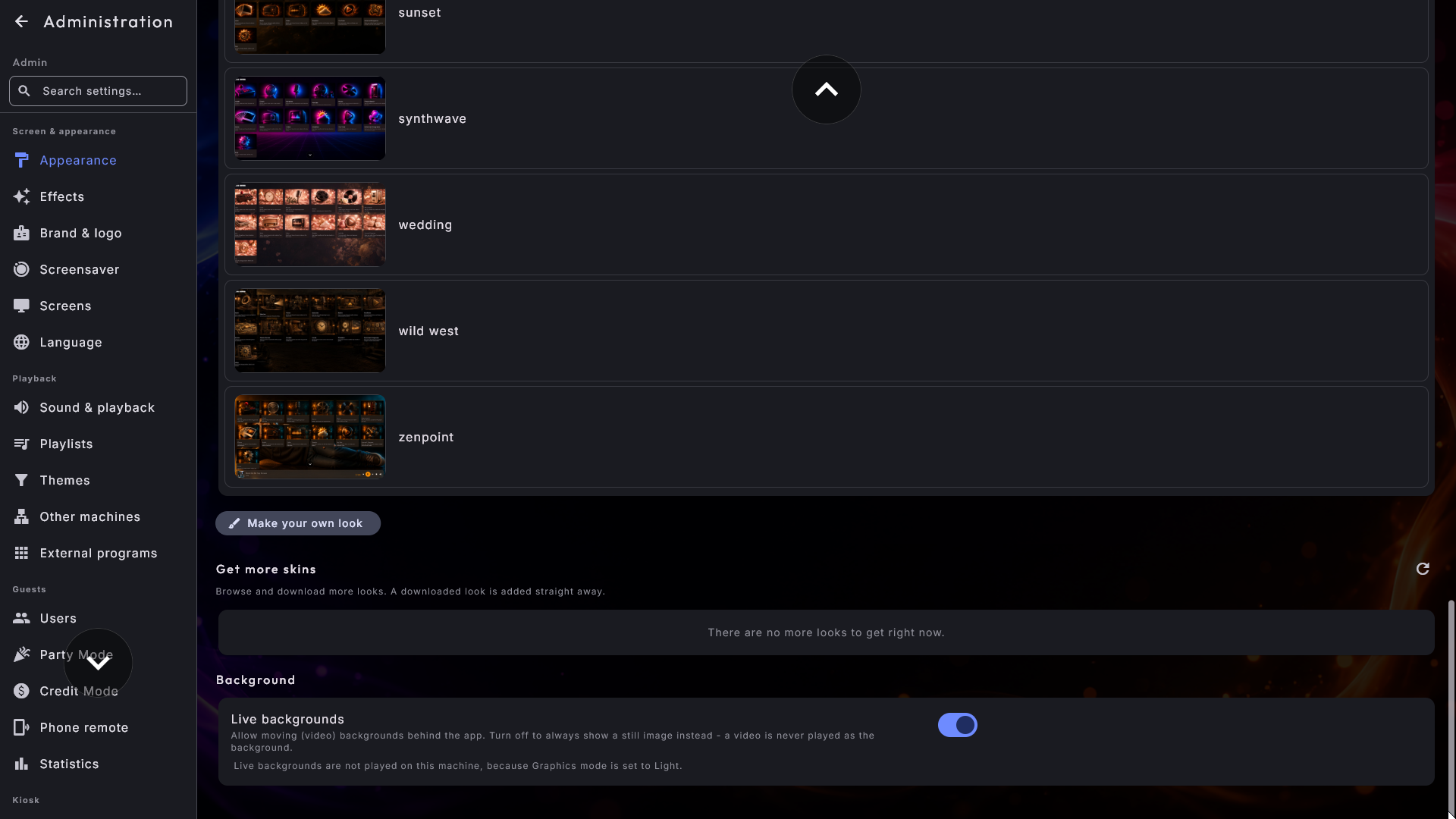
Below the skin list in Administration → Appearance there is a Get more skins section with extra looks you can add. Each one is shown with a small preview image and a Get button. Press the button and the look is fetched and added by itself - it appears in the list above straight away, ready to choose. Looks you already have are not shown in the get-list. If there is nothing to fetch right now (or there is no connection), the section simply stays empty - that is perfectly fine. You never pay to add a look.
Make it your own brand
A skin can carry your own colors, background, front-page tile pictures and even your own logo in place of the Digital Center name - so the system looks like your product. The easiest way is to build it right on the screen with Make your own look (see below). A skin can also be made as a small folder of images and a settings file on the machine; changes are picked up live, with no restart. If you would like a custom look made for your venue, your supplier can help.
Make your own look
Below the skin list in Administration → Appearance there is a Make your own look button, in every edition. You build the whole skin on the screen, with a live picture of the result next to everything you choose.
- 1
Choose where to start
Tap Make your own look and pick Start from scratch (a new skin that starts with the colors on the screen now) or Start from one of your looks - tap any skin in the list, the default included. A copy of the whole skin is made and named after it with "copy" added (for example "Summer copy"); the skin you picked is never changed.
- 2
Build it in the editor
The editor opens on its own full-screen page. Work through the five tabs and watch the two small pictures follow every change.
- 3
Try it
Tap Try it to see the skin on the whole screen, with animations and the pause screen.
- 4
Save
Tap Save. The skin appears in the list and is put to use straight away.
The top line of the editor always holds Appearance (back to the list), the skin's name and the buttons Try it, Save and Discard - you never have to scroll to find them. On the left (at the top on a portrait screen) are two pictures of the result, one landscape and one portrait, each with the screen's name above it. They stay put while you work, and your logo (or ours) always sits in the top-left corner of them. On the right (at the bottom on a portrait screen) are your choices, spread over five tabs: Basics, Fonts, Tiles, Covers and Sound.
The pictures normally show a page from a center such as Music: only the logo and the clock at the top, so your background can be seen freely, and at the bottom the A-Z bar, the playlist bar with the queue cards and buttons, and the menu. The queue cards mix covers for music, karaoke, music videos and films (yours if you have chosen them, otherwise the standard ones), and a film cover is shown whole. On the Tiles tab the pictures show the front page with its tiles instead, and on the Covers tab a page with the five covers.
Basics
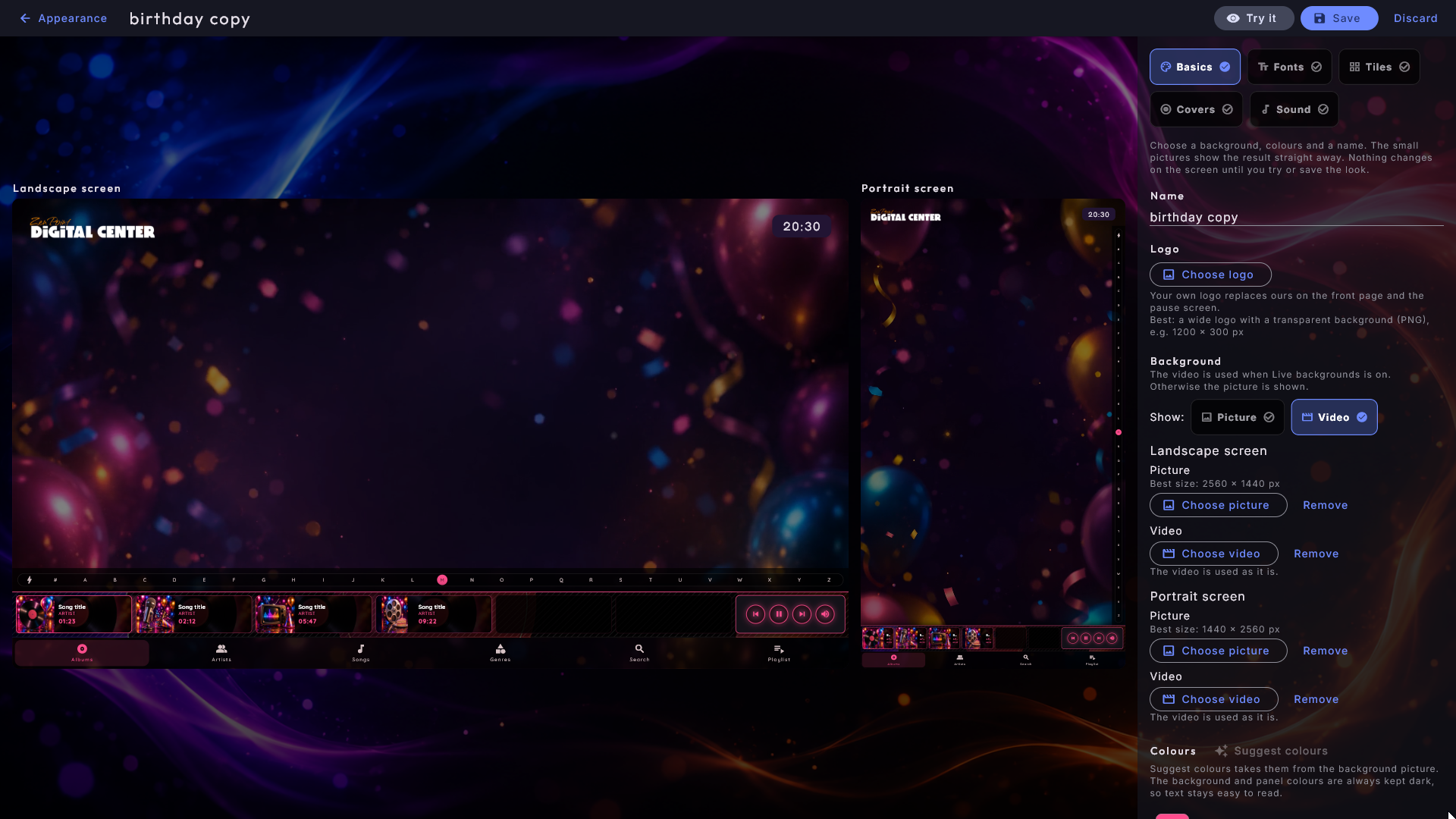
- Name - the name the skin gets in the list.
- Logo - sits right below the name, in Professional only. Below the button it says what works best: a wide logo with a transparent background (PNG), for example 1200 × 300 px. The logo is never cropped. In the other editions there is only the heading and a line saying that your own logo requires Professional, and the skin shows our logo. If you started from a copy of a skin with a logo, the logo stays in the skin, but the other editions still show ours.
- Background - Landscape screen and Portrait screen each have two places: a Picture and a Video, each with its own button and its own Remove, so choosing one never touches the other. The video is used when Live backgrounds is on; otherwise the picture is shown (also on a weak machine). If a screen only has a video, the editor tells you it shows the background color when Live backgrounds is off - so choose a picture too. When the skin has a video, Show: Picture | Video under the heading switches the two pictures of the result; with Video the video plays in them without sound. A picture is cut to the screen's shape: drag the frame, zoom, and tap Use this part. Adjust the cut lets you move the frame again later. A picture is never made larger than it is - if it is small, the editor says it may look blurry on a large screen. A video is used as it is; if it is very large, the editor says the screen may be slower to start. Under each row is the best size for the picture (2560 × 1440 px for a landscape screen, 1440 × 2560 px for portrait); a larger picture is simply made smaller.
- Colours - five colors, each with a line saying what it colors (for example "Buttons, the play button and selections" or "Panels, windows and menus"). The editor starts with the colors of the skin you are using now. The first time you choose a background picture, it suggests all the colors from the picture, and Suggest colours does it again.
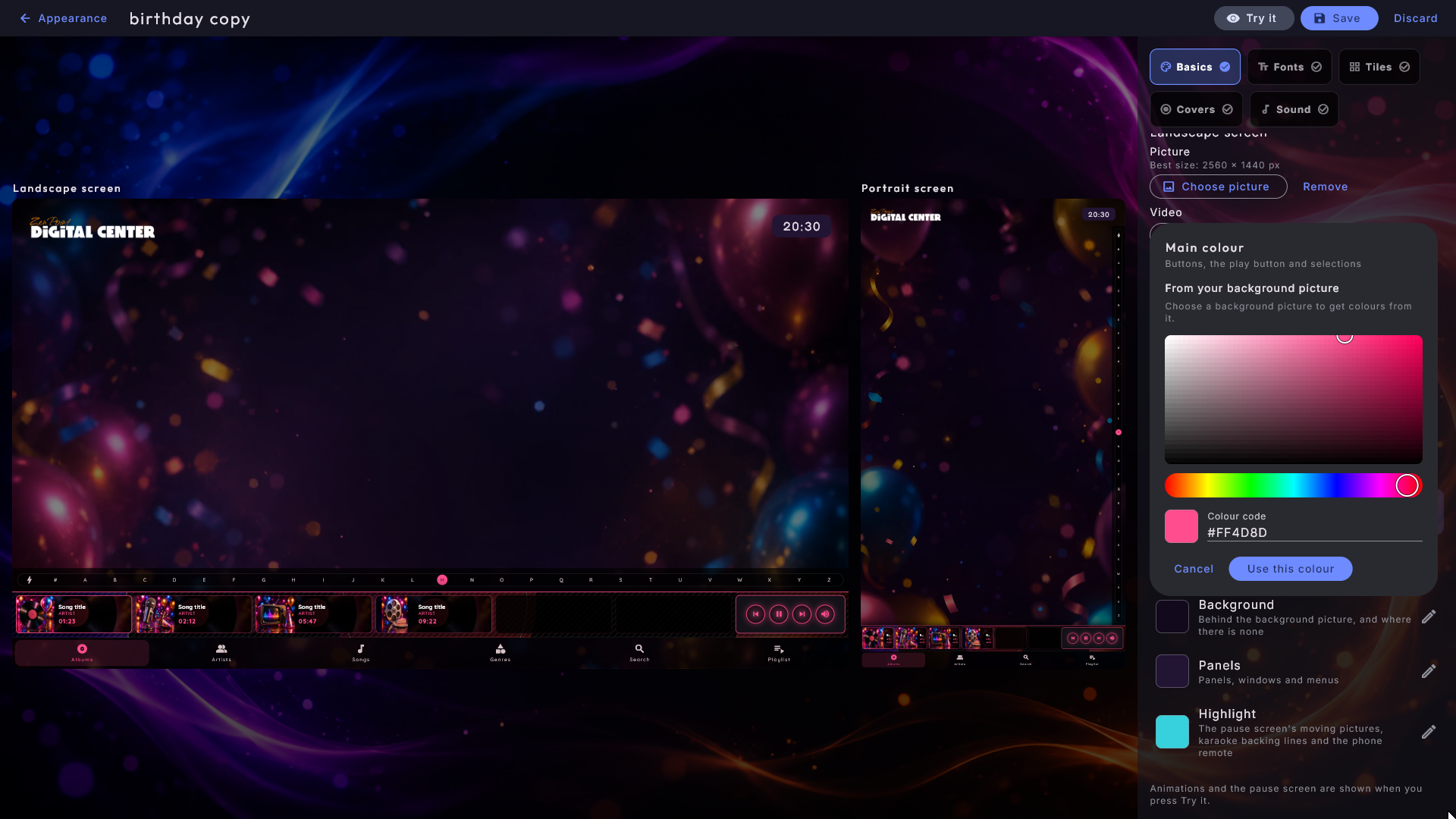
Tap a color to change it. At the top are suggestions from your background picture,
then a color field and a hue bar you tap or drag in, and at the bottom a Colour
code (such as #2A6FDB) for when you know your brand color. While you choose, the
two pictures take on the color at once, so you see it everywhere it is used. When you
choose Second colour or Highlight, the pictures switch to the pause screen
meanwhile - a still moving-picture and a karaoke line with a backing part in
brackets - because that is where those two colors show; they switch back when the
picker closes. Use this colour keeps the color, Cancel leaves it. For the
background and panels the picker only offers colors dark enough for white text; a
color code that is too light is made a little darker, and the picker says so.
Fonts
Choose your own font for Headings and for Text (.ttf or .otf files). The pictures show it straight away. If the font lacks the Danish letters æ, ø or å, the editor names the missing letters - they are then shown in another font. You are responsible for having the right to use the font.
Tiles
One picture per center on this machine, plus Setup. The picture is cut to the tile's wide shape the same way as the background, and Remove gives the center its own picture back. Under the name is the best size (1600 × 1000 px).
Covers
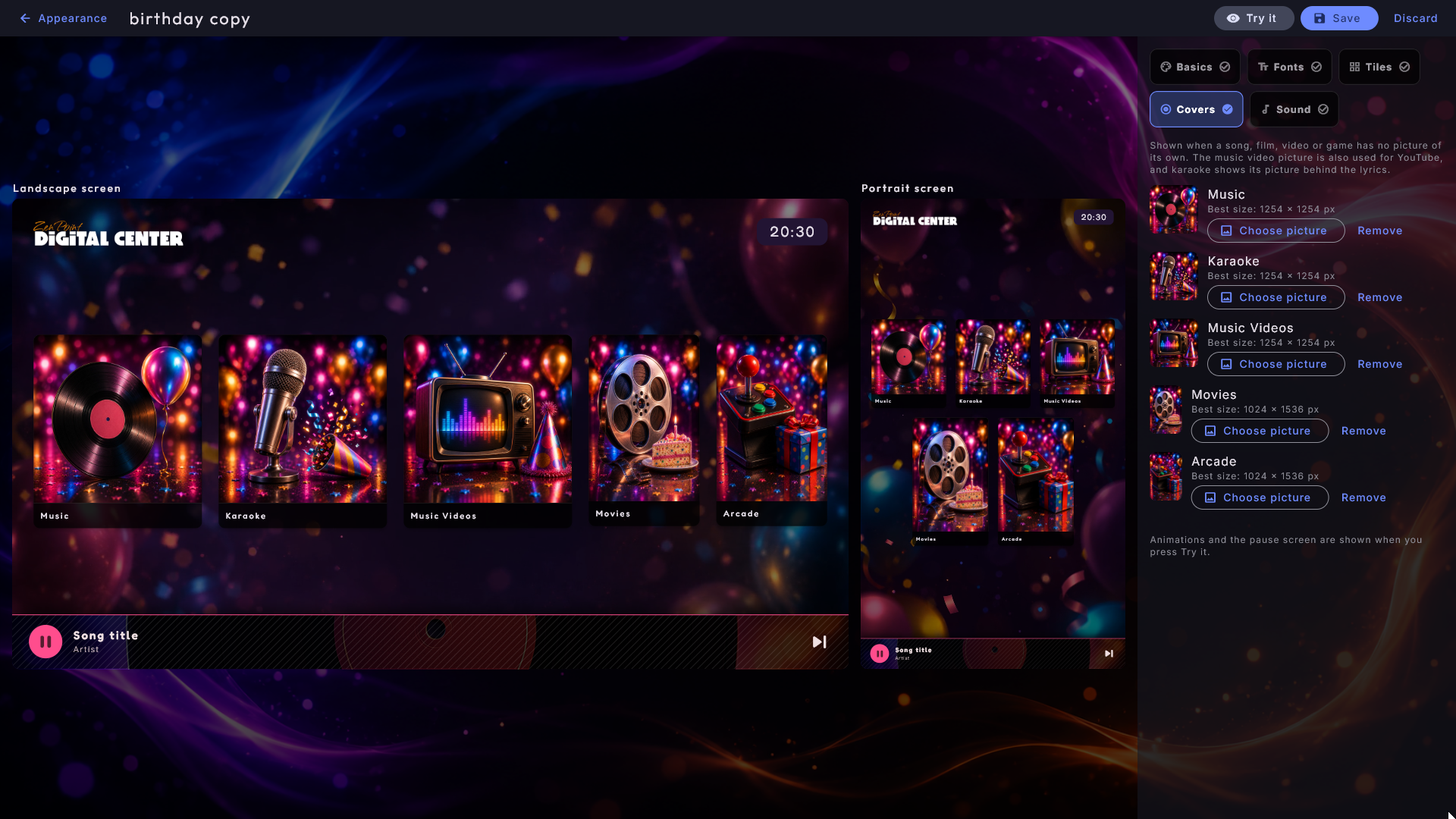
The five standard pictures shown when a song, film, video or game has none of its own: music, karaoke, music videos (also used for YouTube), films and arcade. Films and arcade are cut tall, the others square. Under each name is the best size (1254 × 1254 px for the square ones, 1024 × 1536 px for films and arcade), and the small picture in the row has the same shape. The page with the five covers shows each one in its own shape and in full, so nothing is cut away.
Sound
Choose your own intro music. Listen plays it; meanwhile the music already playing pauses, and it comes back when you tap Stop, when the tune ends, or when you leave the editor.
Trying, saving and discarding
Go back to Appearance and everything you have made is kept in the draft - the button now reads Continue your look. To see animations and the pause screen, tap Try it: Administration closes and the whole screen dresses itself in the new skin. At the top it says "You are trying the look ..." with Back to the editor (you land in the editor again, with everything kept), Save and Discard.
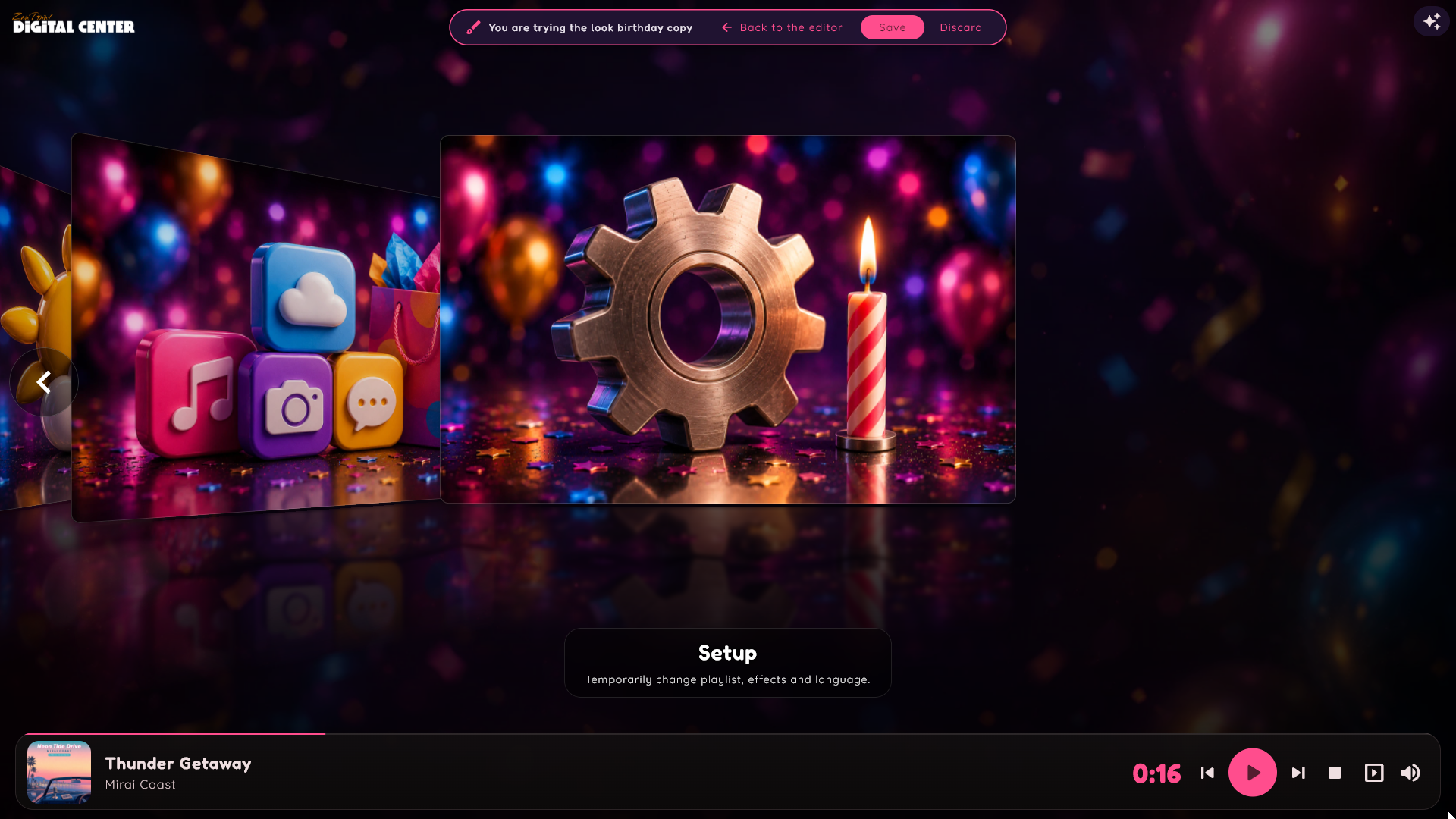
The draft is never saved by itself. It disappears when you discard it, when the kiosk is locked (Party Mode, Credit Mode or automatic log-out) and when Digital Center is restarted. Discard only asks first if you have changed something. If a skin with the same name already exists, Save asks first; answer yes, and the parts you chose in the editor replace the ones in it, the parts you removed are taken out, and everything else in that skin stays.
Background video and loop
A skin can use a still image or a moving background. When it is a video, the background plays gently behind everything. A skin can give a different background for landscape and portrait, so the system automatically picks the one that fits the screen's orientation and switches the moment the screen is turned. You can also set how fast a moving background plays - from a calm slow motion to a brisk pace - and whether it loops smoothly with a soft fade between repeats.
Whether moving backgrounds are played at all is up to you: under Administration → Appearance, below the skins, the Background section holds Live backgrounds and Background loop (see Settings & administration).
Intro music
A skin can also carry its own intro music - a short welcome tune that plays at startup, the first thing a guest hears. When a skin brings its own tune, it takes the place of the standard one, and it switches automatically the moment you change skin, so the sound always matches the look. Whether the intro music plays at all, and how loud, is controlled centrally under Administration → Startup (see Settings & administration); a skin only chooses which tune is used when it is on.
While the intro music is playing and the kiosk is not locked, a pause button sits in the pill of buttons at the top right. Tap it to pause the music. It then stays paused for the rest of the session, until you tap the play button in the same place (or Digital Center is started again), and carries on from where it stopped.
Language
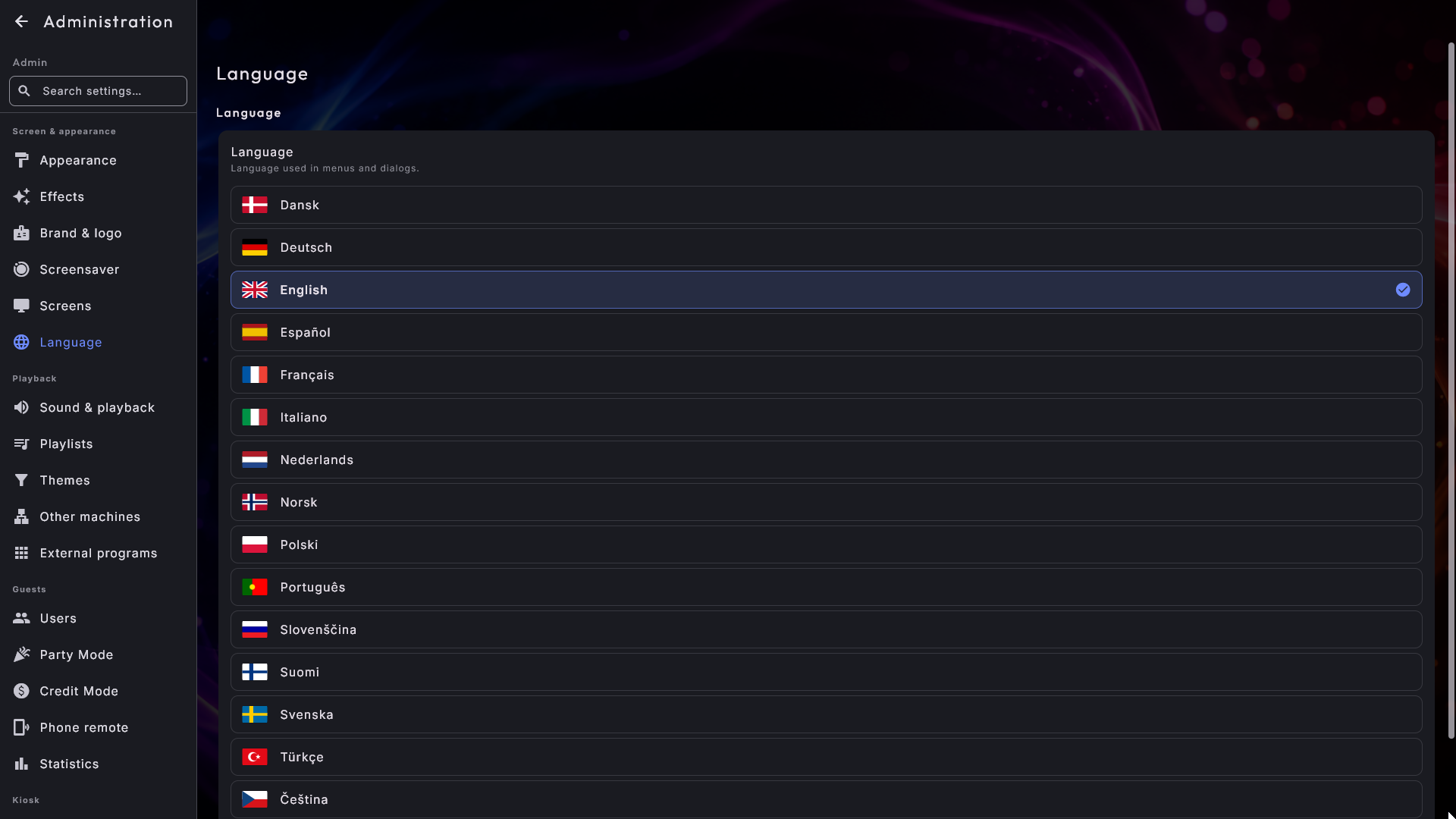
Under Administration → Language you choose the language for the whole system. The languages are shown as a list, each with its country flag in front - just tap a language to select it. You can choose between Danish, English, German, Swedish, Norwegian, Finnish, Greek, Spanish, Italian, French, Dutch, Polish, Portuguese, Slovenian, Turkish and Czech - sixteen in all.
You can also change the language temporarily for a single session via the Setup tile on the front page - it resets to the saved language when the app restarts.
Front page effects
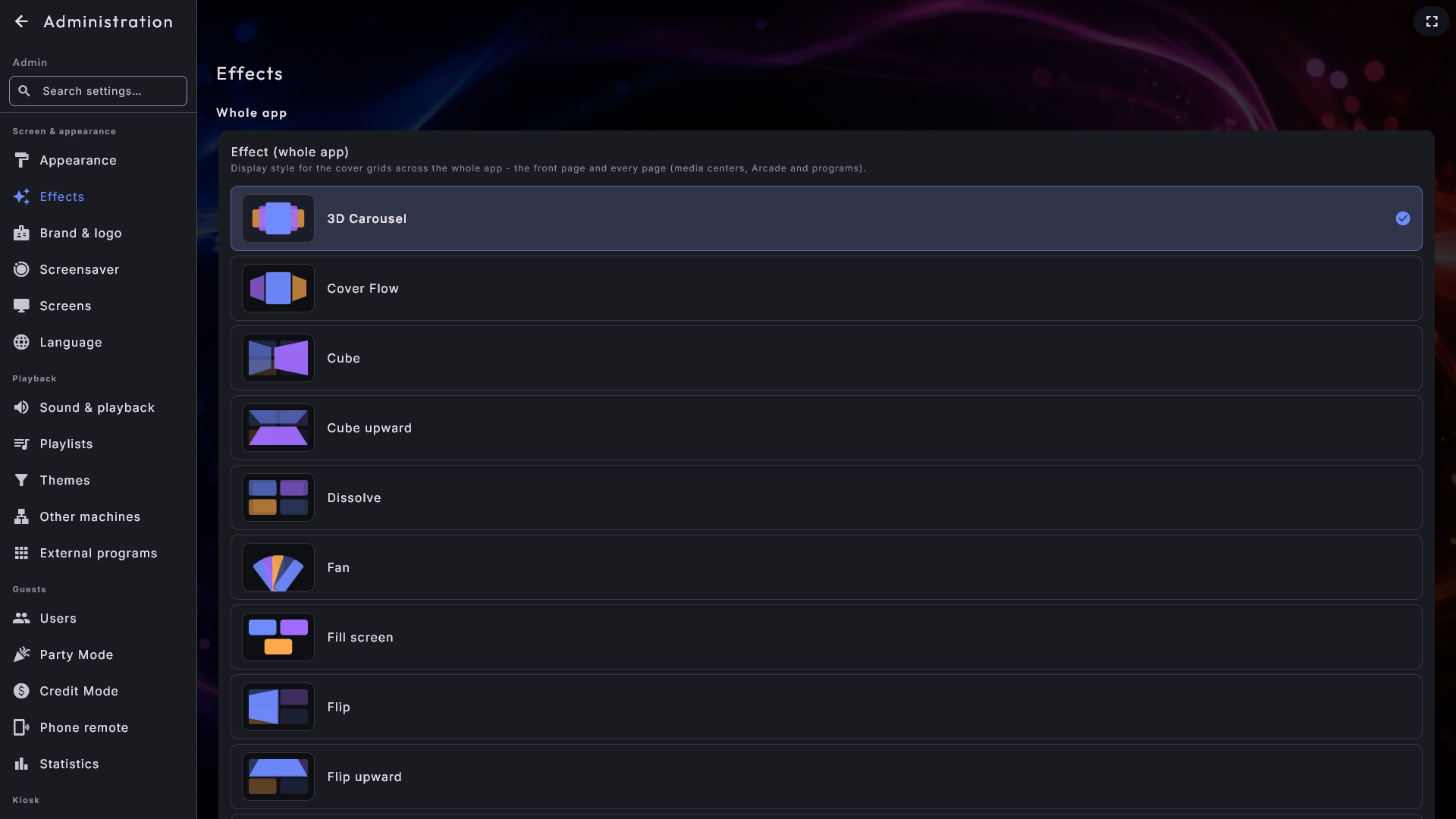
The cover-and-tile wall can be shown in 20 different ways - and by default the same effect is used both on the front page and on every page (the media centers, Arcade, Programs). You pick it under Setup → Effects (temporary, resets at restart) or permanently with Effect (whole app) under Administration → Effects.
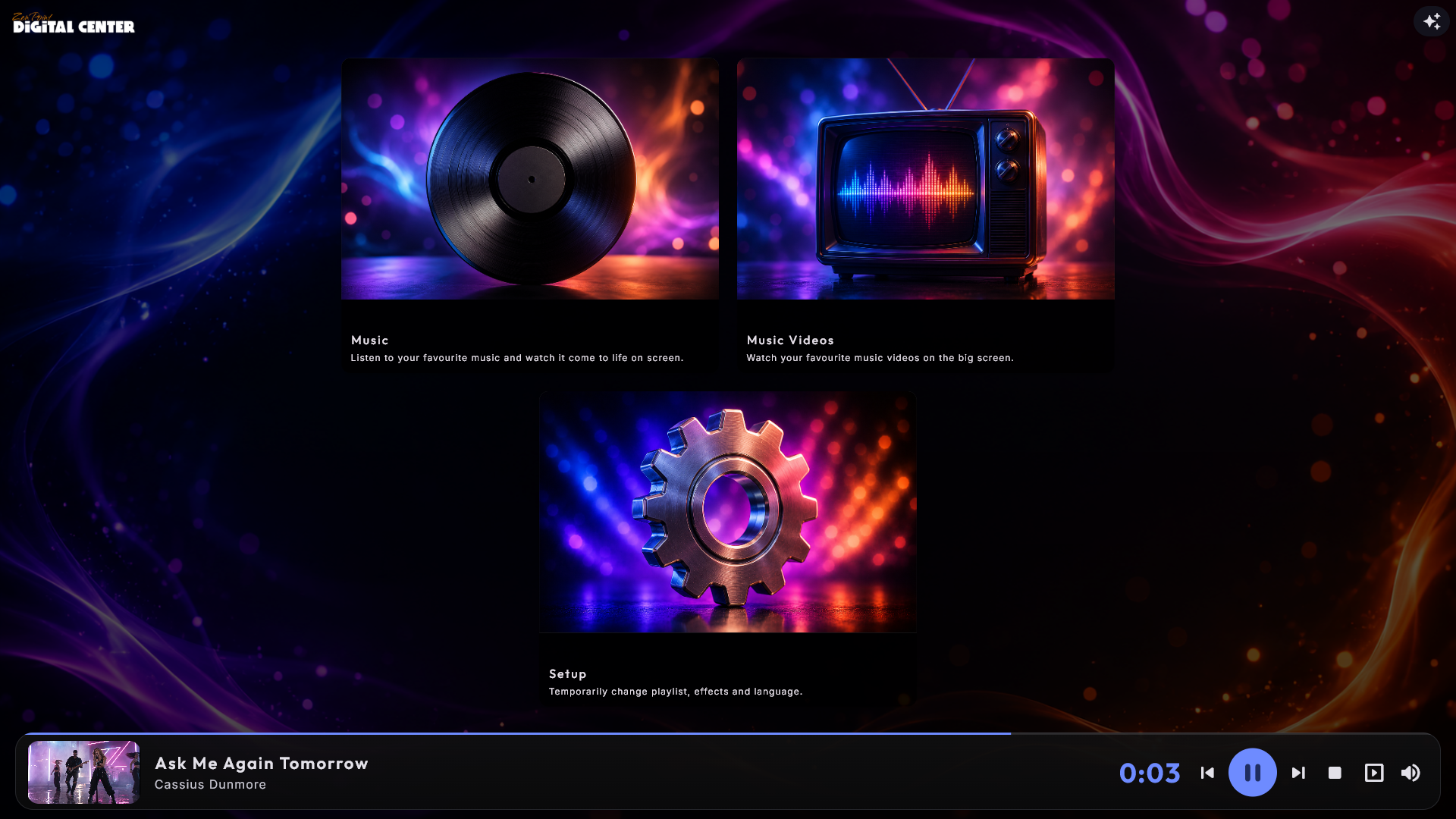
You can also change the effect right where you are standing. As long as the kiosk is unlocked - neither Party Mode nor Credit Mode - every cover page, the front page included, carries a small sparkle button in the pill of buttons at the top right. Tap it, pick an effect, and it applies to that page only, so each page can have a look of its own. The choice is temporary and resets when the system restarts. The button stays out of the way while a full-screen player is open.
So an effect can come from four places. The system uses the first one that has something to say, from the strongest down:
- The sparkle button on the page - a temporary effect for that one page.
- A saved effect for that page in Administration - a center with an effect of its own, or the front page's own - see the box below.
- Setup → Effects - a temporary effect for the whole system, this session only.
- Administration → Effects - your saved effect, used everywhere nothing above has said otherwise.
Both temporary choices reset when the system restarts, and choosing a new saved effect in Administration clears them straight away.
One saved effect - with per-center exceptions
Any single cover-page center - Music, Music Videos, Karaoke, Movies, YouTube, Arcade and External Programs - can be given its own effect on that center's own page in Administration. There you'll find an Effect dropdown that starts on Global effect; pick a specific effect instead and that center always starts with it. Leave it on Global effect and the center simply follows whatever you set under Effects.
The front page can keep an effect of its own in the same way. Under Administration → Effects, below the effect for the whole app, there is a Front page field. It also starts on Global effect; pick an effect and the front page starts with it, while every other page keeps the effect for the whole app.
A saved effect is the page's starting point, not a lock. The page starts with it, also after a restart, and neither Setup → Effects nor a theme can move it. The sparkle button is still there (when the kiosk is not locked), so you can try another effect on that page for a while; after the next restart it is back on the saved effect, and picking the saved effect in the sparkle menu takes the page straight back to it. If you change the saved effect in Administration, the change shows at once - also on a page where the sparkle button has been used.
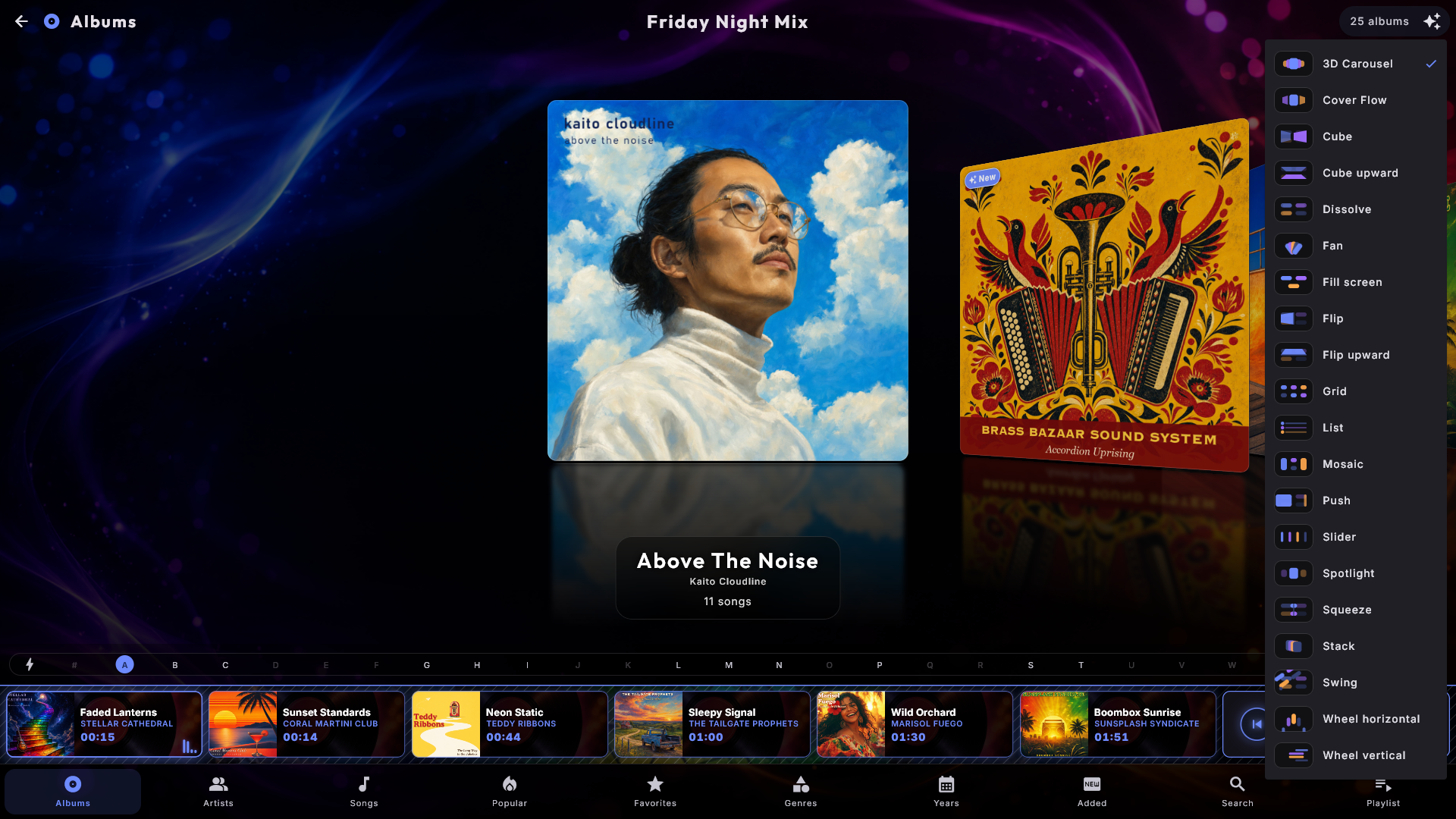
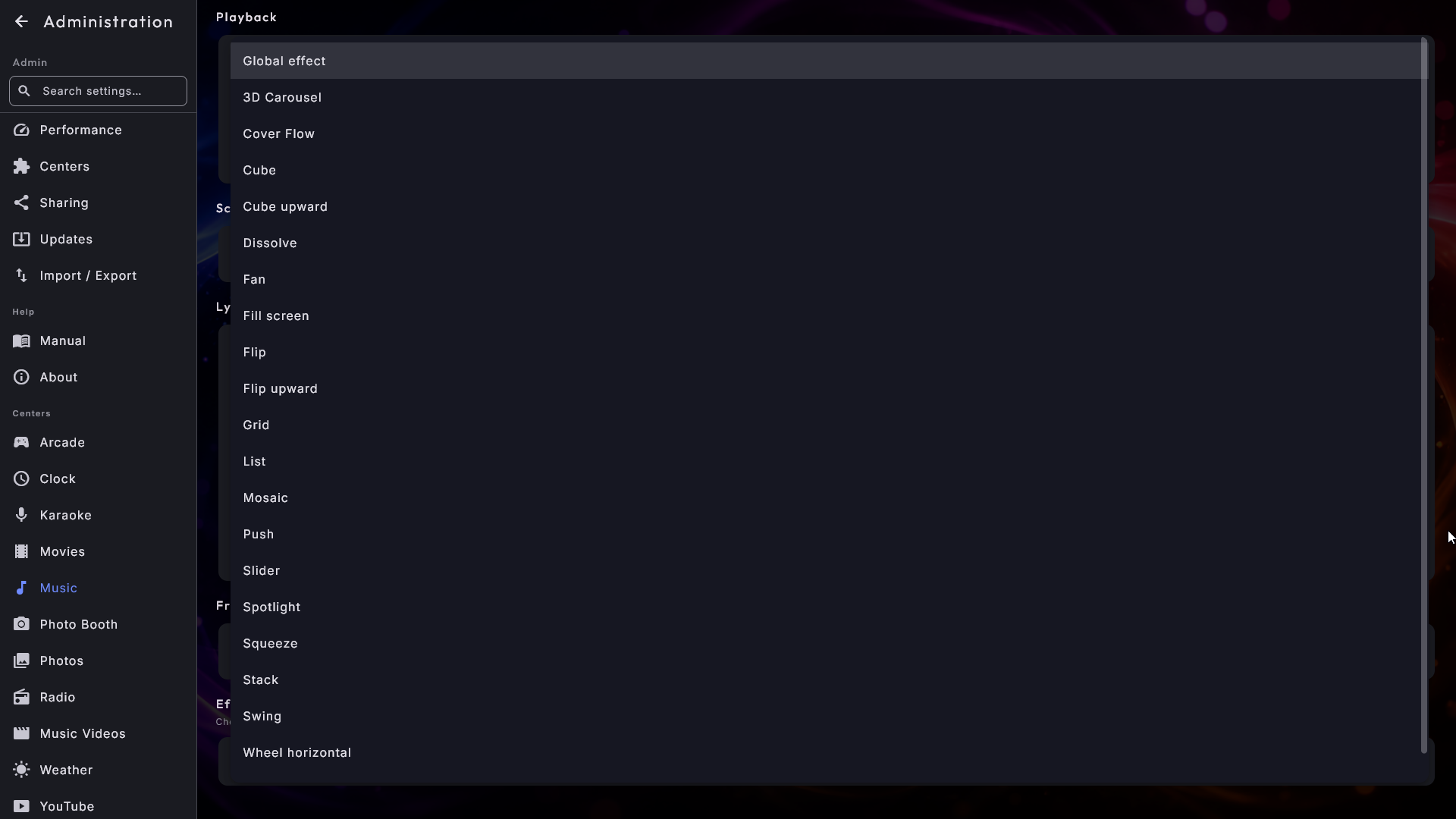
In both Setup → Effects and Administration → Effects, a small preview image is shown next to each effect's name, so you can see how it looks before you choose it - you do not need to know the names.
| Effect | What it looks like |
|---|---|
| Grid | A calm, easy-to-read grid. |
| Fill screen | The same grid, but the tiles fill the screen - the fewer there are, the larger they get. |
| 3D Carousel | The tiles rotate in a 3D ring. |
| Cover Flow | Tiles glide past like album covers. |
| Slider | Tiles slide horizontally. |
| Wheel vertical | Tiles on a vertical wheel. |
| Wheel horizontal | Tiles on a horizontal wheel. |
| Stack | Tiles stacked on top of one another. |
| Mosaic | A mosaic pattern of tiles. |
| Fan | Tiles spread out like a fan. |
| Spotlight | The selected tile is highlighted. |
| List | A simple vertical list. |
| Flip | A whole page of tiles turns like a leaf in a book. |
| Flip upward | The same leaf, hinged across the middle so the page tips upward. |
| Push | The page slides out one side while the next slides in beside it. |
| Cube | The two pages turn past as two faces of a box rolling sideways. |
| Cube upward | The same box, rolled upward instead of sideways. |
| Squeeze | The page folds to a line in the middle and the next unfolds from it. |
| Dissolve | The page fades away while the next fades in. |
| Swing | The page swings aside on its bottom-left corner. |
Every effect adapts automatically to the shape of the screen. If the screen stands in portrait, the effects lay themselves neatly along the tall screen instead of across it - you do not have to choose anything. The screen's orientation is set when the system is installed.
If the screen feels slow
On a less powerful machine, a busy effect can feel heavy. If that happens, choose a simpler effect such as Grid for the smoothest experience.
Photos. The Photos center uses the effects too, but only where you actually choose something: the folders on the Folders tab and the cards on the Events tab. The pictures inside a folder are still shown as an ordinary grid - a folder can hold many thousands of pictures, and you need to be able to take them in at a glance. If a folder holds both sub-folders and loose pictures, the folders are shown above and the pictures below.
Fill screen: big tiles when there are only a few
Fill screen is the same calm grid as Grid, but the tiles get the room there actually is: the fewer tiles, the larger they become. With only three centers switched on, they stand as three big buttons in the middle of the screen instead of three small ones in the top corner, and a shorter last row is centered so it does not sit off to one side. Nothing scrolls, because everything is on the screen at once. It is made for a setup with only a few centers, where buttons that are easy to hit with a finger matter more than anything else.
When music starts and the now-playing bar slides in at the bottom, the tiles shrink a little but stay where they are, so the same spot keeps opening the same center. If there are so many tiles that they cannot grow, the effect goes back to the ordinary scrolling grid by itself, so a music library with thousands of albums looks just as it always has. You do not have to do or watch anything.
Big buttons on the front page only
Want big buttons on the front page but the ordinary grid inside your media centers? Set Front page to Fill screen under Administration → Effects. It applies to the front page only and holds after a restart. To just try it, pick the effect with the sparkle button on the front page instead - that choice is gone at the next restart.
The eight paged transitions
The last eight in the table - Flip, Flip upward, Push, Cube, Cube upward, Squeeze, Dissolve and Swing - are all the same kind of view: a fixed number of tiles fills the screen, and nothing scrolls. Instead you page. Swipe, tap the large arrows, or use the arrow keys, and the whole page is replaced by the next one. All eight are used in exactly the same way; only the way the change looks is different:
- Flip - the page turns about the middle of the screen, like turning a leaf in a book.
- Flip upward - the same leaf, but hinged across the middle so the page tips upward, like a page in a wall calendar. Going forward, the old page lifts up and out over the top edge while the next one comes up from below.
- Push - the two pages lie edge to edge and travel across together as one band, so one is always arriving as the other leaves. No depth, no turning.
- Cube - the two pages turn past like two faces of a box being rolled sideways. Both are in view for most of the roll and meet along the corner between them.
- Cube upward - the same box, rolled upward instead of sideways.
- Squeeze - the page is folded together into a thin line down the middle of the screen, and the next one unfolds from that same line.
- Dissolve - the page fades softly away while the next fades in. The calmest of them.
- Swing - the page swings aside on its bottom-left corner, like a sign hanging on a single nail: the free end lifts up and out over the top edge, while the next page lies still behind it and comes into view. Going back, the previous page swings in again on the same corner, on top of the one you are standing on.
You page the way the page moves. In the six where the page goes sideways, the large arrows sit at the left and right edges and you swipe sideways. In Flip upward and Cube upward they sit at the top and bottom, and you swipe up to go on - exactly the way the page travels.
The arrow keys follow the same direction: each page is a grid of its own, and you page with the keys that point the way the page travels. In the six sideways ones, Up and Down move a whole row within the page and never change page - Down from the bottom row takes you on to the area below (such as the letter bar), and Up from the top row takes you upward. Left and Right move one tile at a time; go past the end of a row and the page turns, and you land in the same row on the new page (Right: its first tile, Left: its last). In Flip upward and Cube upward it is the other way round: Down from the bottom row turns the page, and you land in the same column at the top of the next page (Up from the top row goes back to the previous page's bottom row). Only on the last page does Down take you on to the area below, and on the first page Up takes you upward. Left and Right move one tile along the row, and past its end they take you on to the area beside it - or, if there is nothing there, Left to the area above and Right to the area below.
Forward and back move opposite ways - except Squeeze and Dissolve, which look the same either way; there it is the tiles that arrive that tell you which way you went. The alphabet bar works just as on the other effects: it simply jumps to the page a letter sits on.
Every effect does exactly what its name says, on every machine. Choose Cube and the pages roll like a box, whatever Graphics mode is set to (see Settings & administration). If an effect feels uneven on your particular machine, simply choose another - Push, Squeeze, Dissolve and Swing are the lightest.
These three choices - appearance, language and effects - are the heart of making Digital Center feel like your own. For the very first choices when you set the system up, see Getting started; for the full administration menu, see Settings & administration.