
Chapter 3
Getting started: first-time setup
With Digital Center installed and your license in place, it is time to make the system your own. This chapter walks a brand-new administrator through the very first run, one step at a time: starting the program, the setup guide, switching between fullscreen and a window, choosing your language, picking an appearance, deciding which center opens on startup, and making Digital Center launch automatically with Windows. Do these in order and you will end up with a system that opens exactly the way you want it to.
Where these settings live
Almost everything in this chapter is found under Administration - the settings area you reach from the Setup tile on the front page. For a full tour of that menu, see Settings & administration.
Start the program
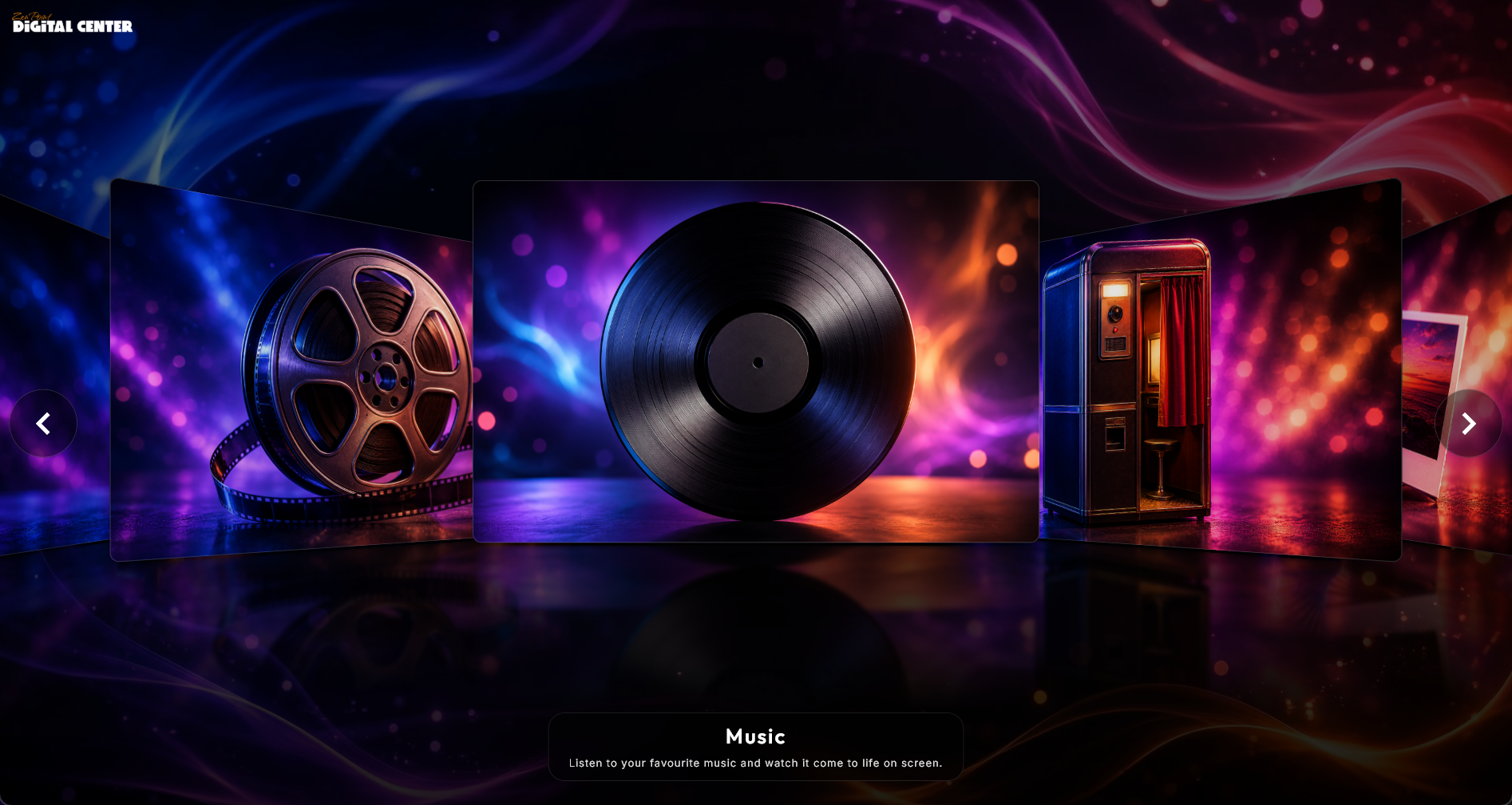
Open Digital Center from its shortcut. It opens in fullscreen and begins with a short intro video on every active screen. When the video finishes, the front page appears with the available centers laid out as tiles.
The setup guide
The first time Digital Center starts after a fresh installation, a short setup guide helps you with the most important things. It is shown only this once, and nothing in it is required: every step has a Skip button, and on the first page you can press Skip the whole guide. Esc skips too. Everything you choose in the guide can be changed afterwards under Administration.
The guide only appears once the screen is ready - after any license activation, and once the connection is in place - and only when the screen is not locked. If you have already changed settings yourself by then, it stays out of the way on its own.
Some steps are left out automatically when they do not fit your machine:
- 1
Welcome and language
The language has already been chosen from the computer's Windows language. Tap another flag to change it.
- 2
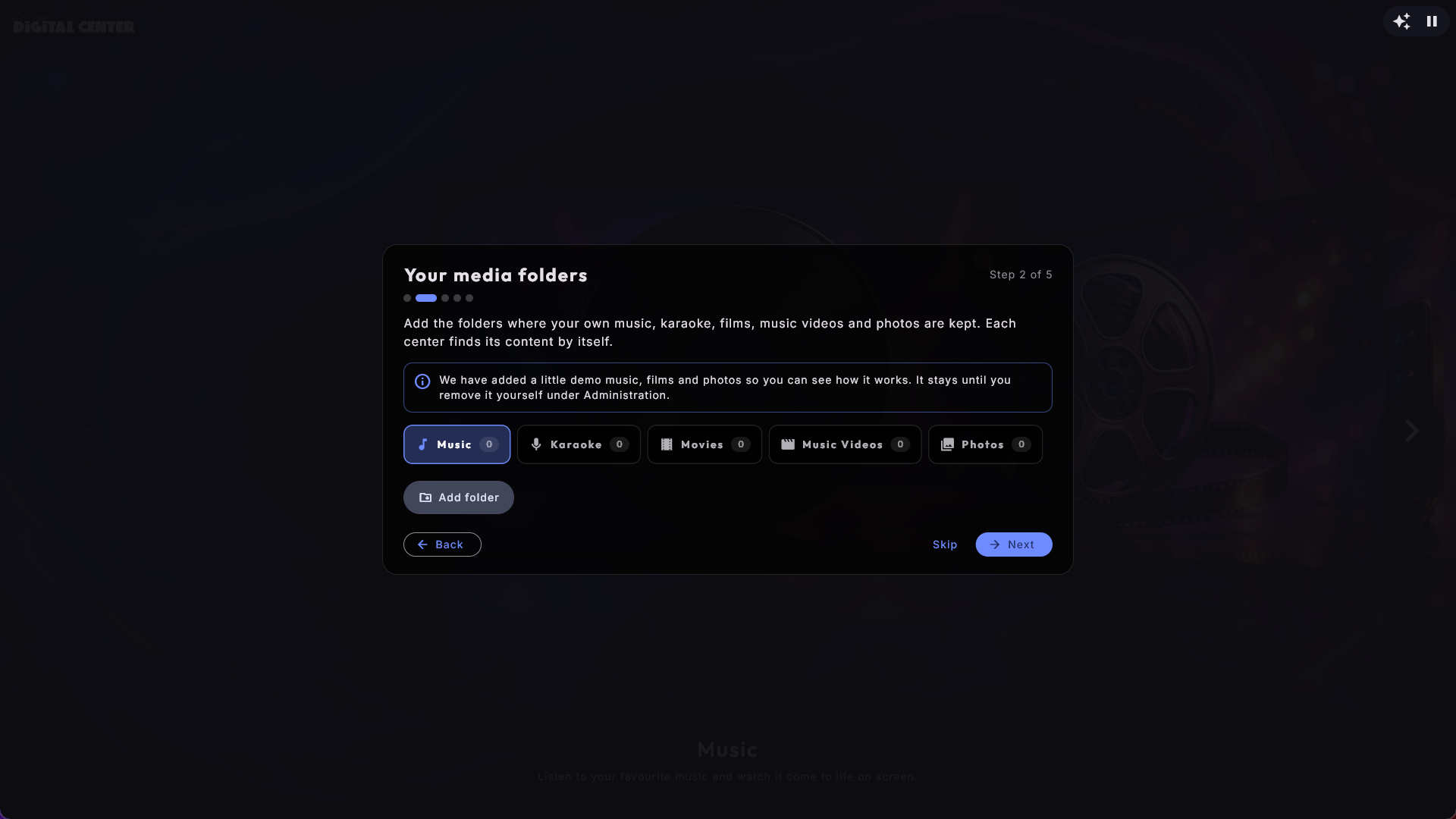
Your media folders
One tab per center - Music, Karaoke, Movies, Music Videos and Photos. The number on each tab shows how many folders that center has, so you can see at once which ones still need one. Tap a tab to see its folders, and press Add folder. Each folder is shown with its name and the full path below. The demo folders are already on the list and marked Demo; your own folders have a delete button. Your own folders are added next to the demo folders - they do not replace them, and the demo folders cannot be removed from the guide. (This step is not there on a screen that gets everything from another machine.)
- 3
Other machines
Only when the guide finds other Digital Center machines on your network that you have not added yet. While it is still looking, it says Looking for other machines on the network..., and machines appear as soon as they answer, each with its name and address on one line. Press Add next to the machine you want to fetch from, go to that machine, press Share with all my screens there, and type the code it shows. Its music, films, videos and karaoke then turn up here too. If no machines are found, the step disappears, and if you are standing on it, the guide moves on by itself. You can also do this later under Administration → Other machines.
- 4
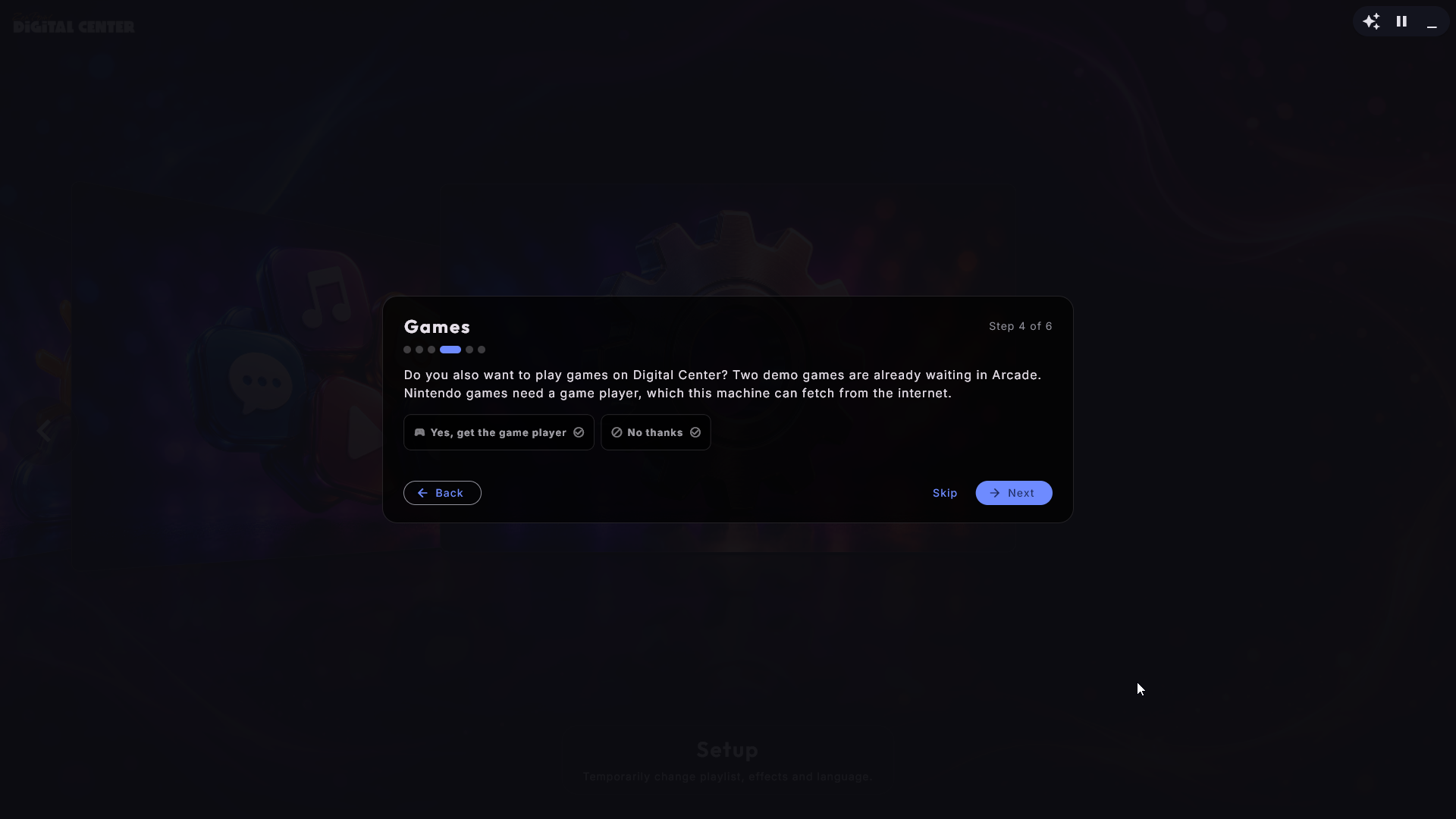
Games
Only when your edition has Arcade: the guide asks whether you also want to play games on Digital Center. Two small demo games, Star Blaster and Glowbug, are already waiting in Arcade. Nintendo games (like those two) need a Game player for Nintendo games, which is not part of Digital Center itself. Press Yes, get the game player, and the machine fetches it from the internet in the background while you carry on with the guide. If you say no (or the machine is not online), you can get it later under Administration → Arcade.
- 5
Screens
Only when the machine has more than one screen: choose the main screen and what the other screens show, and press Apply - exactly as on the Screens page in Administration.
- 6
Phone remote control
Switch it on or off, and try it straight away by scanning the code with a phone on the same WiFi.
- 7
You are ready
Press Finish, and you land on the front page.
Run it again later
You can bring the guide back at any time under Administration → About with the button Run the setup guide again.
New in Digital Center
When something new arrives that you can benefit from, the guide shows it once - even if you have had Digital Center for a long time or have already seen the guide. It then opens by itself under the heading New in Digital Center and shows only the news, not the rest of the guide. Right now that is Games: if your edition has Arcade and the machine does not have the game player for Nintendo games yet, it asks whether you want it fetched. Press Yes, get the game player or No thanks - after that it never asks again (Esc counts as no thanks too). If the screen is locked (Party Mode or a paid playlist), it waits until you unlock it, so your guests never see it.
Fullscreen or window
Digital Center normally fills the whole screen with no window frame, which is exactly what you want for a kiosk. While you are setting things up, though, it can be handy to work in an ordinary window.
- Press F12 to switch between fullscreen and a normal window.
- In window mode, Digital Center behaves like any other program: it is no longer always on top, it no longer covers your extra screens, and you can move it and resize it freely.
- Press F12 again to return to fullscreen - everything is put back the way it was. In window mode there is also an on-screen back-to-full-screen button, so you can return with a click or a tap even without the keyboard.
A reliable way back to fullscreen
F12 always works, even if a dialog happens to be open, so it is your dependable way to get back to the fullscreen kiosk look at any time. On a locked machine (Party Mode is on, or a paid playlist is running), it first asks for the admin password before the window is let loose, so a guest with a keyboard cannot get out to the desktop. Going back to fullscreen never needs a password.
Choose your language
Set the language for all menus and dialogs first, so everything else you do is shown in the language you are comfortable with.
- 1
Open the language settings
Open Administration from the Setup tile, then go to Language.
- 2
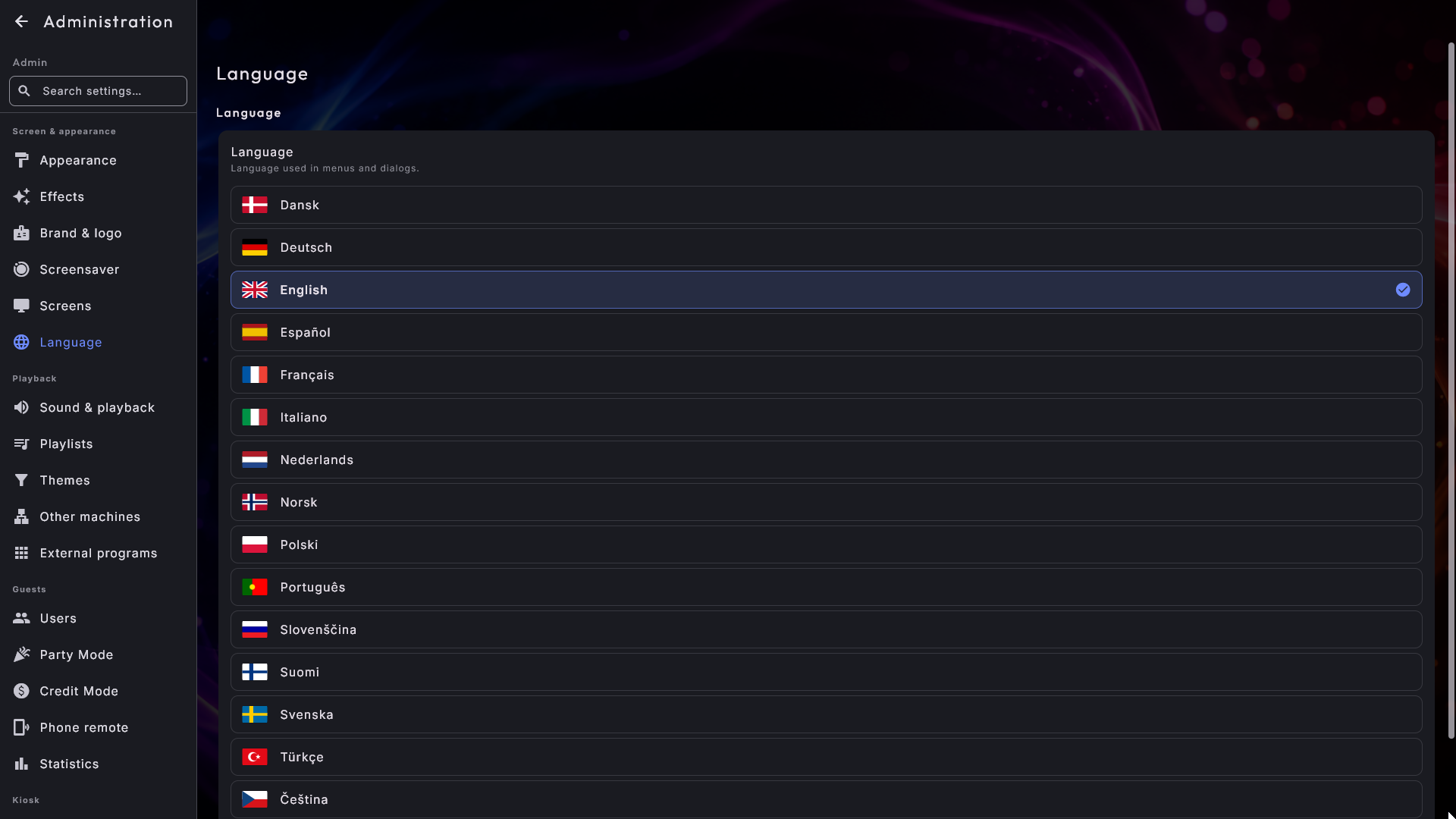
Pick a language
Languages are shown as a list, each with its own flag in front. Tap a language to select it - the whole system switches over right away. You can choose from Danish, English, German, Swedish, Norwegian, Finnish, Greek, Spanish, Italian, French, Dutch, Polish, Portuguese, Slovenian, Turkish and Czech.
A temporary language for one guest
A guest can also pick a language just for their session from the Setup tile on the front page. That temporary choice resets to your saved language the next time the system restarts, so the setting you make here stays as the default.
Pick an appearance
The whole look of the system - colors, background, logo and fonts - is controlled by a skin. Choosing one is the quickest way to give Digital Center its own character.
- 1
Open the appearance settings
In Administration, go to Appearance.
- 2
Select a skin
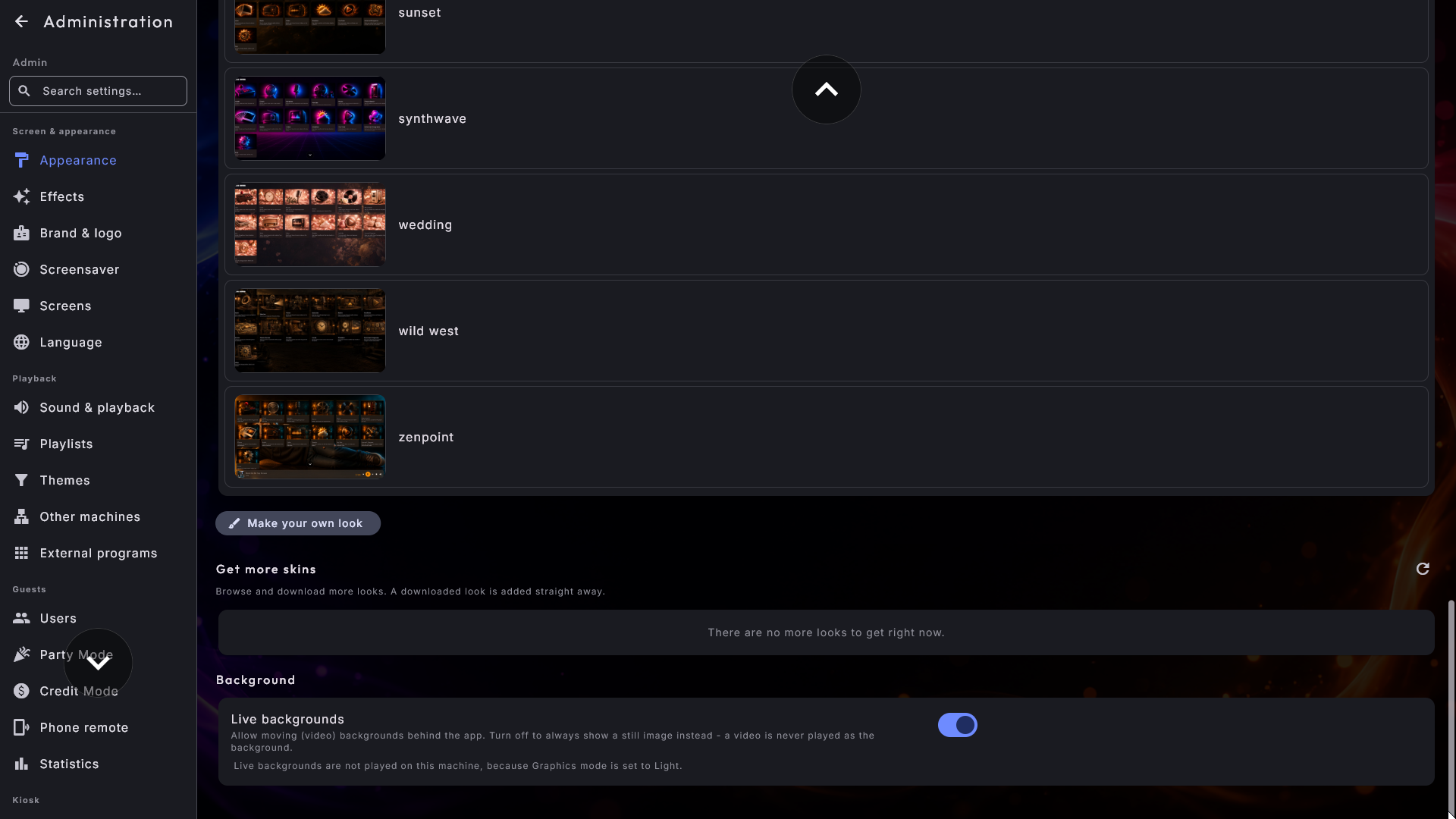
Pick a skin from the list. The change takes effect immediately - the new colors and background flow through every center and page at once. The system ships with the default appearance ready to go.
- 3
Get more appearances (optional)
Below the list you will find "Get more skins", a section of extra appearances you can add for free. Each one is shown with a small preview and a Get button. Tap it and the appearance downloads and installs itself, appearing in the list above ready to choose.
Make it your own brand
An appearance can carry your own logo, your own background, and even your own front-page tile pictures, so the system looks like your product. You can build one yourself right on the screen with Make your own look, below the skin list. There is much more on appearances in Appearance, language and effects.
You can also point the system straight at your own logo file, whichever appearance you use: under Administration → Brand & logo you'll find Your own logo. It is then used everywhere the logo appears - the front page, the startup screen, the screensaver, the corner during playback and any extra screens. The important part is where the choice is kept: it lives in your settings, so it survives an update and travels with a backup. Dropping a file into the program folder instead would be wiped the next time you update. Leave the field empty and the appearance's own logo is used, or Digital Center's if it has none.
Choose which center opens on startup
By default, Digital Center opens on the front page. If your venue is mostly about one thing - say music - you can have the system jump straight into that center every time it starts.
- 1
Open the Startup page
In Administration, go to Startup.
- 2
Pick a startup center
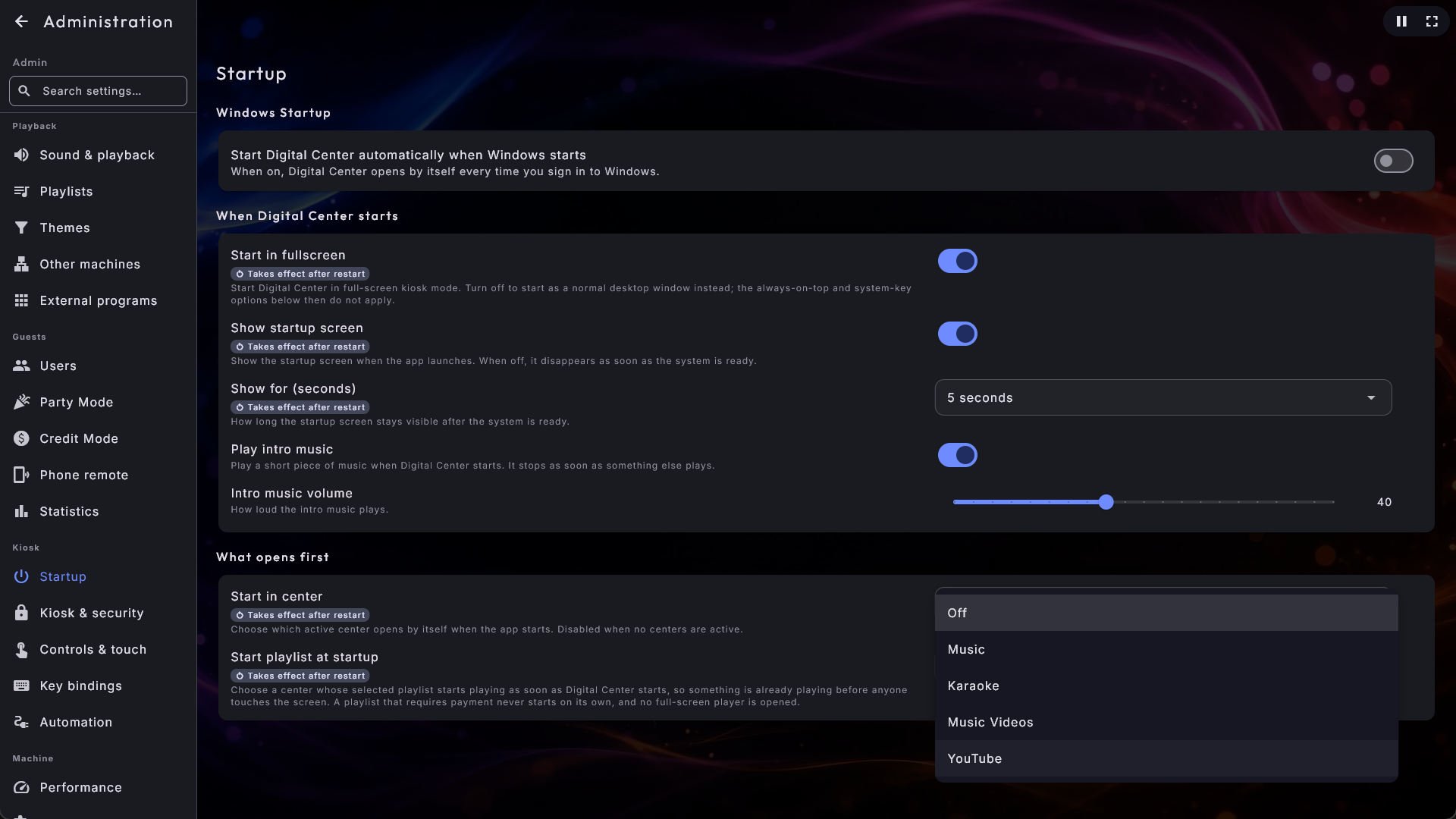
Under What opens first, at Start in center, choose the center you want the system to open in - for example Music. Choose Front page to start on the normal front page instead.
Only enabled centers can be chosen
You can only pick from the centers that are switched on. If a center is turned off on the Centers page, it will not appear in the startup list. You will find more about showing and hiding centers in Settings & administration.
Let the music start by itself
A jukebox switched on at the wall came up and then stood silent until somebody touched the screen. It no longer has to. Digital Center can start the selected playlist of a center by itself, so there is already music in the room before the first guest arrives.
- 1
Open the startup setting
In Administration, go to Startup.
- 2
Pick the center that should start
Under Start playlist at startup, choose Music, Karaoke, Music Videos or YouTube. Off (the standard) leaves the machine silent as before.
What it does and does not do
It is the center's selected playlist that starts, so it follows whatever you have chosen there. Films are deliberately not on the list: a film that starts by itself takes the room for two hours. No full-screen player opens either, so the machine simply plays and shows its front page. And a playlist that requires payment never starts on its own, so a paying guest's queue is never played to an empty room the next morning.
It works with the startup center
This is separate from Start in center above, which decides where the kiosk opens. Use the two together and a karaoke bar can come up in Karaoke, with the evening's list already playing.
Start automatically with Windows
For a kiosk that should simply be ready the moment the machine is switched on, let Digital Center launch by itself when Windows starts.
- 1
Open the Startup page
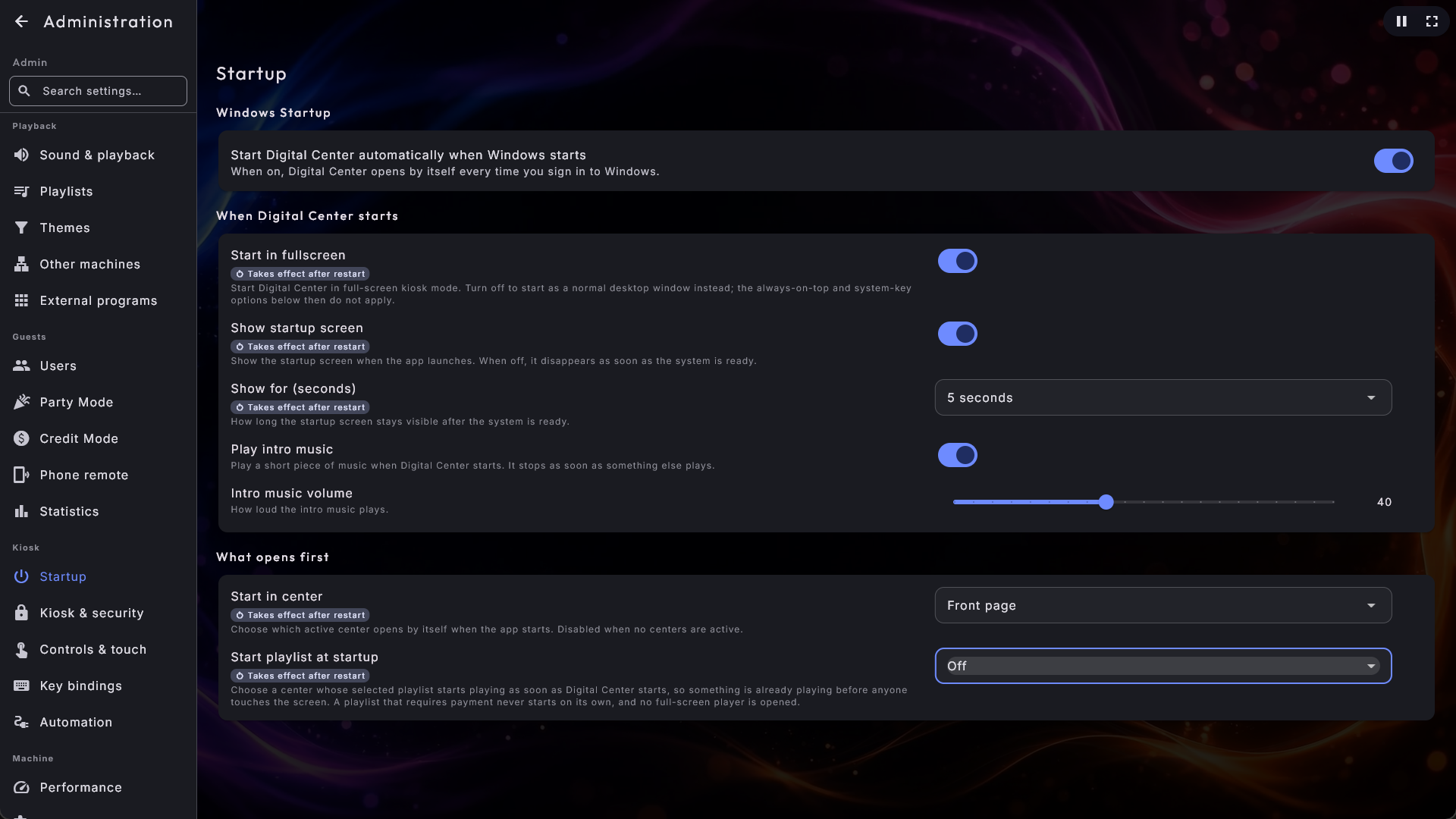
In Administration, go to Startup. Windows Startup is the first section on the page.
- 2
Turn it on
Switch on Start Digital Center automatically when Windows starts. From now on, the program opens by itself every time you sign in to Windows. Switch it off again whenever you would rather start the program by hand.
Only on an installed system
This option is only available on a properly installed Digital Center. If you do not see it, the system has not been installed in the usual way - install it first and the setting will appear.
You're set up
That is the first run done. Digital Center now speaks your language, wears the look you chose, opens where you want it to, and can start by itself with the machine. The natural next step is to point the system at your own media - your music, movies, photos and more - which we cover in Your media libraries.