
Chapter 6
Settings & administration
Everything you can tune about Digital Center lives in one place: the Administration menu. This chapter is your map of that menu - how to open it, how to find a setting fast, how to undo a change, and a tour of the areas an administrator works with most. It is a reference chapter, so feel free to skim to the section you need.
For administrators only
The Administration menu is reserved for administrators. If Party Mode is turned on, a guest never sees it - only someone logged in as an administrator can open it. The rest of this chapter assumes you are signed in as an administrator.
Opening the Administration menu
- 1
Open Setup on the front page
On the front page, open the Setup tile. This is where the administrator-only options gather.
- 2
Choose Administration
Select Administration. The full settings menu opens, with a list of areas down the left side and the selected page on the right.
Finding your way around
The left-hand menu is one long list broken up by group headings, so related pages sit together. The groups always come in the same order:
| Group | Pages |
|---|---|
| Screen & appearance | Appearance, Effects, Brand & logo, Screensaver, Screens, Language |
| Playback | Sound & playback, Playlists, Themes, Other machines, External programs |
| Guests | Users, Party Mode, Credit Mode, Phone remote, Statistics |
| Kiosk | Startup, Kiosk & security, Controls & touch, Key bindings, Automation |
| Machine | Performance, Centers, Sharing, Updates, Import / Export |
| Help | Manual, About |
| Centers | One page for each center - Music, Karaoke, Movies, Photo Booth and so on |
You click straight on the page you want to open. The settings themselves and their values have not changed; they simply sit where you would look for them.
Search the settings
At the very top of the menu is a search box. Type a word - for example sound, party, display or language - and the menu narrows to just the pages that match. The search looks at both a page's name and a set of related words, so you can land on the right page even when you don't know its exact title.
Below the pages, the search also lists Individual settings: every setting whose name or description matches what you typed - for example volume or fade - each with the page it sits on. Tap one and that page opens, scrolls to the setting and highlights it for a moment. The search does not care about accents, and it only shows settings you can actually see on the pages. Clear the box (or press the small cross) to see the whole menu again.
Paging arrows
Both the menu and the settings page itself carry the same large up and down arrows as the rest of Digital Center. Each tap moves a whole screenful, with a little overlap so you keep your place. That is especially useful on a touch screen, where a swipe is easily read as a tap and you end up choosing, say, a skin on your way down the page. An arrow only appears when there is more to see in that direction. To remove them here while guests keep theirs, turn off List arrows in Administration under Controls & touch; turning off List arrows removes them everywhere.
When something does not work
If saving, looking up a place or opening a folder fails, you get a short message in plain language - for example "Could not save. There was no answer. Please try again in a moment." The message always says what did not work and, when it is known for certain, why and what you can do about it. It never shows a technical error text; the details are kept in the system's log.
You always know which center you're in
When a page belongs to a particular center, a clear heading with that center's icon and name appears at the top - for example Music. This applies both to a center's own settings and to the Playlists and Themes pages, where each tab carries its own heading, so you're never in doubt about whether you're editing music, music video, karaoke or movie lists.
Picking folders inside the app
Several centers need to know where your files live (music, movies, photos and so on). When you add a folder, a folder picker opens inside the app, where you can browse your drives and folders. Windows' own folder dialog is deliberately not used, because it would hide behind the full-screen window.
The "Changed" marker and resetting
Every setting has a standard value. The moment you change one, it gets a small "Changed" marker, so you can always see what you've adjusted compared to the factory defaults.
- Reset one field: next to a changed field is a restore icon that puts just that one field back to its standard value.
- Reset everything: at the top of Administration is a "Reset all to default" button that removes all of your changes at once and returns the whole system to how it shipped.
Playlists and displays reset on their own
Playlists and the display setup are reset section by section, each with its own restore button, rather than by the global "Reset all" button.
Settings that take effect after a restart
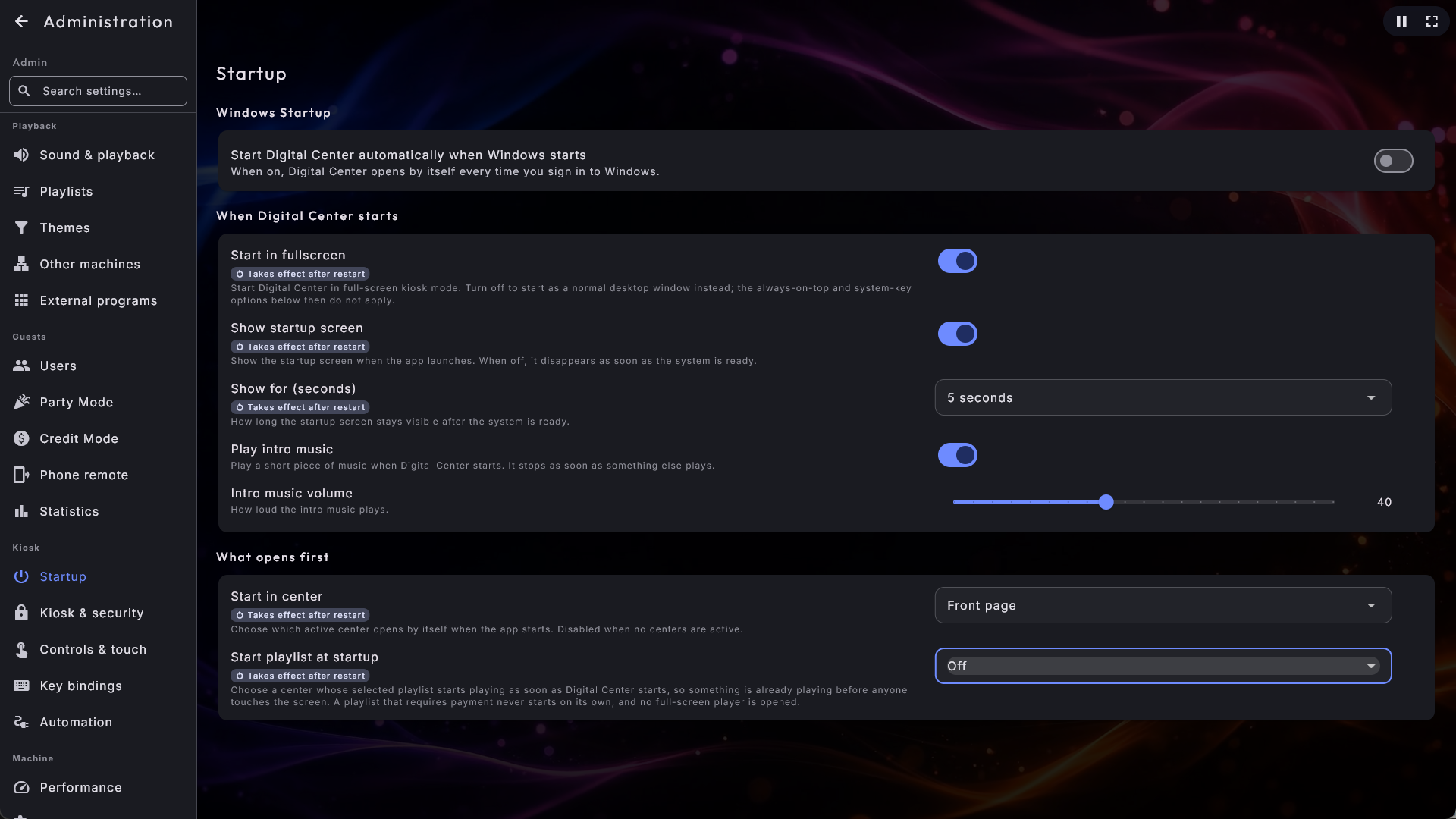
A few settings are only used when Digital Center starts: Start in fullscreen, Show startup screen and Show for (seconds), Start playlist at startup, and Start in center - all gathered on the Startup page. They carry the label Takes effect after restart. When you change one of them, a message appears at the top of Administration with a Restart now button: Digital Center closes and starts again by itself, and anything that is playing stops for a moment. Set the setting back and the message goes away again. Every other setting works straight away, or when you close Administration.
The general settings, page by page
The settings that apply to the whole system are spread over ten menu items, each holding one kind of thing, so you can go straight to what you want to change instead of scrolling past everything else.
| Menu item | Group | What you set there |
|---|---|---|
| Brand & logo | Screen & appearance | Your logo or your name, and where the logo is shown. |
| Appearance | Screen & appearance | The skin, and the moving background behind it. |
| Screensaver | Screen & appearance | When the screensaver comes on, and what it shows. |
| Sound & playback | Playback | The volume, the change between songs, the sound tone, the queue, and what Windows' media controls show. |
| Phone remote | Guests | Phone remote control on or off, and the address phones are sent to. |
| Startup | Kiosk | Windows startup, what happens while Digital Center starts, and what opens first. |
| Kiosk & security | Kiosk | Always on top, exit, the system-key lock, the admin password and hiding to the system tray. |
| Controls & touch | Kiosk | Mouse, on-screen keyboard, keyboard navigation, tap behaviour and the size of the interface. |
| Automation | Kiosk | Commands that let equipment of your own react when something plays, or when the booth takes a picture. |
| Performance | Machine | The graphics mode, sharp carousel images, and keeping the screen on. |

Nothing has moved out of reach
These are ten doors into the same settings - a setting you knew before is still there, with the same value, just filed where you would look for it. The search box at the top of the menu still finds any setting, whichever page it lives on.
Brand & logo
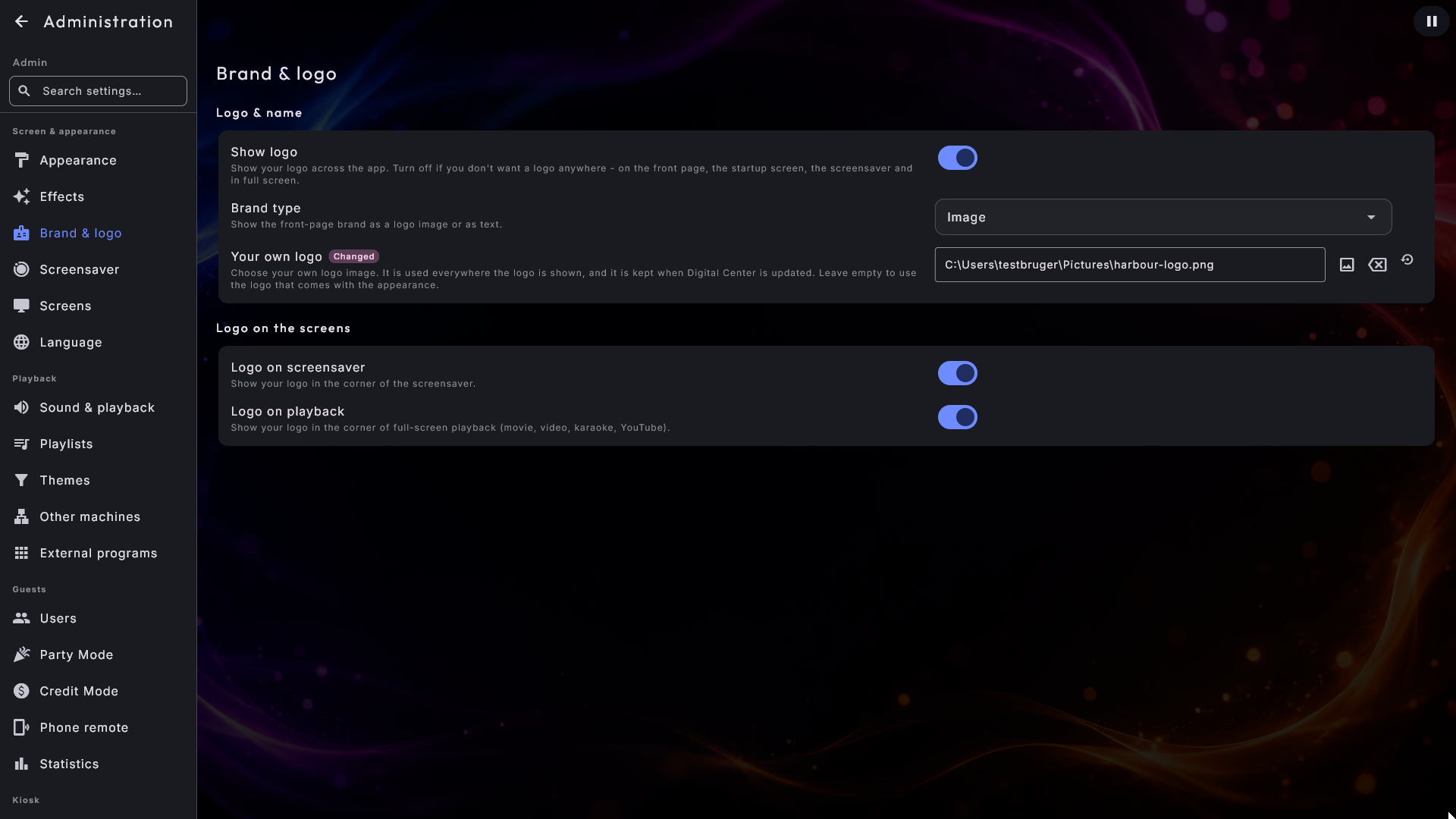
This page is part of the Professional edition. It has two sections: Logo & name and Logo on the screens.
- Show logo - turns the entire brand/logo area on or off. With it off, neither your logo nor your name appears anywhere - not on the front page, the startup screen, the screensaver or in full screen. On (the default) everything works as usual, and you can still hide the logo on just the screensaver or playback with the two switches further down. Default: on.
- Brand type - choose whether the brand shows as an image or as text. Pick text and the Display name field becomes the text shown (coloured automatically to match your chosen appearance). Pick image and your logo is shown. Default: image.
- Display name - the name shown on the front page when Brand type is set to text. (The field only appears when Brand type is text.) Default: "Digital Center".
- Your own logo - pick your own logo file. It is used everywhere the logo is shown: the front page, the startup screen, the screensaver, the corner during playback and the extra screens. The important part is where it is kept: the choice lives with your settings, so it survives an update and travels with your backup. A file you drop into the program folder instead is wiped the next time you update. Leave the field empty to use the logo that comes with your chosen appearance, or Digital Center's own. Only shown when Brand type is image. The field remembers where the file lives, so if you move or delete it the standard logo comes back. Default: empty.
- Logo on screensaver - show or hide your logo on the screensaver. Default: shown.
- Logo on playback - show or hide your logo in the corner when something plays full screen (movies, video, karaoke and online video). Default: shown.
Appearance: the background
The Appearance page is where you choose the skin (see Appearance, language & effects). Under the skins sits Background, with the two settings for a moving background:
- Live backgrounds - allow moving (video) backgrounds behind the app. Turn off if you always want a still image as the background. When Graphics mode is set to Light, no video background is played on this machine whatever the switch says, and a short line under the switch tells you so. The switch can stay on: your choice is kept and works again if you change to Full, or move the setup to a stronger machine. Default: on.
- Background loop - only shown when Live backgrounds is on and Graphics mode is not Light. Chooses how the background video repeats: None (it simply starts over) or Fade loop (the background gently fades into itself just before restarting, so a video that isn't a seamless loop doesn't stutter at the join). Default: Fade loop.
Screensaver
This page holds two sections: When it comes on and What it shows. The full story of the screensaver lives in Displays & screensaver - here in brief.
When it comes on
- Screensaver - turn the screensaver on or off.
- Screensaver delay - how long the screen sits unused before the screensaver starts on its own: 15 seconds, 30 seconds, or 1, 2, 3, 5 or 10 minutes. The two short ones are there for a machine that should show off what is playing almost at once. Only shown when the screensaver is on. Default: 2 minutes.
- Return to the first page when idle - after a stretch with no use, the app can return by itself to the first page of whatever center is open - so if a guest left it deep inside, say Music → Search, it ends up back on the first page of Music. With nothing open it goes to the front page, leaving everything fresh for the next guest. Administration is exempt - while you are setting the system up you are never sent out to the front page in the middle of it. See Displays & screensaver. Default: on.
What it shows
- When nothing plays - what the main screen rests on while the jukebox is quiet: the clock (the standard), album covers, photos, Photo Booth pictures, the weather, or your own image or video, which you pick with Image or video file just below.
- Screensaver clock format - when nothing is playing, the screensaver shows a large clock; choose 24-hour (the default, e.g. 14:32) or 12-hour with AM/PM (e.g. 2:32 PM).
- Screensaver visualizer - which sound visualization dances behind the cover on the screensaver while music plays. Standard (bars along the bottom) is the classic look; the other eight styles - Rays, Circle equalizer, Ripples, Wave, Morphing blob, Equalizer bars, Center line and Spread center line - fill the whole screen behind the cover instead. These are the same styles you can give an extra display. Only shown when the screensaver is on.
- Gentle movement on the screensaver - lets the clock and the now-playing card drift very slowly across the screen, so a still picture can never burn into the panel. It is off to begin with, since most kiosk panels do not need the protection; switch it on if yours does. Default: off.
- Invitation on the screensaver - a calm line at the bottom of the screensaver that tells guests how to choose music: Off, Touch the screen (only on the main screen, since the extra screens cannot be touched), Scan the code with a phone (a small code, which needs Phone remote control switched on) or Both. See Displays & screensaver. Default: Off.
- Guest names on music videos - while a music video or YouTube plays, the screensaver shows who asked for it, and one calm line along the bottom with the next songs guests asked for from their phones. Films and karaoke are never covered. It needs Show who asked for each song on the Sound & playback page. See Displays & screensaver. Default: off.
The logo on the screensaver is switched on and off under Brand & logo.
Sound & playback
The page has five short sections: Volume, Between songs, Sound tone, The queue and Windows.
- Default volume - one shared volume (0–100) for all sound: music, video, karaoke, movies, online video, radio and games. Set it once with a slider and it applies across the whole app. Default: 80.
- Consistent music loudness - turns loud music down a little so songs play at a more even level and don't jump up and down from track to track. It only turns loud songs down (never up, so audio can never distort) and never changes your music files. Music only. Each song is measured in ZenPoint Media Manager; songs that have not been measured play exactly as before. The first time, Media Manager fetches a small audio tool - it asks you first, and it takes one click (Install and measure), or you can install it beforehand in Media Manager under Settings → Music. Default: on.
- Fade between tracks - lets each song glide into the next: the next song starts softly while the current one fades out over its last seconds, so there is no gap. Turn it off and each track plays right to the end before the next one begins. Default: on.
- Fade length (seconds) - how many seconds two songs play over each other when one glides into the next, set with a slider from 1 to 12 seconds. A very short song never gets a fade longer than a third of it. When you skip to another song yourself in Music (next, previous or Play Now), the new song comes in at once while the old one still fades out softly - over your chosen length, but never more than 4 seconds. In the other centers a change you make yourself is kept short. Karaoke, films and videos change without overlapping. Only shown when Fade between tracks is on. Default: 4.
- Seamless album tracks - when two songs in a row come from the same album and follow each other on it (track 4 followed by track 5), the next one starts without a fade, so a suite or a live recording is never faded in the middle. Music only; if the track number is missing on one of the songs, they change with the ordinary fade. Only shown when Fade between tracks is on - with it off, every change is without a fade anyway. Default: on.
- Sound tone - shapes the sound to suit the room, without you needing to know anything about sound. Choose Normal (the sound is not touched at all), More bass, More clarity, Voices forward, Small speakers or Own setting. Whatever you choose, the sound can never distort: when a choice lifts something, Digital Center turns the whole down a little, so the loudest parts never get louder than before. Sound tone covers music, films, videos, karaoke and radio; games have their own sound and are not affected. It works happily alongside Consistent music loudness, which is something else entirely (it decides how loud, not how it sounds). You hear the change straight away while you are in Administration - also in the middle of a song - so you can set the tone by ear instead of guessing. Default: Normal.
- Bass, Middle tones and Treble - three sliders from -10 to +10, where you decide the tone yourself. They are only shown when Sound tone is set to Own setting; with all three on 0 the sound is not touched. You hear each change the moment you let go of the slider. Pick one of the ready-made choices again and your sliders are kept for next time. Default: 0.
- Order for Play Next - decides what happens when Play Next is used several times in a row. With Newest first the newest song goes to the front, straight after the one playing now: pick A, then B, then C, and they play as C, B, A. With First come, first served each new song goes last among the ones already chosen, so A, B and C play in the order you picked them. Either way the songs stay ahead of the rest of the playlist; only their order among themselves differs. First come, first served is handy when you collect a few requests from the guests at a time. It applies to Music, Movies, Music Videos and Karaoke, and also when a guest uses the phone. Default: Newest first.
- Show who asked for each song - when a guest has typed their name on the phone, their songs carry the name (for example "Requested by Anna") in the queue and on the screensaver. Turn it off if you do not want guests' names on this screen - the guests' phones still show them. Default: on.
- Confirm songs added to the queue - shows a short message when a song has gone into the queue, for example "Song" is in the queue · No. 8 of 8. Turn it off if you do not want the messages. If only some of the songs you added got into the queue, that is still said. Default: on.
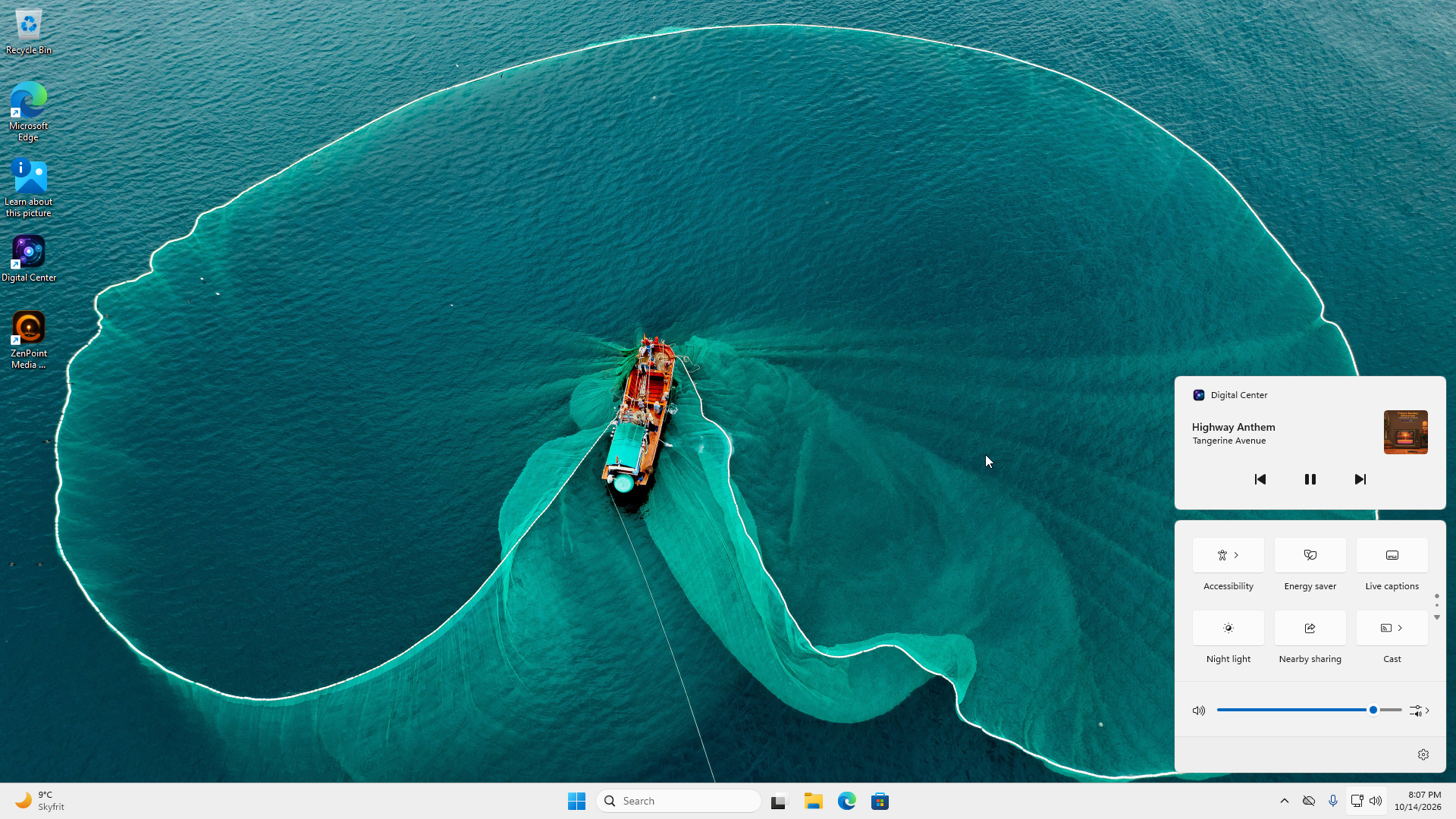
- Show what is playing in Windows' media controls - in the Windows section. Digital Center tells Windows what is playing: the title, artist and cover appear in the small box that comes up when you press the volume or media keys, in Quick Settings and on the lock screen. From there you can play, pause, skip back and forth and stop - also while Digital Center is hidden in the system tray or sits behind another program. The buttons follow the same rules as the buttons on the front page, so a guest cannot skip or stop any more than usual. Turn it off if titles should not be seen on the lock screen. Default: on.
One volume for everything
There is no separate volume per center. Default volume is the single master level for the entire system, so turning it up or down affects music, video, games - everything at once.
Phone remote
This page, in the Guests group, holds Access from phones:
- Phone remote control - let your guests control the jukebox from their own phone by scanning a code. Turn off to block phone control entirely - then the code no longer works and nobody can steer the music from a phone. Default: on. Full setup is covered in Phone remote control.
- Show the remote on the front page - just below, while phone remote control is on: the phone remote's code gets a tile of its own on the front page, so guests can scan it without opening Setup first. Default: off.
- Address for phones - the address phones are sent to when they scan a code here. Leave it empty and the address is found automatically, which is right on almost every setup. Fill it in only if the codes point somewhere phones cannot reach. Default: empty.
Startup
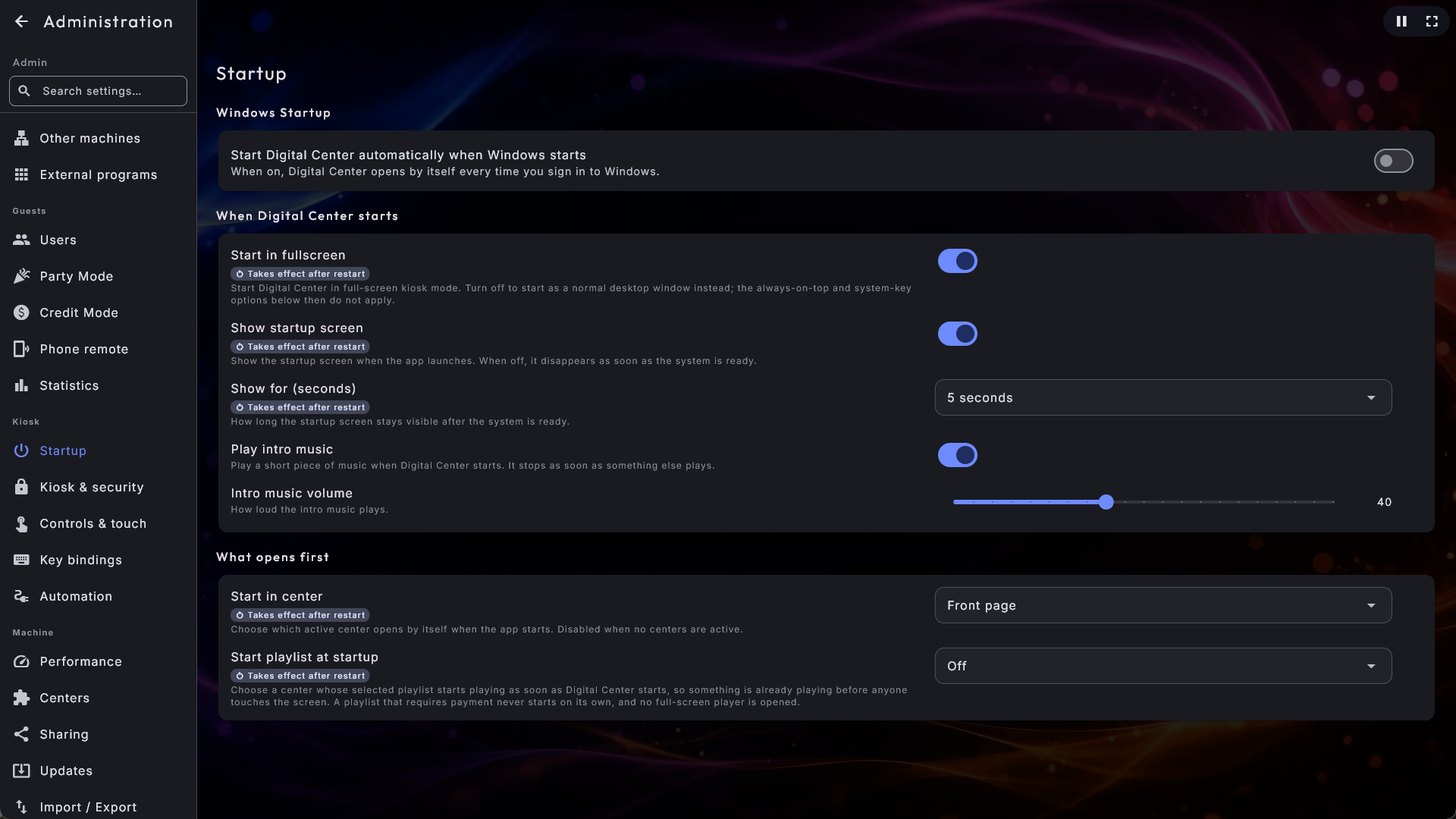
Everything that only happens when Digital Center starts is gathered on this page, in the Kiosk group.
Windows Startup
- Start Digital Center automatically when Windows starts - have Digital Center open by itself every time you sign in to Windows - ideal for a kiosk that should be ready the moment the machine is switched on. This option is only available on an installed copy. Default: off.
When Digital Center starts
- Start in fullscreen - whether Digital Center opens in full screen (kiosk mode) or as an ordinary window you can move and resize. Off opens it windowed (the same state as F12); Always on top and Disable system keys on the Kiosk & security page then do nothing. You can always reach full screen with F12. Default: on.
- Show startup screen - show the logo/welcome screen while Digital Center starts. Turn off if you'd rather it vanish as soon as the system is ready. Default: on.
- Show for (seconds) - how long the startup screen stays after the system is ready: 2, 3, 5 or 10 seconds. Only shown when the startup screen is on. Default: 5 seconds.
- Play intro music - a short welcome tune when Digital Center starts, the first thing a guest hears. It plays quietly and loops while nothing else is going on, and pauses by itself the moment something starts playing. Turn off if you'd rather start in silence. While the intro music plays and the kiosk is not locked, a pause button sits in the top right corner. Tap it and the music stays paused until you tap the play button in the same place (or Digital Center starts again), and then carries on where it stopped. Default: on.
- Intro music volume - how loud that welcome tune plays, on a 0–100 slider. It is independent of the main volume, so the intro can sit lower than everything else. Only shown when Play intro music is on. Default: 40.
What opens first
- Start playlist at startup - choose a center whose selected playlist starts playing as soon as Digital Center starts, so the machine is already playing when you switch it on in the morning: Music, Karaoke, Music Videos or YouTube, or Off. Movies cannot be chosen, since a film that started by itself would take over the room for hours. A playlist that requires payment never starts on its own, and no full-screen player is opened. Default: Off.
- Start in center - have the app open straight into a particular center as soon as it starts - for example Music. Choose Front page to start on the normal front page. You can only pick from the centers that are switched on under Centers; with none switched on, the choice cannot be used. Default: Front page.
Kiosk & security
The page holds the Kiosk lock:
- Always on top - keep Digital Center above all other programs so it can't be covered by another window. Applies to the extra displays too. Default: on.
- Exit on Esc - let the Esc key close Digital Center. When on, Esc works throughout the program and asks first whether you want to quit. If a window or dialog is open, Esc closes that first instead. During an arcade game, Esc always returns to the arcade menu rather than quitting. When the kiosk is locked with Party Mode, Esc only quits when guests may exit (Party Mode → Guests may exit), exactly like the Exit tile; otherwise Esc on the front page does nothing. On an unlocked kiosk the question starts on Exit (or Shut down), so you close the program with Esc and then Enter. When the kiosk is locked, or is steered with a game controller (Control the kiosk with a game controller), it starts on Cancel, so two presses on the controller never close it by themselves. The button with the clear frame around it is always the one Enter presses. Default: off.
- Show Exit on the front page - show an exit button at the top of the front page so the program can be closed without a keyboard. Only shown when Party Mode is off or you're signed in as administrator. Default: off.
- Disable system keys - blocks the Windows shortcuts a guest could otherwise use to escape the kiosk: the Windows key, Alt+Tab, Alt+Esc, Ctrl+Esc and Alt+F4. Switching to windowed mode with F12 re-enables the keys until you return to kiosk. Default: off.
- Require the admin password for Administration - ask for the admin password before opening Administration or ZenPoint Media Manager from the Setup tile, even when the kiosk is not locked in Party Mode. It uses the same admin password as Party Mode and Credit Mode, so a machine you keep to yourself can still keep its settings behind a password. Turn it off to leave Administration open. Default: off.
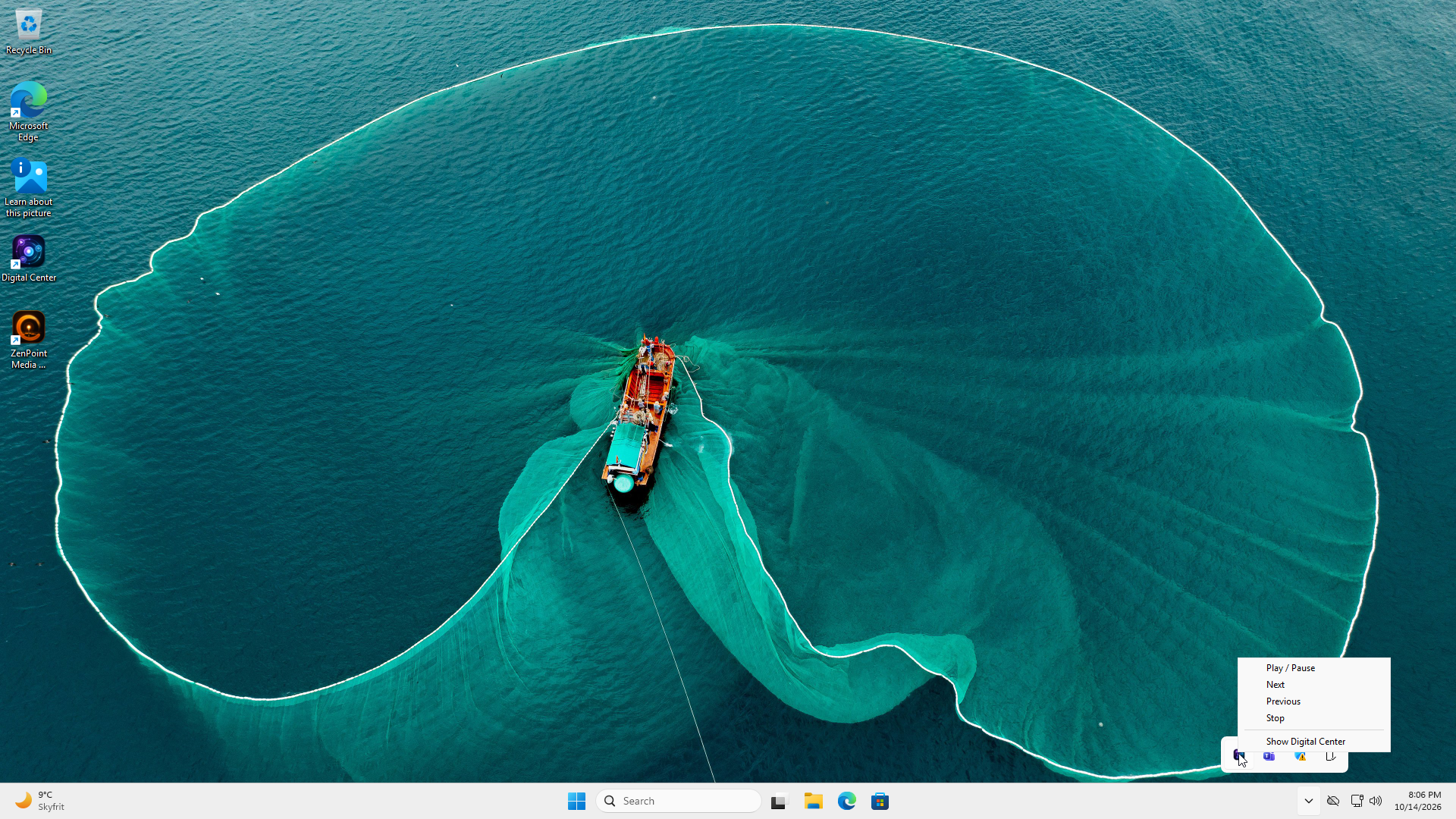
- Show a button that hides Digital Center to the system tray - adds a button (a small line) in the row at the top right that tucks Digital Center away while the music keeps playing - handy if the PC is also used for something else, such as your home automation. While Digital Center is hidden, its icon sits in the system tray by the clock: right-click it for Play / Pause, Next, Previous, Stop and Show Digital Center, and a double-click brings Digital Center back in full screen. The button is only shown when the kiosk is not locked (neither Party Mode nor Credit Mode), and only in full screen - in a window (F12) you use the window's own minimize button. If the kiosk is locked while Digital Center is hidden, it comes back by itself. The screensaver does not come on while Digital Center is hidden. Default: off.
If Start in fullscreen is switched off, a line on this page says that keeping the window on top and blocking the system keys only work in full screen, with a Go to Startup button that takes you to the switch.
Ctrl+Alt+Del can't be blocked
Windows never lets any program block Ctrl + Alt + Del. Everything else in the list above is locked down, but that one combination always stays available.
Controls & touch
- Touch screen (hide mouse) - hides the mouse pointer throughout the program, ideal on pure touch screens. The pointer is always visible while you're inside Administration so you can operate the settings; it hides again when you leave. You can also show or hide it on the fly with the Show / hide mouse shortcut (see Key bindings) - that toggle isn't saved and resets at the next start. Default: off.
- On-screen keyboard - decides when a keyboard appears on the screen so you can type by tapping. It exists because Windows' own touch keyboard hides behind Digital Center in full screen. Automatic (the default) shows it only on a machine that actually has a touch screen; Always on shows it everywhere; Off never shows it, which is what you want on a machine with a proper keyboard. A physical keyboard always keeps working either way. Next to the letters the keyboard has the everyday characters - ! ' & , . / ?, so names like "AC/DC" or "Guns N' Roses" can be typed as written. Default: Automatic.
- On-screen keyboard on admin fields - also show that keyboard on the fields inside Administration (a folder path, a playlist name, a password and so on). The page shifts up so the field you are typing in is never covered. Only does anything when the setting above is showing a keyboard. Default: off.
- Keyboard navigation - drive Digital Center with the keyboard: arrow keys to move between items, Enter or Space to select, Tab to switch area, Backspace to go back, and Home/End to jump to the first/last item. Turn off if you don't want to use the keyboard - then no frame is drawn around the selected item either. Default: on.
- Control the kiosk with a game controller - lets a game controller steer the whole kiosk, not only the games in the Arcade, for a cabinet without keyboard, mouse or touch screen. The controller does exactly what the keyboard does: the D-pad or the stick are the arrow keys (hold it and it keeps going), the fire button (the bottom round button) or Start is Enter, the right round button, Select or your own back button is Esc, and the shoulder buttons turn a page. If nothing is selected on the screen, the first press only selects something. In a text field the controller moves a marker across the keys of the on-screen keyboard, and the fire button presses the marked key. With the on-screen keyboard on Automatic, the keys are shown even without a touch screen while this setting is on; to type in Administration, On-screen keyboard on admin fields must be on too. While a game runs, the controller belongs to the game. The buttons follow what you chose under Administration → Arcade → Game controller, where you also pick your own back button. The controller only acts while Digital Center is the window in front: while it is minimised, for example behind ZenPoint Media Manager or an external program, it does nothing. The setting is only shown when Keyboard navigation is on, and it takes effect right away. Default: off.
- List arrows - show two large arrows in the lists so you can tap to page back and forth through the covers. Each arrow only appears when there's more to scroll that way. Handy on a touch screen where swiping can be awkward. The arrows are also shown in Administration, both in the menu and on the settings page (see Paging arrows). Turn it off to hide the arrows everywhere. Default: on.
- List arrows in Administration - decides whether the large arrows are also shown on the administration and settings pages. Turn it off if you would rather scroll yourself here but want the guests to keep their arrows in the centers. It only has an effect while List arrows is on. Default: on.
- Button press effect - a small "press bounce" that plays when a button or a tile is tapped: it sinks in a touch and springs back. Choose None (no movement), Small or Large. It's purely cosmetic and never changes what the button does. Default: Small.
- Open on first tap - in the views where covers glide (carousel, cover flow, wheel, fan) the first tap on an off-centre cover normally brings it to the middle, and the next tap opens it. Turn this on to open it on the first tap instead (it still glides to the middle). Leave it off if guests tend to open things by accident. Ordinary grid and list views always open on the first tap. Default: off.
- Back button at the bottom too - on the album, artist, genre and year pages in Music, Movies, Music Videos and Karaoke, the back button is also shown at the bottom left, just above the queue, where a finger already is. The button says where you go back to (for example Albums or Artists). The one at the top left is always there. Default: off.
- Interface size - makes the whole interface larger so text, buttons and covers are easier to read and hit from a distance. Choose Normal, Large, Extra large or Huge (about half again as large as Normal, for a screen read from across the room); the layout stays the same, just shown bigger, with fewer items on the screen at once. Takes effect immediately. Default: Normal.
Lock the kiosk before guests take the controller
On an unlocked kiosk a game controller can also reach Administration. Lock the kiosk with Party Mode before guests use it.
Fold the keyboard out of the way
Wherever the on-screen keyboard appears, it carries a small fold button - in the right-hand edge of the search field in the media centers, and in the top corner of the keyboard panel everywhere else. Tap it and the keys fold away while the field you are typing in stays put, so you can see the list you are searching. Tap it again to bring the keys back.
Automation
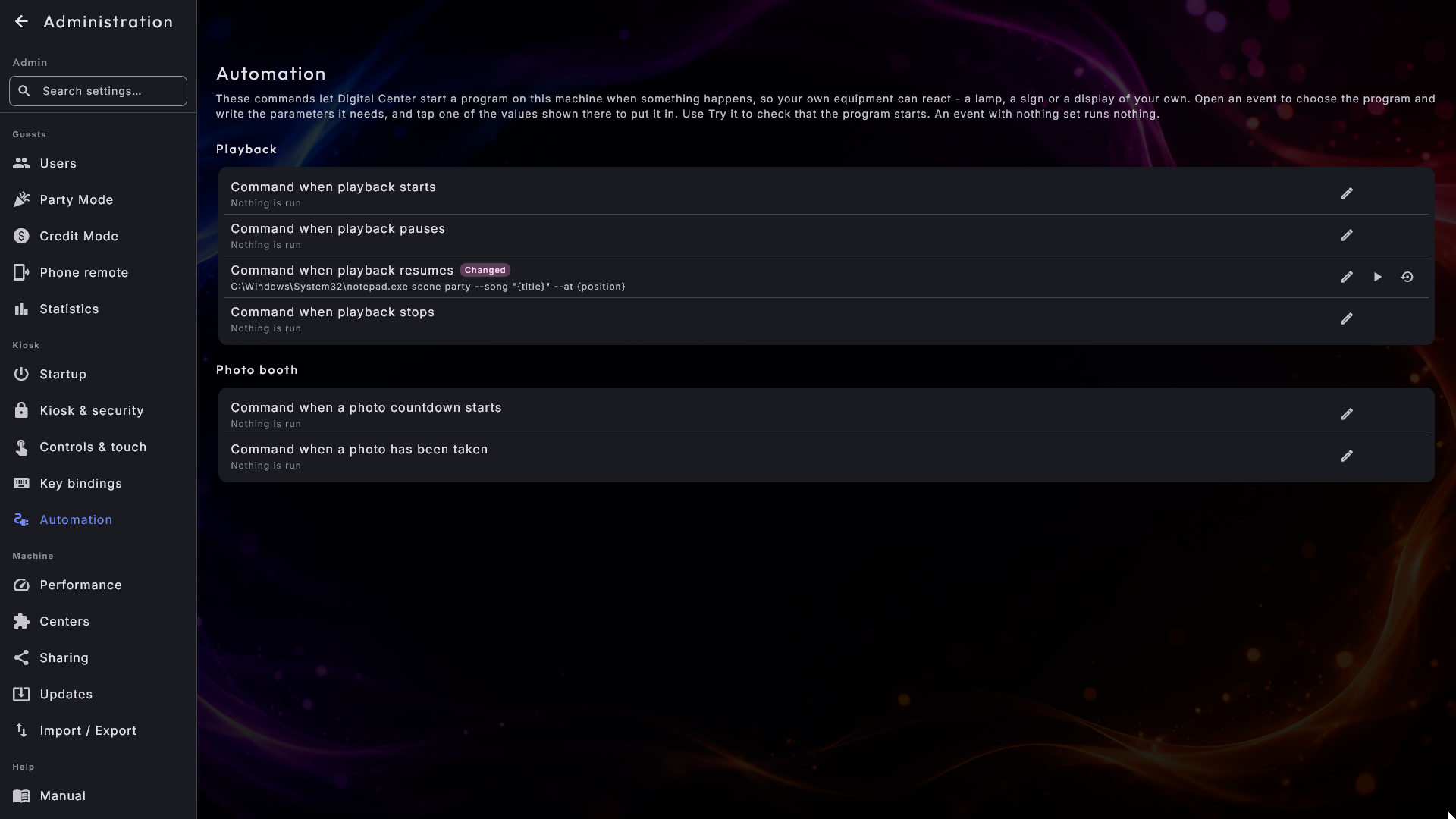
Automation is a menu item of its own, in the Kiosk group. It holds the commands that let Digital Center start a program on this machine when something happens, so equipment of your own can react: a lamp, a sign or a display standing beside the machine.
The page is a list of events in two groups, Playback and Photo booth. Each line shows the event's name and, just under it, the command it runs - or Nothing is run if you have not set anything up for it yet - so you can see the whole setup at a glance. An event with nothing set runs nothing, which is how they all start out.
Setting up an event
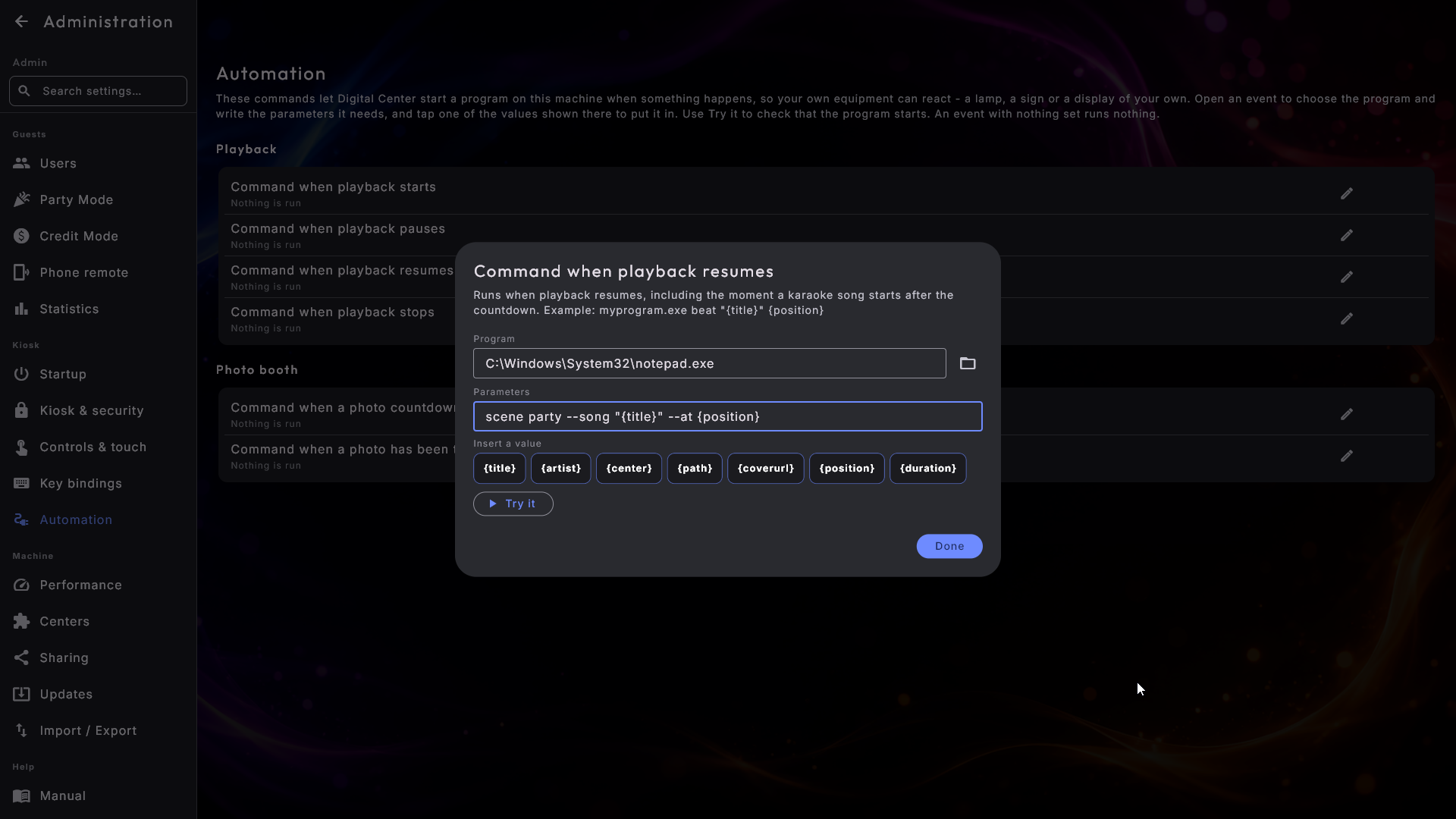
Tap a line - or the pencil at the far right - to open it. At the top of the window it says when exactly that event happens, and below you set up the command in two fields:
- Program - press Choose program to pick the program with a file picker, so
you do not have to type the path by hand. You may also type it yourself, for
example the name of a program the computer already knows. It can be an ordinary
program or a small
.batfile of your own. If the program cannot be found right now, a calm line under the field says so; the value is kept, since the program may sit on a drive that is away at the moment. - Parameters - under the field there is a small button for every value that
event can pass on, such as
{title}or{position}. Tap one and it is put in where the cursor is, with quotation marks around it if the value can contain spaces. When the command runs,{title}is replaced by the song's title,{position}by how far the track has got, and so on. You can still type them by hand if you prefer.
At the bottom is Try it. It runs the command once with clear example values ("Example Song" and the like) and tells you whether the program started - or why it could not: that it was not found, that Digital Center was not allowed to start it, or that the file is not a program at all. That way you know the setup works without first starting a song and guessing. Close the window with Done; what you wrote is saved, like everything else in Administration.
Once an event has a command, a small play icon sits on its line too, so you can try every event without opening them one by one. An event you have changed carries the Changed marker and a button that puts it back, just like any other setting.
Four of the events follow playback:
- Command when playback starts - runs each time something starts playing. It can
pass on
{title},{artist},{path}(the file playing - empty for radio, for example),{coverurl}(the address of the cover picture),{center}(see below), and{position}and{duration}- how far the track has got and how long it is, both in milliseconds. - Command when playback stops - runs when nothing is playing any more, so the sign can go back to a "free" message. It passes nothing on, because there is no track to tell about.
- Command when playback pauses - runs when playback is paused, so a light show can go dark. It passes on the same values as the start command.
- Command when playback resumes - runs when playback carries on again, including the moment a karaoke song starts after its countdown, so a light can hit the first beat, and when the music comes back after the applause that follows a karaoke song. It passes on the same values as the pause command.
A quick pause and play right after each other only gives the last one, so your lights do not flicker. A pause or a resume never reaches your program before it has been told that the song started.
It can never disturb the music
The command is started quietly in the background and is never waited for. If it fails, or the program it points at is missing, playback carries on exactly as normal.
The same page also holds the two commands the Photo Booth can run, so your own lights can follow the camera:
- Command when a photo countdown starts runs when the countdown for a picture begins, a few seconds before the shutter, so a lamp is lit in time and the guest can see themselves in the light.
- Command when a photo has been taken runs once that picture is taken, so the lamp can go out again.
They are one pair per picture, so a series of four gives four pairs, and Motion
gives exactly one. Alongside {center} you can use {index}, {total}, {layout}
and {countdown} in them. If the first command has run, the second one always runs
too, even if the guest walks away or the camera fails halfway.
Which center it was
{center} is filled in with a short, fixed word - music, movie, video,
karaoke, radio, youtube or photobooth - and it is deliberately the same word
in every language, so a script of yours does not stop working the day the kiosk is
switched to another language.
Performance
This page, in the Machine group, has two sections: Graphics and Screen & power.
- Graphics mode - how much graphical effort the system puts into what you see. Auto (the default) looks at the machine's graphics and picks for you; Full always uses the full effects; Light always uses the lighter version, where live backgrounds are left out, the cover pictures are shown at a slightly lower resolution, and the empty space around a music video shows the blurred cover instead of a visualizer. The front page effects are the same in all three modes: choose Cube and you get Cube. Choose Light if the picture stutters on a modest machine. Default: Auto.
- Sharp carousel images - show the carousel and cover-flow images at higher quality. Turn off for smoother motion on slower machines.
- Keep the screen on - keeps the screen from switching off or dimming, and the machine from sleeping, while Digital Center runs. Handy for a kiosk that should stay on all the time. Default: on.
Sharing, and the other machines
Two menu items look after the screens in the house that lend media to one another. They ask opposite questions, so they are kept apart:
- Sharing (in the Machine group) is who may fetch from me: the switch that lends this machine's libraries out at all, the name the other screens see it by, the four switches for music, films, videos and karaoke, the people who may connect and the screens that currently have access. The page is split into three cards - this machine, the users with access, and letting a screen in - and shows the address other screens connect to. The quickest way in a home is Share with all my screens: one press on Share and show a code turns sharing on and shows a six-digit code you type on the other screen. The same page holds Let phones on the other screens switch to this one, which you can always see and use, even on a machine that lends nothing out.
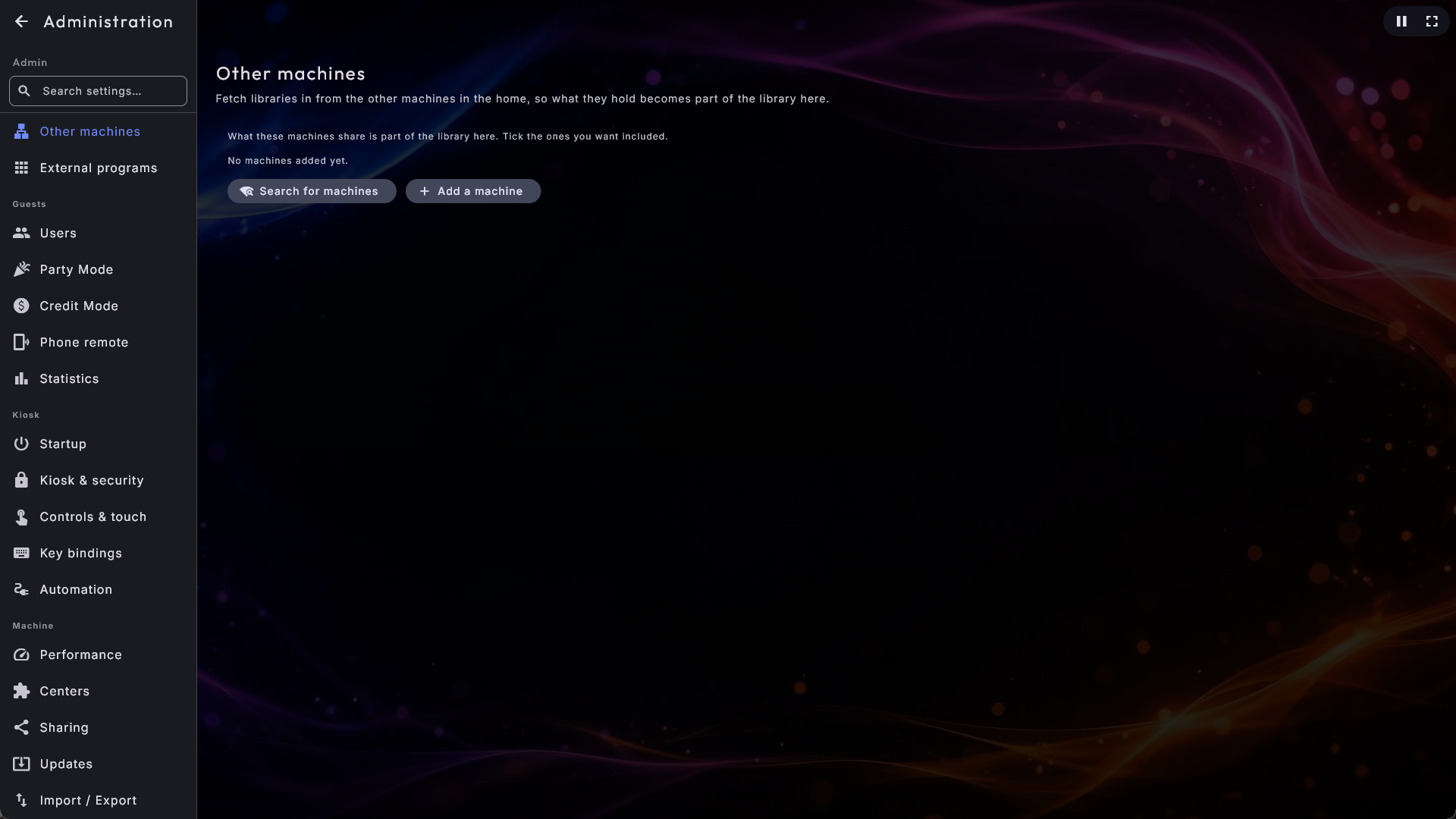
- Other machines (in the Playback group) is where do I fetch from: the list of machines this screen borrows from, each with a tick box that decides whether what it lends is part of the library here. Add a machine asks for the other machine's address and a six-digit code shown on it, or a user name and password if you prefer.
The whole story, with the steps in order, is in Your media libraries.
Language
The Language page has a single setting: the language used throughout menus and dialogs. Pick from the list of available languages and the whole interface switches at once. Appearance and language together get a fuller treatment in Appearance, language & effects.
Appearance
The look of the app - colours, background, logo and fonts - is controlled by skins, chosen on the Appearance page. Because this is a topic of its own, the details, including how to fetch more skins, live in Appearance, language & effects.
Playlists
Playlists are created and set up on the Playlists page in the Playback group, with a tab for each center - for example Music playlists and Music video playlists. How guests use them is described in Operating Digital Center; a few things on this page are worth knowing about here.
A playlist's settings, in a fixed order
Choose a list, and its name stands in a fixed heading above its settings (Editing: followed by the name), so you always know which list you are changing, even far down the page. Below it the settings are split into blocks, always in the same order:
- Basics - the default playlist, the name, the theme and Temporary.
- Playback and queue - Random Order, Repeat, Always Playing (with its fallback source) and Allow voting songs up. Voting sits here rather than with the guests, because it works on the phone remote whether or not Party Mode is on.
- Several centers in one queue - the Mixed playlist switch and, when it is on, what the shared queue may hold and its theme.
- Guests (Party Mode) - what guests may do during a party, in two groups: During playback and In the queue. See Party Mode.
- Karaoke - only on the karaoke tab.
- Payment - last. See Credit Mode.
Editing a playlist's songs
Under each playlist's name are three buttons with both a symbol and a word: the number of songs (for example 12 songs), Rename and Delete. Tap the song button to open a window with all the songs, where you can drag a song up or down, delete a single song, or delete all of them. The changes are saved at once. For a playlist that requires payment the button is locked: its songs are the queue the guests have paid for, so you remove or move them in the center's own queue instead. A line under the list's name says so, and the number on the button still shows how many paid songs are waiting. The same goes for a temporary playlist, which never saves songs.
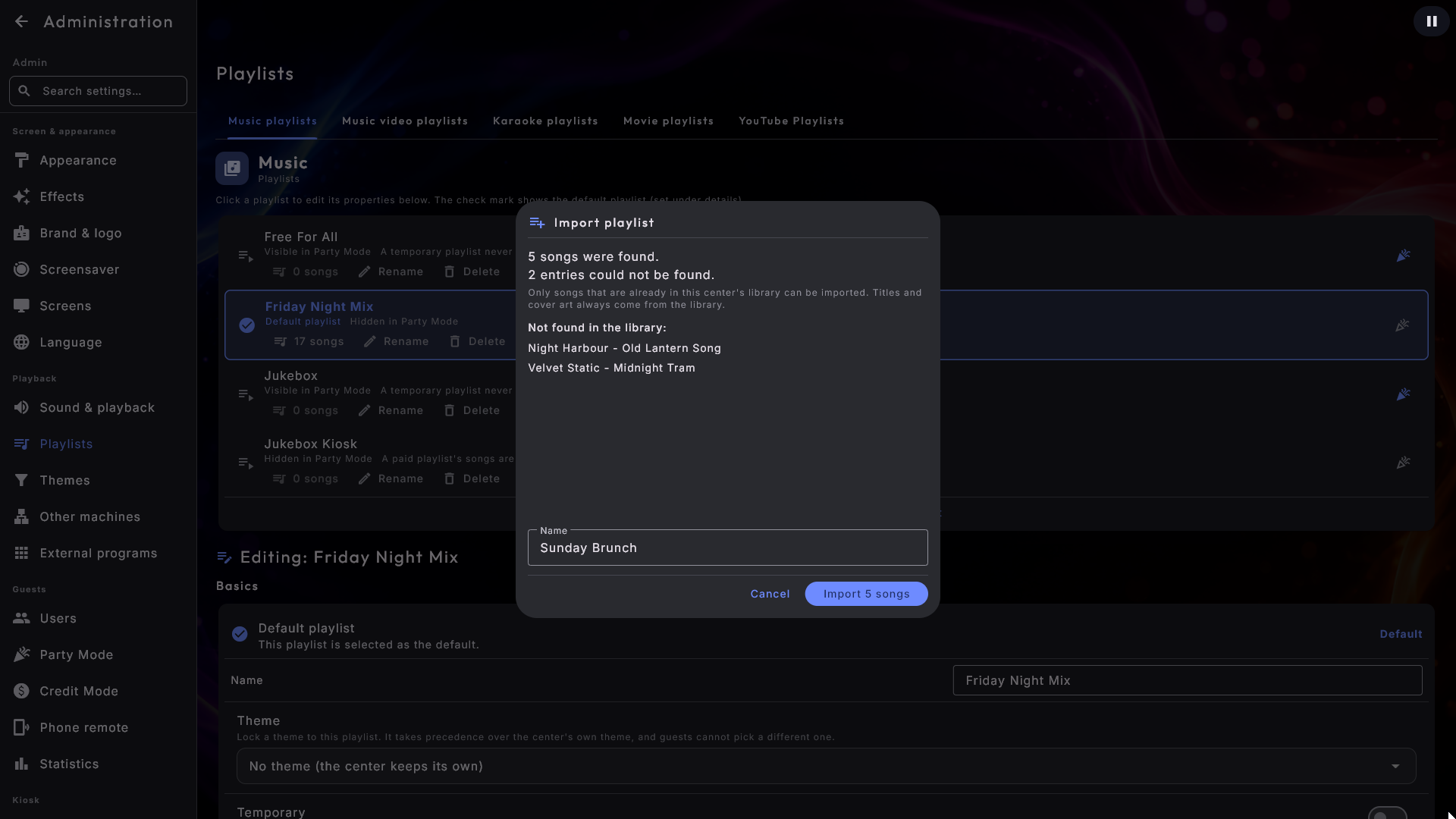
Importing a playlist from an m3u file
If you already keep your playlists as .m3u or .m3u8 files from another program,
you can bring them in directly instead of building them again one song at a time.
- 1
Open the right tab
Open Playlists and pick the tab for the center the list belongs to: Music, Karaoke, Music Videos or Movies.
- 2
Choose the file
At the bottom, next to Create playlist, press Import playlist and choose your file. The picker only shows
.m3uand.m3u8files and says so at the top. - 3
Check the result
Digital Center looks up every entry in the file in the center's own library and shows you the result before anything is saved: how many songs were found, how many of the file's entries could not be found, and their names. The name of the list is filled in with the file's own name, and you can change it.
- 4
Import
Press Import (the button says how many songs), and the playlist is saved. Press Cancel and nothing has happened at all.
An entry in the file can be a single song or a whole album - a list saved with "Open folder" in another player often holds album folders rather than songs. Both work: an entry that points to an album brings the album's songs with it, in the order your own library shows them. That is why the two numbers stand apart - one line in the file can easily become fifteen songs. A song or an album that is in the file twice is only added once.
Songs that are not in your library are not brought in, because they could not be played. An album where none of the songs is in the library is named in the list of missing entries rather than quietly disappearing. Look through that list, add the folder that is missing under the center's settings, and import the same file again: if you give the list the name of one you already have, the window says so as you type, and the new songs are added to that list without repeating the ones already there. The name of a playlist that requires payment cannot be used, since its songs are the ones guests have paid for; the window says so, and you choose another name.
Titles, artists and covers always come from your own library and never from the file, so an imported song looks exactly like all your others, and the order from the file is kept. Internet radio addresses in the file are skipped quietly. There is no import on the YouTube tab, where an m3u file cannot be used.
Guest songs start right away
A playlist with Always Playing switched on fetches a song by itself when the queue runs dry, so the music never stops. Normally that song plays to the end before a song a guest has chosen begins. Switch on Guest songs start right away - just below Always Playing - and the automatically fetched song steps aside the moment a guest adds one, like a classic jukebox, using the soft change between tracks you already have. A song somebody chose is never interrupted: if the next guest picks something while the first guest's song is playing, it goes into the queue as usual. It is off to begin with, so your setup stays exactly as it was until you switch it on.
Themes
A theme is a filter laid over a center's library: give it a few rules - a year, a genre, a word in the title - and the center only shows what matches. You build them on the Themes page in the Playback group.
One theme can now cover several centers at once. Under Where the theme applies you tick the centers it should filter, so a single Christmas theme can serve music, videos and karaoke instead of three near-identical themes. At least one tick must stay. The theme then appears on the tab of every center it covers - it is the same theme, so you can edit it from any of them.
Two things to know before you tick several centers
On a film the artist field holds the director, so a rule about the artist that also applies to movies can pick out something you did not expect. Year, genre, title, album and tags mean the same thing in every center.
A rule about genre now looks at all of a track's genres, not just the first
one. That changes what your existing themes pick out: "genre is not Punk" now
correctly removes a song tagged Rock; Punk.
A rule can look at the folder or the file name. Alongside title, artist, album, genre, tags and year there are three fields that look at where the file lies and what it is called:
- Folder - only the folders the file sits in, so contains "Christmas" takes everything in a Christmas folder without pulling in a file that merely has the word in its name.
- File name - only the name of the file itself, so ends with "live" catches your live recordings without a folder of the same name coming along.
- Folder or file name - both at once, when you simply want to catch the word in either place.
It is the one piece of information every collection already has, so a folder called Christmas becomes a theme without a single tag being written. The rules do not care about upper and lower case. An item borrowed from another machine has no path of its own, so a rule that asks for one leaves those out.
A rule can look at the length. Pick the field Length and write the length in minutes and seconds - for example ≤ 3:30 to show only songs of at most three and a half minutes, or > 10:00 for only the long ones. A whole number on its own means minutes, so 4 is 4:00. Music and karaoke know their length straight away. A film or a video gets its length the first time it is opened or queued, and from then on the rule applies to it too. Anything whose length is not known yet is never hidden by a length rule, so the same rule can safely cover several centers without a whole library disappearing. The phone remote follows the same rule.
A theme can bring its own look. Under the rules sit Appearance and Effect. Give a Christmas theme a Christmas appearance, and the whole kiosk changes clothes while the theme is active; the display style of the cover grids can follow in the same way. Both are lent for as long as the theme holds, never saved over your own choice, and picking an appearance or an effect yourself here in Administration takes the loan back. A skin that is not installed on that machine, or an effect the version does not know, is quietly left alone and the choice is kept for later.
A theme can decide what the extra screens show. If the machine has extra screens (chosen under Screens), a theme also has a Screens part, so a Christmas theme can put a Christmas video, a picture or a YouTube video of a crackling fire on screen 2 while it is active. There is one line per extra screen. It starts on Use the general setting, and then the screen shows exactly what you chose under Screens; otherwise you pick from the same choices as on the Screens page. A few things are worth knowing:
- The theme's choice for a screen counts as a whole: pick "your own image or video" and the theme's own file or video is used, never your everyday file mixed with it.
- When the theme is switched off, the screen goes straight back to what you chose under Screens. A theme never changes your own settings there, never decides which screens are used, and never touches the main screen.
- You can always take the screens back: press Apply on the Screens page while a theme is deciding, and your choice wins. While a theme decides a screen, a line under that screen on the Screens page names the theme.
- A screen the theme has a choice for that is not connected is simply skipped; the choice is kept in the theme and works again when the screen is back.
- If two centers each have a theme with its own screen choice, the one chosen last applies - just as for the appearance.
A default theme (the star next to a theme) with a screen choice already has the screens set up when the kiosk is switched on.
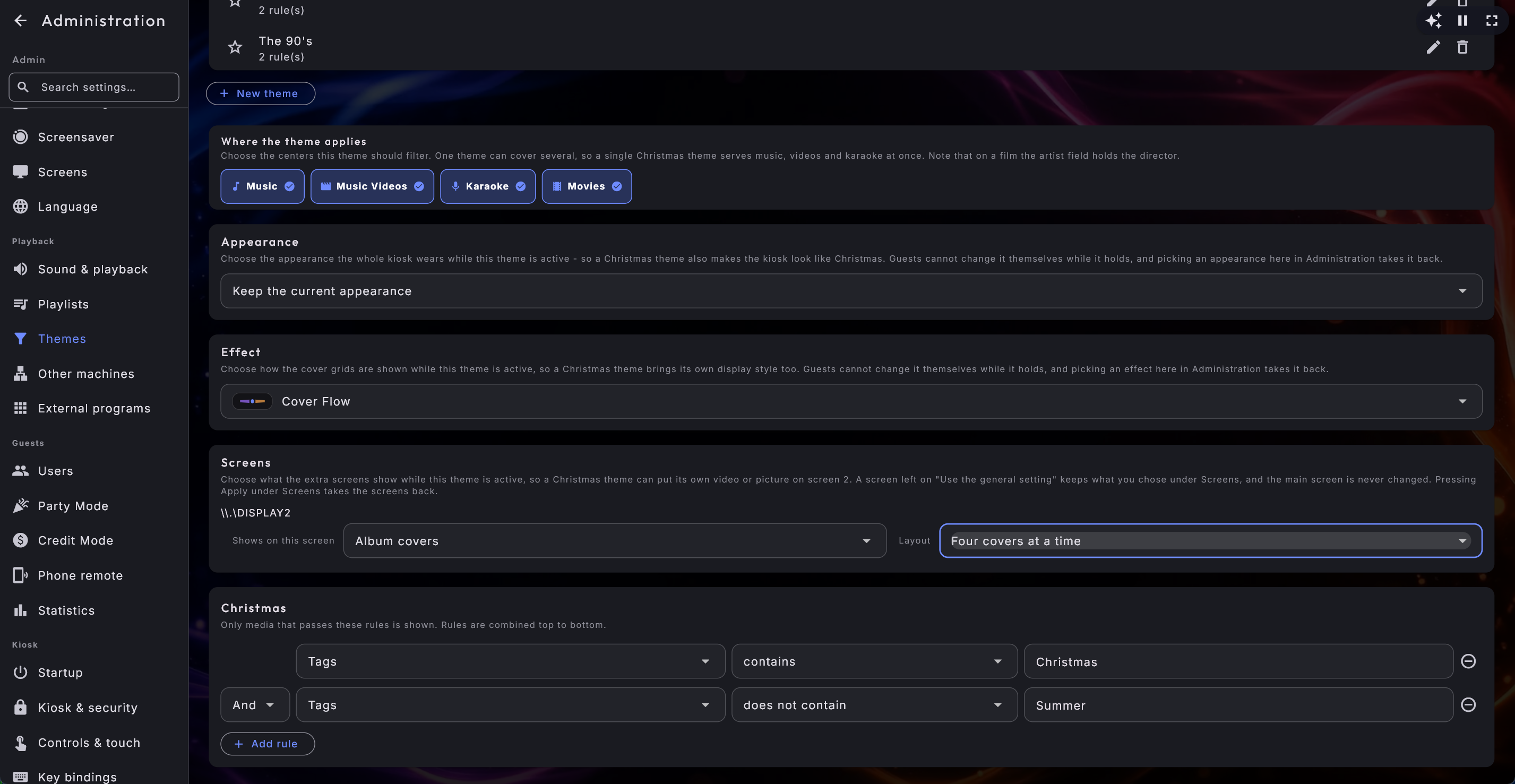
Any playlist can carry a theme. On a playlist you will find Theme, which locks one theme to that list. It wins over the center's own theme, and guests cannot pick a different one while it plays, so the evening's list can bring its own filter and its own look with it. Leave it on No theme (the center keeps its own) and everything is as before.
Centers
The Centers page, in the Machine group, decides which centers show on the front page at all, and what guests are allowed to use. Each center sits on its own line with two switches:
- Active - turn it off and the center disappears from the front page for everyone (including you as administrator) and from the menu on the left here in Administration. Turn it back on and it returns in both places.
- Party Mode - choose whether the center is available to guests while Party Mode is active. With it off, guests can't see or open it, but you as administrator still can. When Active is off, the Party Mode switch is turned off automatically and can't be changed.
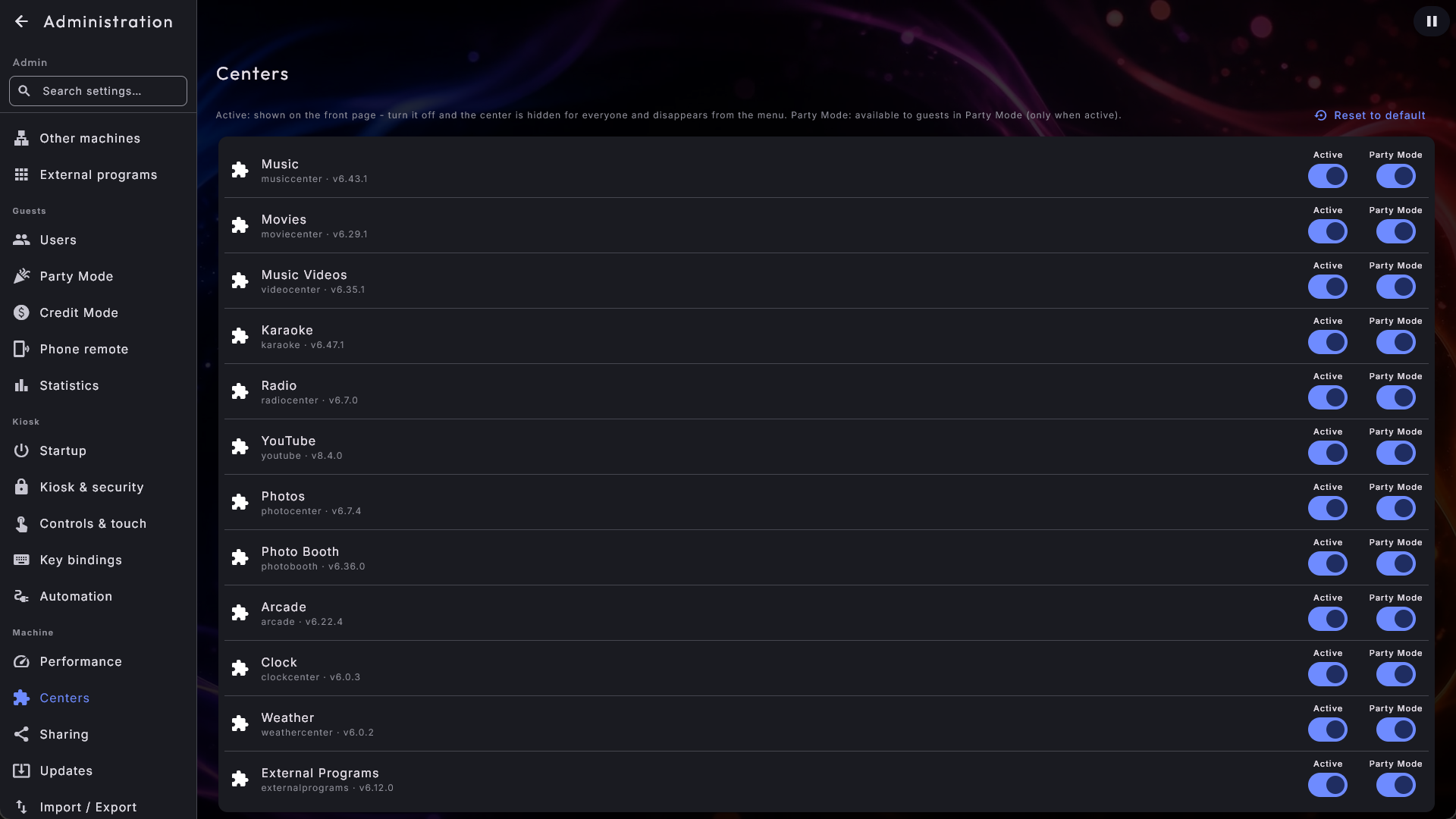
Which center the app opens in when it starts is chosen with Start in center on the Startup page (see Startup). You can only pick from the centers that are switched on here.
New centers appear on their own
Any new center that arrives later starts out turned on and available in Party Mode, so you don't have to enable it by hand. You can always return the whole page to its standard state with the button at the top.
A couple of front-page extras
Show the remote on the front page, on the Phone remote page, adds the phone-remote QR code as its own tile, so guests can scan it without opening Setup first. Your external programs have switches of their own on the External programs page: Show on the front page puts each program on its own tile (instead of one shared tile), so a tap starts the program directly, and Zoom the icon to fill makes the program's icon fill the tile.
Key bindings
On the Key bindings page you decide which key does what. For each action the current key is shown as a button. Press the button, then press the key you want to use, and the action is bound to it. Two actions can't share the same key. The standard shortcuts are:
- Start screensaver - shows the screensaver immediately (default S).
- Window / full screen - switches between full screen and an ordinary window (default F12).
- Show / hide mouse - hides or shows the mouse pointer immediately, for touch screens (default M). This toggle isn't saved - it's only temporary while the program runs.
- Diagnostics overlay - shows or hides the small information panel about the computer's performance (default Ctrl + D). You can hold Ctrl while pressing a key to bind an action to a Ctrl combination.
You can always set a single shortcut back to standard with the reset button next to it. The Esc key is reserved and can't be chosen.
Letter shortcuts pause while you type
The Start screensaver and Show / hide mouse shortcuts don't fire while you're typing in a text field (such as a search box) or inside Administration, so you can use all letters freely there. Window / full screen (F12) always works - it's an emergency exit. On a locked machine (Party Mode on, or a paid playlist running) it first asks for the admin password before the window is let go, so a guest with a keyboard cannot reach the desktop. Going back to full screen never needs a password.
Manual
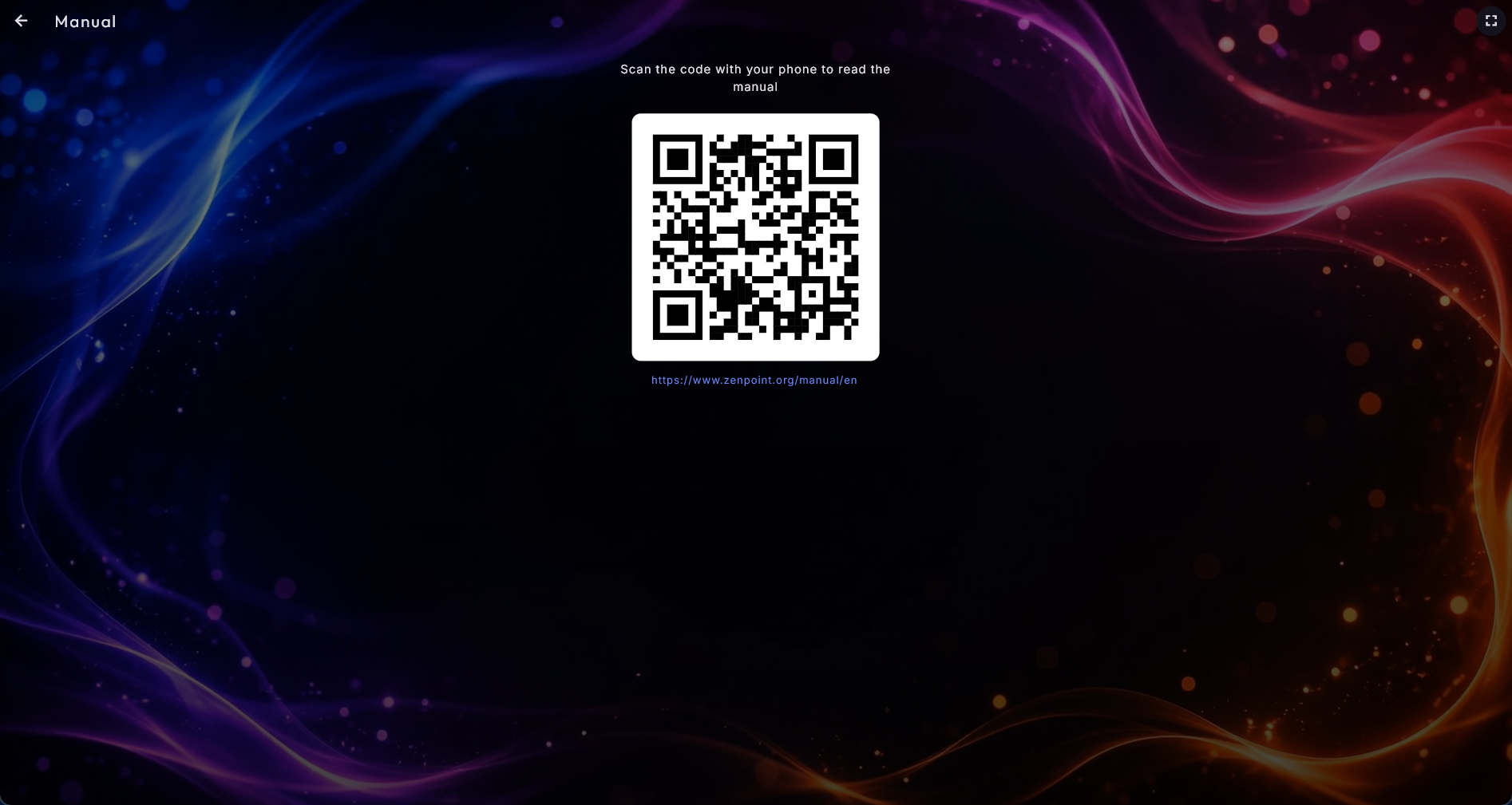
The Manual page is the quickest way to read this guide without tying up the big screen. It shows a large square code together with the address written out underneath. Scan the code with a phone and this online manual opens on the phone - in the same language you've chosen for the system - so you can read on the phone while the screen carries on as normal. Prefer to type it in yourself? The address below the code is there for exactly that.
Statistics
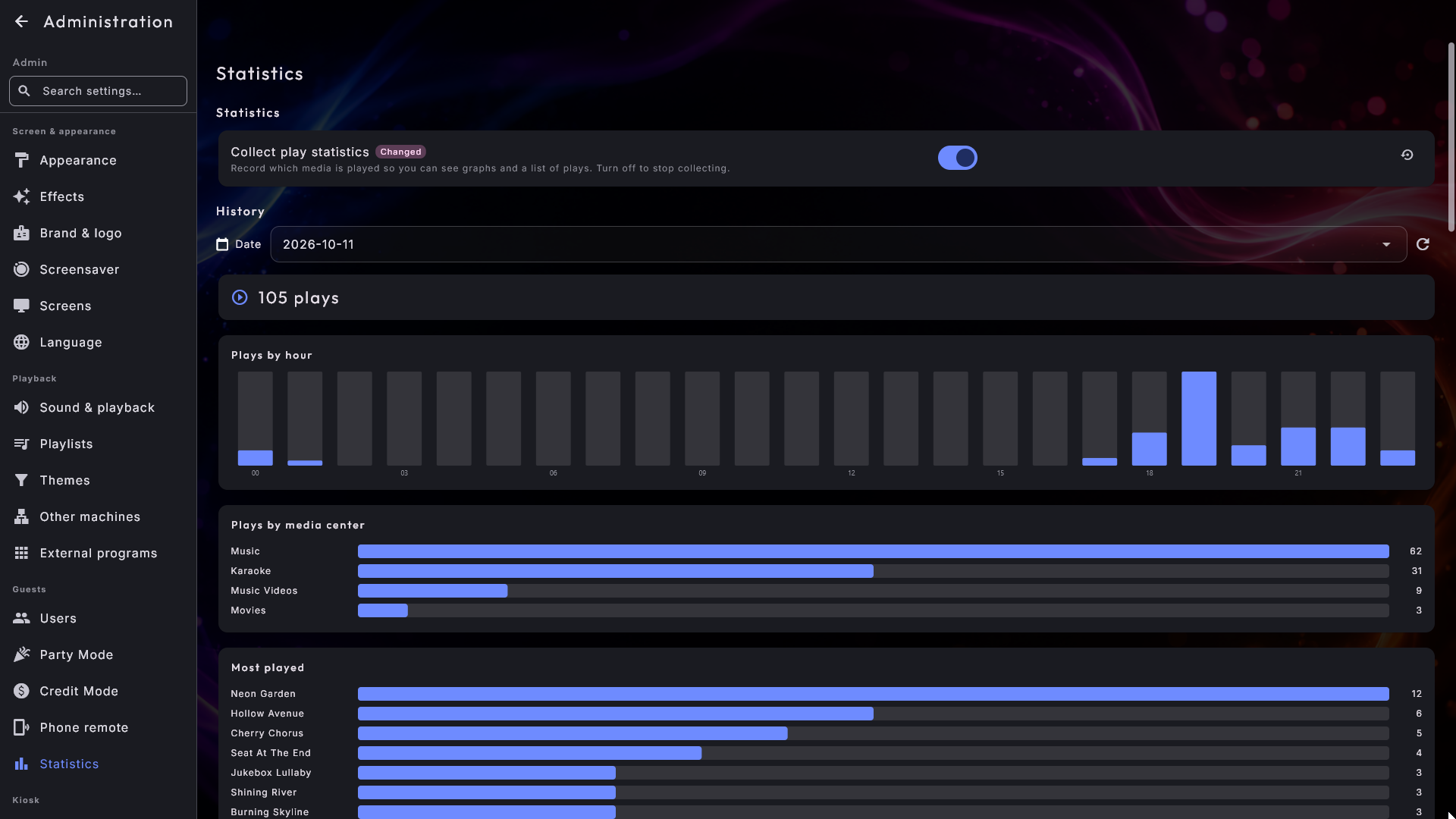
The Statistics page lets you follow what gets played. At the top is a switch, Collect play statistics:
- Off (the default) - the system stores nothing.
- On - each time a piece of music, a video, a karaoke song or a movie begins playing, it's recorded in a history.
With statistics on, the same page shows the history for a chosen day: the total number of plays, a graph of plays per hour, a breakdown per media center, the most-played titles, and a full list with the time, title, artist, center and playlist each one came from. Statistics are only gathered while the switch is on, but earlier days remain viewable even if you later turn collection off again.
Per-center settings
Beyond the system-wide pages above, each center has its own settings under the Centers group - most importantly the folders where its files live.
Music, Movies, Music Videos and Karaoke are built on the same template, so you find a setting in the same place in all four (a center simply leaves out the sections it does not have): Library (folders, name cleanup, capitals) · View & sorting (artist covers, "The" in front of artist names, album order, grouping at start, empty search page) · Discover (the pages in the bottom menu, the "New" badge and the buttons in the song window) · Playback (full screen on play, undo in the queue, resume films, fitting the video, the edges around the video, karaoke graphics) · Screensaver · Lyrics · From the internet (covers and film details) · and for Karaoke, last of all, On stage (countdown, applause, clearing the screen in breaks, backing vocals in their own colour, key and tempo) and Recording (record the songs and give them to the singer). YouTube follows the same template with View & sorting, Playback, Screensaver and, last, Sign-in.
The Photo Booth page is split by what you have to decide: Camera · The guest's session (the two countdowns, approving before saving, the screensaver time, earlier pictures) · Starting look (layout, motif, filter and background colour) · Guest buttons · Branding · Sharing · Print · Where photos are saved.
The most important settings:
| Center | The key things to set up |
|---|---|
| Music | Music folders (where your music lives), how names are tidied up, details in the artist list, artists starting with "The", grouping at start, the pages in the bottom menu, the "New" badge, the buttons in the song window, undo in the queue, lyrics on the screensaver, and automatic covers. |
| Movies | Movie folders, grouping at start, the pages in the bottom menu, the "New" badge, the buttons in the film window, filling the empty space around the picture, undo in the queue, and automatic film details. |
| Music Videos | Folders with music videos, details in the artist list, artists starting with "The", grouping at start, ordering videos by artist, the pages in the bottom menu, the "New" badge, the buttons in the video window, filling the empty space around the picture, undo in the queue, and automatic covers. |
| Karaoke | Folders with karaoke tracks, karaoke videos, backing tracks without an original, countdown before the song, applause, clearing the screen during breaks, key and tempo, backing vocals in their own colour, details in the artist list, artists starting with "The", grouping at start, ordering songs by artist, automatic lyrics, undo in the queue, the pages in the bottom menu, the "New" badge, the buttons in the song window, and recording the songs for the singer to take home. |
| Arcade | Game folders (one or more), Show "Favorites", name cleanup, Save where the game got to, fitting the game to the screen, a frame around the game, covers and frames from the internet, game controls (choose the keys and the game controller buttons for each game button, and the joystick direction). |
| Photo Booth | Everything about the booth: the photo folder, countdown, the layout, motif and filter it starts with (your own collage templates included), Mirror, Show earlier pictures, guest buttons, branding, printing, sharing, the camera, and Captured pictures (day by day, saved as a zip, a single picture deleted). It has a chapter of its own - see Photo Booth. |
| Photos | Photo folders, slideshow (seconds per image, transition, gentle motion, shuffle), share via code. |
| Radio | Default country, number of results, hide dead stations. |
| Weather | This screen's place (Choose this screen's place, or This is here / Not here next to a saved place - that place is shown first in Weather), Saved places, temperature unit, wind unit, number of forecast days. |
| Clock | Time format (12/24 hour), show seconds, smooth second hand. |
| YouTube | Video quality (Auto, up to 4K, or a fixed step), a slider for how many videos each source shows on the Videos page (Videos per source), undo in the queue, and a sign-in import so videos play without being asked to confirm you're not a robot. |
Pointing the system at your media folders is covered step by step in Your media libraries.
Open full screen when playback starts
Music, Music Videos, Movies, Karaoke and YouTube all carry the same switch, Open full screen when playback starts. Turn it on and the screen goes straight to full screen when a guest taps Play Now - and also when the guest taps Add, Play Next or Add All while nothing is playing, so the track starts at once. If something is already playing, those last three simply add to the queue and the guest stays in the list to pick the next one. Turn it off and the guest always stays in the list: the track starts in the background, and the full-screen picture arrives only when the guest taps the now-playing bar at the bottom - or by itself when the screensaver comes on.
The phone remote and a playlist that starts by itself at startup never jump to full screen, and neither does a playlist where Allow full screen is switched off. The two manual routes to full screen (the now-playing bar, and Full screen in the window that opens when you tap what is playing) always work, whatever the switch says.
On in Karaoke only
The standard setting is off in Music, Music Videos, Movies and YouTube, and on in Karaoke only - full screen is where the lyrics are, so a singer sees the words straight away. One switch per center changes it.
Undo in the queue
Music, Music Videos, Movies, Karaoke and YouTube each carry Undo in the queue (on by default). Right after a song is deleted from the queue, or the queue is shuffled or cleared, an Undo button is shown for five seconds; one tap puts the queue back exactly as it was. It only appears when neither Party Mode nor Credit Mode is on. Turn it off if you do not want the button.
Read the library again from disk
Have you changed titles, artists or other details with another program, and the change does not show in the center - not even after a restart? Then Music, Karaoke, Movies and Music Videos can read all their files again.
- 1
Open the center's settings
In Administration, open the center's page under Centers.
- 2
Start the reading
Under the folders is Read the library again. Press Read again from disk.
- 3
Confirm
Confirm with Read again.
On a large library this can take a long time, but the center can be used as normal meanwhile, and the list does not disappear along the way - the changes show up when the reading is done. You can follow it in the indicator at the top right. Karaoke also reads the word timing of the lyrics again. Pressing the button again while the library is being read does nothing new, since it is already running. The button is not there in the Room edition, where the screen has no library folders of its own.
Let the search page wait for the first letter
Music, Movies, Music Videos and Karaoke each carry a switch called Start search empty. Off (the standard) the search page lists the whole library until somebody types, which is how it has always worked. On, the page rests on a calm Type to search instead and fills only once the first key is pressed. On a large collection that is both quicker and quieter to look at, and the counter simply stays empty rather than leaving a blank page. It applies to every search tab in the center.
How the picture fits the screen
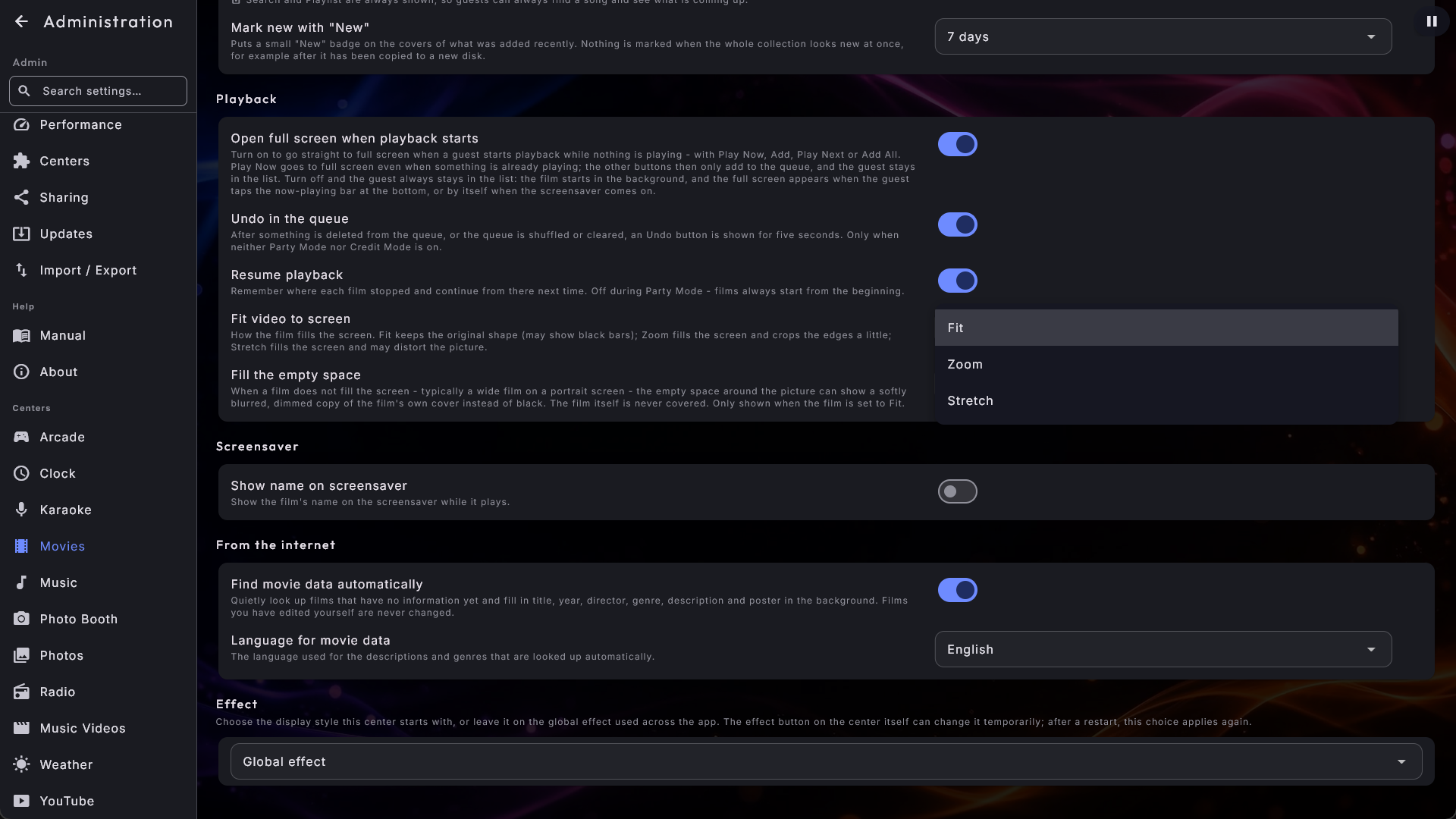
For Movies, Music Videos and YouTube you can choose how the picture fills the screen: Fit (the default) keeps the original shape, so an old 4:3 video may show black bars; Zoom fills the screen and crops the edges a little; Stretch fills the screen and may distort the picture slightly. The choice applies both in full-screen playback and on the screensaver. Arcade has its own two-way version of this (Fit or Stretch) under its settings.
Fill the empty space
When a picture does not fill the screen - typically a wide film or a music video on a portrait screen, or an old 4:3 film on a wide screen - Movies and Music Videos can fill the empty space around it instead of leaving it black, while the picture itself stays untouched in the middle. The setting is called Fill the empty space:
- Movies can show Blurred cover (the standard) - a softly blurred, dimmed copy of the film's own cover - or None (black). A film without a cover keeps black edges.
- Music Videos fills the space with Equalizer bars as standard - a dimmed visualizer that moves with the music above and below the picture. You can pick one of the other visualizer styles from the screensaver instead, Blurred cover, or None (black). When Graphics mode is set to Light, the visualizer styles are shown as the blurred cover, and a line under the setting says so; None (black) is black in every mode.
The choice is only shown when the picture is set to Fit (with Zoom and Stretch there is no empty space), and it applies both in full screen and on the screensaver, including extra screens that show what is playing.
Tidy up titles and names
Music, Movies, Music Videos and Karaoke each offer two name options that are on by default. Automatic name cleanup removes text in brackets (so "Song (Live)" becomes "Song"), and Automatic capitalisation gives titles a capital letter (so "ABBA" becomes "Abba"). Turn either off to keep your files' names exactly as they are. Both take effect immediately - no restart or rescan needed.
Music display options
Beyond the two name options, Music can also sort albums by artist (so an artist's albums sit together, with the artist shown above the album name; a further option puts the year in front of the album name and sorts the artist's albums oldest first), sort album songs by track number (with the track number in front, e.g. "1. Title"), replace the artist name with the album name on mixed albums (instead of "Various artists"), and show a spinning vinyl record on the screensaver while music plays.
Show details in the artist list (on by default) is shared by Music, Music Videos and Karaoke. Every artist in the Artists list then leads with a cover taken from that artist's own material, and carries under the name how much you have by them - for example "8 albums · 96 songs". The album count is only shown when it is more than one, since a single album says nothing new, and the rows do not get any taller than the plain list of names. An artist with their own picture in their folder is shown with that picture, also on the artist's card in the grid (see Operating Digital Center for where to put it). Turn it off if you would rather have just the names. Movies do not have it, because films are not grouped by artist.
Order videos by artist (Music Videos) and Order songs by artist (Karaoke), in the View & sorting section, keep one card per video or song but order them by artist and then by title, with the artist under each title. They apply while the covers are not grouped. Default: off.
Artists starting with "The" is also shared by Music, Music Videos and Karaoke. It decides whether The Beatles are sorted under T or B in the artist lists, with three choices: Sort under T (as written), Sort under the next word (the name is shown as written), or Sort under the next word and show as "Beatles, The" (the standard), which shows the name the way a record shop does in the lists sorted by artist. Everywhere else - while the song plays, in the queue, in search - the name is shown as written. Only the English "The" is skipped, so names such as "Them" stay under T. In Karaoke the choice also applies to the artist list on the phone.
Grouping at start (Music, Music Videos, Movies and Karaoke, each on its own) decides how the center's cover page is grouped when it opens: No grouping (the standard), By artist, By genre, By decade or By date added. A music video collection set to By artist opens with one card per artist instead of one card per video. Guests can still change it with the button at the end of the letter bar, and the page goes back to your choice when they leave the center, switch page or the screensaver starts. Movies cannot start By artist, since films have no artist, and By date added only applies while the Added page is shown (see Pages in the bottom menu).
Pages in the bottom menu
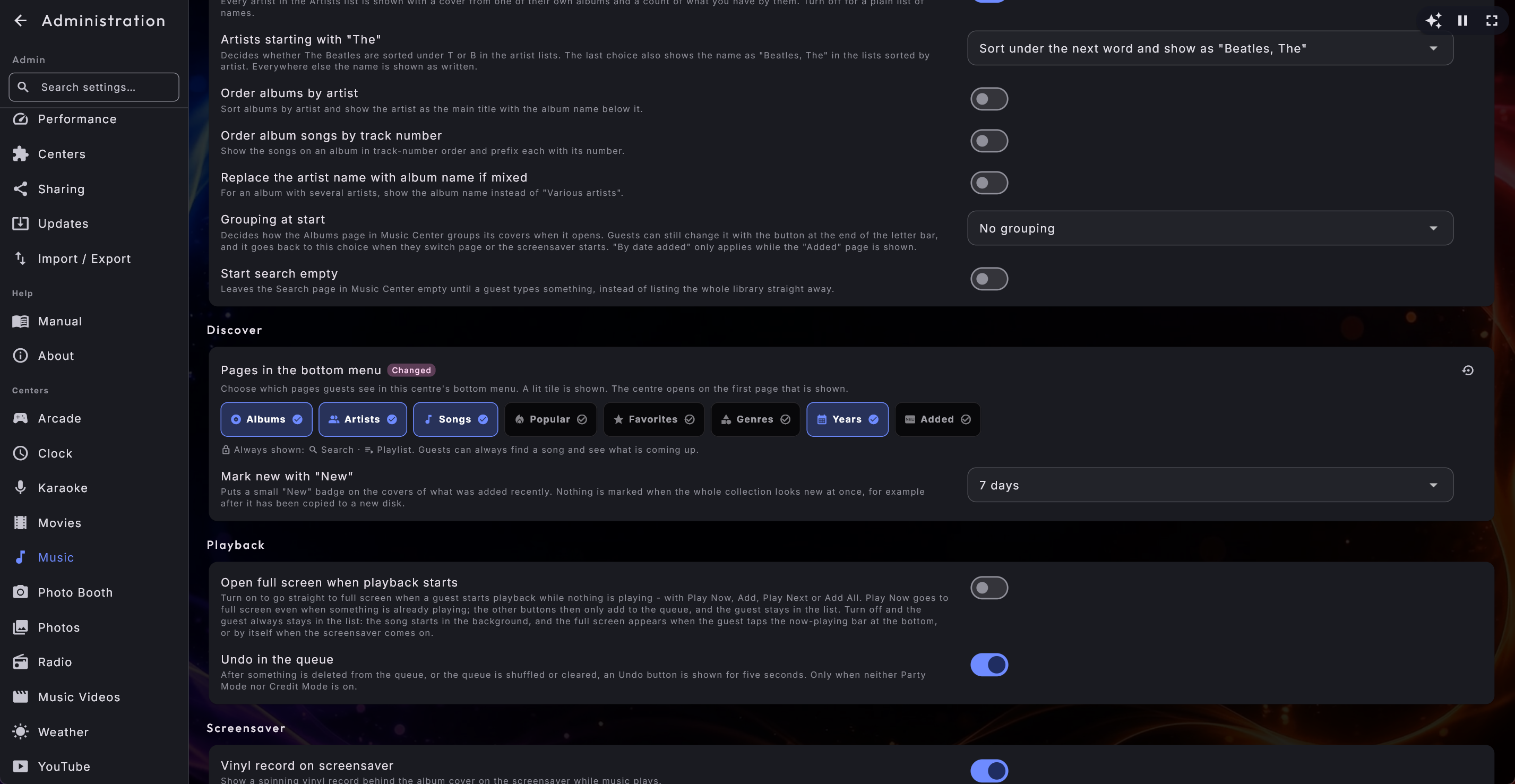
In Music, Music Videos, Movies and Karaoke you decide which pages the guests see in the center's bottom menu. Under Pages in the bottom menu, in the Discover section of the center's settings, there is a tile for each page, in the same order as in the menu - for example Albums, Artists, Songs, Popular, Favorites, Genres, Years and Added. A lit tile is a page the guests see; tap it to hide the page, and tap again to show it. Search and Playlist have no tile, because they cannot be hidden: they are named in the line Always shown: under the tiles, so guests can always find a song and see what is coming up.
- The center opens on the first page that is shown. Hide Albums, for example, and Music opens on Artists.
- Hide everything except Search and Playlist, and the center opens straight on the search, so the guest meets the search field at once - handy with a very large collection, where searching is easier than browsing.
- Hide Genres or Years, and they also disappear from Browse by on the guests' phones.
- Hidden applies to everyone, also when you are logged in as administrator. You get a page back by lighting its tile again.
- Hide Artists, Genres or Years, and the matching button under Find more also disappears from the song window, so a guest cannot reach a page you have hidden.
Three of the pages are worth knowing about:
- Popular (shown by default) has Recently played and Most played - in Karaoke the second one is called Most sung. The history behind it is always kept, whether the page is shown or not, and it is separate for each center. Movies deliberately have no Popular page, since a film is usually watched once.
- Favorites (shown by default) is a page with the house's own picks, and a star in the song window that marks a song as a favorite. The star can only be set or removed while the kiosk is unlocked or an administrator is logged in, so guests can see and play the list but not change it. Hiding the page hides the star too.
- Added (hidden by default) groups everything by when it came into the library, newest first - the months of the current year, then one card per earlier year. Handy when you want to show guests what is new.
The "New" badge
What you have added recently gets a small badge with a sparkle and the word New in the top-left corner of its cover - on the album in Music, and on the film, video or song in the other three centers (and on a group, such as an artist, when something in it is new). Under Mark new with "New" in the Discover section you choose how long the badge stays: Off, 3 days, 7 days (the standard), 14 days or 30 days. Each center is set on its own. If the whole collection suddenly looks new at once - because you copied it to a new disk, so every file got today's date - the center shows no badges, since that is a move and not news. The badges come back by themselves once the moved files are older than the chosen period.
Under Look of the "New" badge (just below, and only while the badge is switched on) you choose how the badge looks: Small badge (the standard - the small pill in the corner) or Band across the cover - a clear band across the full width of the top of the cover with the words Just added, which stands out more from a distance. The band takes the colour of your skin and follows the size of the cover, so it can be read on small and large covers alike. What counts as new is the same for both looks.
Show when it was added (just below, off by default) shows the date a song, film or video came into the library as a quiet line in the window that opens when you tap it - for example Added Sep 30, 2026. On an album's page (and on an artist's, a genre's or a period's page) the date of the newest arrival sits under the title. The date is written in the language the screen shows. A title without a known date, such as a song from another machine, gets no line. The switch is separate from the Added page, and each center is set on its own.
The buttons in the song window
Under Pages in the bottom menu there are two switches that decide what the song window (the window that opens when a song, a video or a film is tapped) shows besides Add, Play Now and Play Next:
- Show "Find more" (all four centers): switched off, the Artist, Genre and Year buttons under Find more disappear, and the Find more: line with them.
- Show "Add Similar" (Music, Music Videos and Karaoke): switched off, the Add Similar button disappears. That goes for everyone, also when you are logged in as administrator. Switched on, the playlist still decides whether guests in Party Mode or at a paid jukebox may use it (Allow Add Similar).
Both are on by default, so the window looks as it always has. If you only want Add, Play Now and Play Next, switch both off. The switches apply to the screen; the Add Similar button on the guests' phones still follows the playlist's rule.
See Operating Digital Center for what the pages look like in use.
Sing-along lyrics on the music screensaver
Under Music you decide whether the screensaver shows the lyrics of the song that is playing, scrolling along with the music.
- Lyrics on the screensaver (on by default) turns the whole thing on or off.
- Folders with your own lyrics - point Music Center at the folders where you
already keep lyrics files of your own, your karaoke folder being the obvious one.
They are only ever read, never changed. This is the answer to the classic
complaint that a fetched lyric is timed to a different release of the song: your
own hand-timed file is used instead. The system looks for exactly two names - the
music file's own name, or Artist - Title - and never guesses at a file that
merely looks similar. The only difference it forgives is how punctuation is
written: a curly and a straight apostrophe (Don’t and Don't), curly and straight
quotes and the different kinds of dashes count as the same, but only when exactly
one file fits. Your lyrics folder may also be laid out like your music folder: for
a song in
Music\ABBA, the system first looks inABBAinside your lyrics folder and then at the top of it, so your karaoke lyrics can stay in the folders they already have. A lyrics file sitting next to the song still wins; then your folders; and only after that is anything fetched online. Music shows the lyrics line by line, so a file timed word by word for karaoke works in both centers. Only shown when Lyrics on the screensaver is on. - Fetch missing lyrics online (on by default) lets the system find the words for a song that has none. A lyrics file you have put next to the song yourself always wins and is never touched.
- Save fetched lyrics next to the song (off by default) also writes what it found as a file beside your music, so it becomes yours to keep and edit. It never overwrites a file you already have.
- Show where the lyrics come from (off by default) puts a small, discreet label just above the lyrics in the full-screen player while the kiosk is unlocked: Your lyrics (a file next to the song or in your lyrics folders), Fetched online, Fetched online, saved next to the song or Fetched online, saved in your lyrics folder. A song from another machine gets no label, and neither does one whose source cannot be told for certain. Guests on a locked kiosk never see it, and the screensaver does not show it. Lyrics you correct and save yourself in ZenPoint Media Manager count as your own from then on.
If the lyrics service does not answer (no internet connection, or "too many requests"), fetching pauses for a while and then tries again by itself.
Covers filled in automatically
Music, Music Videos and Movies can fetch what is missing on their own, quietly in the background:
- Music and Music Videos look up a cover for an album or a music video that has none. The picture is kept separately and never written into your files, and an album that already has a cover of its own is left alone. Both are on by default and can be switched off in the center's From the internet section.
- Movies go further and fill in missing titles, years, directors, genres, descriptions and posters, from the file name - and never touch a film you have edited. You can turn this off, and pick the language for the fetched text, under the Movie settings.
More Karaoke options
Under Karaoke an administrator can also:
- Count down before the song (Off, 3 or 5 seconds), so the singer has a moment to get ready. Default: 3 seconds.
- Applaud after the song (on by default) - a short celebration card with the singer's name and confetti when a song is sung all the way through. There is no score and no rating; it is purely a round of applause.
- Clear the screen during instrumental breaks (on by default) - during a long instrumental stretch the lyrics go blank instead of leaving the last line hanging. Turn it off and every line stays on screen until the next one arrives.
- Show backing vocals in their own colour (on by default) - many lyric sheets put the part a choir or a second voice sings alongside the lead singer in brackets, such as (ooh ooh). Those words are drawn in a colour of their own, so the singer can see at a glance which words are not theirs. It works on the lyrics you already have - nothing in your files needs changing - and a song whose lyrics do not mark anything looks exactly as before.
- Fetch missing lyrics automatically (off by default) - quietly looks up the words for karaoke songs that have none, one song at a time. It never overwrites lyrics you already have, and it never creates the word-by-word timing. If you delete lyrics Digital Center fetched, it takes that as "no thanks" and does not fetch them again by itself; to get them back, use Find lyrics in ZenPoint Media Manager.
- Allow key and tempo changes (on by default) and Also in Party Mode (off by default) - see Operating Digital Center for what the singer can do with them.
- How the karaoke graphics fit the screen - Fit (the original shape, with black edges at the sides) or Stretch (fills the screen). This one is only about the picture-based karaoke graphics, not ordinary lyrics.
Recording
The last section on the Karaoke page, Recording, lets Digital Center record each song while it is sung, so the singer can take it home on their phone. What the singer and the guests see is described in Operating Digital Center. Recording needs Home or Professional.
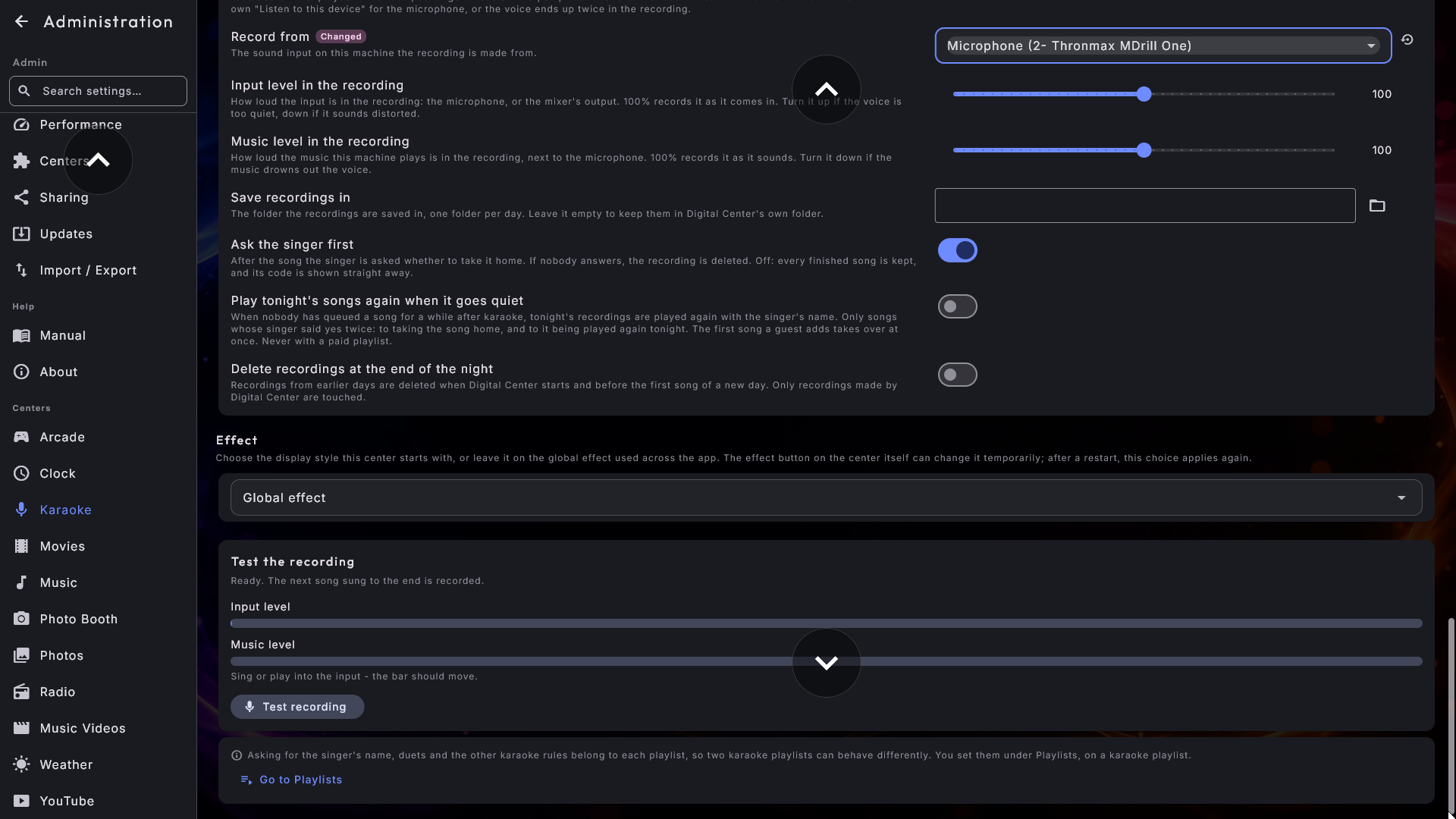
- Record the songs - the master switch. The settings below are only shown while it is on. Default: off.
- How is the room set up? - Mixer connected to this machine (the mixer's recording output sits in the machine, so it already carries both voice and music) or Microphone plugged into this machine (the microphone is recorded together with what the machine itself plays, so key and tempo, karaoke videos and songs from another machine come along by themselves). With a microphone the voice is recorded but not played in the room, so singers still need a mixer, amplifier or audio interface to hear themselves. Do not turn on Windows' own Listen to this device for the microphone, or the voice ends up twice in the recording.
- Record from - the sound input on this machine. Nothing is recorded until both the setup and the input are chosen. A microphone or mixer plugged in while Digital Center runs is on the list the next time you open Administration.
- Input level in the recording and Music level in the recording - how loud the input is in the recording (100% records it as it comes in), and, with a microphone, how loud the music is next to it, so the voice does not drown. They only change the recording, never how loud the room plays or Windows' own sound settings. Every saved recording gets an even loudness by itself, without distorting, so the levels mostly decide how much room the voice takes next to the music. Default: 100%.
- Save recordings in - the folder the recordings go in, one folder per night. Leave it empty to keep them in Digital Center's own folder. Default: empty.
- Ask the singer first - after the song, the singer is asked whether to take it home; if nobody answers, the recording is deleted. Turn it off and every finished song is kept, and its code is shown straight away. Default: on.
- Play tonight's songs again when it goes quiet - when nobody has queued a song for a while, tonight's recordings are played again with the singer's name. Only songs whose singer said yes twice are used, and never with a paid playlist. Default: off.
- Quiet time before songs are played again - 30 seconds, 1, 2 or 5 minutes. Only shown while the switch above is on. Default: 1 minute.
- Delete recordings at the end of the night - recordings from earlier nights are deleted when Digital Center starts and before the first song of a new night. Only files Digital Center made itself are touched. A night ends at 6 in the morning, not at midnight. Default: off.
Under the settings, Test the recording shows the level of the input (with a microphone, the music's too) as it is after your choices. If the bar turns red it is too loud, and the recording will distort. Press Test recording: ten seconds are recorded and played straight back, while the line under the button counts down, so you can hear that it sounds right before the night begins. The same place says whether the chosen input is connected right now.
More Arcade options
Under Arcade, the settings for playing sit in the section While a game is running. With Save where the game got to switched on, an administrator can also choose Auto-delete the saved game (Never, On restart, or after a day, a week or a month). You can also let the music keep playing during a game (so the game's sound plays over the music, with a separate volume for the game), and choose how the game fits the screen (Fit or Stretch). The Game machine programs folder holds the programs that make the old game machines work. Which game machines you can play is chosen in ZenPoint Media Manager, and their programs are only downloaded when you ask for them, so a fresh install stays lean.
Two more options turn the machine into a single-game cabinet:
- Start straight into a game - pick one game from your library and Digital Center goes straight into it when it starts (combine it with Start in center → Arcade). Leave it on Show the game list for the normal behaviour. If the game is later moved or removed, the ordinary list simply appears instead.
- What Esc does in a game - only shown once a startup game is chosen: Go to the game list (as usual) or Restart the game, so a cabinet always begins afresh. The on-screen back button always leaves the game either way.
Fill the empty edges (on by default) fills the space around a game that does not cover the whole screen with quiet artwork - the game's own cover, or a marquee picture you place beside the game file - instead of plain black, the way a real cabinet has a lit sign. The artwork is deliberately dimmed and breathes very slowly so it can never burn into the screen. Only shown when the game is set to Fit.
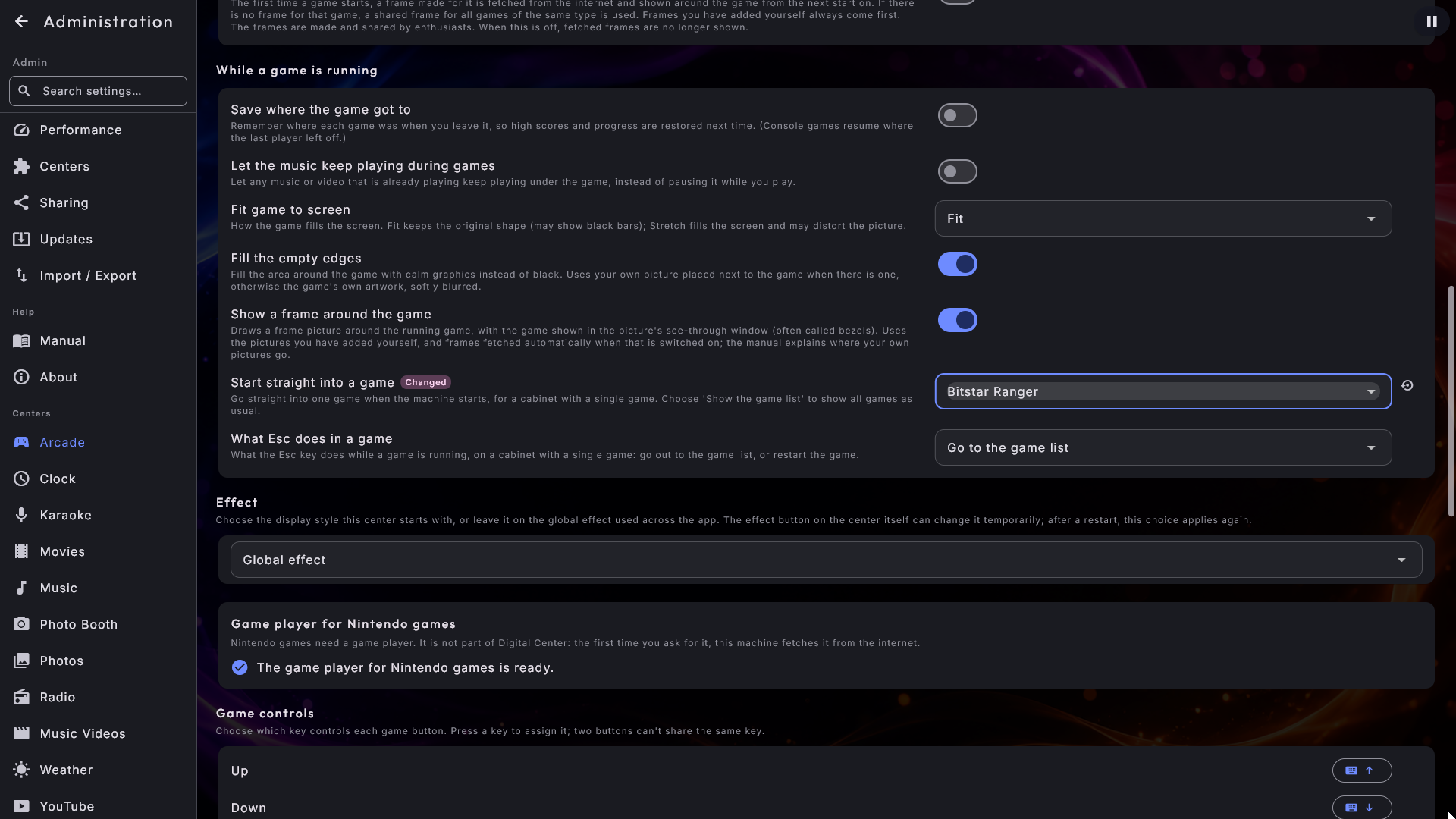
A few more switches decide what the guests see and what is fetched for them:
- Show "Favorites" (on by default) - the Favorites page in the Arcade's bottom menu, with the games the house has starred for an event. Switched off, the page disappears from the menu.
- Automatic name cleanup (on by default) - leaves the brackets at the end of game names out of the list, so "Pac-Man (USA) (Namco)" becomes "Pac-Man". Switched off, the names are shown exactly as before.
- Show a frame around the game (on by default) - draws your own frame pictures (bezels) around the running game. Without frame pictures nothing happens, and it is only shown when the game is set to Fit.
- Under From the internet: Find covers automatically (on by default) fetches the front of the box for a game without a cover, and a picture from the game itself for an extra screen that shows Arcade game; Fetch frames automatically (off by default) fetches a frame the first time a game is started. It is only shown while Show a frame around the game is on and the game is set to Fit.
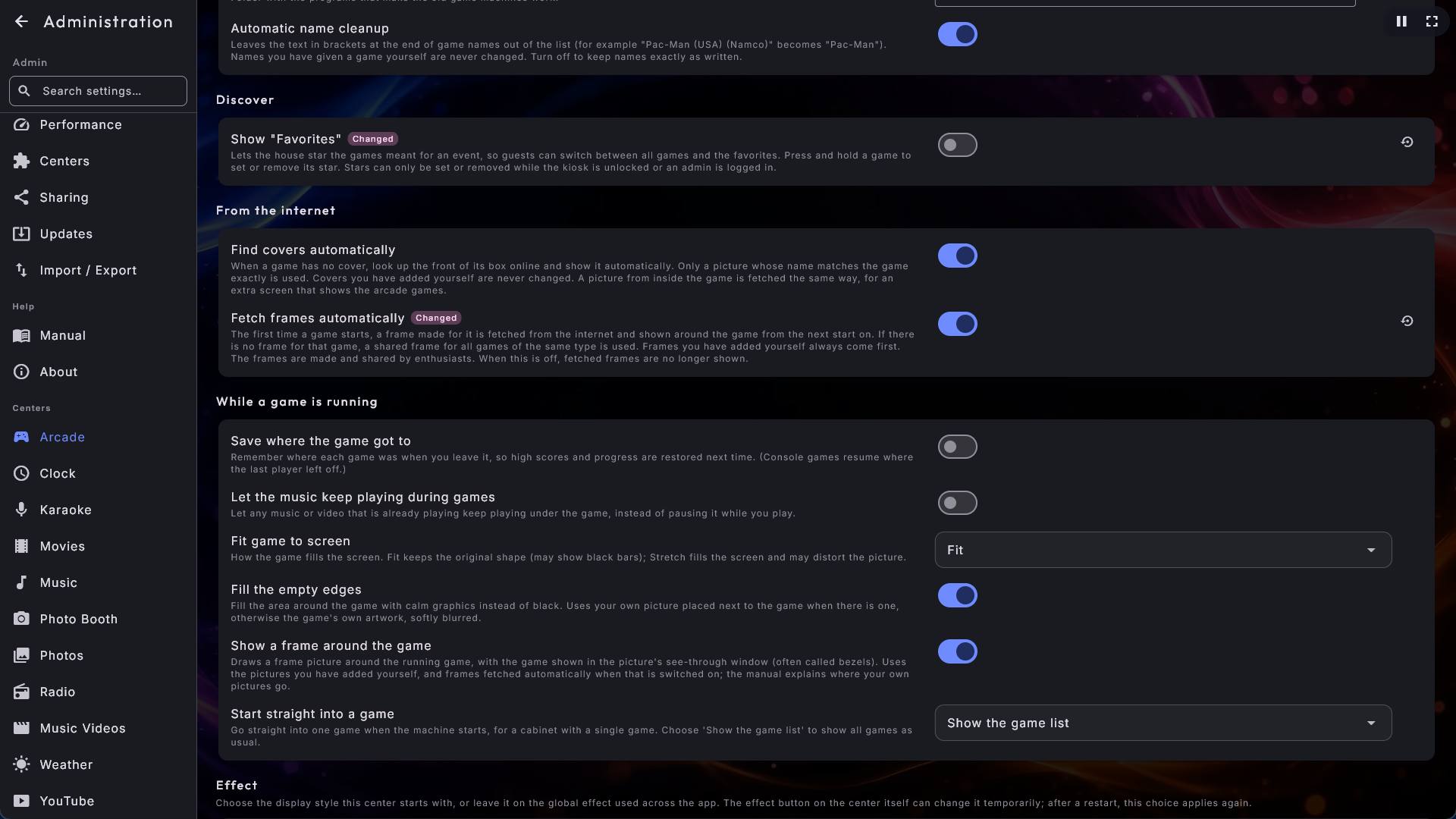
Under Game controls you choose which keyboard key gives each game button, and under Game controller which button on a game controller gives each one, and which way the joystick is turned. How that works, step by step, and where your own frame pictures go, is in Operating Digital Center under Arcade.
Photo Booth
The booth has enough of its own - layouts, motifs, decorations, collage templates, branding, printing and sharing - that it has a chapter to itself. On its page you choose the Picture layout, Motif and Filter the booth starts with (your own collage templates are in the layout list), how many earlier pictures the guests see with Show earlier pictures (Only today as standard, Only this session or All), and under Captured pictures you can look through the pictures day by day, save a whole day as a zip file, or delete a single picture. See Photo Booth for every setting on its page, and for how a guest uses it.
Guest settings have their own chapters
Party Mode, Credit Mode and the phone remote each sit under the Guests group but are large enough to deserve their own chapters. See Party Mode for the full setup, including the three roles and the lock that keeps a kiosk under control.