
Chapter 8
Credit Mode
Credit Mode turns Digital Center into a coin-operated jukebox: guests pay to have a song played, and the machine keeps strict track of what's been paid for. It builds directly on Party Mode - so if you haven't read that chapter yet, start there, because Credit Mode borrows its locking and its guest-versus-administrator roles.
The short version
You mark a playlist as paid. Choosing it locks the machine into a pay-to-play terminal where guests can only spend credit to queue songs. Credit arrives either from a coin acceptor wired to a button or key press, or from a card terminal or mobile-payment device over an open payment connection. You - the administrator - always add songs for free.
Pay-per-playlist
Whether a playlist costs money is decided per playlist, so you can mix free and paid lists on the same machine.
- 1
Open the playlist
Go to Administration → Playlists and pick the list you want to change. The list you're editing is clearly highlighted, and a small icon next to each list shows whether it's visible in Party Mode.
- 2
Turn on Requires payment
In the list's settings, Payment is the last block. Switch Requires payment on for the lists that should cost money. Lists where it's off stay free to add to, exactly as before.
A paid list locks itself down
A paid list plays strictly in the order it's paid for, so the settings that wouldn't make sense are automatically turned off and locked: shuffle, repeat, temporary, allow voting songs up, available in Party Mode and all the other guest permissions (pause, volume, seek, delete and so on). There are two exceptions you still decide yourself, and the text under Payment names them. Allow full screen changes nothing in the queue, so it is what a paying guest can otherwise still do. Allow Add Similar is up to you as well: the guest pays one credit for every song it adds, so the only question is whether one guest may spend up to 10 credits with one tap. On a YouTube playlist the same goes for Allow guests to search: the guest searches for the song they want to pay for, and every song from the search costs a credit like any other. If one of them is grey anyway, the reason is written just below it. There is also no limit on how many songs can be added - with enough credit, a guest can keep queuing.
You are asked first
The settings that are switched off do not come back by themselves if you later turn Requires payment off again. So if any of them is on when you turn payment on, Digital Center first shows a box that names exactly which ones will be switched off. Choose Turn on payment to go ahead; Cancel (or closing the box) leaves everything as it was. If none of them is on, the switch simply turns on as before.
Paid lists are for the administrator only
A guest can neither see nor choose a paid list. As soon as one is in use, the machine locks itself exactly the way it does in Party Mode - but with one difference: only you, the administrator, can unlock it. The party password is not accepted here, because a coin machine has no guests with free run of the place. A guest can pick music by paying for it and can see their balance, but needs your administrator password to get out.
Your Party Mode setting is never touched. The lock comes from the list, not from the switch, so it disappears by itself once a free list takes over (the details are just below). You can turn Party Mode on and off whenever you like, exactly as you always do - including while a paid list is selected. And because you are signed in as administrator, the Log out button appears at the top; pressing it drops you straight into the center the list belongs to.
The lock follows the paid list, not the whole machine
If you as administrator leave the paid center for the front page, the lock still holds. Go on into another center where the chosen list is free, and the lock lets go by itself, so that center is free to use. If paid songs are still playing, though, the lock holds until they have finished (or something else takes over the playback) - until then no guest can stop, skip or replace them, not even from the free center. In the song window Add is then grey, with a line saying that the paid songs are still playing and that you can add again once they have finished. Go back to the paid center, and the machine locks again.
Point Start in center at the paid center
Under Administration → Startup, at Start in center, you choose where the machine starts when it is switched on. If that does not point at the center the paid list belongs to, the machine starts on the front page - and for as long as the front page is showing, it is not locked yet. Guests can then pause, skip and delete songs other people have paid for. Payment only takes effect once the center is opened, which is where the paid list is actually taken into use.
You don't have to spot this yourself: if the two don't match, the Credit Mode page says so and offers a button that sets the right center straight away.
The shared credit wallet
The machine has one shared wallet - a single balance, no matter which paid list is playing. You manage it under Administration → Credit Mode, which has its own menu entry.
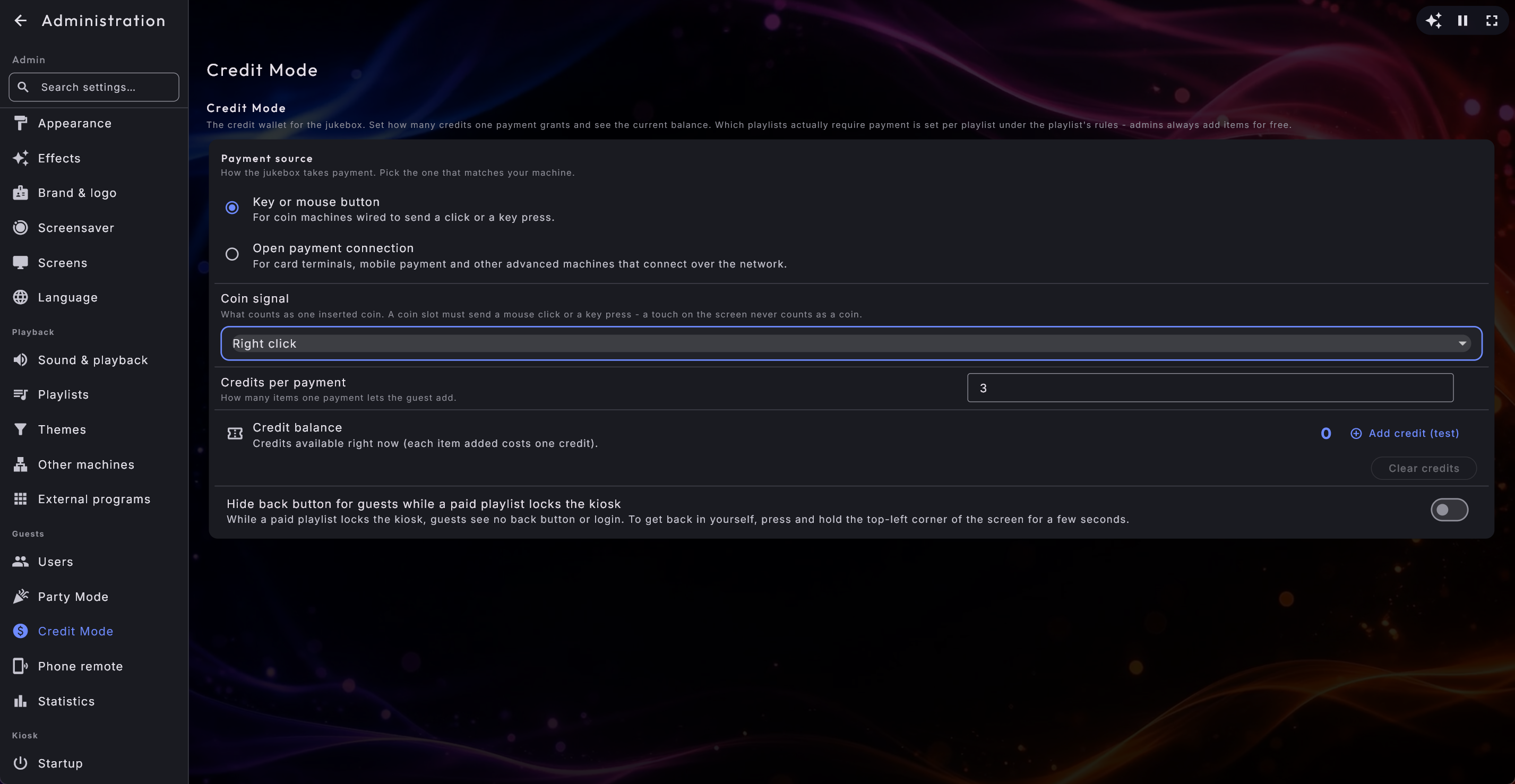
- Credits per payment - how many songs one payment is worth each time the payment device registers a transaction. By default one payment is worth three songs; set it to 1, for example, and one payment buys one song.
- Credit balance - the current credit total. As administrator you can add a test credit with the Add credit (test) button next to it, or wipe the balance with Clear credits. Clearing throws away credits the guests have already paid for, so you are asked to confirm first.
When a playlist requires payment:
- It costs one credit to add a song. With no credit left, no more songs can be queued until someone pays again.
- The list runs as a pure payment terminal: a guest can only pay to have a song played. Every other control is locked - no pause, no volume, no deleting, skipping, shuffling, Add all, Play now or Play next.
- A guest cannot return to the front page; that needs the administrator password. The party password is not enough here - only an administrator can leave the list.
- Paid songs survive a restart. The queue is saved continuously, so if the power drops or the machine reboots, it starts back up as the locked payment terminal and carries on where it left off - nobody loses the songs they paid for.
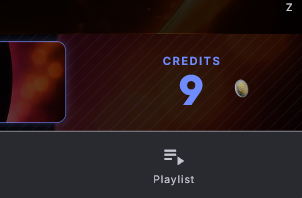
- A large credit counter replaces the usual playback controls on screen, showing how much credit is left (and a reminder to pay when it hits zero). Each payment briefly rolls a little receipt across the counter.
- The balance follows the guest around. Besides the song list, it is also shown on the now-playing bar on the front page, in the music player and on the screensaver, so a guest can see how many songs are left wherever they happen to be standing. Extra screens don't show it - nobody is standing at those, and the coin slot is on the main machine. As administrator you never see it at all; you have your ordinary controls.
- Nobody needs to be signed in to pay, and the credits are shared: anyone can spend them until they run out, and the balance is remembered across restarts.
- As administrator you can always add songs for free - you never need credit.
- The list's songs are the paid queue, so they cannot be changed under Administration → Playlists (the song button with the note symbol is locked there). To remove or move a song, do it in the queue in the center itself.
Credit is never spent on something that cannot play
Credit used to be taken the moment a guest pressed the button, while whether the item could actually play was only discovered when its turn came, perhaps twenty minutes later with the guest back at their table. The song was skipped, the coin was gone, and nobody could see why.
Digital Center now looks before it takes the credit. If the file has gone missing, or the machine that lends it out cannot be reached, the guest gets a calm message that this particular item cannot be played and that the credit has not been used. There is no refund and no reservation: the coin is simply not taken.
If the check cannot be finished in a moment, on a slow network say, the item is let through and queued as before. Letting in a song that turns out to be unplayable is a smaller annoyance than turning down one that would have played perfectly well.
The balance stays visible while something plays
The credit counter keeps its place at the right-hand end of the bar even when something is playing and the transport buttons appear. Before, the buttons took the space, so the balance a guest had just paid for disappeared exactly while the jukebox was running.
Choosing a payment source
Under Administration → Credit Mode you also pick the payment source - how the jukebox takes payment. You choose one of two.
Option 1 - Input trigger (a button or a key)
This suits a coin acceptor that is wired to send a click or a key press each time it takes a coin - for example through a simple relay. You choose what counts as one payment:
- 1
Select the input trigger
Set the payment source to Key or mouse button.
- 2
Pick the signal
Choose whether a coin registers on a right-click, a middle-click (scroll wheel) or a key. If you pick a key, press the exact key your coin acceptor sends, so the machine learns to recognise it.
- 3
Test it
Trigger the coin acceptor (or the chosen key) once. Each registered payment adds your Credits per payment to the balance - watch the counter climb to confirm it's wired up correctly.
Only counts when it matters
A coin signal only adds credit while at least one playlist requires payment. The rest of the time the trigger is ignored, so you can keep the acceptor connected without it interfering with normal use.
Option 2 - Open payment connection (card or mobile)
This suits a card terminal, a mobile-payment device or another more advanced payment machine. Instead of a physical click, the device reports each payment to the machine over the network.
- 1
Select the open connection
Set the payment source to Open payment connection. The screen then shows an address and a key.
- 2
Hand them to your payment device
Give the address and key to your payment machine. When it takes a payment, it reports it to that address, and the guest is granted credit.
- 3
Rotate the key if needed
If a key should be revoked, generate a new key - the old one stops working immediately. If a technician needs to connect your payment device, they'll find the Technical setup (for your installer) folded away in the same field (click to open).
The connection is protected against payments that are sent twice or are too large. A single payment can only grant a limited number of credits, and there is a ceiling on how many credits can arrive within a minute. If your payment device sends a unique mark and the time with each payment, as the technical setup describes, a payment that arrives twice is only counted once, and an old one is refused. A refused payment is noted in the machine's log, so a technician can see why a payment did not come through.
Credit Mode has its own Hide back button
Hiding the back button for guests exists in two places, one for each way the machine can be locked, and the two switches are named after the lock they belong to: Hide back button for guests while Party Mode locks the kiosk on the Party Mode page applies when you have switched Party Mode on yourself, and Hide back button for guests while a paid playlist locks the kiosk under Administration → Credit Mode applies while a paid list is in use. They do not follow each other, so you can hide the arrow on your coin machine without it also disappearing at your next party. If both locks are active, the payment setting is the one that counts. The hidden way back in is the same one described in Party Mode: press and hold the top-left corner of the screen for a couple of seconds.
Pick one source and stick with it
Only one payment source is live at a time. Decide up front whether your venue uses a coin acceptor or a card/mobile terminal, set that one up, and test it with a real payment before opening to guests.
Credit Mode and Party Mode work hand in hand: Party Mode locks the machine down, and Credit Mode decides what a guest must pay to play. Together they let you set up a self-running, pay-to-play jukebox that looks after itself even across a power cut.