
Chapter 7
Party Mode
Party Mode turns Digital Center into a locked-down "jukebox" that is safe to hand over to guests. It is the feature you reach for whenever the system leaves your own hands - when you rent it out for a party, place it in a bar or a waiting room, or simply want guests to enjoy the music and the games without being able to wander into your settings. With Party Mode on, the front page and the centers stay open and inviting, while administration is tucked safely behind a password.
What Party Mode is for
Think of Party Mode as the difference between your machine and a machine you lend out. Off, you have full control everywhere. On, the system becomes a guest appliance: people can play and queue music, but only you - with your password - can change how it all works.
The three roles
While Party Mode is on, everyone using the system falls into one of three roles. Understanding these three is the key to everything else in this chapter.
Locked (no access)
The starting point when nobody is signed in. A locked guest cannot move around freely - leaving a center to return to the front page asks for a password. This is the safe default the system falls back to after an idle period.
Party user (guest)
A party user is a signed-in guest: someone who has typed the party password but not the administrator password. This is the role you want most of your guests to be in. A party user can use the front page and open the centers - play music, pick karaoke, browse photos, start a game - but cannot open Administration or change any settings. They get the full entertainment experience with none of the controls that could disrupt your setup.
Why the term matters
"Party user" is not just a guest standing at the screen - it is a specific signed-in role with its own password. Whenever this manual mentions party rules, guest limits, or what a guest "may" do, it is talking about this role. Telling it apart from a locked guest (nobody signed in) and an administrator (you) is what lets you decide exactly how much freedom your guests get.
Administrator
That's you. The administrator has full access, including Administration and every center. The administrator password both unlocks Administration and serves as the master key to the front page. When Party Mode is switched off, you are always treated as the administrator - the guest-versus-admin distinction only exists while Party Mode is on.
Turning Party Mode on and off
Setting it up takes two stops in Administration. The passwords have a menu entry of their own, Users, because they are shared: both Party Mode and a paid playlist lock the machine, and both let the same administrator back in again.
- 1
Set the passwords under Users
Go to Administration → Users and give an administrator password (for you) and a party password (for your guests). The party password is the one you hand out at a party; the administrator password is yours alone. The same page holds Auto-logout - how long the system may sit idle before it logs the current person out on its own and returns to the locked state, so the kiosk is never left wide open after a guest walks away.
- 2
Turn Party Mode on
Go to Administration → Party Mode and switch Party Mode on. The system now distinguishes between guests and you. Everything else on this page - hiding the back button and the Shut down section - is described further down.
- 3
Choose what guests may do
Party Mode only locks the machine. What guests may do is chosen on each playlist, and which centers they see on the Centers page. The Party Mode page says so too, with a button for each: What guests may do, per playlist takes you to Playlists, and Which centers guests see takes you to Centers.
The passwords are stored protected
Both passwords are stored in a protected form, so they cannot be read back out of
the machine or out of a backup - not even by you. That is why the fields never show
the current password: type a new one to change it, and leave the field empty to
keep the one you have. The reset button next to a field puts it back to the standard
password from a fresh installation (admin123 for the administrator, user123 for
guests). Always set your own passwords to something only you know before handing
the machine over.
Flip it on and off from the front page
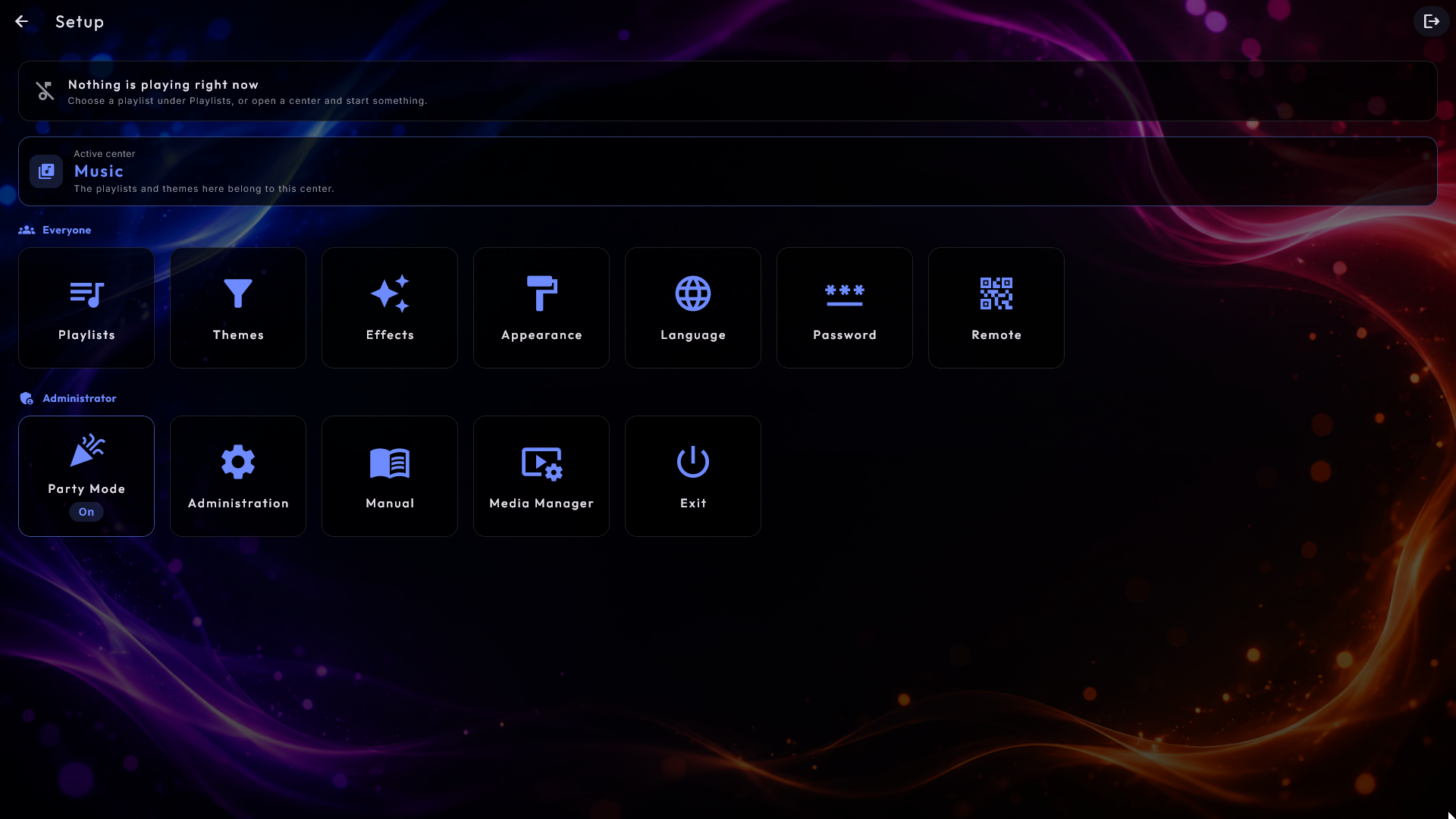
Once the passwords are set, you don't need to walk all the way into Administration to toggle Party Mode. As administrator you'll find a quick Party Mode tile under Setup on the front page that turns it on and off and shows its current state at a glance.
What a guest sees and does
While Party Mode is on, a few things change for everyone at the screen:
- Returning to the front page from inside a center asks for the party password; the administrator password also works and additionally opens Administration.
- The login box always has a Log in button next to Cancel, so you can also sign in with the mouse on a machine without a touch screen (Enter still works). The button can only be pressed once something has been typed in the field.
- When someone is signed in, a log out button appears in the top-right corner of every page, so they can sign out from wherever they are.
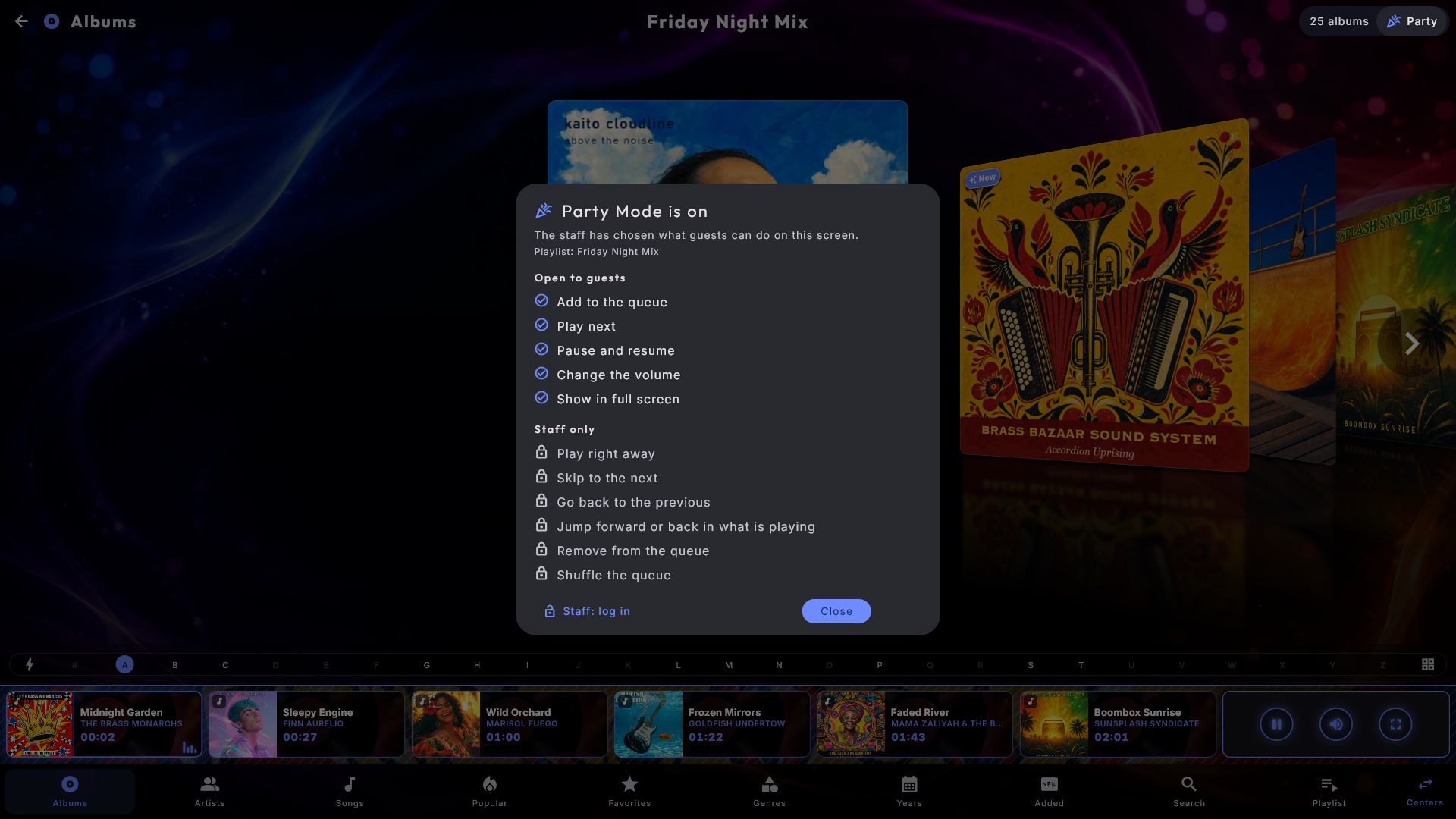
- When nobody is signed in, a small Party badge sits in the same place instead, so guests can see that the machine is running in Party Mode. A guest who taps it gets a calm card with the name of the playlist in use, what is Open to guests (for example adding to the queue, and how many songs can wait in the queue at a time) and what is Staff only (for example pause and skip). The card follows exactly the rules you have set on the playlist. At the bottom is Staff: log in, which opens the usual login box - you stay on the page you are on, just with every button. (On a paid playlist the badge is not shown; there the credit counter is the machine's sign.)
- You are warned before the automatic log out. For the last 15 seconds (at most half the time, if the auto-logout is very short) a small card in the top-right corner counts down, with a Stay logged in button. Tapping the button - or anywhere on the card or the screen, or pressing a key - keeps you signed in. If you are logged out, a short message says so afterwards.
- F12, which turns the kiosk into an ordinary window, asks for the administrator password first while the machine is locked, so a guest with a keyboard cannot reach the desktop. Going back to full screen never asks.
- Logging out - whether on purpose or automatically after an idle period - sends the person back to the last center they were in, even if they had stepped out to the front page first. (A visit to Setup doesn't count, so they still land back in the right center.)
- While Party Mode is on, the front page also shows a Password tile under Setup that anyone can use to type the party password - a friendly way for a guest to sign in without needing you to do it for them.
Per-playlist party rules
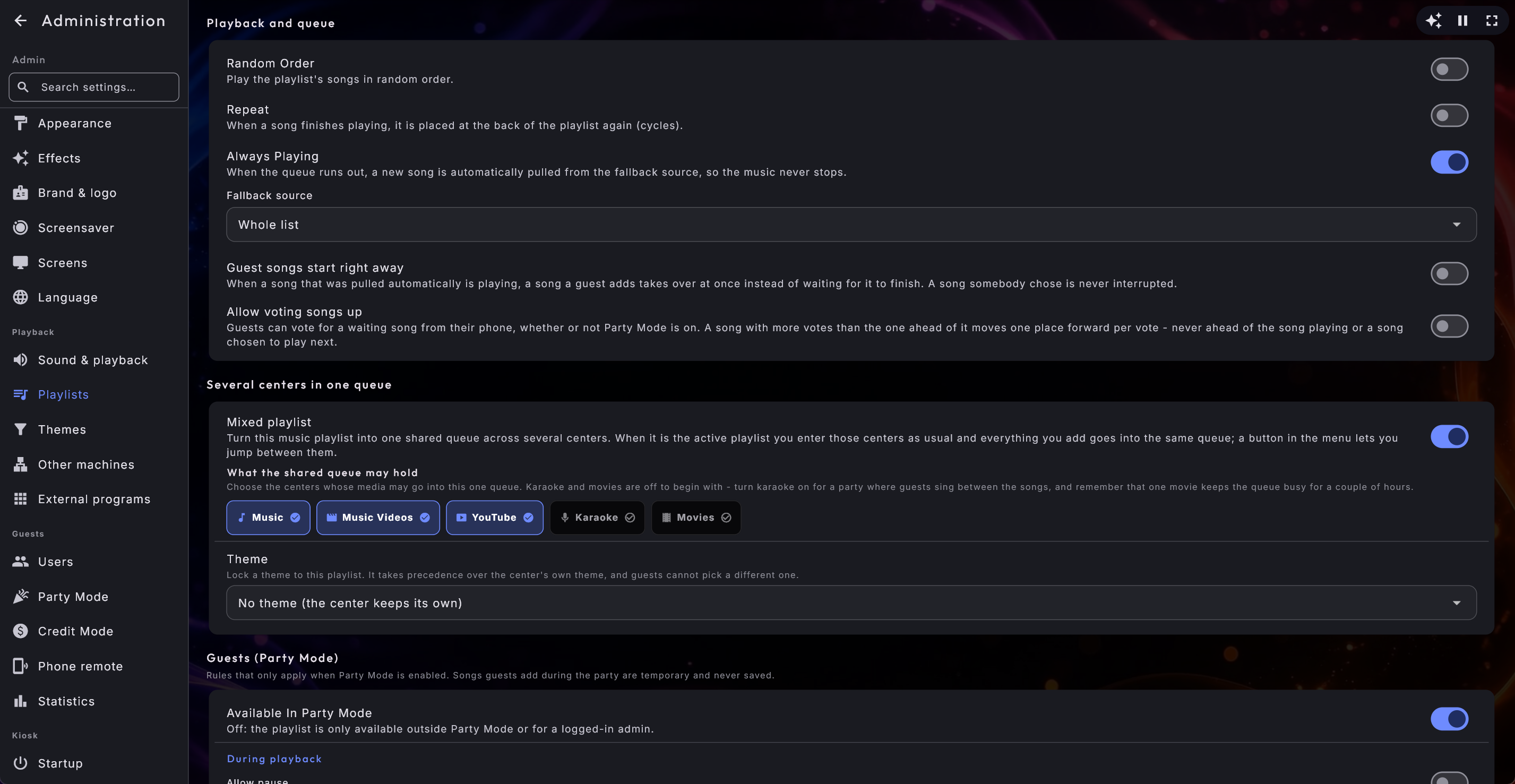
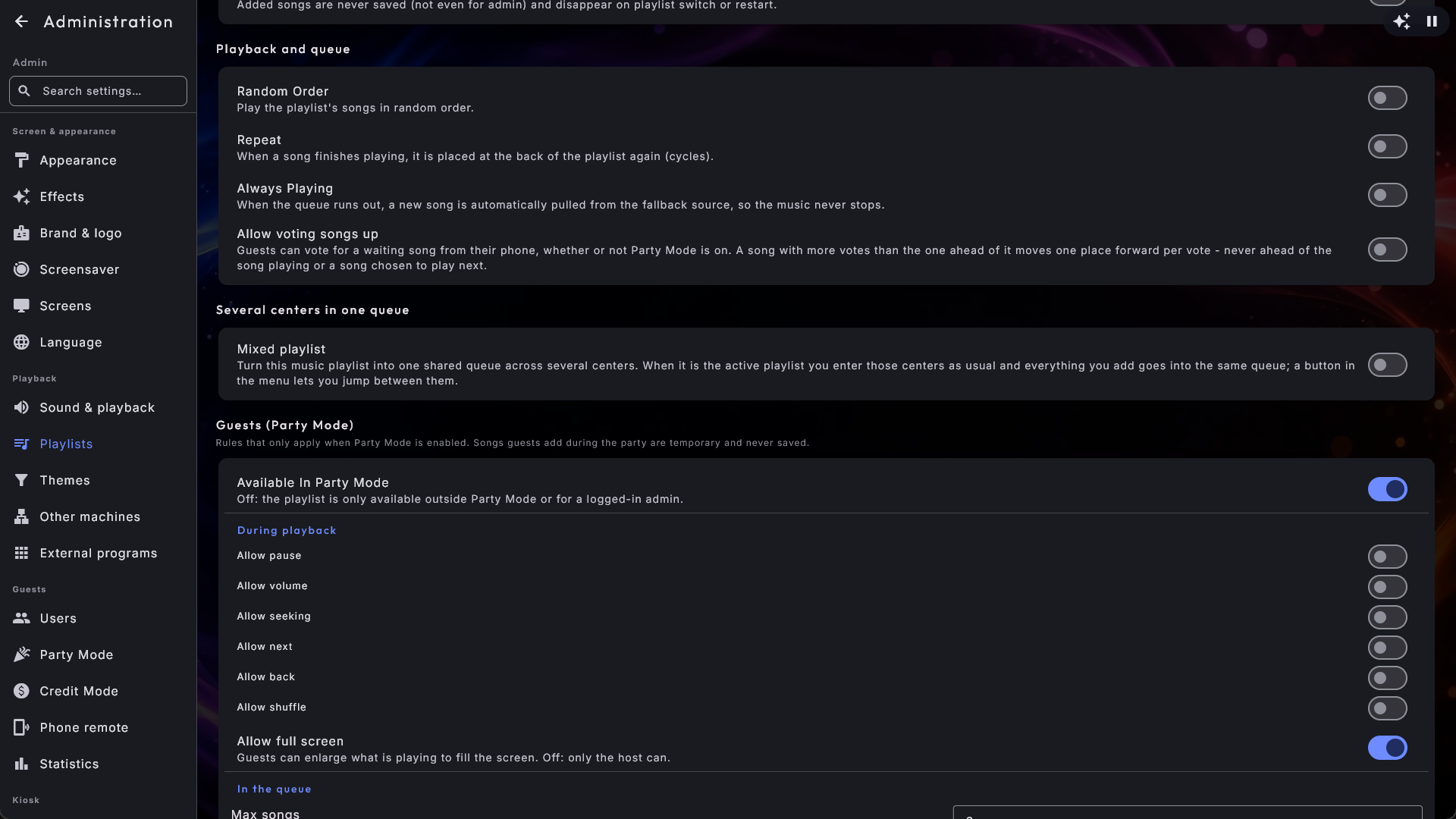
You don't have to give every guest the same freedom on every playlist. Choose a list under Administration → Playlists, and the party rules are in the block Guests (Party Mode), the fourth of the blocks the playlist's settings are split into (see Settings & administration). Available In Party Mode stands at the top of the block. If the list is not available to guests, or it costs money, the reason is written just below it. After that the guests' permissions come in two groups:
- During playback: pause, volume, seeking, next, back, shuffle and full screen.
- In the queue: max songs, deleting, Add all, Play now, Play next, Add Similar and - for YouTube only - whether guests may search.
So for each playlist you decide exactly what a party user is allowed to do during the event:
- Allow or block pause, volume, skipping (seek), deleting, next, previous, shuffle, Add all, Play now and Play next. These rules also apply inside the full-screen players for movies, music videos, karaoke and YouTube: a guest can only pause, change the volume or skip forward and back if the playlist permits it. Allow seeking specifically controls whether a scrub bar appears in the player.
- Allow Add Similar decides whether guests get the button in the song window that puts up to 10 similar songs into the queue with one tap. It sits in the group In the queue and is off to begin with, because a single tap can use up the whole song limit at once.
- Set Max songs - how many songs may wait in the queue at once. The limit counts the whole queue, whoever chose the songs: the playlist's own saved songs count just as much as the ones guests add. It is not a quota per guest, and only you as administrator are exempt. With a limit of 10, a guest can add again once fewer than 10 songs are waiting. When the limit is reached, Add is grey in the song window, and just below it the guest can read how big the limit is and how many songs are in the queue right now. (If the song is already in the queue, it says that instead.)
- Mark a playlist as temporary (under Basics; a guest's added songs are never saved and clear on restart) or control whether it is available in Party Mode at all.
- For YouTube playlists, optionally allow guests to search for their own videos. A guest can only search when the switch is on and the list can actually reach the guests - that is, when it is available in Party Mode or paid for. On a list that is neither, a party guest cannot search, even if the switch still stands on (it is then grey in Administration). As administrator, or on an unlocked kiosk, you can always search.
Digital Center asks before permissions disappear
Turning Available In Party Mode off also switches off max songs and all the guest permissions (and, on YouTube, whether guests may search) - and they do not come back by themselves if you turn it on again. If any of them is on right now, Digital Center first shows a box that names exactly which ones, with their own names (and max songs with its number). Cancel is the first choice, and closing the box without answering changes nothing. If none of them is on, the switch simply turns off as before.
Watch out for a limit guests can never get past
Because the playlist's own songs count, a list with 198 saved songs and a limit of 10 is full the moment it starts - and with Repeat on, the queue fills right up again at every new round, so guests never get a place. If you set such a limit, Digital Center says so straight away under the field and tells you what you can do: raise the limit above the number of saved songs, turn Repeat off, or take songs out of the playlist.
Allow voting songs up sits in the block Playback and queue rather than with the guests, because it works whether or not Party Mode is on. With it on, guests can vote a waiting song forward from their phones, and at the machine itself the song window of a waiting song has a Vote Up button. The machine counts as one vote per song, just like one phone, so a crowd sharing the screen cannot push a song to the front by tapping again and again. After a tap the button reads Voted with the number of votes, and the number is also shown next to the song on the Playlist page. A song moves one place forward per vote, but never ahead of the song playing or a song somebody chose to play next. On a paid playlist there is no voting at all - there the guests have paid for their place. The votes are forgotten when the program restarts.
Allow full screen, last in the group During playback, decides whether guests may enlarge what is playing to fill the screen. It is the only one of these rules that is on to begin with, since full screen has always been offered, so nothing changes on a kiosk you already run unless you switch it off. Turn it off and all three routes close at once: the button on the now-playing bar, Full screen in the item's own window, and the automatic jump after Play now. An administrator can always go full screen.
Theme locks a theme to this playlist. It wins over the center's own theme, guests cannot pick another while the list plays, and the theme can bring an appearance and a display style along with it, so the evening's list arrives with its own filter and its own look. Leave it on No theme (the center keeps its own) and everything is exactly as before.
Extra rules for a karaoke playlist
A karaoke list has a few rules of its own, all set on the same playlist page:
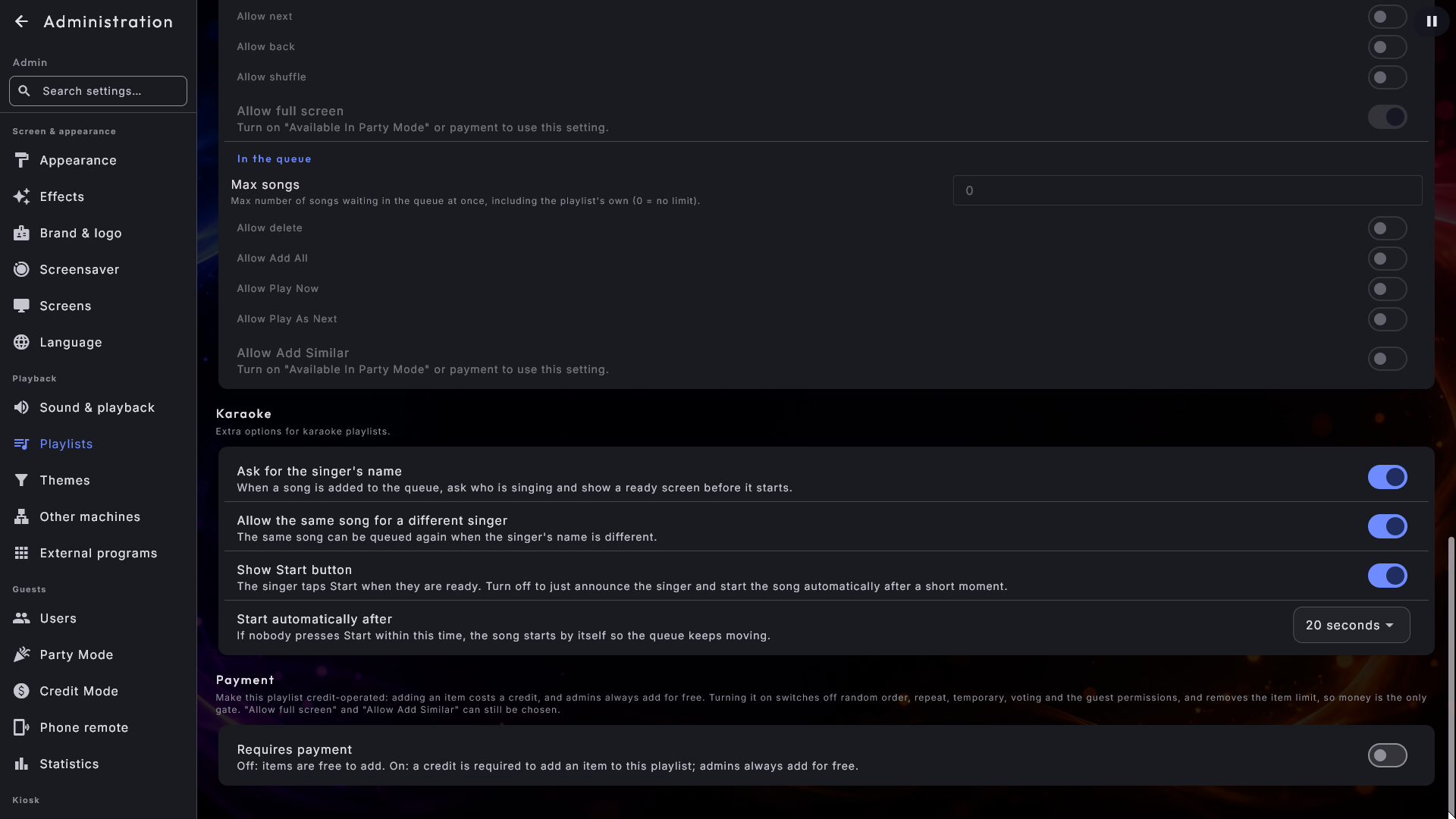
- Ask for the singer's name - everyone who queues a song is asked who is singing, both at the screen and on a phone. The name then follows the song through the queue, into the player and onto the screensaver, so the room always knows whose turn it is. Two singing together simply write both names in the one field.
- Allow the same song again for another singer - with this on, the same song can be queued more than once as long as the name is different; with it off, one copy per song is the rule.
- Show the Start button and Start by itself after - the ready screen that announces the singer can wait for a Start press, start on its own after a chosen number of seconds (20 by default), or skip the button entirely and begin after a short announcement. Choosing Never means the queue waits until somebody presses Start, which is the one setting that can leave a party standing still.
A mixed playlist for background entertainment
A music playlist can also be marked as a mixed jukebox. A mixed list holds several kinds of media in one shared queue, and while it is the active list it is the chosen playlist in every center it covers at once - so guests can add from whichever center they like and everything lands in the same queue. All the party rules above work exactly as usual. See Operating Digital Center for how guests move between those centers.
Turn Mixed playlist on and a short list appears: What the shared queue may hold. Tick the centers guests may queue from: Music, Music Videos, YouTube, Karaoke and Movies. The first three are ticked to begin with, so a jukebox you already use behaves exactly as before, and the last two you switch on yourself. Karaoke suits a family party where guests sing between the songs, and not a cafe where the music should simply play; Movies deserves just as much thought, since one film keeps the shared queue busy for a couple of hours. At least one tick must always remain, so the last one cannot be removed.
If you did include karaoke, the karaoke rules described above appear further down this playlist too - singer's name, the ready screen and the auto-start - just as they do on an ordinary karaoke list. Leave them off if the karaoke songs should simply play on like the rest of the music.
Below the ticks sits Theme. Pick one theme here and it applies in every center the jukebox holds, so you can put a single Christmas theme on the party instead of one per center. Leave it on No theme (the center keeps its own), the default, and each center keeps its own. If the theme does not cover one of the jukebox's centers, that is spelled out in red under the choice, so you can go and tick that center on the theme itself. YouTube has its own themes and is never filtered by a media theme.
Guest additions are always temporary
Songs a guest adds during a party are never stored permanently - they clear when the system restarts. As administrator, or when Party Mode is off, you always keep full control regardless of these per-playlist rules.
Editing the songs in a playlist
Under each playlist's name in Administration are three buttons with a symbol and a word: the number of songs (for example 12 songs), Rename and Delete. Tap the song button to open a list of the songs the playlist has saved. From here you can drag-reorder them, delete a single song or delete them all at once, and the changes are saved immediately. The button is locked for temporary playlists, since they never save songs, and for a playlist that requires payment: its songs are the queue the guests have paid for, so you change them in the center's own queue instead, where you as administrator can remove and move songs. A line under the playlist's name says so, and the number on the button still shows how many paid songs are waiting.
Hiding the back button for a locked guest
Under Administration → Party Mode you'll find the setting Hide back button for guests while Party Mode locks the kiosk. It is off by default, so everything works as usual.
The setting exists in two places, one for each way the machine can be locked, and the two switches have names of their own, so you can see which one you are looking at: this one applies when you have switched Party Mode on yourself, and Hide back button for guests while a paid playlist locks the kiosk under Administration → Credit Mode applies while a paid list is in use. They are not linked - you can hide the arrow on a coin machine without it also disappearing at your next party. If both locks are active, the payment setting is the one that counts.
Turn it on, and while Party Mode is on and nobody is signed in, the back arrow in the top-left corner disappears completely from every center. A locked guest then can neither go back nor stumble onto a login box - perfect when you keep the system pinned to a single center (say, Music Center) and don't want customers wandering off or being met by a password prompt.
A hidden way back in for you
You get back in with a hidden gesture: press and hold your finger (or the mouse) in the top-left corner of the screen for a couple of seconds - right where the arrow usually sits. The login box opens, and after you type your password you return to the front page as normal. A short ordinary tap does nothing, so guests won't trip over it by accident. The gesture always works, even with no internet or phone nearby.
Letting guests exit or shut down
At the bottom of Administration → Party Mode is the Shut down section. Here you decide what a guest may do when the party is over:
- Guests may exit - turn this on to show an Exit tile under Setup for guests too. Without it, only an administrator sees Exit.
- Exit shuts down the machine - this option only appears once Guests may exit is on. With it on, pressing Exit powers off the whole computer instead of just closing Digital Center. Handy when guests should be able to switch the machine off themselves once the night ends.
Your own Exit is always gentle
Your administrator Exit only ever closes Digital Center - it never shuts down the computer. The shutdown behaviour applies to the guest Exit tile alone.
Party Mode is the foundation for running Digital Center as a guest appliance. To take the next step and charge for play - turning the jukebox into a coin-operated terminal - continue to Credit Mode. For a tour of what guests actually do inside each center, see Operating Digital Center.