
Chapter 2
Installation, license & activation
The first thing you do with Digital Center is install it and tie your license to the machine. It is quickly done, and afterwards the program simply starts up every time you turn on the screen. This chapter walks you through the whole process - from installation, through activating your license, to the everyday startup and shutdown.
What you need
A Windows computer, an internet connection (only needed while you activate), and either the license file or the license code you received when you bought. If you have not bought yet, you can run a free trial period - we cover that further down.
Installation
Digital Center is installed with a single, combined installer. You do not need to configure anything along the way - just choose to install, and let it run to the end.
- 1
Start the installation
Open the installer you received and follow the on-screen instructions. Along the way it shows the end-user licence agreement, which you accept to continue. The agreement is in English and is the same one you find at www.zenpoint.org/terms.
- 2
Wait until it finishes
The installation puts the program in place and creates a shortcut you can start it from. Alongside Digital Center it also installs the administration program ZenPoint Media Manager, which you use to manage your media.
- 3
Start Digital Center for the first time
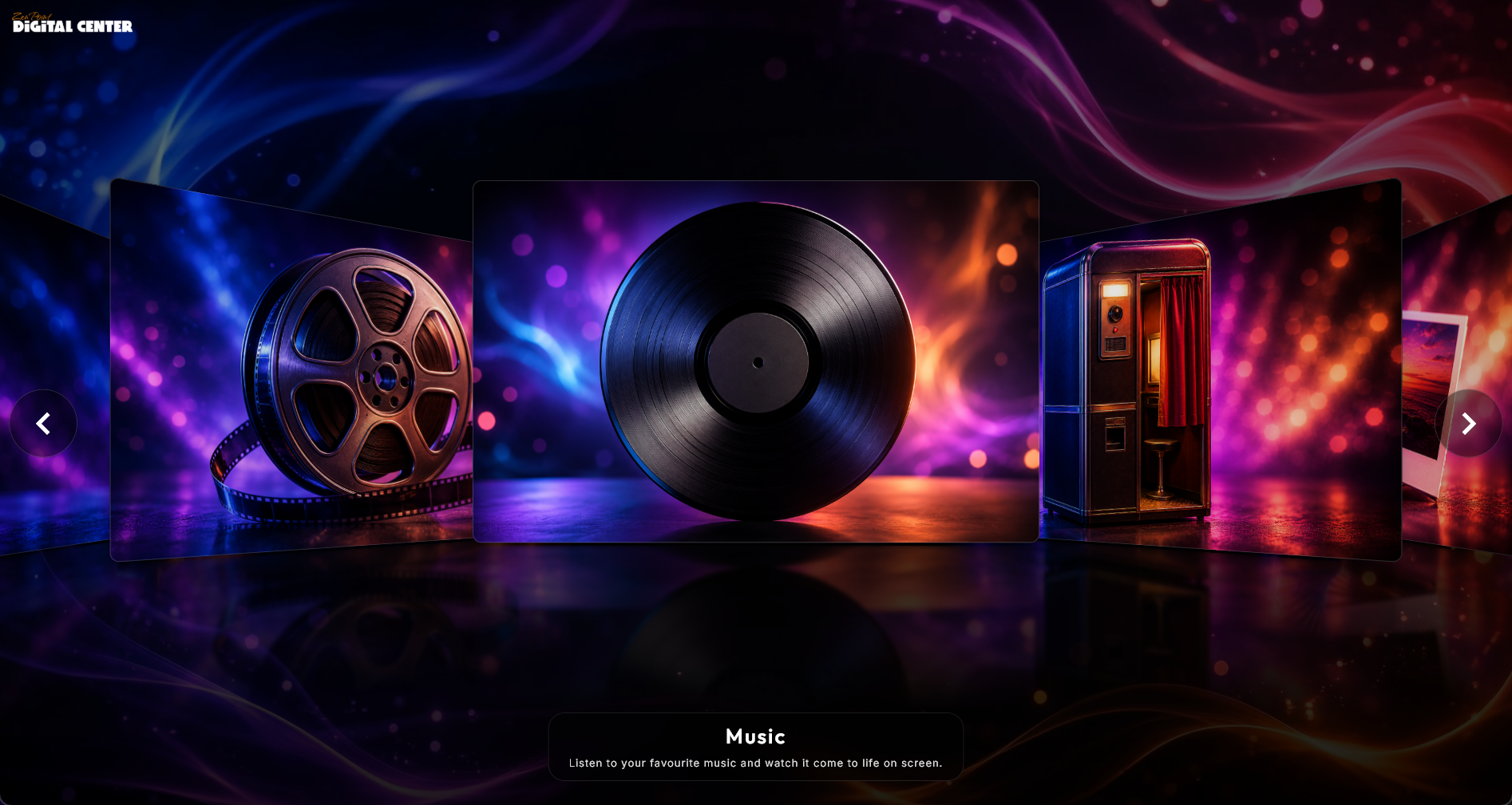
Open the program from the shortcut. It opens in full screen and shows the home screen with the centers that are available. A fresh install even comes pre-loaded with a little demo content for several of the centers - music, karaoke, movies, music videos and photos - so the centers aren't empty while you explore; it is never destructive and stays until you replace it with your own. The very first time, a short setup guide helps you with the most important choices - see Getting started.
License and activation
Digital Center can be set up to require a license. When that is the case, each machine must be activated the first time. If the license requirement is not enabled on your setup, you will notice none of this - the program just starts as usual, and you can skip ahead to the Starting and closing section at the bottom.
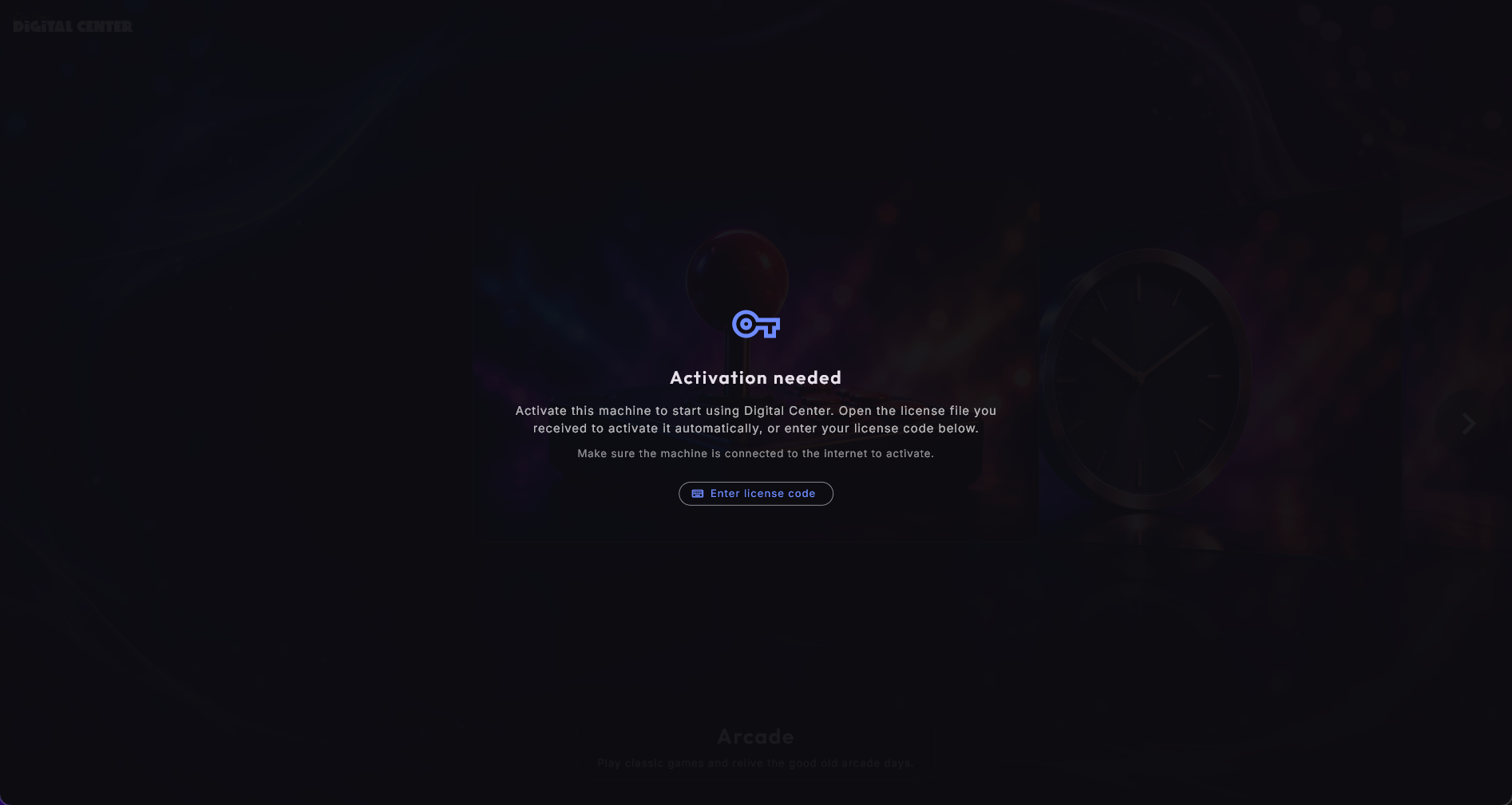
When activation is required, you are met by an activation screen the first time you open the program. From here there are two equally good ways forward, depending on whether you received a license file or a license code.
You need to be online
The machine must be connected to the internet while it is being activated - no matter which of the methods you choose. After activation, Digital Center works perfectly well without a permanent connection.
Activate with your license file
When you buy, you receive a license file. It is the easiest way to activate:
- 1
Open the file
Double-click the license file on the machine. It activates itself, and you are ready.
- 2
…or drag it in
You can also simply drag the license file onto the activation screen with the mouse. The moment the file is dropped on the window, the machine is activated.
Coming from an older version?
If you have a license file from a previous version of Digital Center, you can safely use it. The machine recognizes it on its own and moves the license over to the new version - you do not need to do anything special.
Activate with a license code
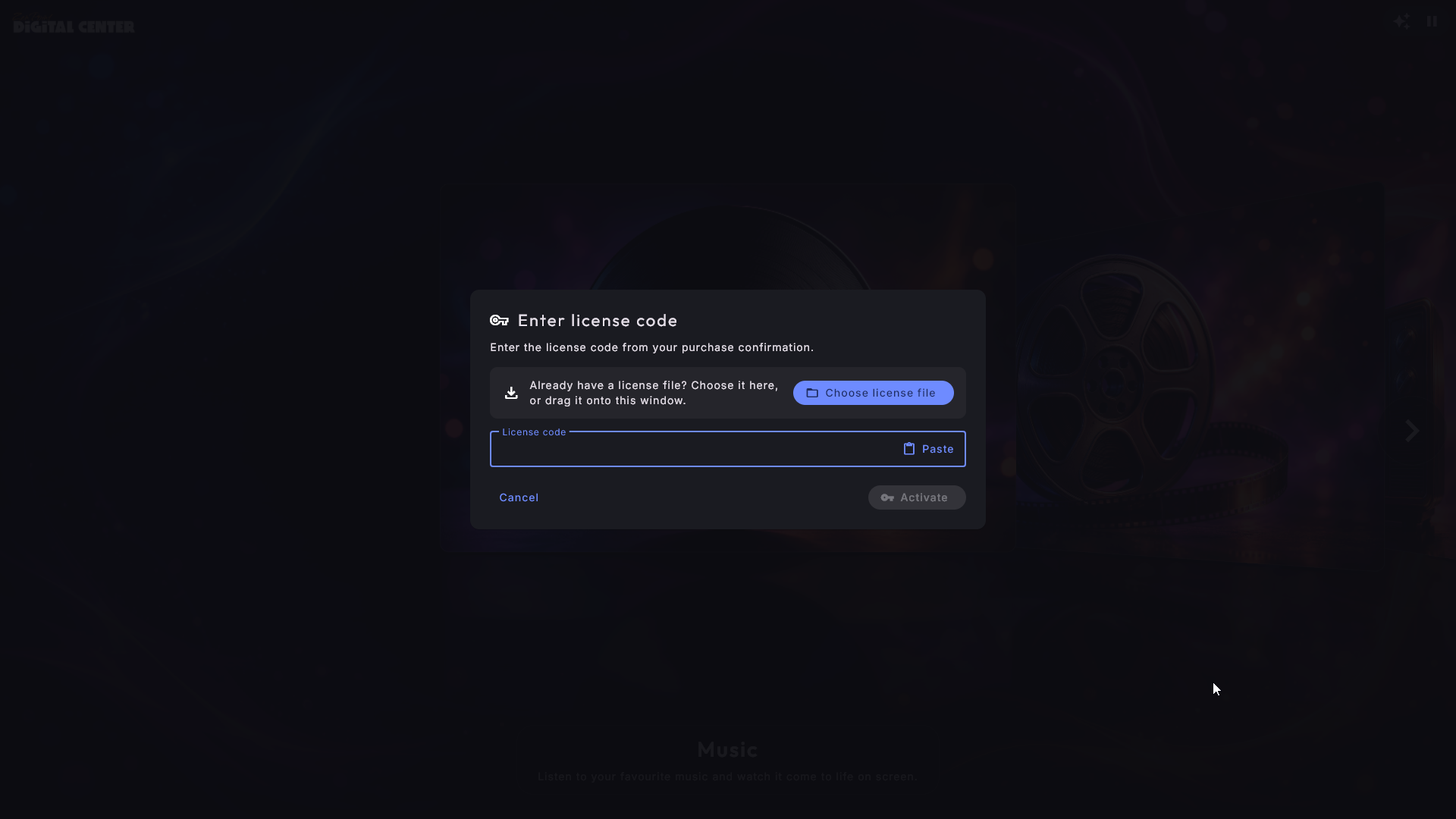
If you only received a license code and no file, you instead use the Enter license code button on the activation screen. Type or paste the code, and press the Activate button under the field. The button is always there, so it works just as well with a mouse on a screen without touch. Here too the machine must be online.
Three editions: Room, Home and Professional
Digital Center comes in three editions. Administration → About shows which one a machine runs.
- Home has every center, every skin and home screen effect, the phone remote, extra screens, ZenPoint Media Manager and Party Mode.
- Professional has everything in Home, plus Credit Mode, your own logo and brand, and statistics.
- Room is made for an extra screen in a home that already has Digital Center, such as the kitchen, the bedroom or the children's room.
A Room screen has no music, film, video or karaoke folders of its own. Instead it plays what another Digital Center on the same network shares with it, and that machine must run Home or Professional. Music, Movies, Music Videos and Karaoke work just as usual, with the other machine's library, while Radio, YouTube, Weather, Clock, Photos and Photo Booth work on their own. Skins, home screen effects, the screensaver, extra screens and the phone remote are all included. Room does not include its own library folders, the Arcade, external programs, ZenPoint Media Manager, sharing its own libraries, Party Mode or the Professional features.
- 1
Share from the main machine
On the machine that holds your media, open Administration → Sharing, choose Share with all my screens and press Share and show a code.
- 2
Add it on the Room screen
On the Room screen, open Administration → Other machines, press Add a machine and type the code. See Your media libraries for the details.
Your licence is unchanged
If you already have a licence, nothing changes for you. It keeps every feature it has today.
Changing to another license
Have you bought another license for a machine - for example Home for a screen that runs Room, or Professional instead of Home? Open Administration → About and press Enter a new license code. You get the same window as when a license is activated the first time: type or paste the code (or choose the license file) and press Activate. The window tells you that the new code replaces the machine's current license, and which edition it has now. Your settings and content stay as they are.
Once the code is accepted, the window closes and the page says which edition the machine now runs. The front page and the centers change straight away; the Administration menu follows once you close Administration and open it again. Type the license the machine already has, and nothing happens - the page simply says that nothing has changed. If the code cannot be used, the reason is shown in the window, so you can correct it and try again. The button is also there while the machine runs on the trial.
Try free for 7 days
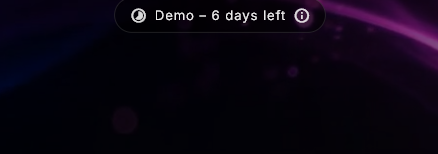
A brand-new machine can run Digital Center free for 7 days without a purchased license. The trial period starts entirely by itself the first time the machine is online - you do not have to do anything to set it going.
At the top of the screen it states discreetly how many days you have left. Tap that reminder to have it explained that you are running on a trial, and how to buy a license. It also shows a code you can scan with your phone to open the store, as well as an address shown as a link.
Buy along the way - without waiting
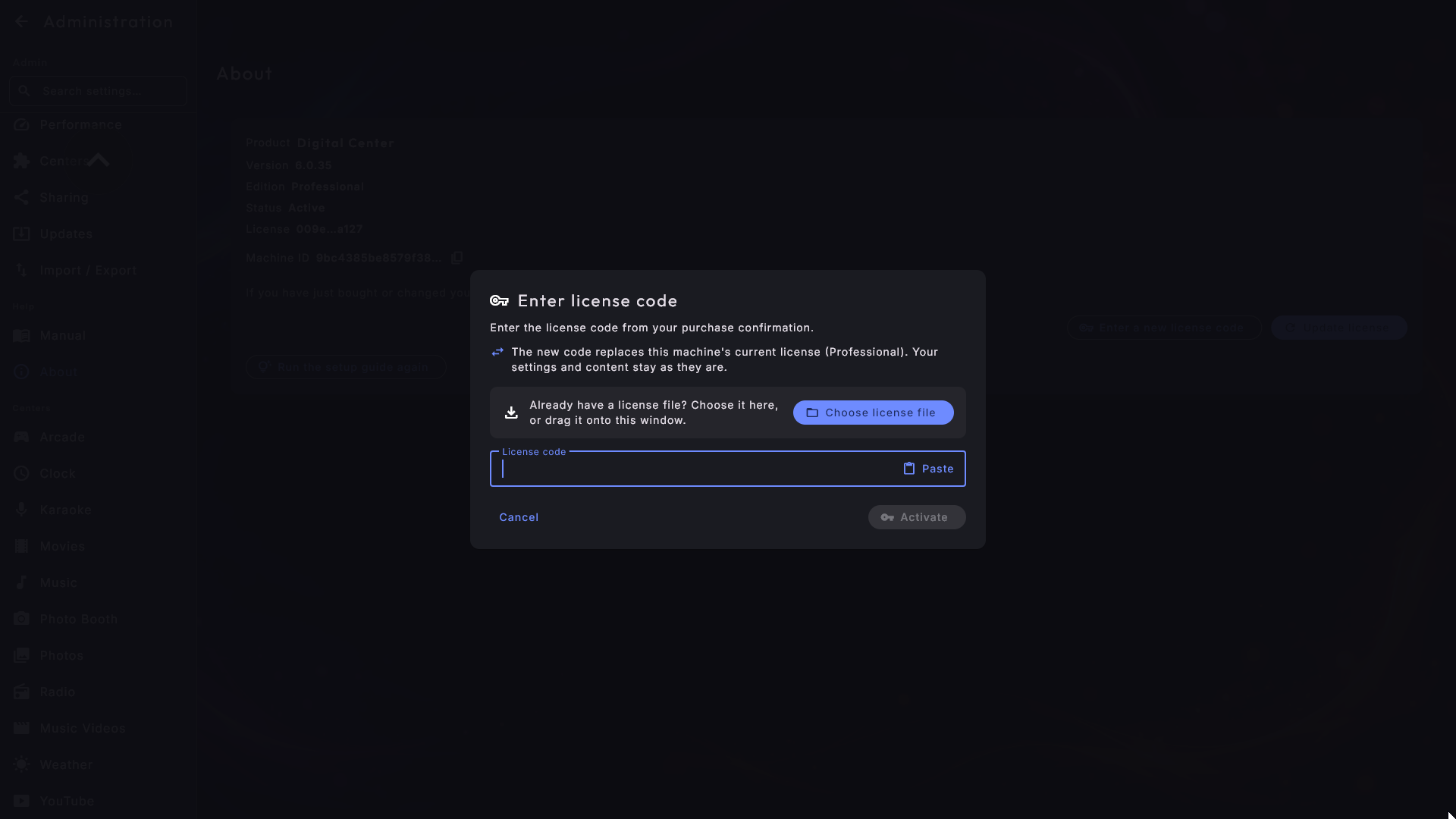
If you buy a license while the trial is still running, you can activate it right away via the Enter license code button in the trial window. So you do not have to wait for the 7 days to run out.
The trial can only be run once
If the machine is offline at the very first startup, the trial cannot begin; you are instead told to connect to the internet or activate a license. And once the 7 days are up, a real license is required to continue - the trial cannot be started over on the same machine.
When the license needs to renew
An activated machine quietly renews its license in the background, so you normally never notice anything. It does require, however, that the machine can reach the internet from time to time.
- "Connect to the internet to renew the license": If the machine cannot reach the internet for a while, and the license is about to expire, a friendly reminder is shown at the top. As soon as the machine is online again, it sorts out the rest on its own.
- "License expired" / "License needed": If the renewal does not succeed in time at all, or the machine lacks a valid license, a screen is shown asking you to connect to the internet or activate a license. The screen disappears by itself as soon as the license is in order again. If the machine has just come back online, press Update license on that screen: the license is fetched straight away instead of waiting until the next day.
- "This machine's clock is wrong": The license is judged by the machine's own clock. If the clock is wrong - for example because the machine woke up years behind after a power cut - a perfectly valid license can stop working. The screen then says so plainly: set the date and time in Windows, and the license works again.
- "The license could not be renewed": If the machine does reach the internet, but the renewal is turned down - for example because the subscription has ended or the license has been deactivated - a reminder appears at the top. Administration → About then explains what has happened and what to do about it (renew the subscription at zenpoint.org, or contact ZenPoint support), together with the date the license keeps working until.
A good tip for fixed installations
If the machine sits somewhere without a permanent network - for example in a party venue - give it access to the internet at regular intervals. Then it renews itself in good time, and you avoid reminders in the middle of a party.
Moving to a new computer
Your license runs on one computer at a time. If you replace the machine - a new PC, a fresh Windows install, or a swapped hard drive - you first release the license from the old machine yourself, then activate it on the new one. You do this from your account on the website, not on the kiosk.
- 1
Sign in to your account
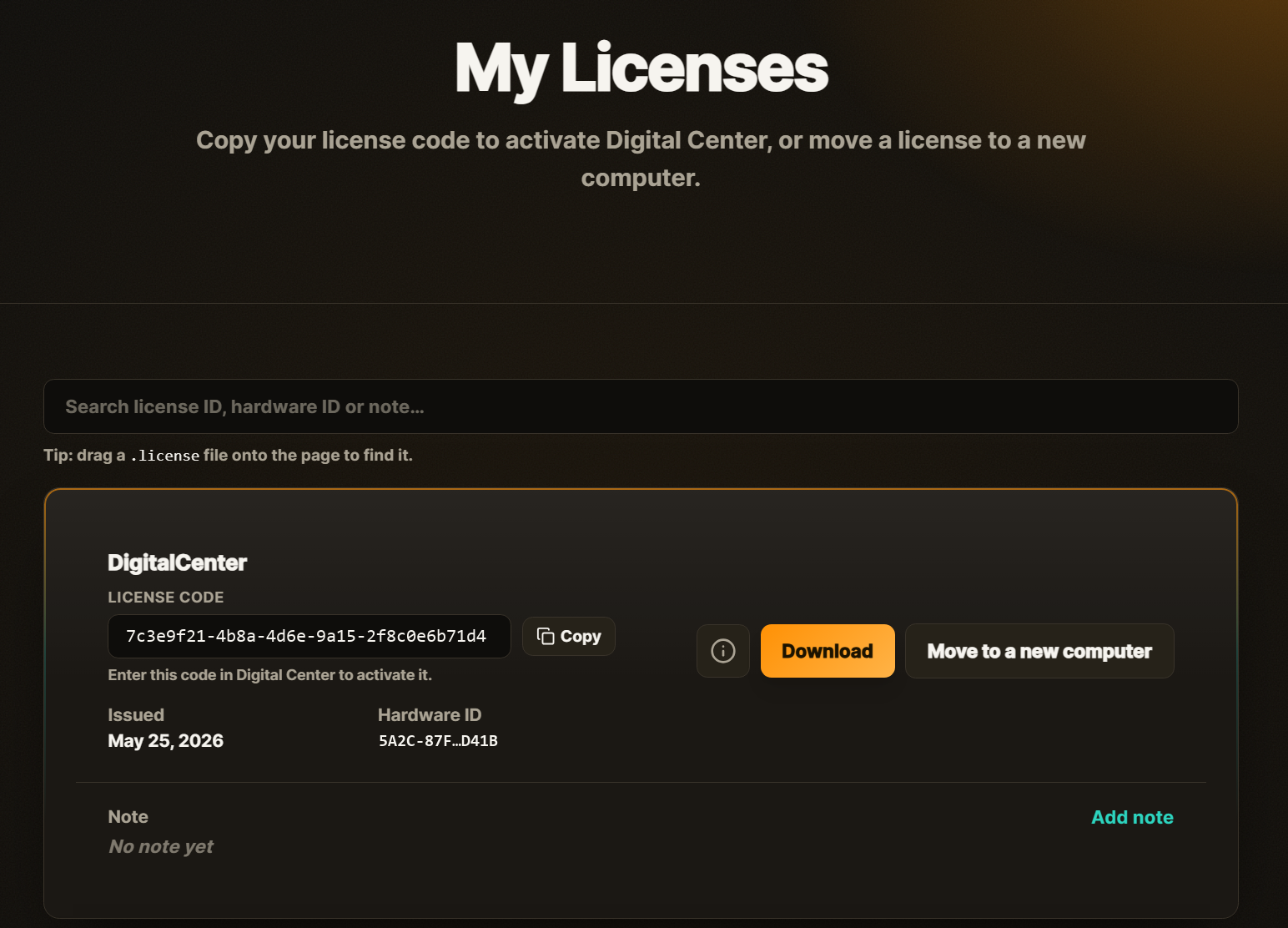
Go to zenpoint.org, sign in, and open My Licenses. Every license you own is listed with its license code.
- 2
Press Move on the right license
Find the license you want to move and press Move, then confirm. The license lets go of the old machine and is ready to activate again. Not sure which line is which? Drag your old license file onto the page and it finds the matching one for you.
- 3
Activate the new computer
Install Digital Center on the new machine and activate it exactly as the first time - with the same license file or license code (see the sections above). It binds itself to the new machine, and you are up and running.
Move it before you activate it somewhere new
A license running on one machine cannot simply be started on another. If the same license appears on a second computer without being moved first, the system may block it automatically - the safeguard that stops one license being copied onto many machines. So always move it from My Licenses before activating it somewhere new. Once a license has been blocked, Move can no longer release it - contact whoever set up your Digital Center, and they can unlock it for you again. See Maintenance & troubleshooting.
ZenPoint Media Manager follows the same license
The administration program ZenPoint Media Manager shares its license with Digital Center. It can therefore only be opened when the license is in order.
- If the license has expired or has not yet been activated, ZenPoint Media Manager shows a message about it and cannot continue. Put the license in order in Digital Center, then press Try again.
- If the program cannot reach Digital Center at all - for example if it is not running - it asks you to start Digital Center first.
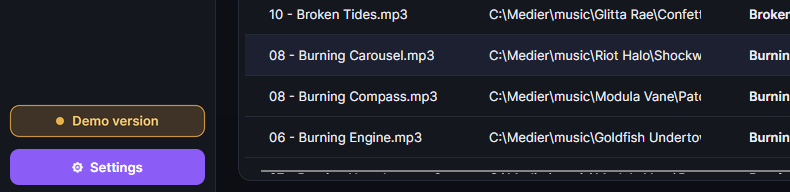
- If you are running on a trial period, ZenPoint Media Manager also shows a small "Demo version" badge, so you can always tell.
Starting and closing
Once the license is in place, everyday use is straightforward.
- Start: Open Digital Center from the shortcut. The program opens in full screen and begins with a short intro video on all active screens. When the video finishes, the front page appears.
- Switch between full screen and window: Press F12. In window mode, Digital Center becomes an ordinary program window you can move and resize. Press F12 again to return to full screen. If the machine is locked (Party Mode is on, or a paid playlist is running), F12 first asks for the admin password, so a guest with a keyboard cannot get out to the desktop. Going back to full screen never needs a password.
- Close: Close the program like any other. You can also enable two extra ways under the settings: closing with Esc from the front page, and showing an Exit button on the front page for administrators. When you close, any music, karaoke and games in progress stop automatically, and you briefly see a message that the program is shutting down.
Check how the computer is doing
If Digital Center feels slow, you can press Ctrl + D to bring up a small information window in the corner. At the very top it shows the version you are running, and below that how smoothly the picture is running and how much of the computer's resources are in use right now. The version comes along automatically when you send the log to support, so nobody has to ask you for it. Press the same shortcut again to close the window - it does not interfere with operation.
Uninstalling
When you uninstall Digital Center, you are asked whether you also want to delete your settings. Answer No (the default answer), and your settings, playlists, statistics and the license activation stay on the machine, so everything is as before if you install Digital Center again. Answer Yes, and they are deleted, and the license has to be activated again on this computer. Your own music, film and photo folders are never deleted, and neither are the Photo Booth pictures, your favorites and your games.
With the installation and the license in place, you are ready to make Digital Center your own. We look at that in the next chapter, where you choose language, appearance and the center the program should open with.