

Updated 2026-10-15 · Published 2026-07-12
How to Turn Your PC into a Coin-Operated Jukebox
Digital Center can run as a coin-operated jukebox, where guests pay to have a song played and the machine keeps strict track of every payment. This guide shows how to set it up with Credit Mode, whether you take payment through a coin acceptor or a card or mobile terminal. Credit Mode builds on Party Mode, so it helps to set up a party jukebox first. For the full overview, see the jukebox page.
Which edition you need
What you need
- A Windows PC running Digital Center Professional, with an admin password set under Administration, Users.
- Your music organized into at least one playlist.
- A payment device: either a coin acceptor wired to send a key press or click, or a card or mobile payment terminal.
Step 1: Make a playlist paid
- 1
Open the playlist
Go to Administration, Playlists and pick the list guests will pay from. - 2
Turn on Requires payment
In the list's settings, the Payment block is the last one. Switch Requires payment on and confirm. Other lists stay free to add to.
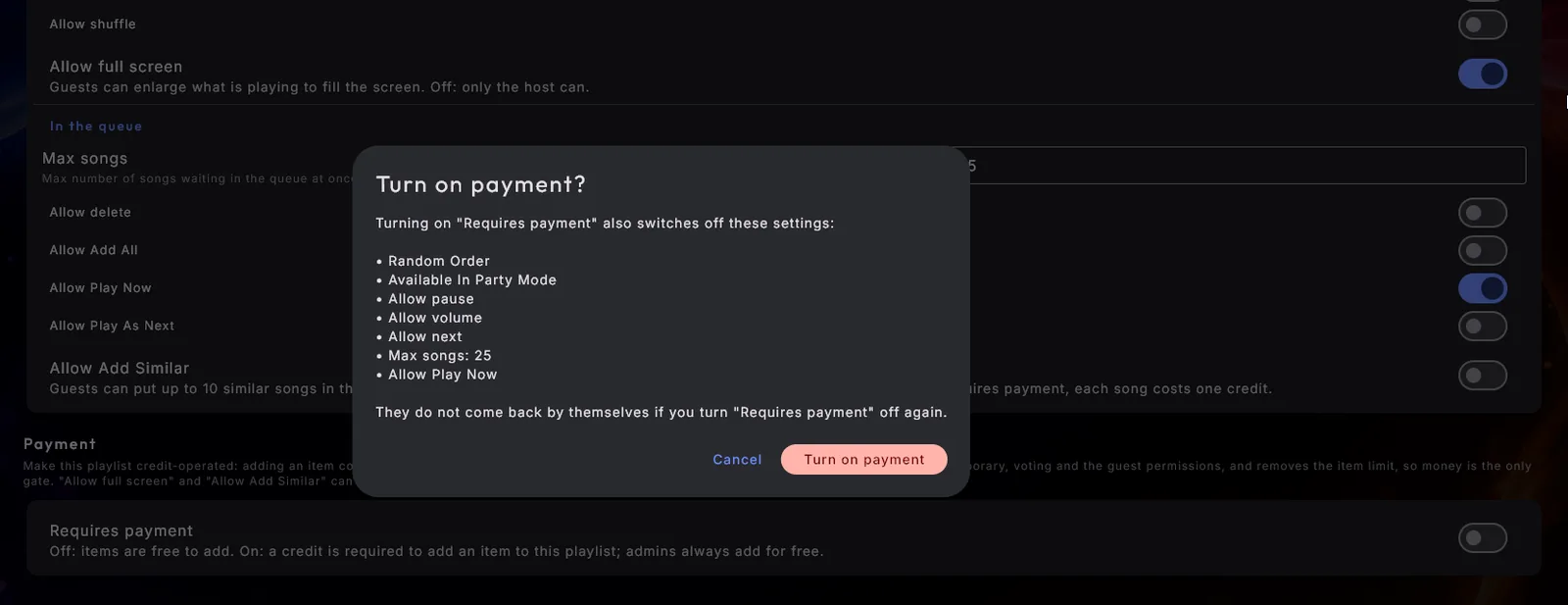
A paid list locks itself down
Step 2: Set how much a payment is worth
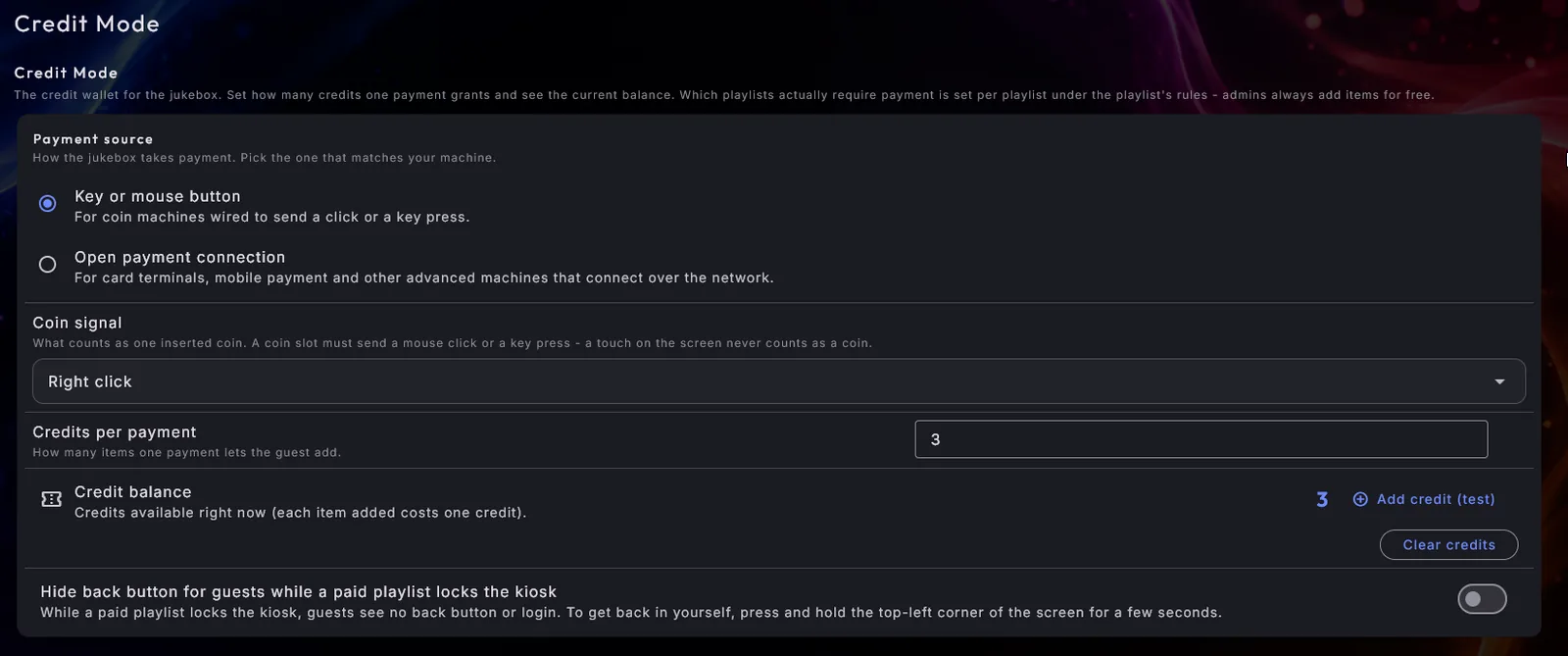
Open Administration, Credit Mode. Set Credits per payment - how many songs one payment buys. By default one payment is worth three songs; set it to 1 for one song per payment. Adding a song always costs one credit, and the machine keeps a single shared balance.
Step 3: Choose your payment source
You pick one of two.
A coin acceptor (a button or a key)
- 1
Select the input trigger
In Administration, Credit Mode, set Payment source to Key or mouse button. - 2
Pick the signal
Choose whether a coin registers on a right-click, a middle-click or a key. For a key, press the exact key your coin acceptor sends, so the machine learns it. - 3
Test it
Trigger the coin acceptor once and watch the credit counter climb to confirm it is wired correctly.
A card or mobile terminal
- 1
Select the open connection
In Administration, Credit Mode, set Payment source to Open payment connection. The screen shows an address and a key, plus a short description you can hand to the technician who connects your payment machine. - 2
Hand them to your device
Give the address and key to your payment machine. When it takes a payment, it reports it and the guest is granted credit. Generate a new key any time to revoke access.
Test with a real payment first
Step 4: Open for business
Select the paid playlist. The machine locks into a payment terminal with a large on-screen credit counter, and guests pay to queue songs. Paid songs survive a restart, so if the power drops the machine starts back up as the same locked terminal and keeps the paid queue. As administrator you can always add songs for free, and only your administrator password unlocks the machine again.

Make it look like yours
See everything the jukebox can do on the jukebox and rental page, or read the manual.
Ready to try it yourself?
Download Digital Center and try every feature free for 7 days. When you are happy, it is a one-time purchase - no subscription.