


Retro games
Retro Arcade Software for Windows
Your own classic games on a wall of covers, right next to the music. Tap one and play.
- Free 7-day trial
- Controller support
- Software for Windows 10/11
How it works
Play your retro arcade games on a Windows PC or TV, from a beautiful cover wall, with saved progress, high scores and controller support. The Arcade is one of the thirteen centers built into Digital Center.
- Digital Center includes a built-in Arcade that brings your retro games to a TV or touchscreen.
- Bring your own games - two free demo games are included to get you started.
- Games appear as a cover wall and play in full screen.
- In-game saves and high scores are kept, and you can also turn on saving exactly where you stopped.
- Controllers are supported, and everything else pauses automatically while you play, so the Arcade sits right alongside your music, movies and karaoke on the same home screen.
A cover wall of your games
Saved progress, high scores and controllers
Part of the whole media center
Arcade
Insert coin.
The arcade is back in the room.
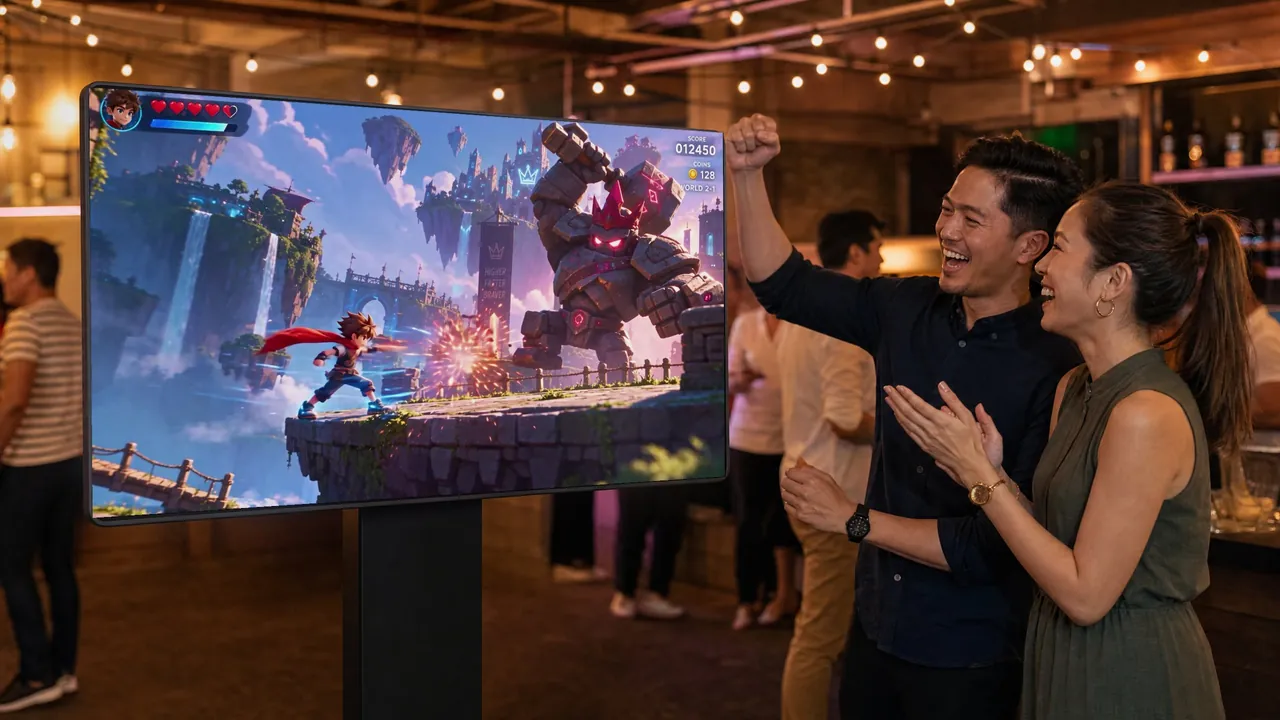
Your classic games, right next to the music. Pick one with a tap, then play with a keyboard or a controller.
The games are your own. Put them in a folder, and they line up on the screen with their covers, like your albums.
Arcade comes with Home and Professional. A Room screen does not have it.
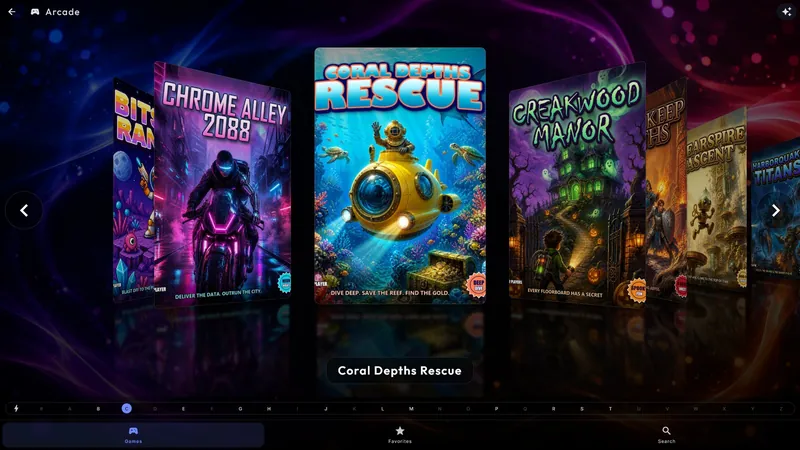
Every game has a cover.
Browse your games like your albums, with the same cover effects.
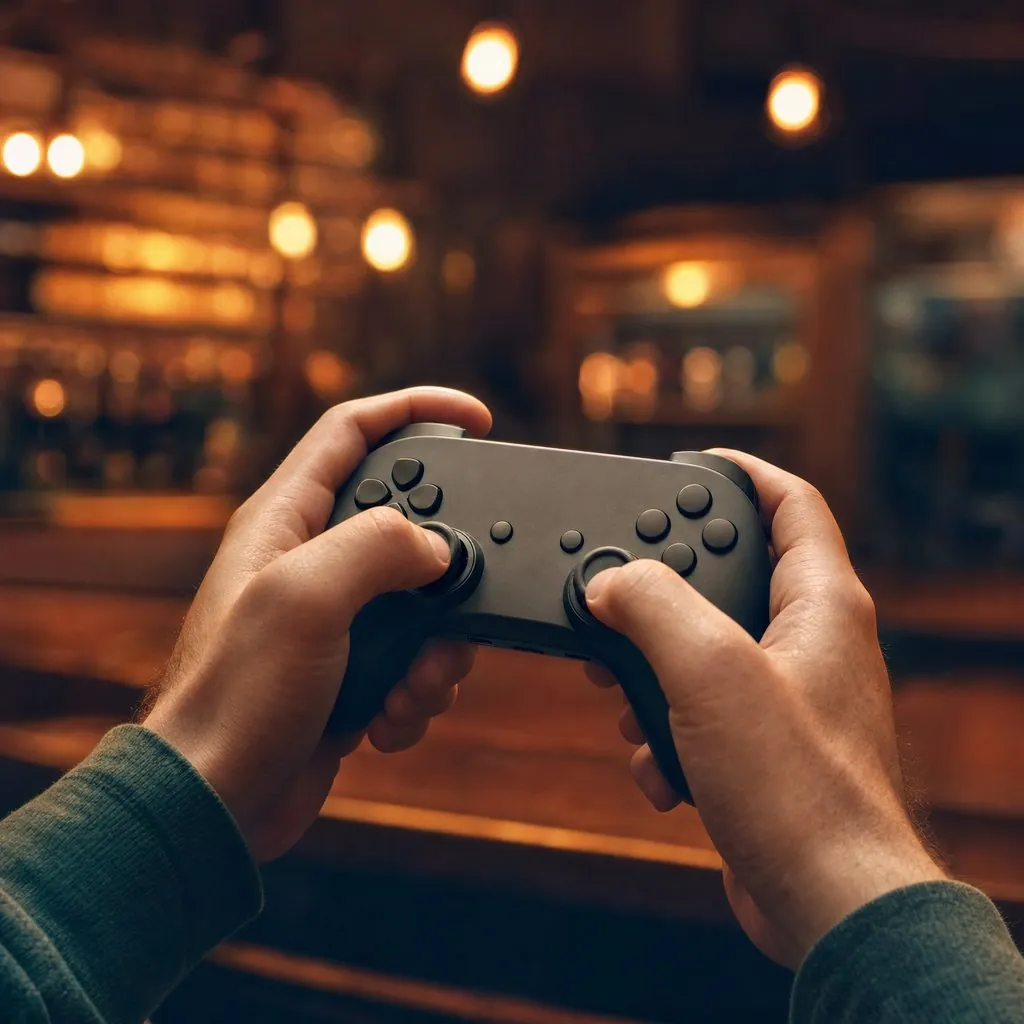
Bring a controller.
Plug one in and play. You decide which button does what.
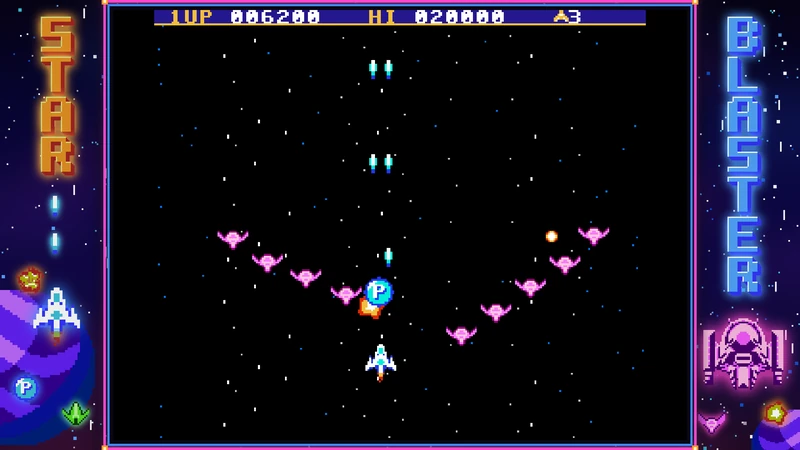
A frame for every game.
Give each game its own border around the picture.
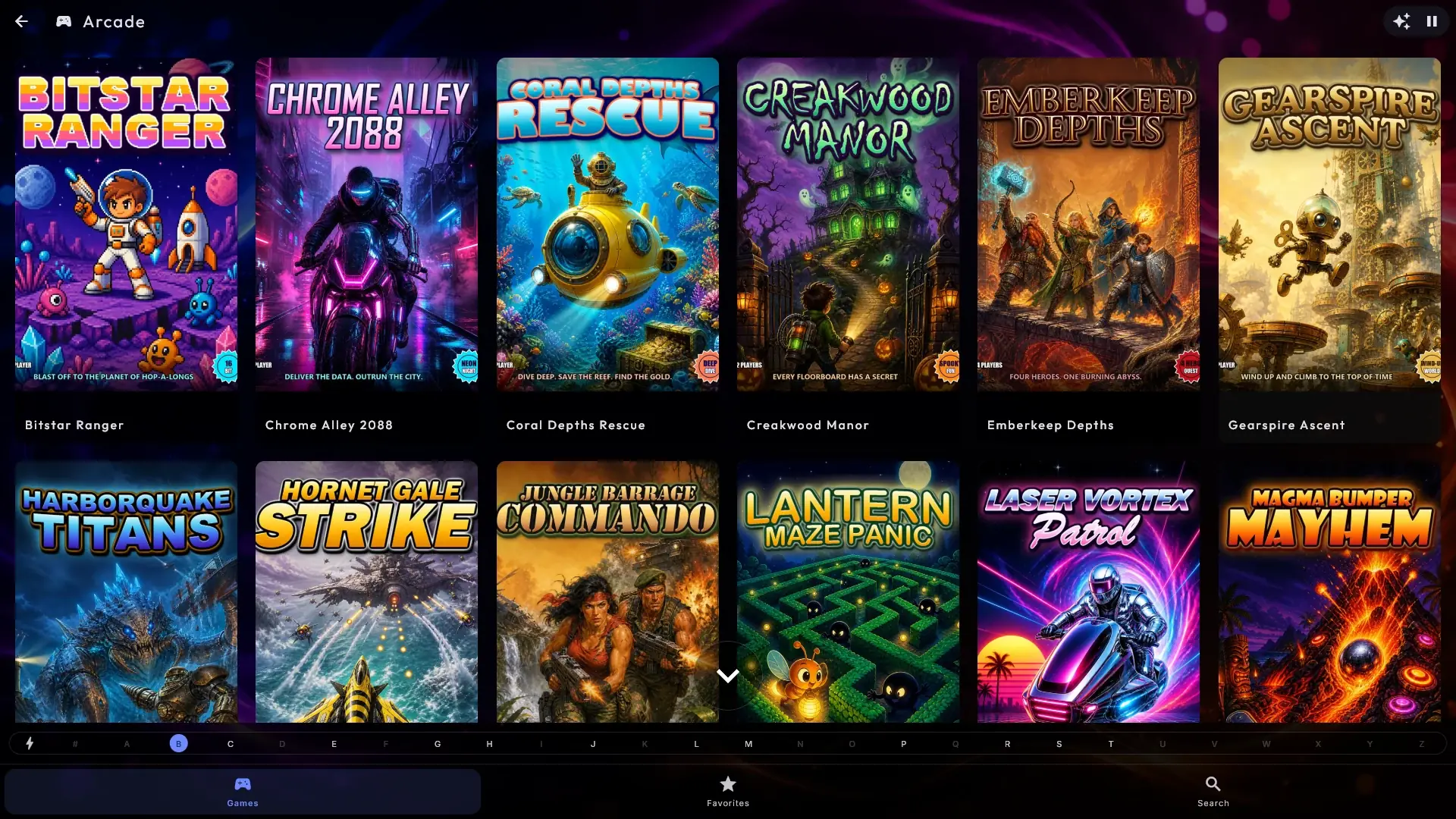
A cover wall of games
Your games are shown with cover images, just like albums, and with the same browse effects as the rest of the home screen. Tap a game to start it - any music that was playing pauses by itself and picks up again when you leave. If you have not added any games yet, Arcade shows a short guide on how to add them instead of an empty page.
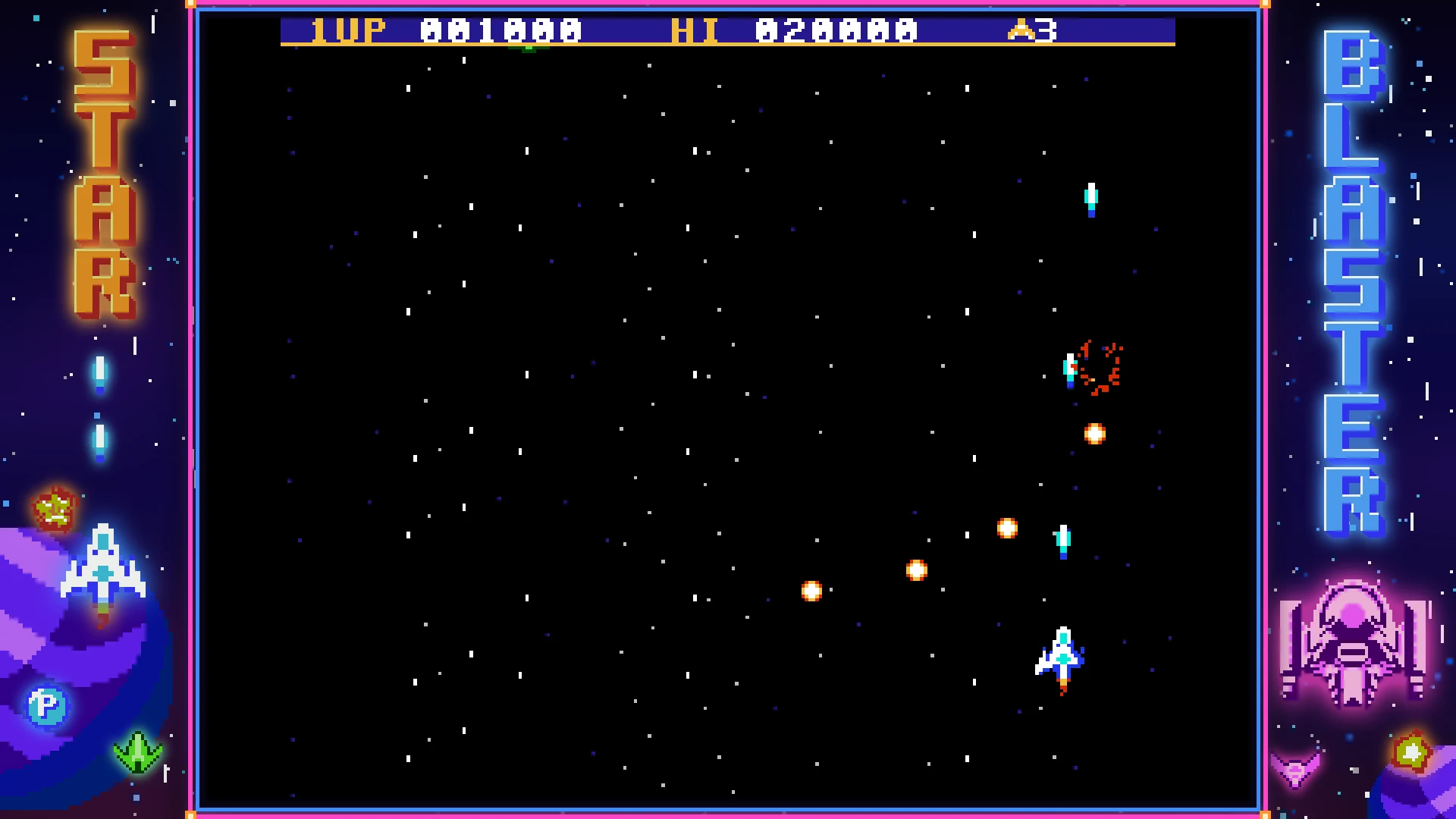
Save states, high scores and controllers
While you play you can save and load game states, adjust the volume and go full screen. High scores and progress are remembered between sessions. The default controls are the arrow keys plus a Back button, and an administrator can re-map every game button under Setup. Without a keyboard, move the mouse or touch the screen and a Back button appears in the top-left corner for a few seconds.
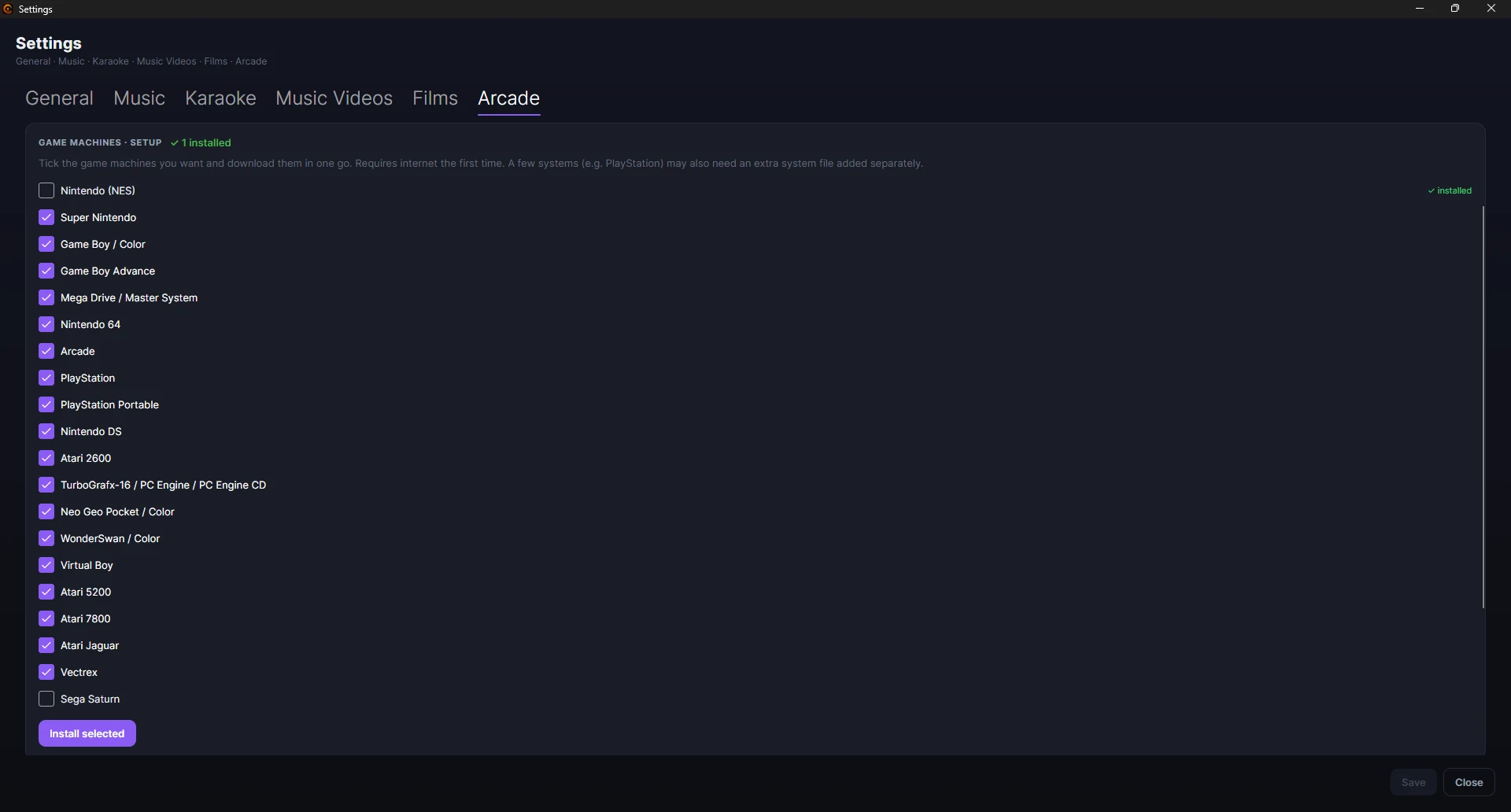
Install the emulators in one click
Only have ROM files and no emulator? You get the emulator cores straight from ZenPoint Media Manager. Open its Settings, choose the systems you want, and Digital Center downloads the matching cores for you - one click, no administrator rights, and internet needed only the once. A scanned game whose system is installed then shows up as "core ready" and is ready to play.
- Pick from a ready-made list of systems: NES, Super Nintendo, Game Boy / Color, Game Boy Advance, Mega Drive / Master System, Nintendo 64, Arcade, PlayStation, PSP, Nintendo DS, Atari 2600 and TurboGrafx-16
- One click - no administrator rights required
- Internet is only needed once, while it downloads
Perfect for
Home game rooms
Man caves & dens
Parties
Bars & arcades
Frequently asked questions
How do I add games?
You point the Arcade center at the folders where your games live, exactly as you do for music or films. Until you have added any, Arcade shows a short guide on how to get started instead of an empty page.
Can I use a controller?
Yes. Digital Center is controlled with mouse, touch, keyboard or a gamepad, and an administrator can re-map every game button to the key of their choice.
I only have ROM files - do I have to find emulators myself?
No. Open ZenPoint Media Manager's Settings, tick the systems you want, and the matching emulator cores download in one click - no administrator rights, and internet is only needed the once. A game whose system is installed then shows as "core ready" and is ready to play.
Which systems can it play?
You can install cores for NES, Super Nintendo, Game Boy and Game Boy Advance, Mega Drive and Master System, Nintendo 64, arcade, PlayStation, PSP, Nintendo DS, Atari 2600 and TurboGrafx-16, so most classic collections are covered.
Does it remember my high scores and where I stopped?
Yes. In-game saves and high scores are kept. Turn on saving where you stopped in the settings, and you can pick a game back up exactly where you left it.
Ready to play?
Download the free 7-day trial and bring your retro games to the big screen.