

Updated 2026-10-15 · Published 2026-07-12
How to Set Up a Party Jukebox with Phone Control
Digital Center can run as a locked jukebox that your guests control from their own phones, with nothing to install. This guide walks through setting it up for a party: locking the system so nobody wanders into your settings, and letting guests scan a code to queue songs from where they are sitting. For the full feature overview, see the jukebox page.
Which edition you need
What you need
- A Windows PC and a screen or TV (a touchscreen is ideal).
- Digital Center installed and pointed at your music.
- The PC and your guests' phones on the same WiFi network.
Step 1: Turn on Party Mode
- 1
Set two passwords
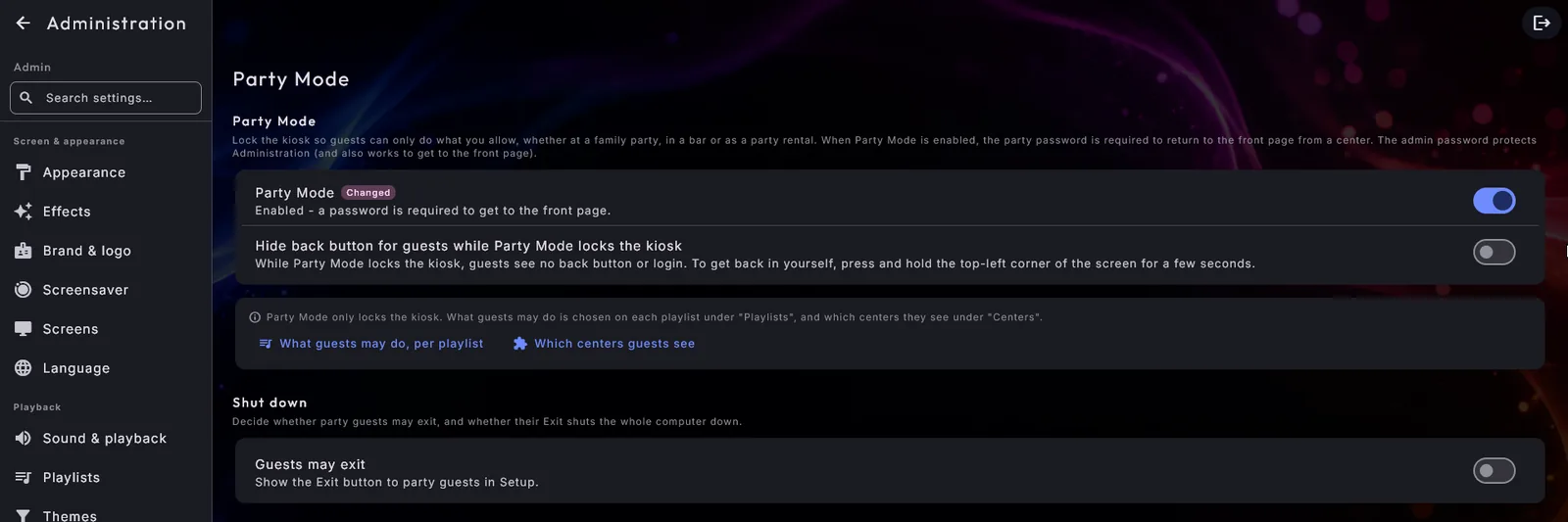
Go to Administration and open Users. Set the Party password (the one you hand out to guests, if they may reach the front page) and the Admin password (yours alone, the master key to your settings). - 2
Switch Party Mode on
Open Party Mode in the same menu and switch it on. The system now tells guests and administrators apart, and a password is needed to get to the front page. - 3
Choose the auto-logout time
Pick how long the system may sit idle before it logs the current guest out on its own and returns to the locked state, so the jukebox is never left wide open.
Passwords can never be empty
Step 2: Set the rules for your guests
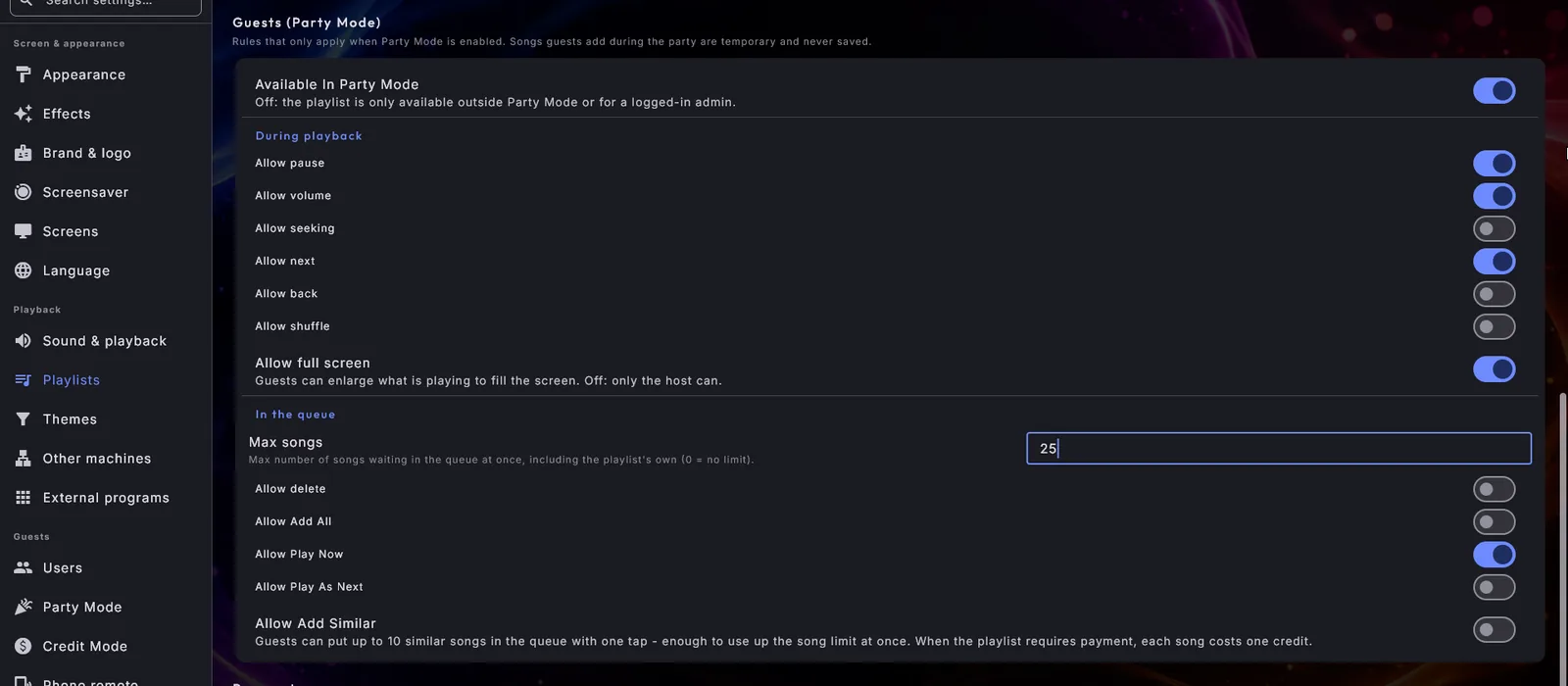
Party Mode only locks the kiosk. What guests may do is set on each playlist: go to Administration, Playlists, pick the playlist, and turn on Available In Party Mode. The guest rules below it then come alive:
- Allow or block pause, volume, seeking, delete, next, back and shuffle.
- Set Max songs - the most songs that may wait in the queue at once - so the queue never grows hours long.
- Mark a playlist as temporary, so songs guests add clear automatically when the system restarts.
Guest additions are always temporary
Step 3: Turn on phone control
Phone remote control is on by default. If it has been switched off, go to Administration, Phone remote and turn on Phone remote control. On the same page you can also choose Show the remote on the front page, which puts the code on its own tile on the home screen.
- 1
Same WiFi
Make sure the kiosk and your guests' phones are on the same wireless network - the phone and the screen talk directly over that network. - 2
Show the code
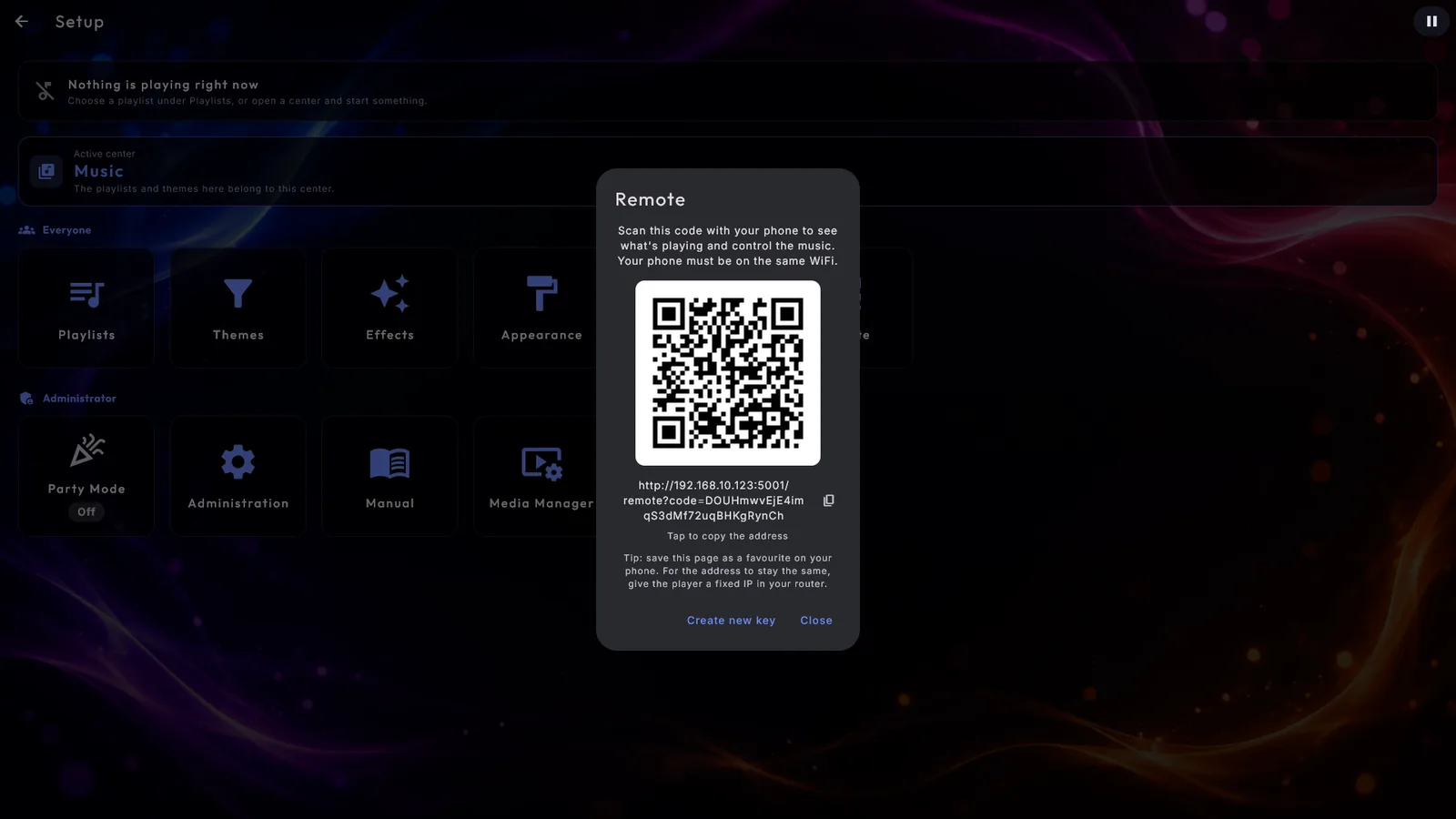
On the front page, open the Setup tile and choose Remote. A scannable code appears, with a built-in access key created for you automatically. - 3
Let guests scan
Guests scan the code with their phone camera. A jukebox page opens right in the browser - nothing to install.
The code is never your password
Step 4: Let guests queue from their phones
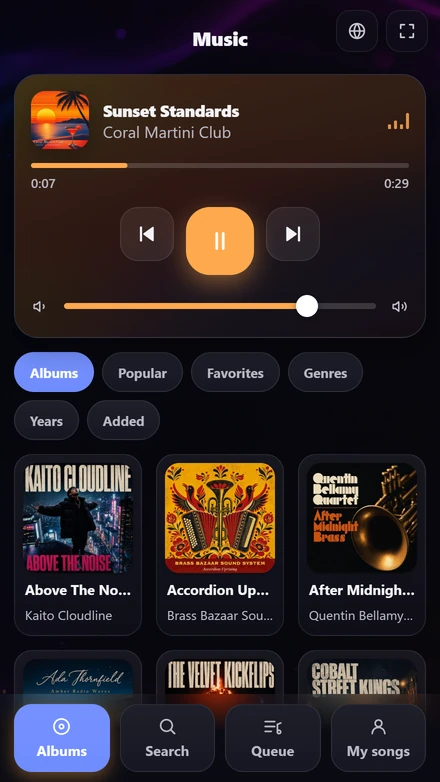
The phone always follows the big screen: it shows whatever center you have open. In a music, karaoke, video or movie center the phone becomes a proper jukebox remote - guests browse, search and queue songs, see what is playing, and manage the queue, all within the rules you set. The same rules apply on the phone as at the screen.
Step 5: End the night cleanly
When the party is over, open Setup, Remote and choose Create new key. Every phone that scanned the old code stops working immediately - a clean way to lock out the room without changing any password.
Pin it to one center
For a wedding or party where the phones are the main way to pick songs, see how to let guests request songs from their phone.
Read more on the jukebox and rental page, or in the manual.
Ready to try it yourself?
Download Digital Center and try every feature free for 7 days. When you are happy, it is a one-time purchase - no subscription.