

Updated 2026-10-15 · Published 2026-07-12
How to Play Retro Games on Your TV from a Windows PC
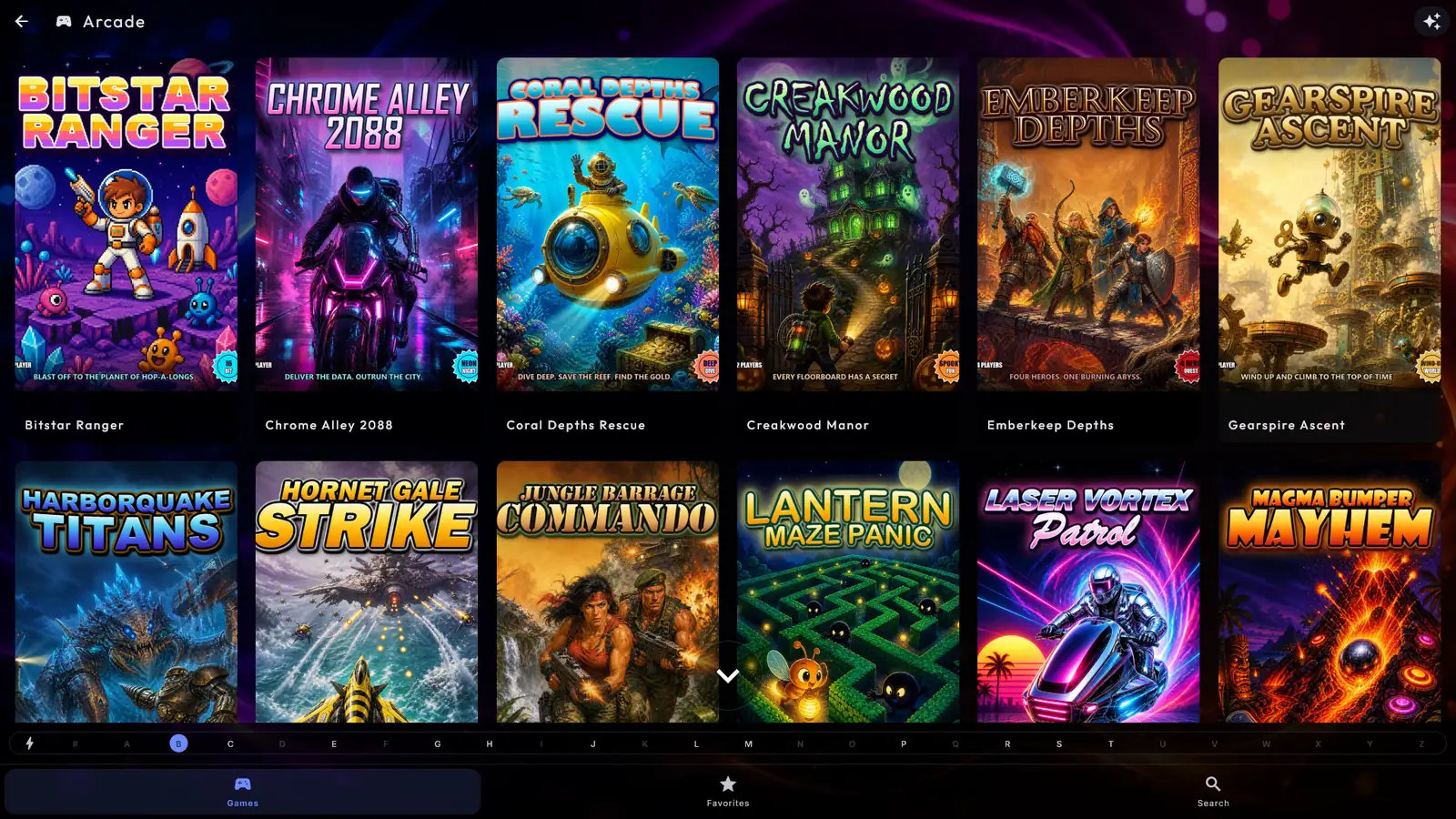
Digital Center includes a built-in Arcade that brings retro games to your TV, right alongside your music, films and karaoke. You browse your games as a wall of box covers, pick one with a controller from the sofa, and it plays in full screen. This guide shows how to get started - from the two demo games that come with Digital Center to your own collection. For the full overview, see the retro games page.
Which edition you need
What you need
- A Windows PC running Digital Center, connected to your TV.
- A game controller (recommended). The keyboard works too.
- An internet connection the first time, to fetch the game player for Nintendo games.
- Later: your own games, in a folder on the PC or a network drive.
Step 1: Start with the two demo games
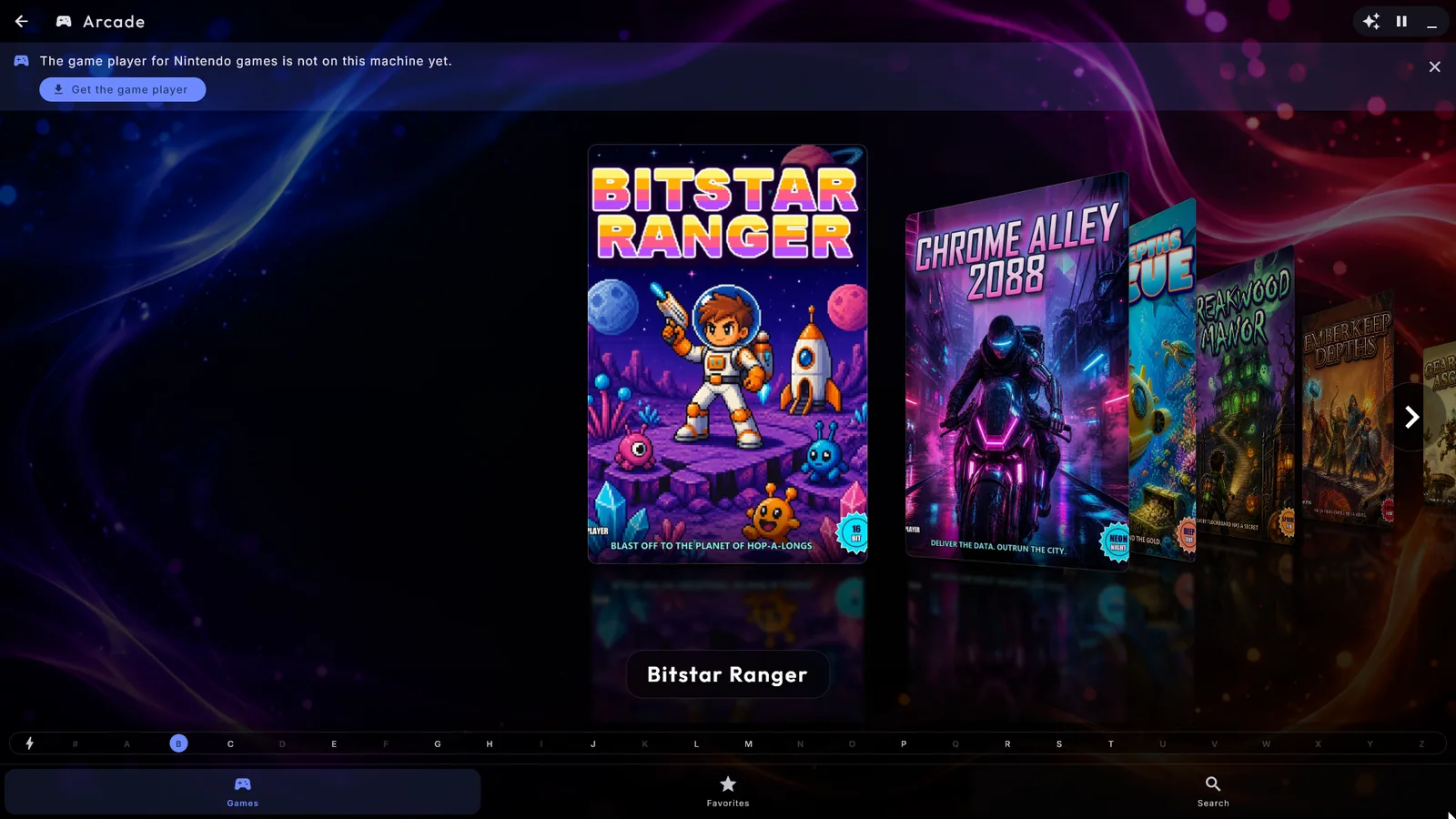
You do not need any games of your own to try the Arcade. Two demo games made by us, Star Blaster and Glowbug, come with Digital Center, complete with covers and frames. Open the Arcade center on the home screen and they are already there.
Both demo games are Nintendo games, and Nintendo games need a game player. The game player is not part of Digital Center itself - the machine fetches it from the internet with one click the first time you ask for it. You can do that in three places:
- In the setup guide that runs after a fresh installation: the Games step asks "Do you also want to play games on Digital Center?" - choose Yes, get the game player.
- In Administration, Arcade, under Game player for Nintendo games: choose Get the game player.
- When you start a Nintendo game without the player: the Arcade offers to get it right there (while the kiosk is unlocked).
The download runs in the background and you can carry on meanwhile. When it is ready, the games start - no restart needed.
Step 2: Connect a controller
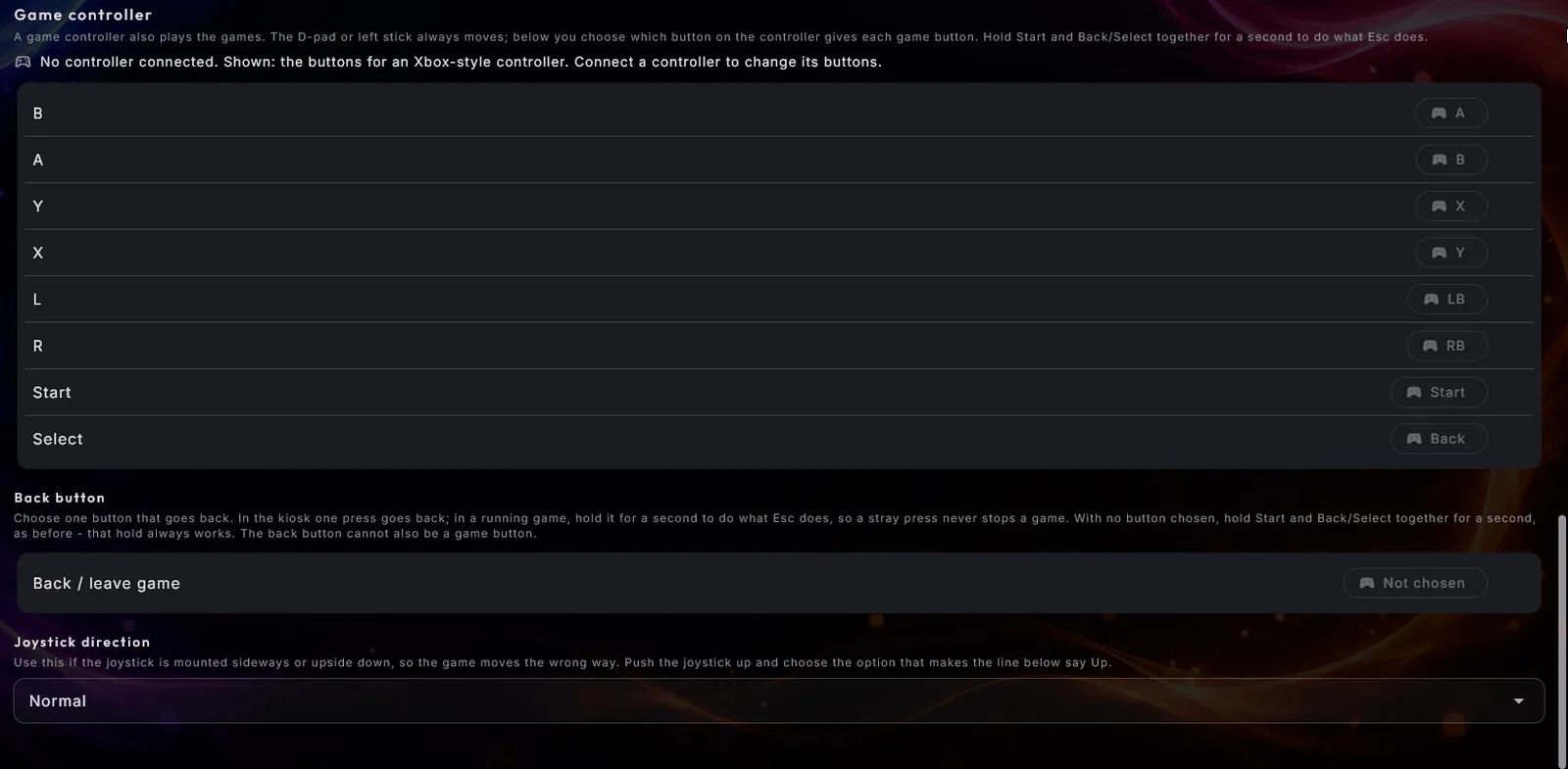
Plug in a game controller. The Arcade works with common Windows controllers, including the kind with an Xbox-style layout and ordinary USB gamepads. The D-pad or left stick always moves. In Administration, Arcade, under Game controls, you choose which controller button does what - press the button on the controller and it is assigned. You can also set which keyboard keys play the games, and pick one controller button that takes you back.
Leaving a game
Step 3: Add your own games
The Arcade plays the games you already own. Digital Center does not include or sell games, apart from the two demo games, so only add games you have the right to play.
- 1
Open Administration
On the front page, open the Setup tile and choose Administration. - 2
Pick the Arcade center
In the menu, choose Arcade. - 3
Add your game folders
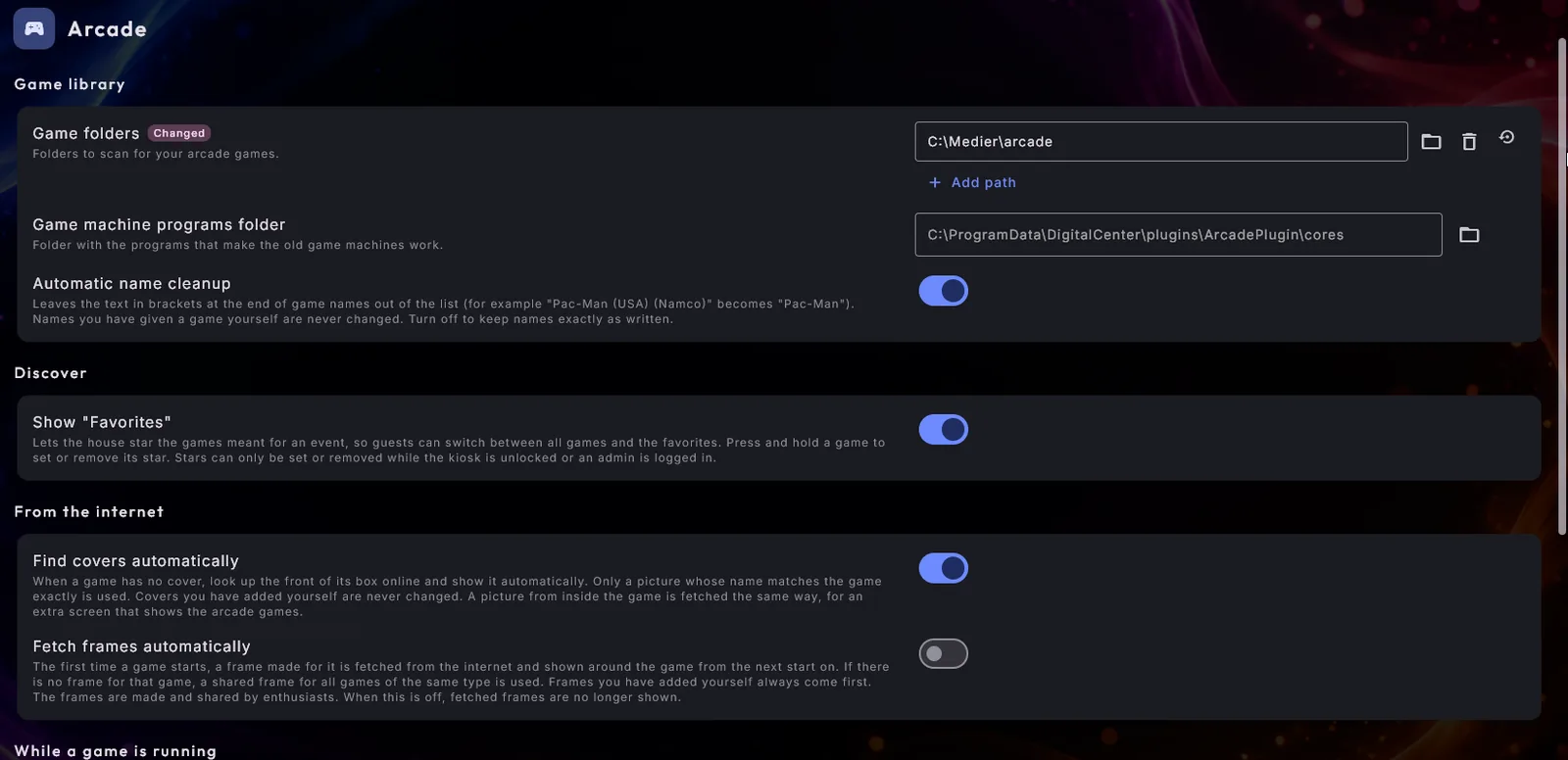
Under Game folders, add the folder that holds your games. A folder picker opens inside the app, so you can browse your drives right on the screen. You can add several folders and they merge into one library.
New games you drop into a watched folder appear on their own. The Arcade recognises which system each game belongs to and cleans up long file names into readable titles (Automatic name cleanup).
Step 4: Covers and frames
A cover wall is only fun with covers. With Find covers automatically (on by default), the Arcade fetches the box art for a game that has none, but only when the name is an exact match for that game on that system - it never guesses. A cover you put next to the game yourself always wins.
Many retro games were made for a square-ish screen, which leaves empty sides on a wide TV. Show a frame around the game fills them with artwork around the picture, the way an arcade cabinet looks. Turn on Fetch frames automatically to have the Arcade find a frame for each game you start, or add your own frame pictures. If you prefer no frame, Fill the empty edges softly fills the sides instead.
Step 5: Saves and high scores
In-game saves - the progress a game saves by itself, and the high scores many arcade games keep - are always kept between sessions.
If you also want each game to resume exactly where you left it, turn on Save where the game got to in Administration, Arcade. It is off by default. With it on, you can also choose when that saved spot is deleted again with Auto-delete the saved game - for example after a restart, a day or a week, which is handy when a new group of guests should start fresh.
Step 6: Play from the sofa
Open the Arcade center and browse your games with the controller: the arrows move through the cover wall, and Start or the bottom button opens a game. The bottom menu has Games, Favorites and Search. Press and hold a cover to give it a star, so the games for tonight are one tap away. When you start a game, other playback pauses, unless you turn on Let the music keep playing during games.
Part of the whole media center
See more on the retro games page, or read the manual.
Ready to try it yourself?
Download Digital Center and try every feature free for 7 days. When you are happy, it is a one-time purchase - no subscription.