

Updated 2026-10-15 · Published 2026-07-12
How to Make a Karaoke Version of Any Song (Remove Vocals + Synced Lyrics)
You do not need special karaoke files to sing along in Digital Center. With ZenPoint Media Manager - the companion app that comes with Digital Center and shares its license - you can turn an ordinary song into a proper karaoke song: the lyrics, a backing track with the singing taken out, and word-by-word timing so the words light up as they are sung. This guide walks through the four steps. For the full overview, see the karaoke page.
Which edition you need
What you need
- Digital Center installed. ZenPoint Media Manager installs together with it.
- The song you want to sing, for example an MP3 from your own collection.
- An internet connection the first time, so the karaoke tools can be set up, and for finding lyrics.
Step 1: Put the song in your karaoke folder
Digital Center and Media Manager share the same library folders. In Digital Center, go to Administration, Karaoke and look at Folders with karaoke tracks. Copy the song into one of those folders (or add a new folder there). Then open ZenPoint Media Manager - from the Media Manager tile in Setup on the front page, or from the Windows Start menu - and choose the Karaoke tab. Your song is in the list.
The first time you use the karaoke tools, a one-time, one-click setup fetches what they need. You can also start it yourself under Settings, Karaoke, Install karaoke tools.
Step 2: Follow "Getting the song ready"
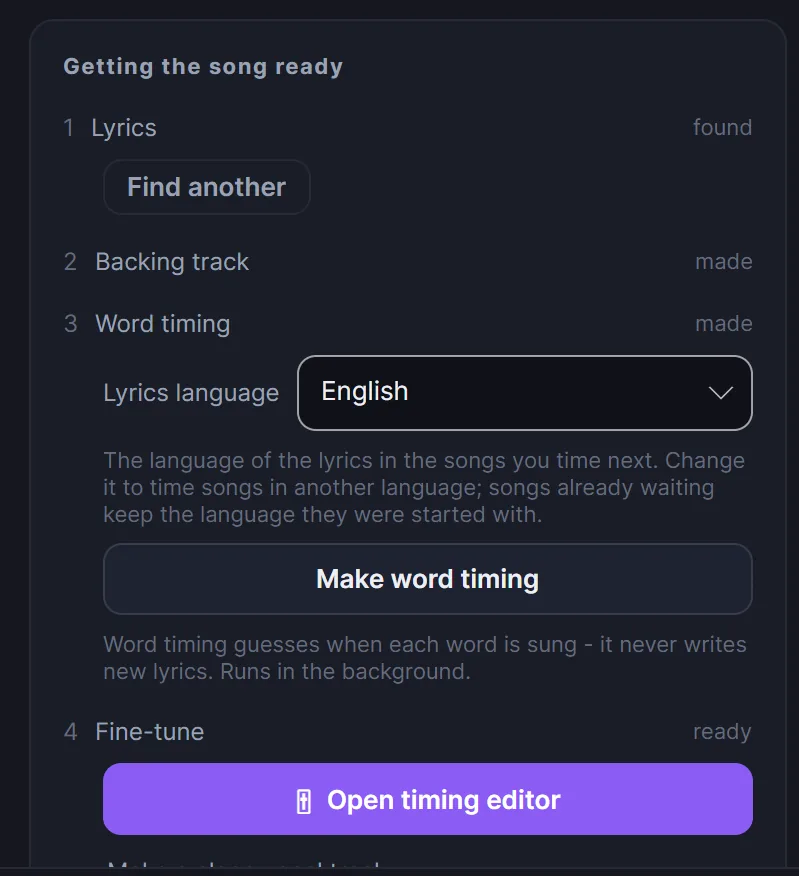
Select the song. Media Manager shows a small checklist called Getting the song ready with four steps - Lyrics, Backing track, Word timing and Fine-tune - and marks each one as done or not done yet. Work through them from the top. Everything runs quietly in the background while you carry on.
Step 3: Find the lyrics
Word timing needs words to time, so lyrics come first. You have three ways:
- Find lyrics - Media Manager searches online for the song's lyrics and lets you pick the ones that match. Fetch lyrics for all does the same for every selected song, keeps only confident matches, and lets you review them before you save.
- Paste them yourself - open the lyrics editor and paste or type the text.
- Let Digital Center fetch them - in Digital Center, Administration, Karaoke, turn on Fetch missing lyrics automatically. It only takes lyrics that are already timed line by line and verified to match the song, and it never overwrites lyrics you already have. It is off by default.
Timing never invents words
Step 4: Make the backing track
Choose Remove vocals. Media Manager listens to the song and makes a backing track with the singing taken out, saved next to the original. Your original file is never changed. Under Method you can choose Take out all singing, or - on a PC with an NVIDIA graphics card, after a separate one-time install in Settings, Karaoke - Keep backing vocals and harmonies, which takes longer but keeps the choir parts that make many songs fun to sing over.
You can do one song or every song still missing a backing track in one go. For the whole story, see how to remove vocals from any song.
Step 5: Make the word timing
Choose Make word timing. Media Manager listens to the singing, works out exactly when each word is sung, and saves the timing with the song. If the song is in another language than the last one, set the Lyrics language first. Making the backing track before the timing makes this step quicker.
Step 6: Fine-tune (optional)
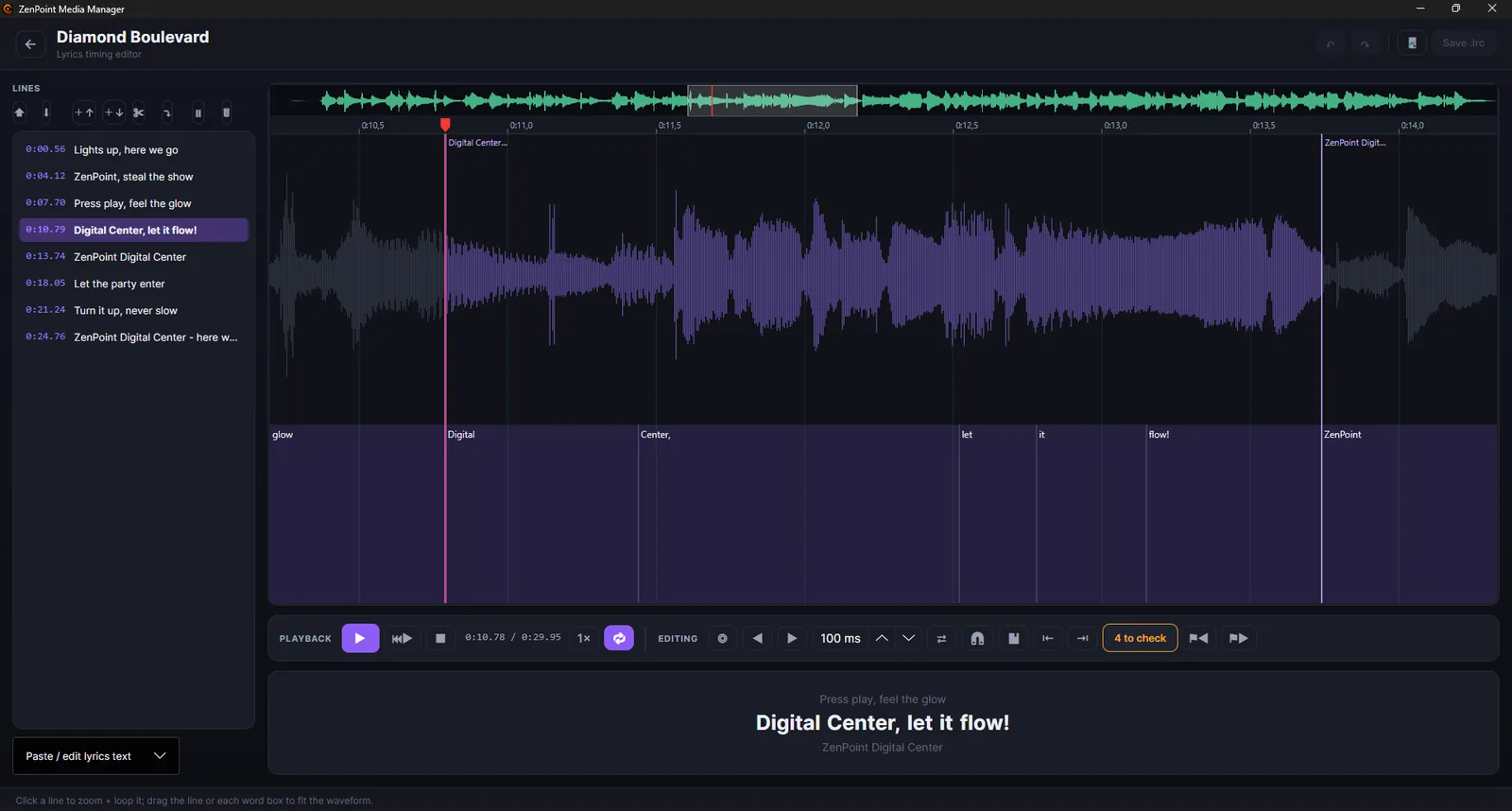
Want a song to be perfect? Open the timing editor. It shows the song as a waveform with the words laid out along it and a playhead, so you can shape the timing by eye and by ear.
- Play and loop the line you are working on while you adjust.
- Drag the edges of a word to make it start or end a touch earlier or later.
- Tap along to the beat, nudge words either way, and split a word in two.
- Move every line at once, when lyrics found online are a little off all the way through.
- Insert a pause so the screen clears during long instrumental breaks.
Nothing is lost
Step 7: Sing on the big screen
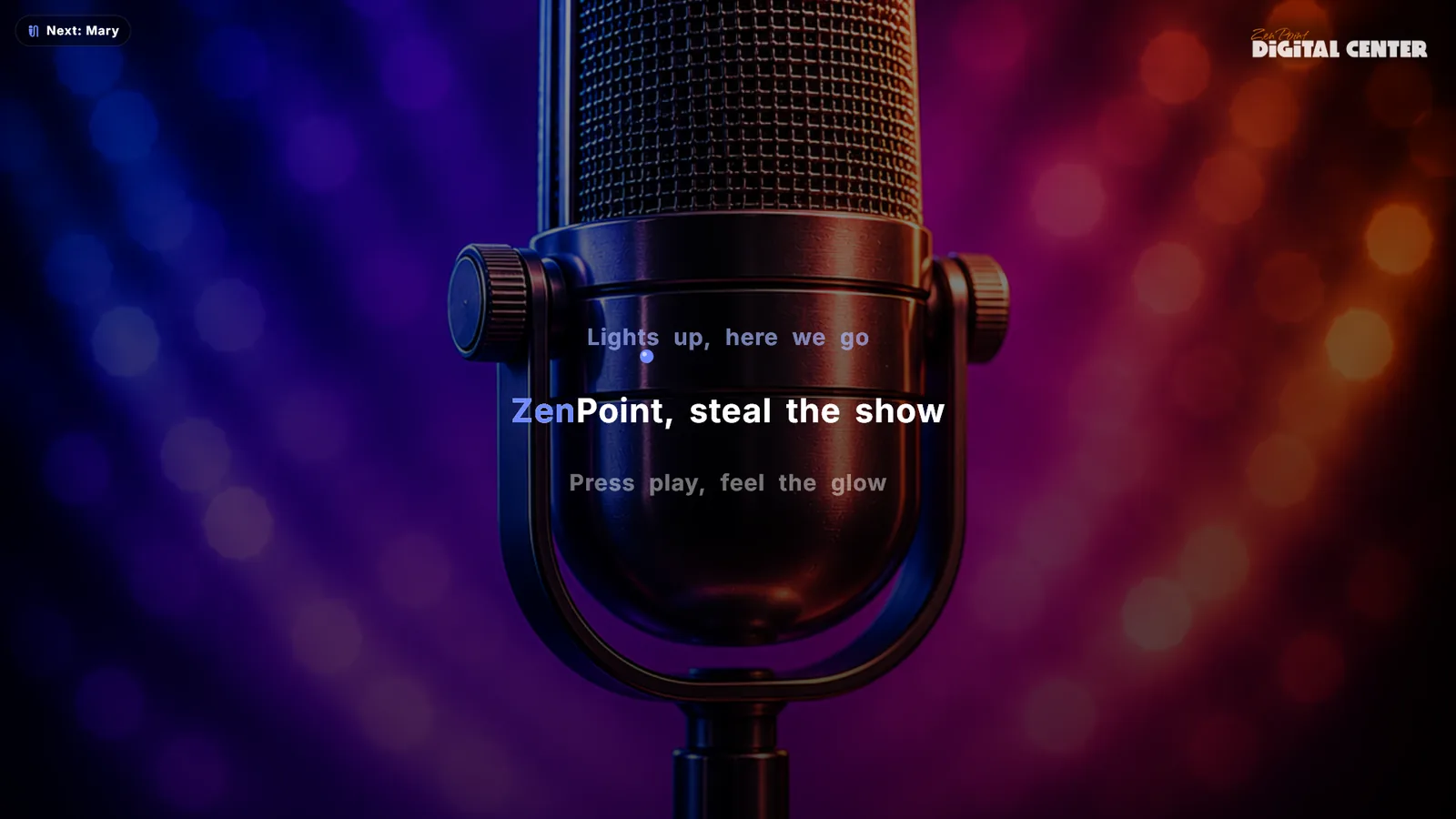
Your new karaoke song appears in Digital Center automatically, usually within moments. Open the Karaoke center and sing along: the words light up as they are sung, and the singer can switch between the original and the backing track while the song plays, or change the key and tempo to suit their voice.
Want to keep the performance? Karaoke recording lets each singer take their song home on their phone - see the home karaoke setup guide. For a party, add the song to a party jukebox so guests can queue karaoke from their phones.
Read more on the karaoke page and the Media Manager page.
Ready to try it yourself?
Download Digital Center and try every feature free for 7 days. When you are happy, it is a one-time purchase - no subscription.