

Published 2026-10-15
How to Add Synced Lyrics to Your Music on Windows
Synced lyrics turn an ordinary music library into a sing-along. Instead of a cover and a title, the screen shows the words of the song scrolling in time with the music, with the line being sung right now lit up, so everyone in the room can join in. Digital Center does this in the Music center, on the screensaver and in the full-screen player, and it can use lyrics you already have, lyrics it finds online, or lyrics you pick and adjust yourself in ZenPoint Media Manager. This guide shows each way, step by step. For the bigger picture, see the Music center.
Which edition you need
What synced lyrics are
A synced lyrics file is a small text file that holds the words of a song, with a time on every line. That time is what lets the words follow the music: line three appears exactly when line three is sung. The common file type for this ends in .lrc, and it is what most people mean when they search for "synced lyrics". You never have to edit it by hand.
There are two levels of timing:
- Line by line - every line has a time. This is what the Music center uses: the whole line lights up when it is sung.
- Word by word - every single word has a time. This is what karaoke uses, with the words lighting up one at a time.
A file with word timing still works in the Music center, which simply shows it line by line. So one lyrics file can serve both centers.
What you need
- A Windows PC with Digital Center installed and your music folders set up under Administration, Music, Music folders.
- An internet connection if you want lyrics to be looked up online. Lyrics you already have work without it.
- A TV or screen the room can see, if the point is singing along.
Step 1: Turn on lyrics on the screen
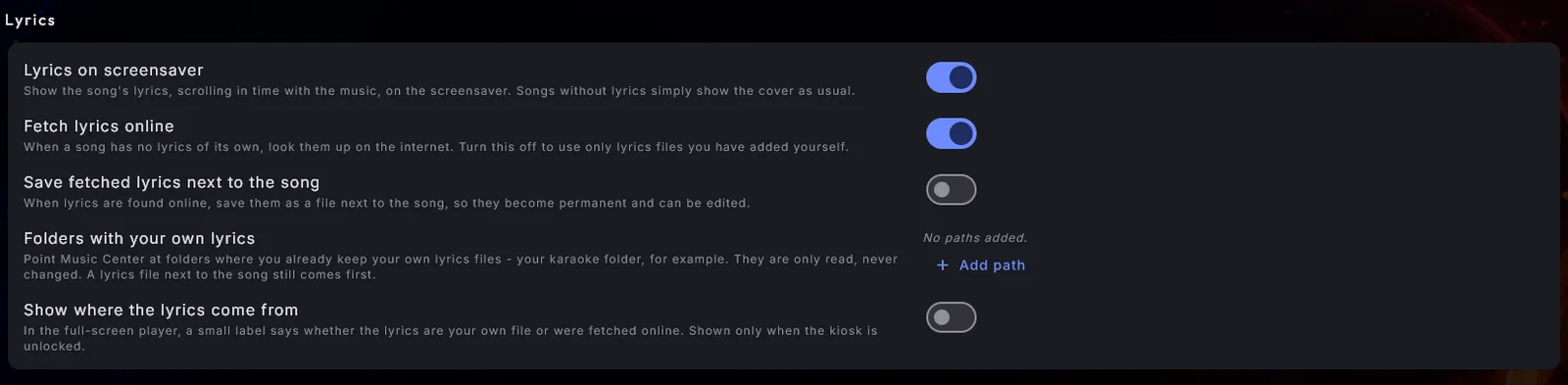
Go to Administration and choose Music. In the Lyrics section, check that Lyrics on screensaver is on. It is on from the start.
Now, when a song with lyrics plays, the screensaver shows the words scrolling in time with the music, and the full-screen player shows them too. Songs without lyrics look exactly as before, with the cover and the title - nothing breaks if no lyrics are found.
The other lyrics settings only appear while this one is on, so if you are looking for them and cannot see them, this is why.
Step 2: Use the lyrics you already have
Digital Center looks for lyrics in a fixed order, and your own files always come first.
A lyrics file next to the song. Put the lyrics file in the same folder as the music file, with the same name: a song file called Dancing Queen gets a lyrics file called Dancing Queen next to it. A lyrics file next to the song is always used and is never changed.
A folder with your lyrics. If you already keep lyrics somewhere else - your karaoke folder, for example - you do not have to copy them next to every song. Under Administration, Music, add the folders to Folders with your own lyrics. You can add several, and they are used in the order they are listed. These folders are only read; nothing in them is ever changed.
In a lyrics folder, a file must be named either exactly like the music file, or Artist - Title. Digital Center only looks for those two names and never guesses at a file that merely looks similar, so you never get the words from a different version of the song. The one thing it forgives is the way punctuation is written: a curly and a straight apostrophe, curly and straight quotes and the different kinds of dashes count as the same - but only when exactly one file matches.
Your lyrics folder can mirror your music folder
Step 3: Let Digital Center find lyrics online
For songs that have no lyrics of their own, Digital Center can look them up on the internet. Under Administration, Music, turn on Fetch lyrics online. The lookup runs quietly in the background.
Digital Center is strict about what it accepts. It only uses lyrics that are already timed and that match the exact version of the song you are playing, so the words follow the music. If no lyrics fit for sure, the screen shows the cover rather than words that drift out of step. A live version or a different mix of a song may therefore get no lyrics, even though the studio version does.
Leave it off to use only your own lyrics files.
Step 4: Keep the lyrics that were found
Lyrics found online are used while the song plays, but by default they are not kept as a file. To keep them, turn on Save fetched lyrics next to the song (it appears when both of the settings above are on). Every lyrics file found online is then saved next to the song. It becomes permanent, you can edit it later, and it is used every time from then on.
A lyrics file that is already next to a song is never overwritten. If your music is on a drive or a share that cannot be written to, nothing happens: the lyrics are still shown as before, they are just not saved.
Step 5: See where the lyrics come from
When you are building up a library, it helps to know which songs use your own files and which use lyrics from the internet. Turn on Show where the lyrics come from under Administration, Music, in the Lyrics section. It is off from the start.
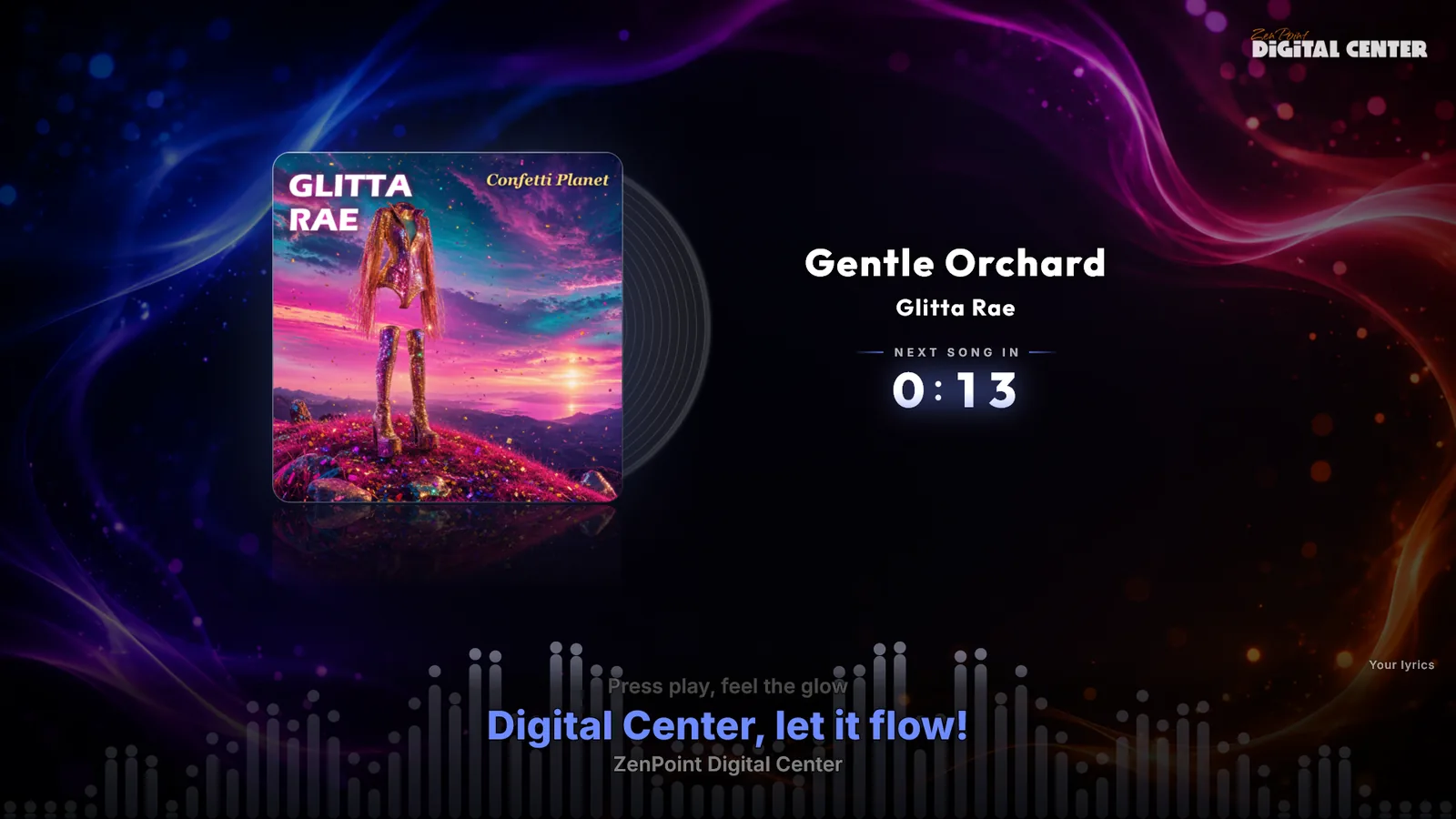
When the kiosk is unlocked, the full-screen player then shows a small, discreet label just above the lyrics:
- Your lyrics - from a file next to the song or from one of your lyrics folders.
- Fetched online - looked up on the internet.
- Fetched online, saved next to the song - looked up and saved as a file next to the song.
- Fetched online, saved in your lyrics folder - a fetched lyrics file that lies in one of your lyrics folders.
Guests on a locked kiosk never see the label, and the screensaver never shows it. If the source cannot be told for sure, no label is shown.
Step 6: Pick and adjust lyrics yourself in Media Manager
Sometimes you want to choose the lyrics yourself, or the lyrics found online are a little early or late. That is what ZenPoint Media Manager is for. Open it from the Media Manager tile in Setup on Digital Center's front page, or from the Windows Start menu, and choose the Music tab.
- 1
Find the songs without lyrics
Use the filter Missing lyrics to show only the songs that have none yet. - 2
Find lyrics for one song
Select a song and choose Find lyrics. Media Manager shows the lyrics it found; pick the ones that match this song. - 3
Or fetch for many songs at once
Select several songs and choose Fetch lyrics for all. Only confident matches are kept, and songs Media Manager is unsure about are skipped, so you can review before you save. - 4
Save
Press Save. The lyrics are saved next to the song, and from then on they are used instead of anything found online.
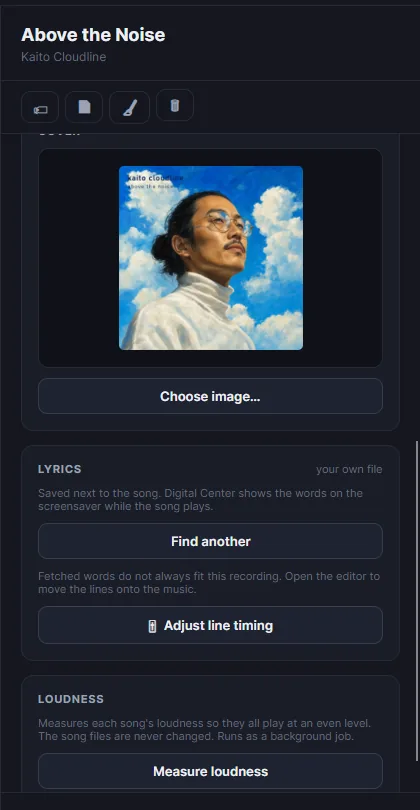
The lyrics card for the selected song says where its lyrics come from now: your own file next to the song, your lyrics folder, lyrics fetched by Digital Center, or not found yet. If a song already has lyrics, you are asked before new ones are fetched, so you never replace something you made yourself by accident. If you edit lyrics that come from your lyrics folder, the file in the folder is left untouched: your changes are saved as a copy next to the song, and that copy is used from then on.
When the lyrics are a little off
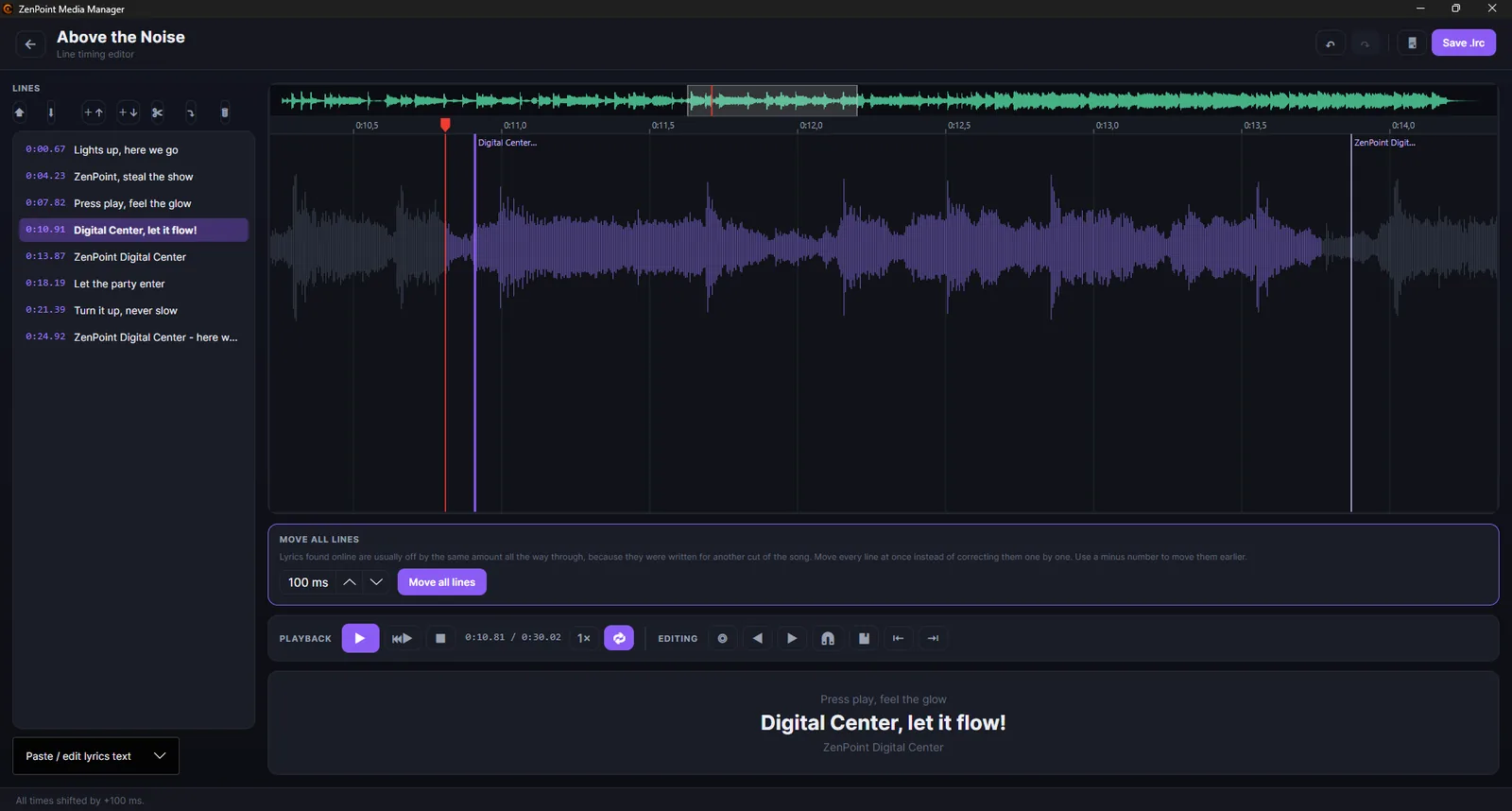
Lyrics found online were often written for another cut of the song, so they come in a moment too early or too late. Select the song and choose Adjust line timing in the lyrics card. The line timing editor shows the song as a waveform, with every line on it.
Usually you only need the tool at the top, Move all lines: the lyrics tend to be off by the same amount all the way through, so you type how many milliseconds to move them - a minus number moves them earlier - and press it once. To move a single line, click it to zoom in and loop it, then drag it onto the right moment. You can also correct the text, add and remove lines, undo, and see the result full-screen with Preview before you save.
Step 7: Going further - karaoke with word timing
Once a song has good lyrics, it is a short step to a real karaoke song. In Media Manager, a song with lyrics can get word timing - the time of every single word - and a backing track with the singing taken out. In the Karaoke center, the words then light up one at a time as they are sung. The same lyrics file still works in the Music center, line by line.
The four-step workflow - lyrics, backing track, word timing and fine-tune - is described in how to make a karaoke version of any song, and the equipment for singing at home in home karaoke setup.
Good habits
- Start with your own files. Lyrics you already have, next to the songs or in a lyrics folder, are used first and never changed.
- Name lyrics files after the music file or as Artist - Title. Anything else is not picked up.
- Turn on "Save fetched lyrics next to the song" if you want to keep what is found online and fix it later in Media Manager.
Read more about the Music center and the Media Manager page, or start with the free 7-day demo.
Ready to try it yourself?
Download Digital Center and try every feature free for 7 days. When you are happy, it is a one-time purchase - no subscription.