

Audio
Karaoke
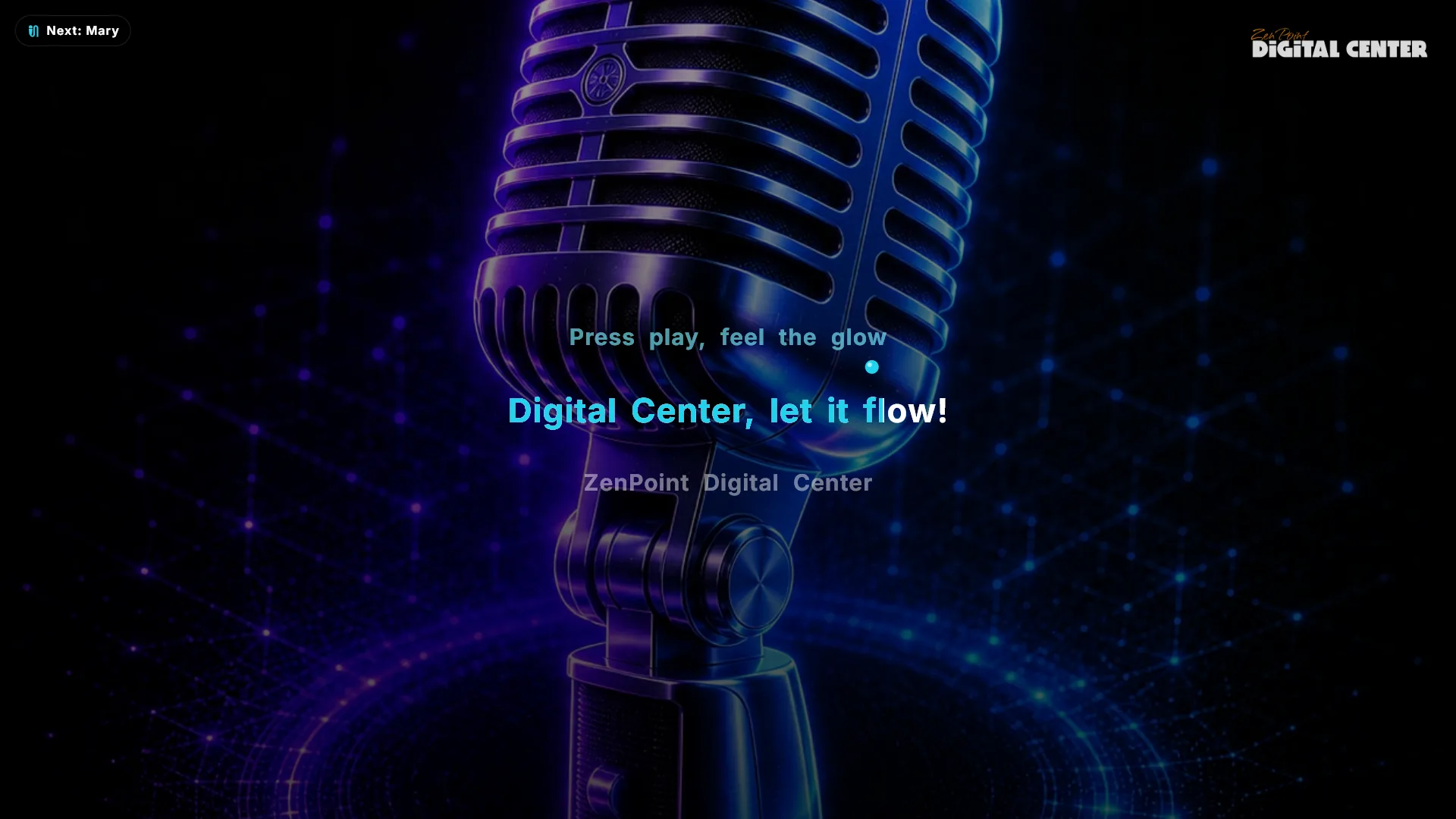
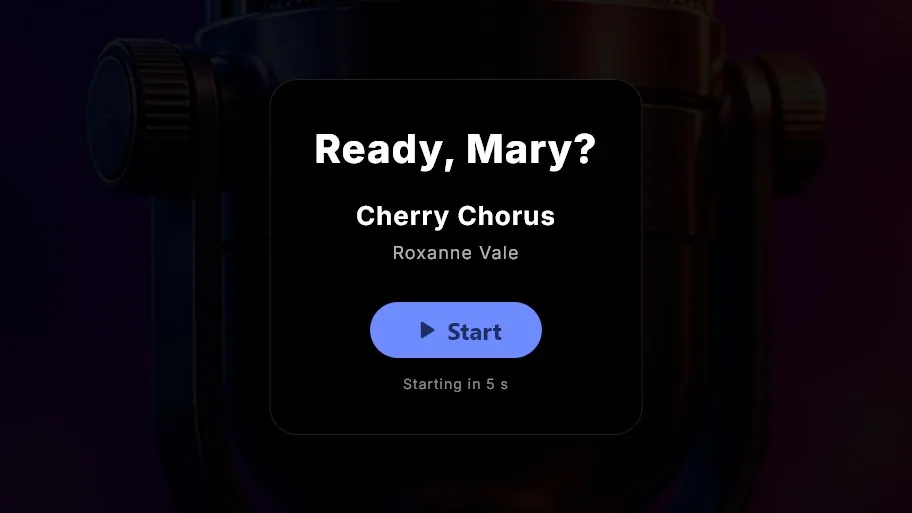
The Karaoke center delivers a true karaoke experience in full screen. The lyrics scroll smoothly, a classic bouncing ball marks the beat, and the words are colored one by one via precise LRC word timing. CDG graphics are supported, and you can switch between original and instrumental live with a single keystroke. A lead-in shows the title and artist before the song begins.
Included in: Home and Professional with your own library. Room plays the karaoke another machine shares.
Karaoke
Hand someone the mic.
Lyrics follow the music word by word. The screen calls up each singer by name, and the room does the rest.
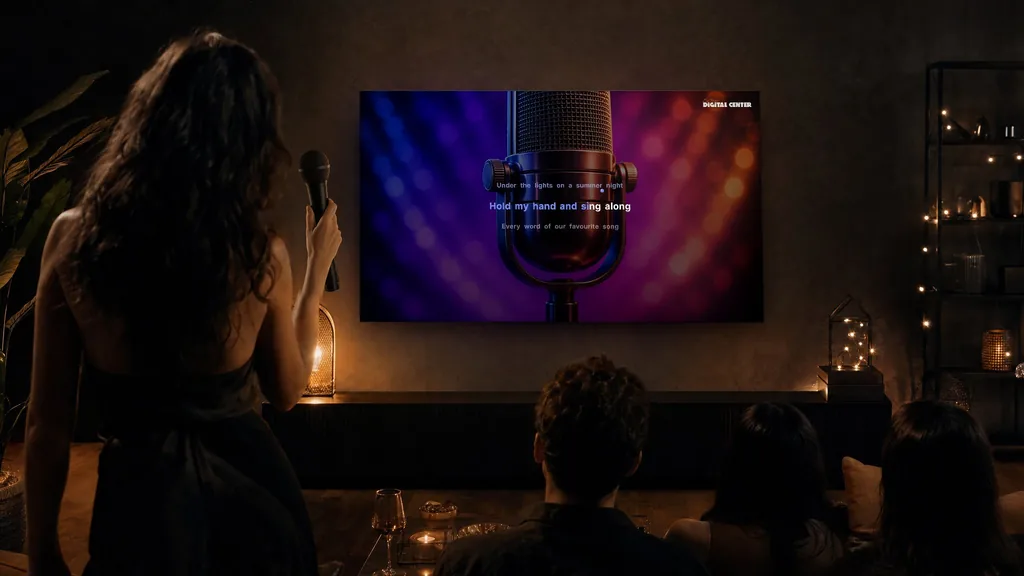
Grab the mic, it's your turn
Change the key or the tempo on the fly. Switch between the original and the backing track with one press.
A closer look
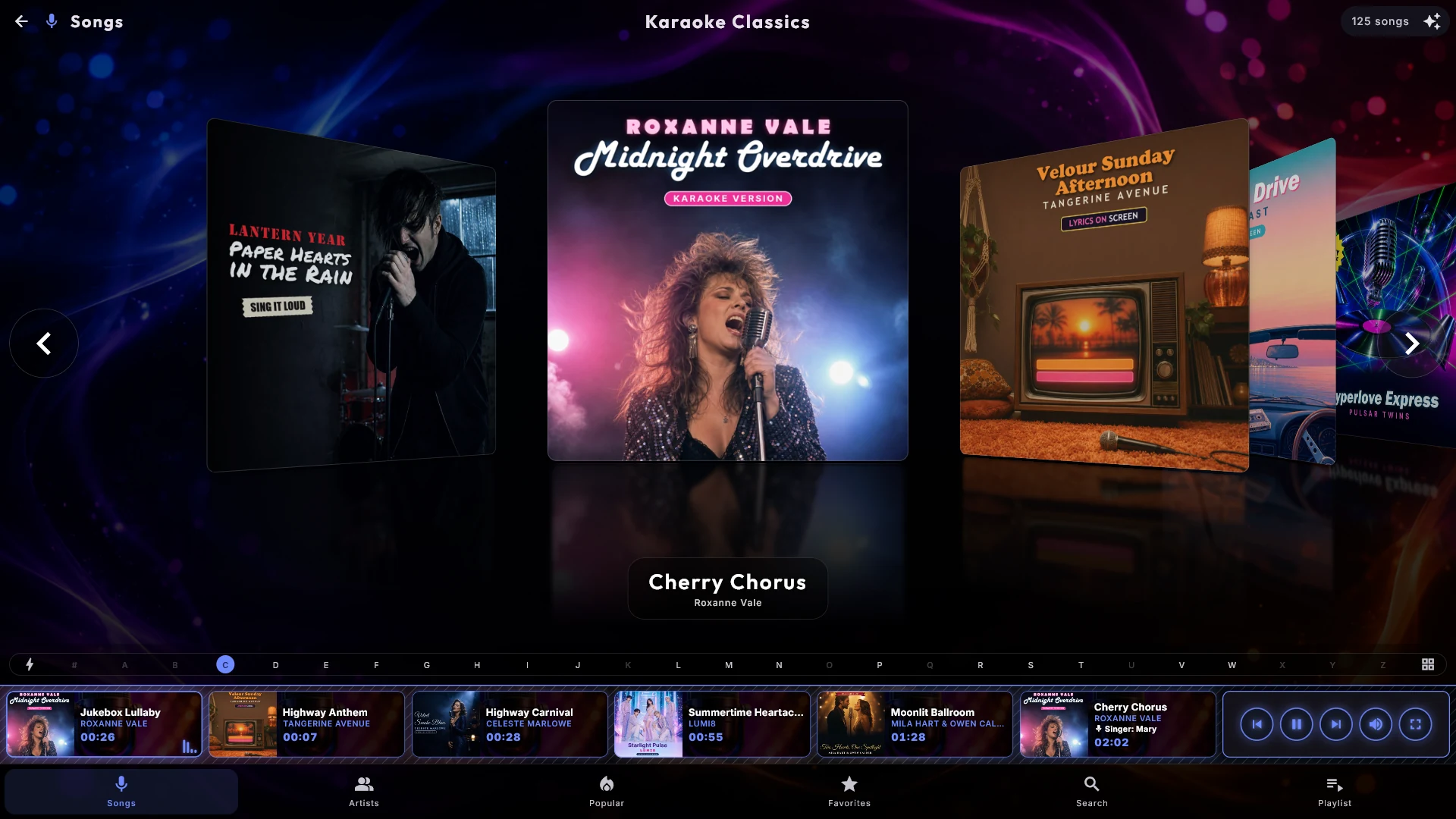
Find the song fast
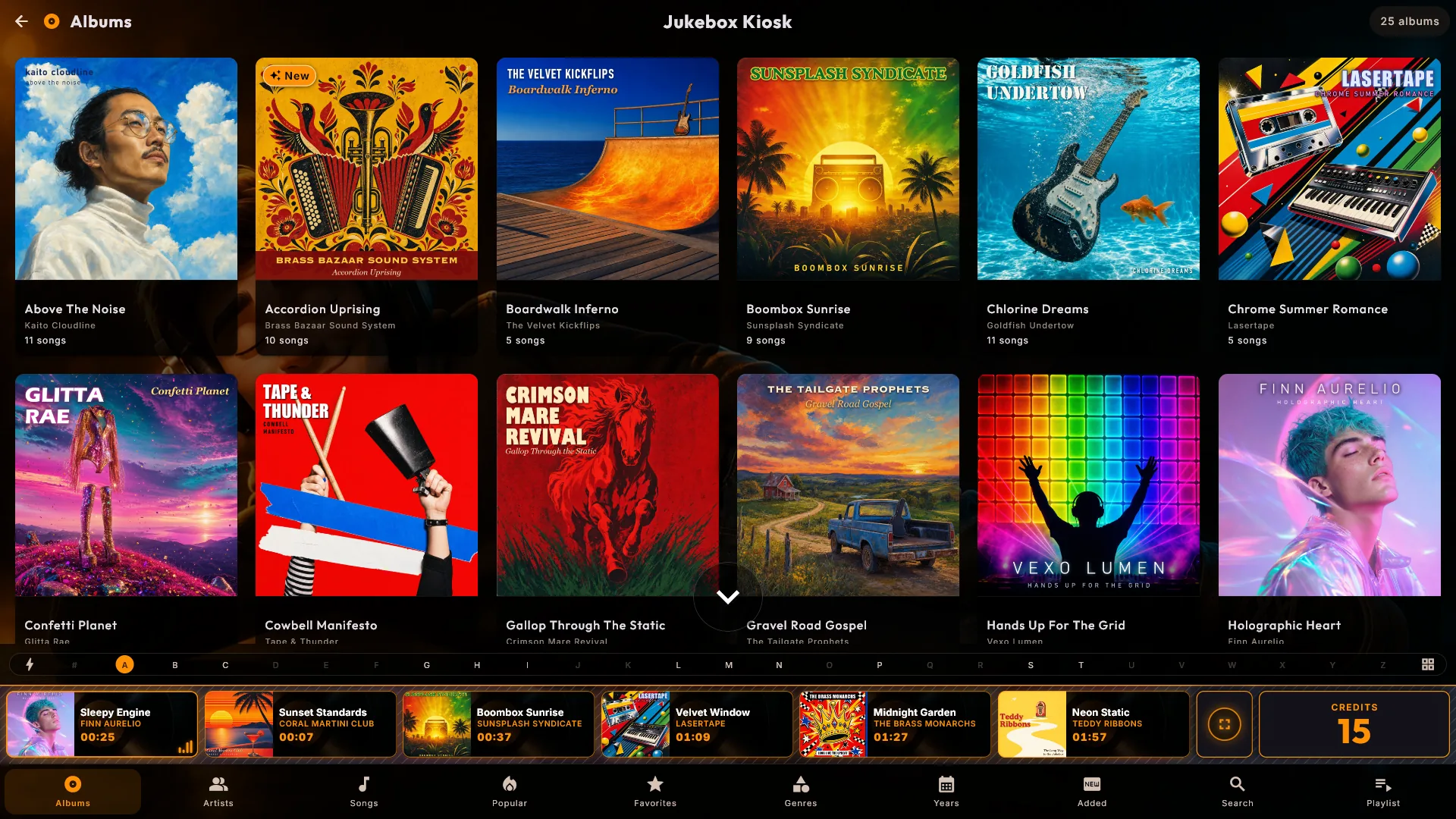
Karaoke opens on Titles - one tile per song - and the bottom menu runs Titles, Artists, Search and Playlist. Tap an artist to see everything they have, or search. Tap the playing card at the bottom for a small pop-up with the song's actions, and press Full screen when it is time to sing.
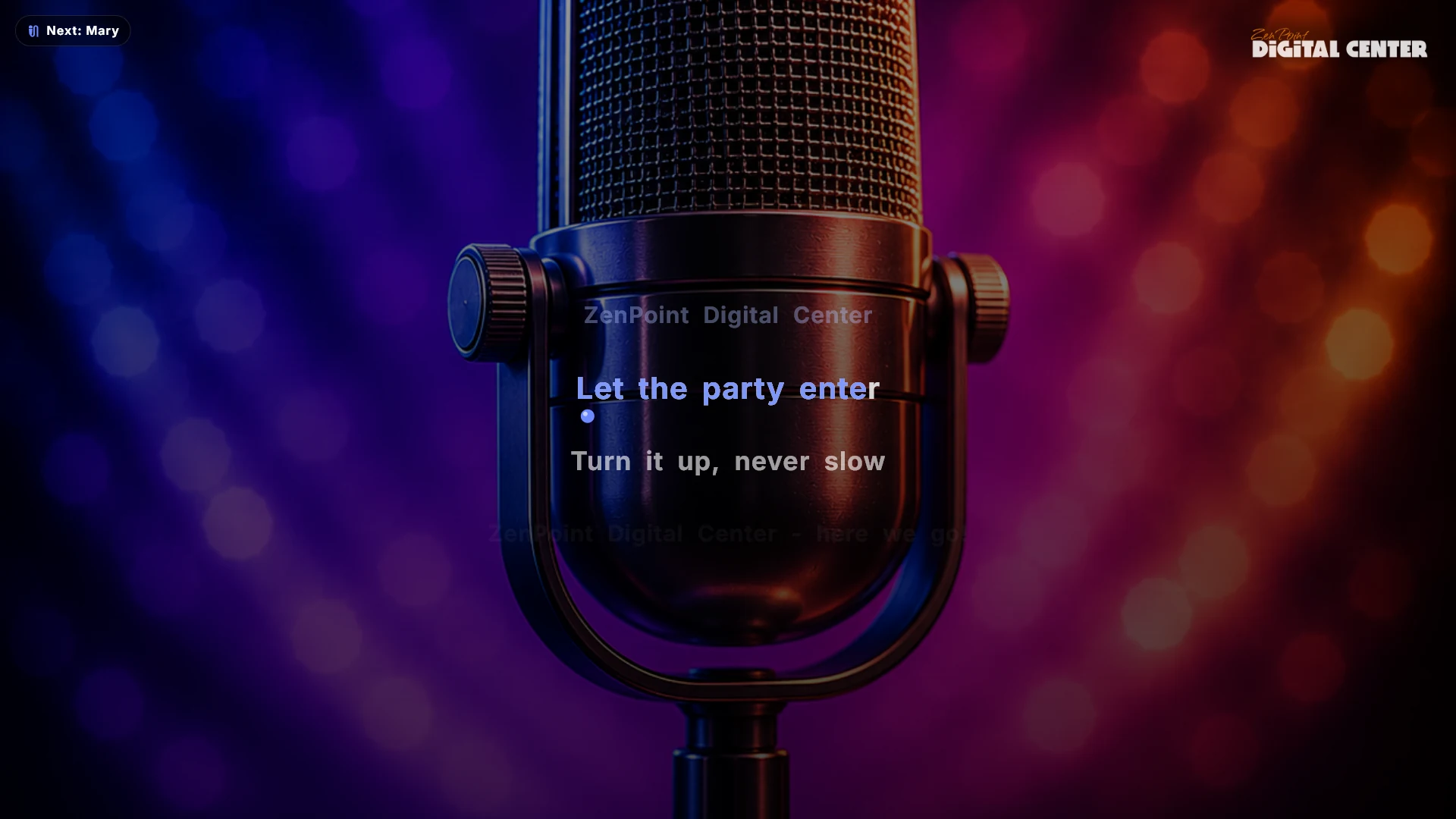
Word-by-word lyrics on the big screen
Songs with detailed word timing get the classic bouncing ball that hops from word to word; the rest simply light up the current line. Press the "o" key or the microphone button during full-screen playback to switch between the original vocal and the instrumental while the song plays. If a song has a pause marker for an instrumental break, the lyrics go blank for the length of the break instead of leaving the last line hanging. CDG graphics are supported too.
Highlights
- Bouncing ball and word-by-word coloring on the big screen
- Precise word-by-word timing from LRC files
- Switch between the original vocal and the instrumental mid-song
- Works with CDG and LRC files - or plain MP3s you prepare yourself
- Turn any MP3 into a sing-along in the included ZenPoint Media Manager
- A lead-in shows the title and artist before every song
- Browse by title or artist, or search for the next singer
- The screen goes blank on cue during instrumental breaks
- Guests queue karaoke from their own phone in Party Mode
- Every karaoke artist can have their own picture in the gallery
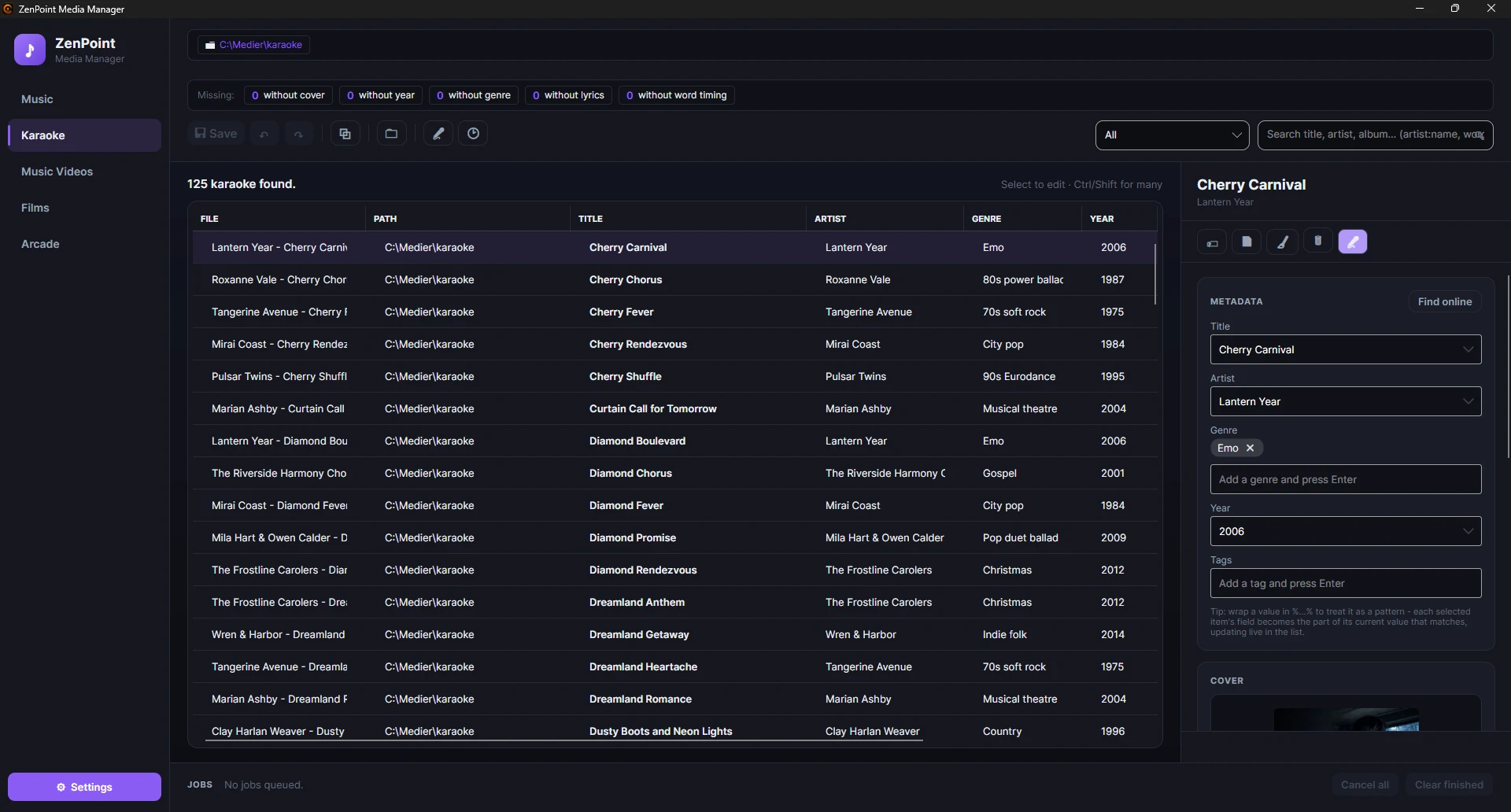
ZenPoint Media Manager
Make karaoke from any song you own
The Karaoke tab of the included ZenPoint Media Manager turns an ordinary MP3 into a proper sing-along track. It removes the vocals into a separate instrumental version - your original file is never touched - and works out exactly when every word is sung, so you get the bouncing ball on the big screen.
- Remove vocals - one song, or every song still missing an instrumental, in one batch
- Create word timing automatically, then fine-tune it in the timing editor
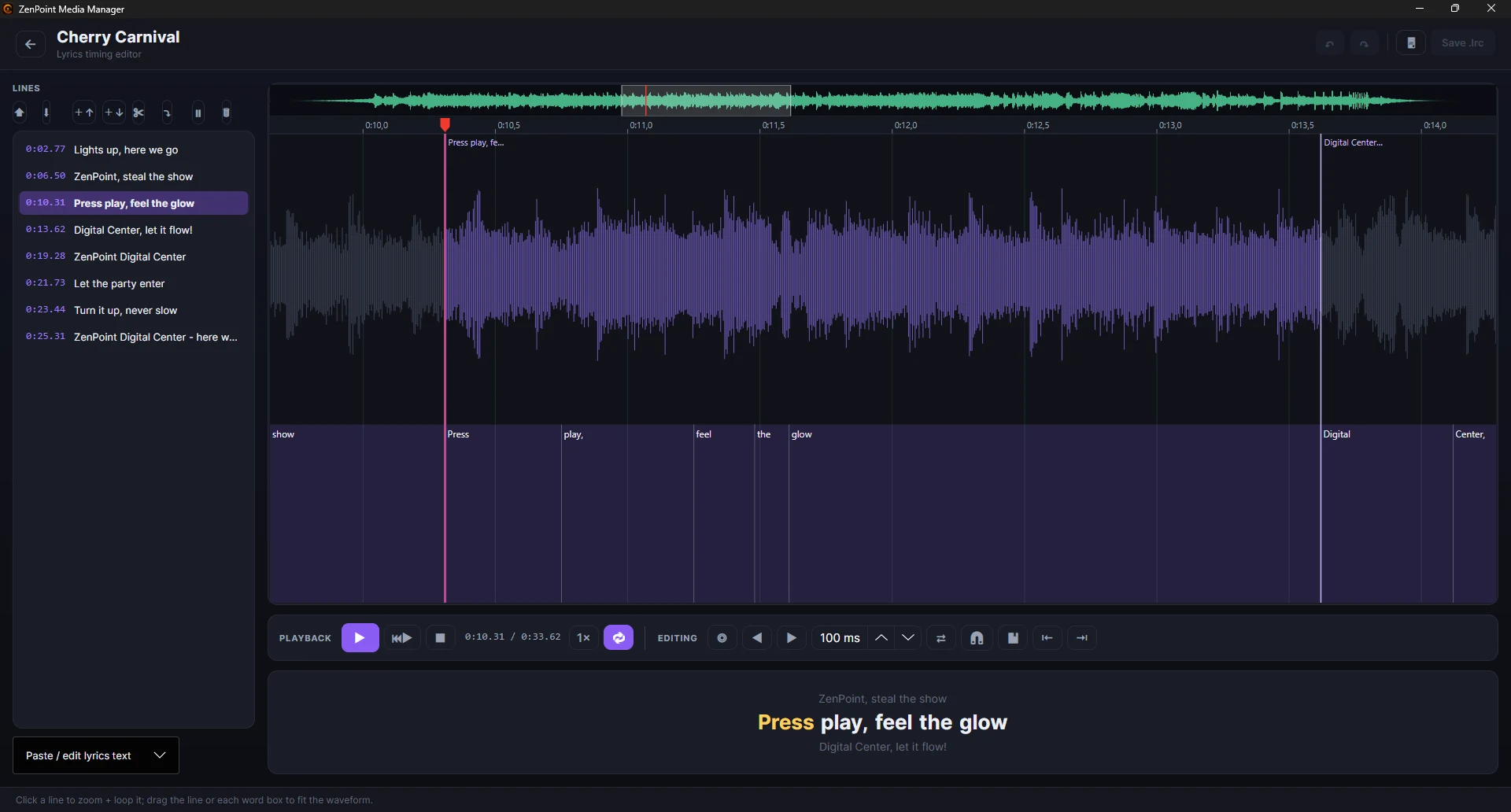
- The timing editor shows the waveform with the words along it: loop a line, drag a word's edges, tap along and split a word
- Insert a pause so the screen goes blank during a long instrumental break
- Give each karaoke artist their own picture for the gallery
More screenshots
Frequently asked questions
Do I need special karaoke files?
No. Existing karaoke files work, including CDG and LRC, but you can just as well start from ordinary MP3s and let the included ZenPoint Media Manager prepare them with an instrumental version and word-by-word timing.
Can I switch to the instrumental while a song is playing?
Yes. If the song has an instrumental version, press the "o" key or the microphone button during full-screen playback to switch between the original vocal and the instrumental on the fly.
Can guests pick karaoke songs from their phone?
Yes. In Party Mode guests scan a QR code and queue karaoke songs from their own phone through a web app - nothing to install, and only the rules you allow.
How do I turn an ordinary MP3 into a karaoke song?
In the included ZenPoint Media Manager, open the Karaoke tab, pick the song and let it remove the vocals into a separate instrumental version and work out the word-by-word timing. Your original file is never touched, and the finished song gets the bouncing ball on the big screen.
Does removing the vocals change my original file?
No. The instrumental is saved as a separate version alongside the song, and your original MP3 is left exactly as it was.
Can I fine-tune the word timing myself?
Yes. The timing editor shows the song's waveform with the words along it, so you can loop a line, drag a word's start and end, tap along in time or split a word until it lines up perfectly.
What happens during a long instrumental break?
If the song has a pause marker, the lyrics go blank for the length of the break instead of leaving the last line hanging, then pick up again right on cue.
Which karaoke and audio files does it support?
It plays MP3, WAV, M4A, FLAC and OGG audio, and reads CDG graphics and LRC lyric files that sit next to the song. You can also start from an ordinary MP3 and let ZenPoint Media Manager add the instrumental and word-by-word timing.
Other centers

Audio
Music
Play your whole music collection - MP3, FLAC and more - with a living audio visualizer and album art.
See details
Video
Movies
Movie library as a cover wall with posters and details filled in automatically.
See details
Video
Video
Your music videos as a cover gallery, with living thumbnails.
See details
Games
Arcade
Your retro arcade games, with save states and high scores.
See details