

Games
Arcade
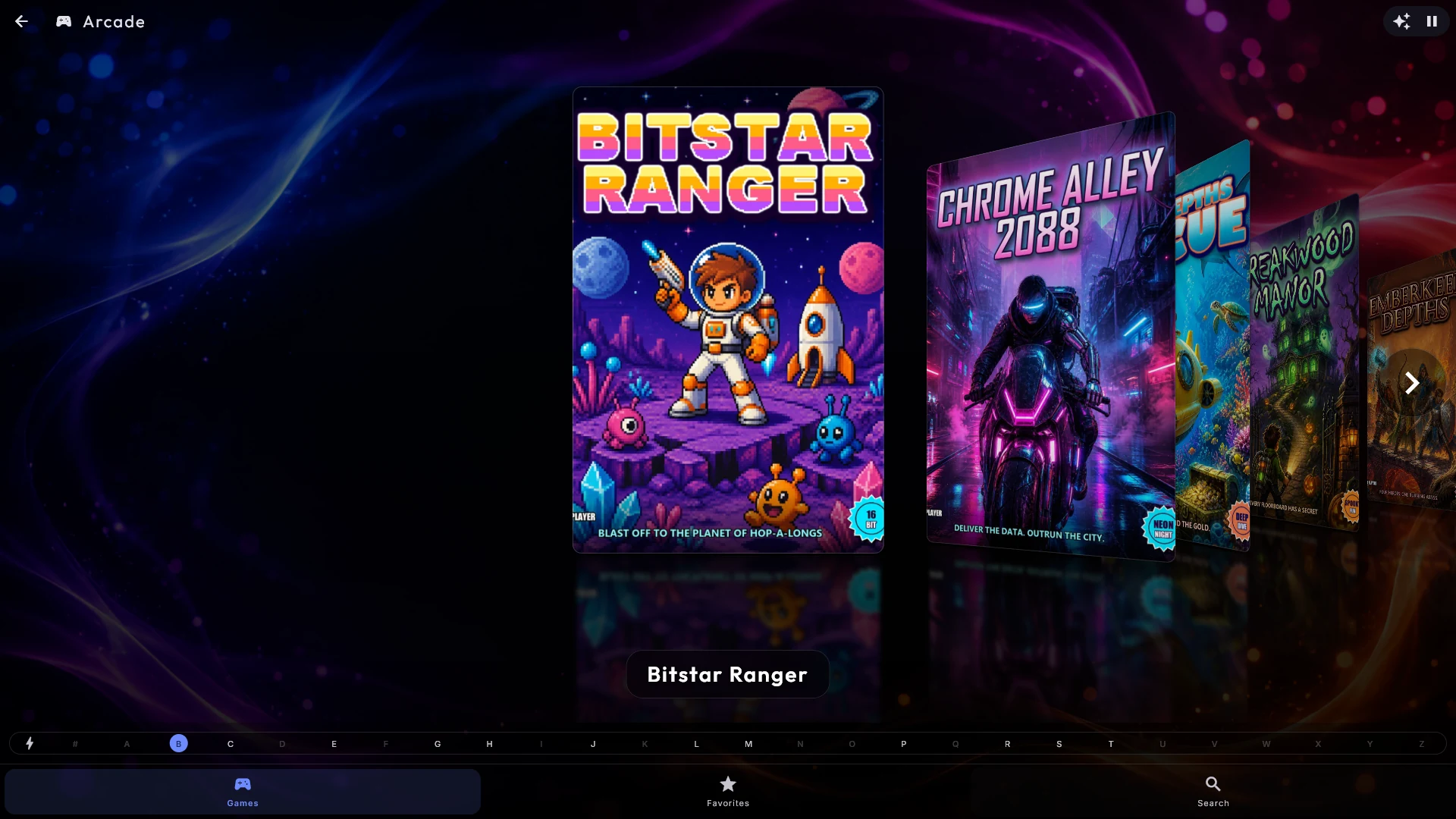
The Arcade center brings your retro games into Digital Center, built right in. The games are shown as a cover wall and played embedded in full screen. In-game saves and high scores are kept, you can also turn on saving exactly where you stopped, controllers are supported, and all other playback is paused automatically while you play.
Included in: Home and Professional.
Arcade
Insert coin.
The arcade is back in the room.
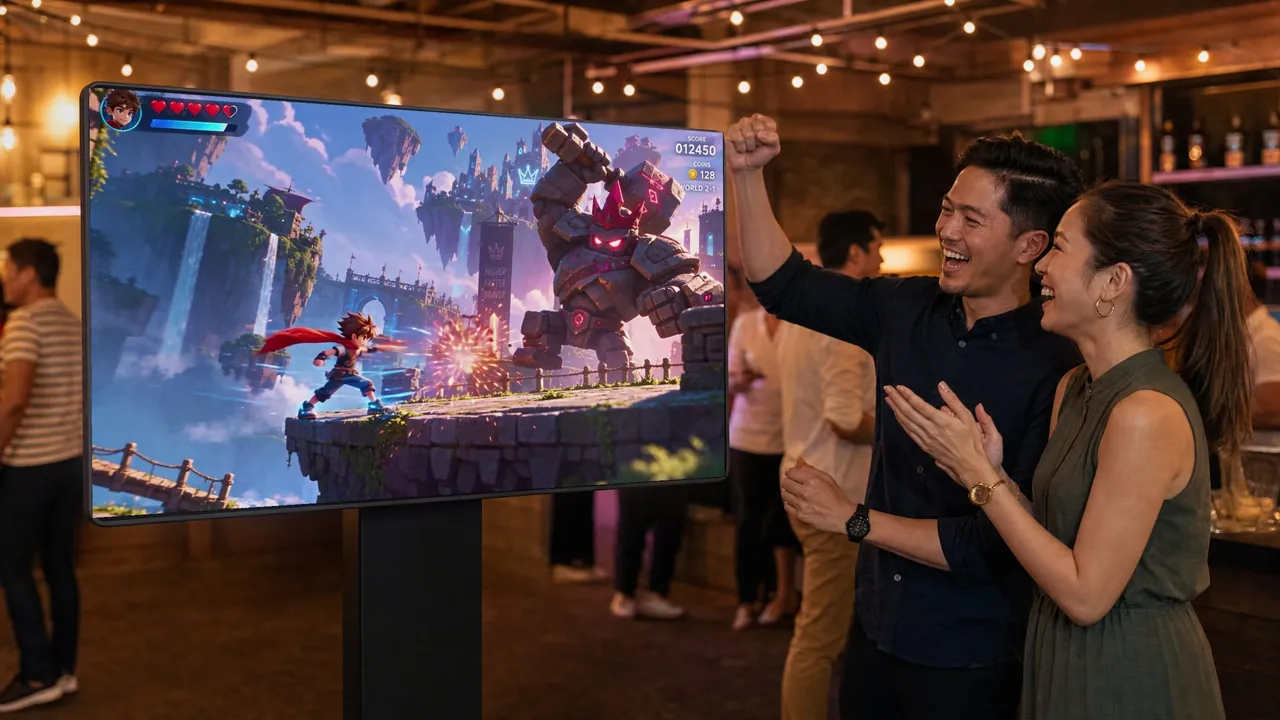
Your classic games, right next to the music. Pick one with a tap, then play with a keyboard or a controller.
The games are your own. Put them in a folder, and they line up on the screen with their covers, like your albums.
Arcade comes with Home and Professional.
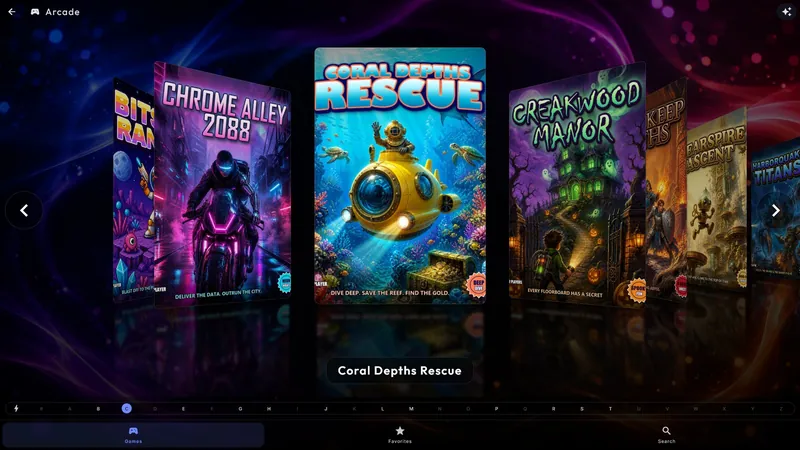
Every game has a cover.
Browse your games like your albums, with the same cover effects.
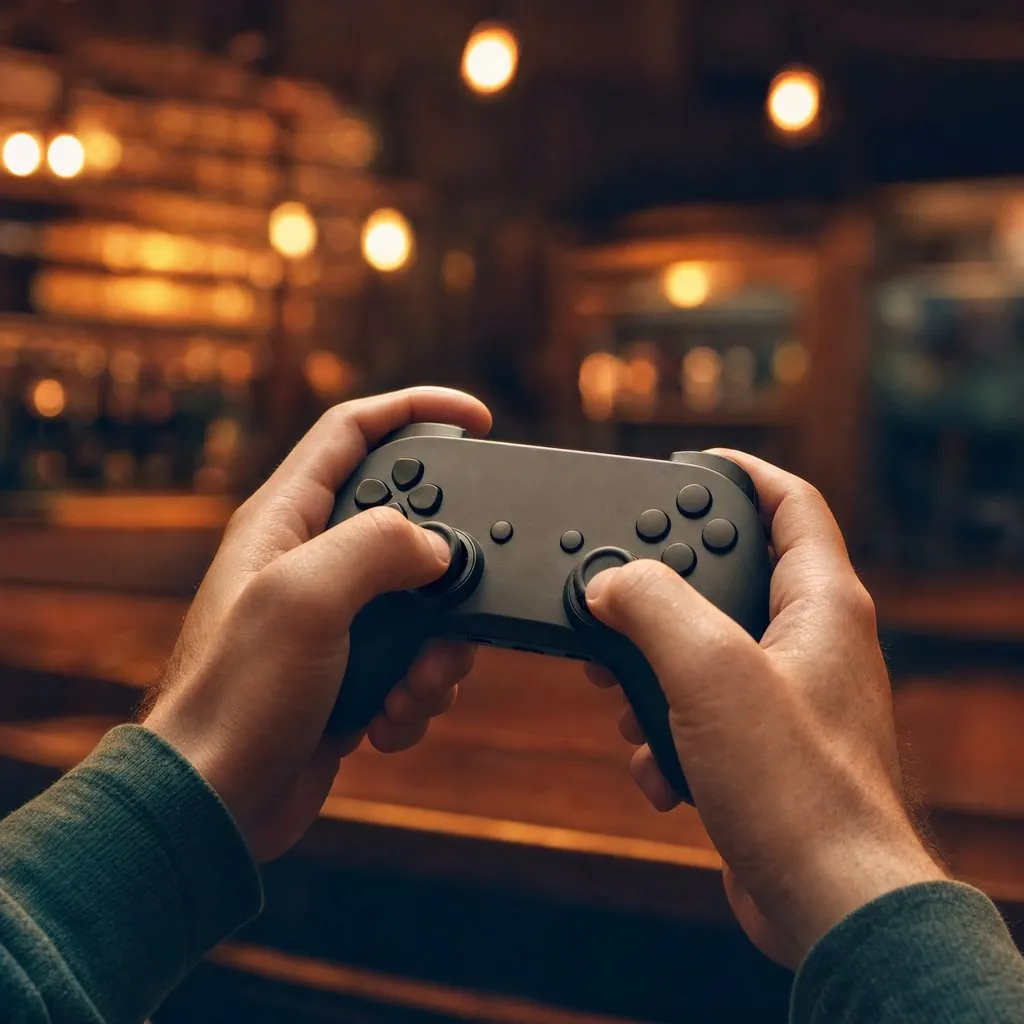
Bring a controller.
Plug one in and play. You decide which button does what.
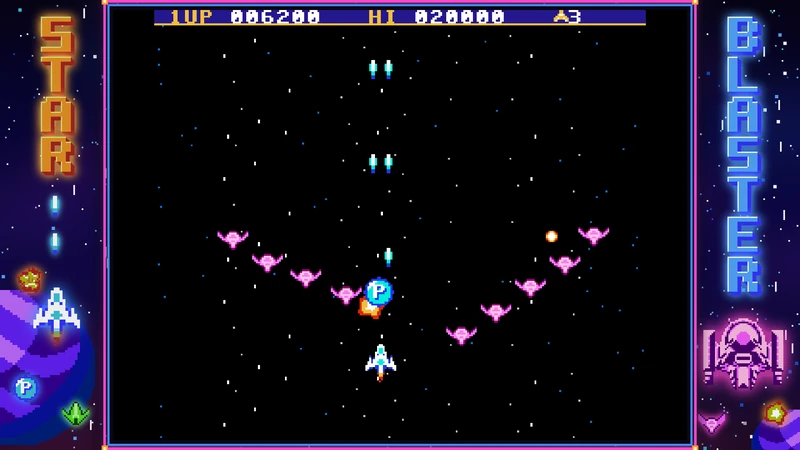
A frame for every game.
Give each game its own border around the picture.
A closer look
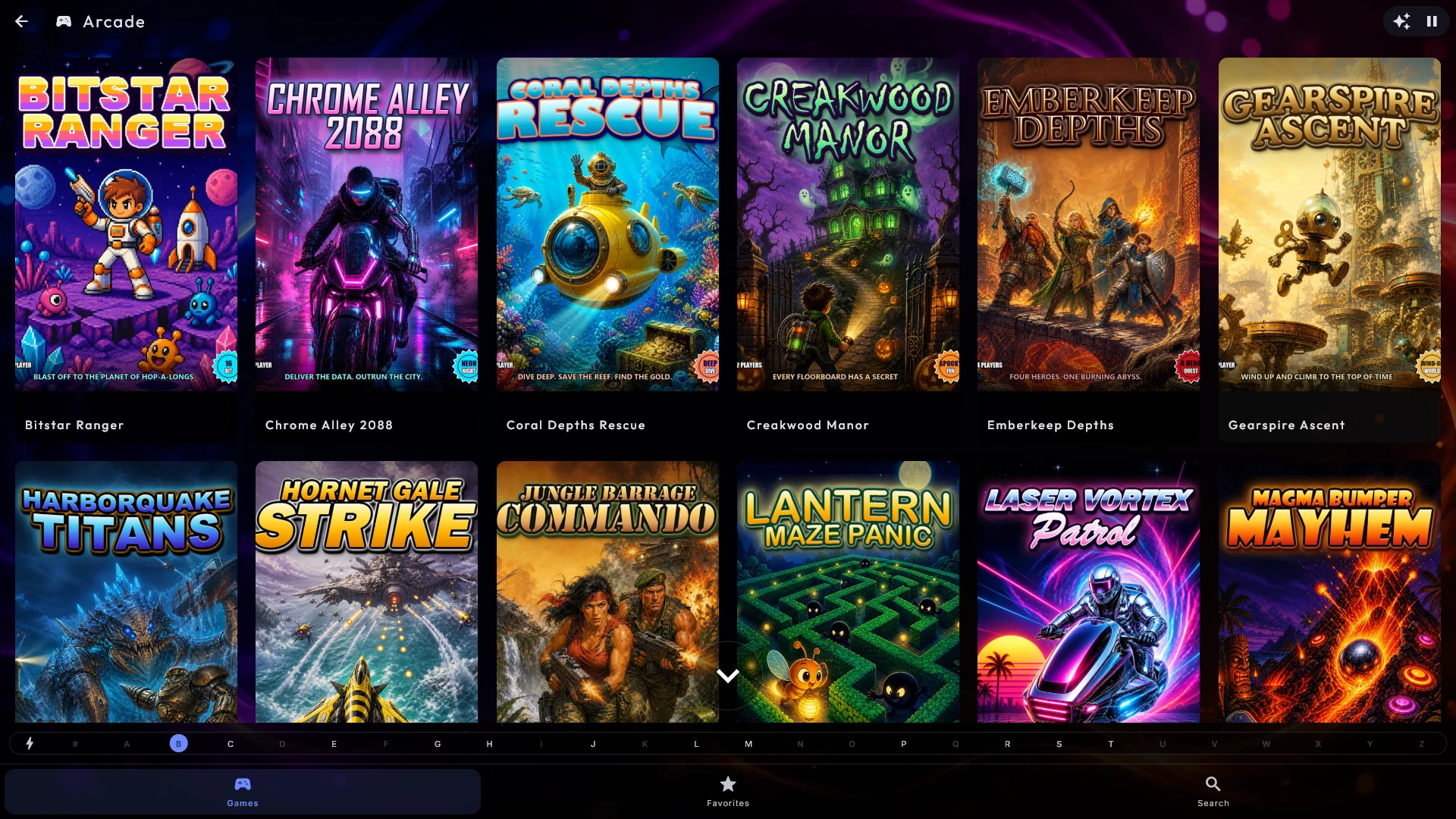
A cover wall of games
Your games are shown with cover images, just like albums, and with the same browse effects as the rest of the home screen. Tap a game to start it - any music that was playing pauses by itself and picks up again when you leave. If you have not added any games yet, Arcade shows a short guide on how to add them instead of an empty page.
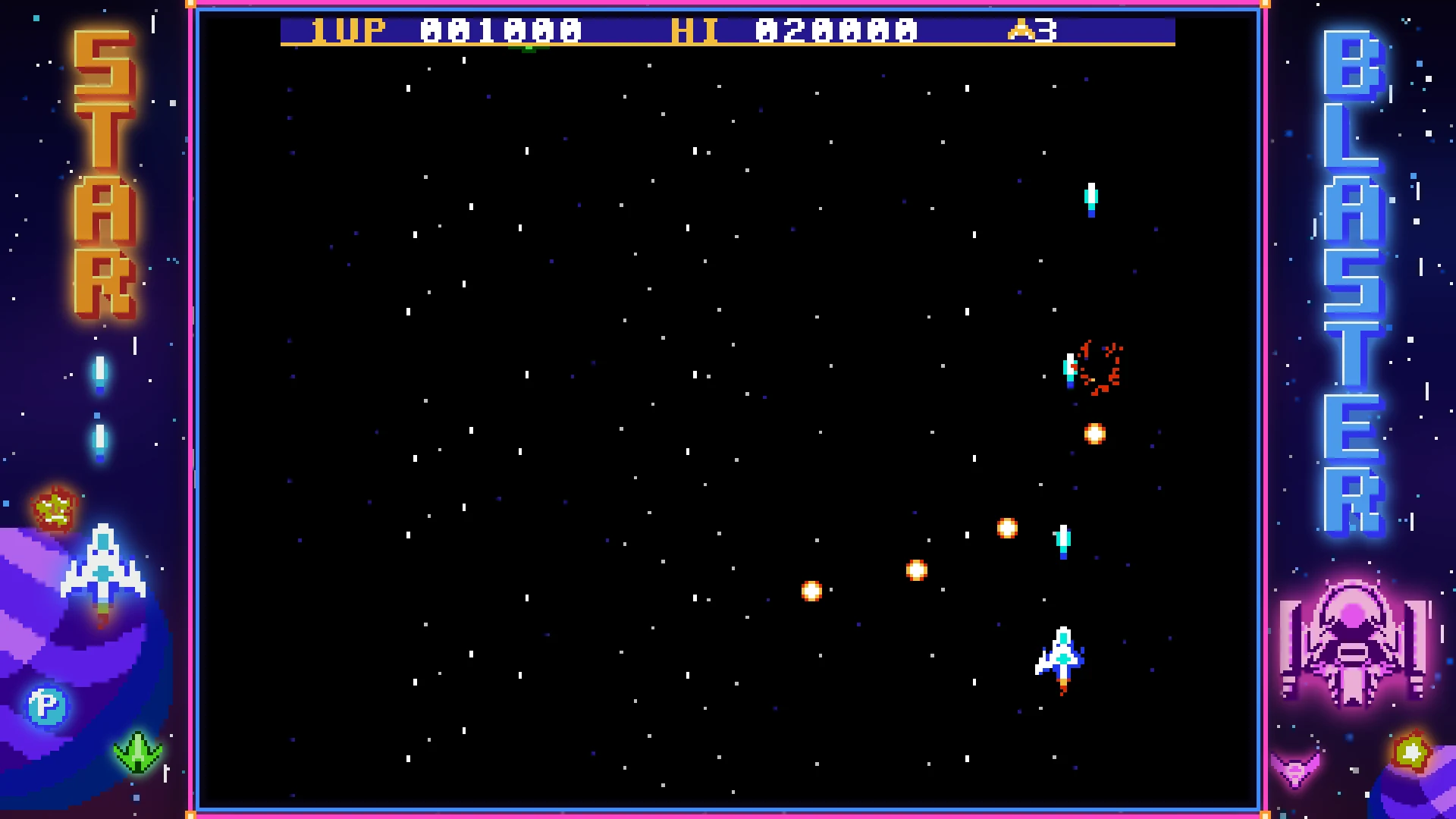
Save states, high scores and controllers
While you play you can save and load game states, adjust the volume and go full screen. High scores and progress are remembered between sessions. The default controls are the arrow keys plus a Back button, and an administrator can re-map every game button under Setup. Without a keyboard, move the mouse or touch the screen and a Back button appears in the top-left corner for a few seconds.
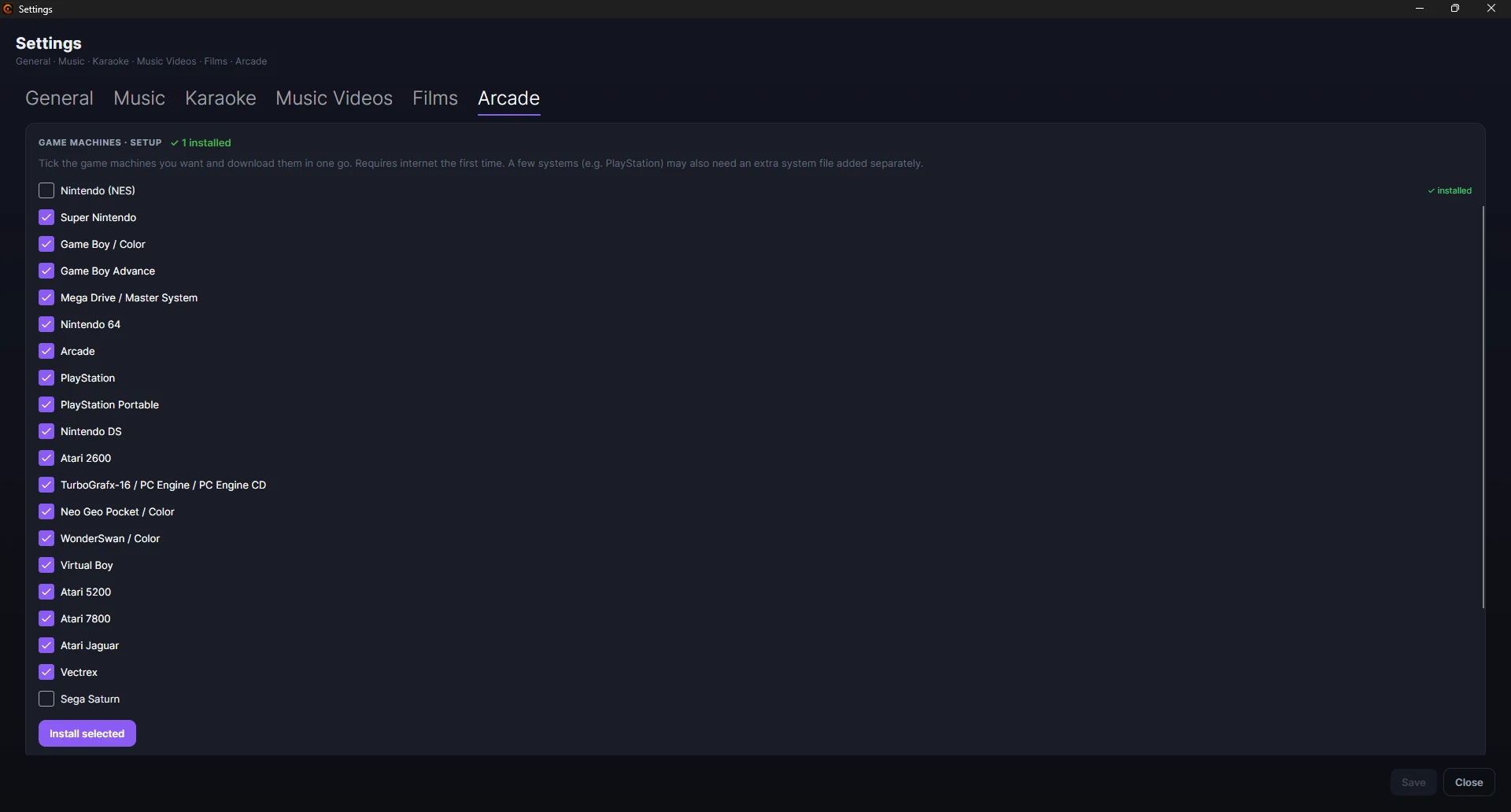
Install the emulators in one click
Only have ROM files and no emulator? You get the emulator cores straight from ZenPoint Media Manager. Open its Settings, choose the systems you want, and Digital Center downloads the matching cores for you - one click, no administrator rights, and internet needed only the once. A scanned game whose system is installed then shows up as "core ready" and is ready to play.
- Pick from a ready-made list of systems: NES, Super Nintendo, Game Boy / Color, Game Boy Advance, Mega Drive / Master System, Nintendo 64, Arcade, PlayStation, PSP, Nintendo DS, Atari 2600 and TurboGrafx-16
- One click - no administrator rights required
- Internet is only needed once, while it downloads
Highlights
- Your retro games as a cover wall, not a folder listing
- Games play embedded in full screen
- Save and load game states whenever you like
- High scores and progress remembered between sessions
- Play with a gamepad, keyboard, mouse or touch
- Re-map every game button the way you want
- Music pauses by itself while you play, and returns after
- Install the emulator cores in one click - no admin rights
- Covers many systems: NES, SNES, Mega Drive, N64, PlayStation and more
- Name your games and give them covers in ZenPoint Media Manager
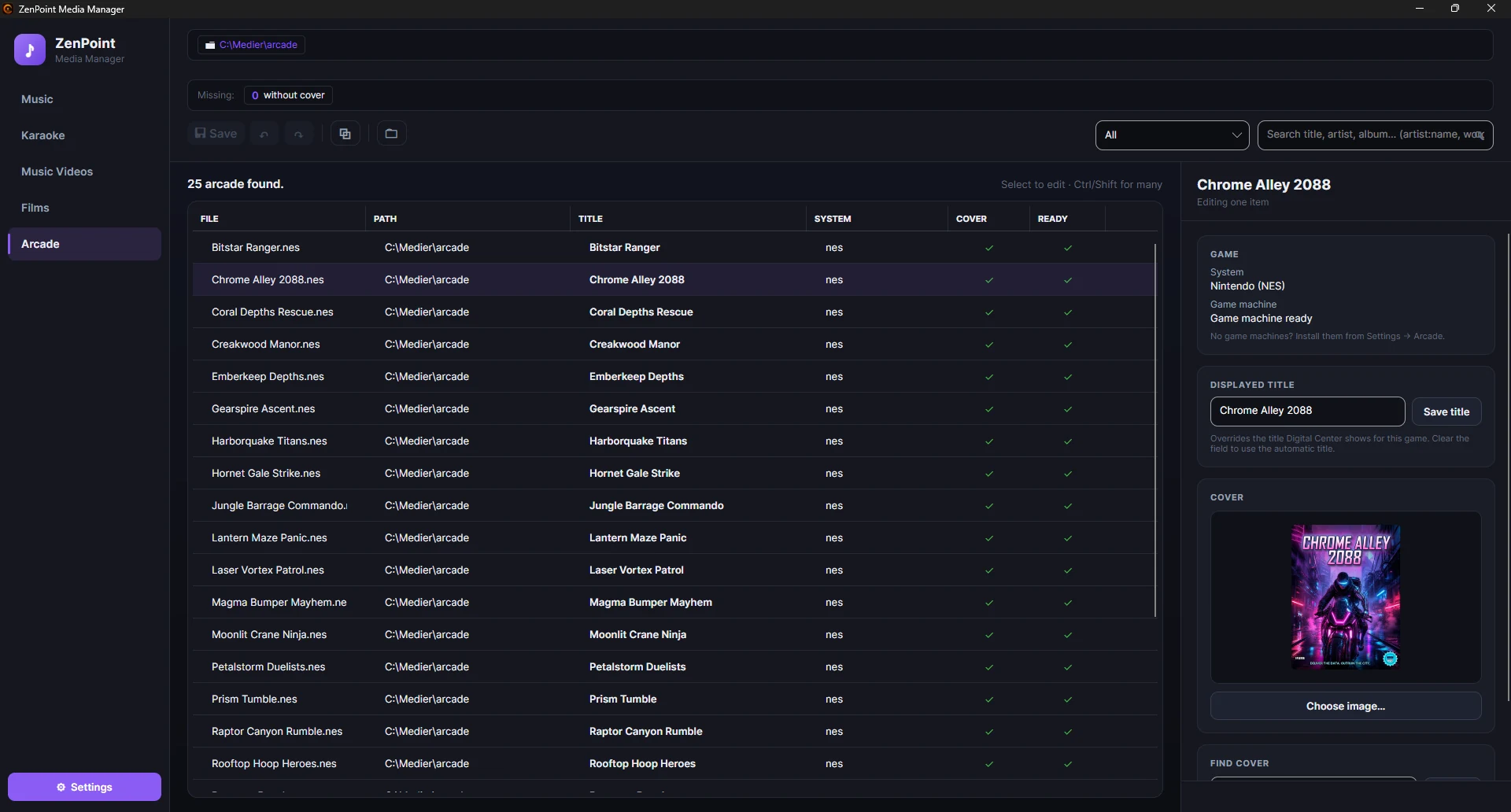
ZenPoint Media Manager
The Arcade tab in ZenPoint Media Manager
The Arcade tab of the included ZenPoint Media Manager is where your games get their names and cover images, so the cover wall looks like a proper arcade instead of a folder listing. The one-click setup for the arcade tools lives in the program's settings and only has to be run once.
- Give each game a proper name and a cover image
- Drag a cover straight onto the game, or pick one from your computer
- Edit a whole selection of games at once
- Filter the list to the games that are still missing a cover
Frequently asked questions
How do I add games?
You point the Arcade center at the folders where your games live, exactly as you do for music or films. Until you have added any, Arcade shows a short guide on how to get started instead of an empty page.
What happens to the music while I play?
It pauses automatically the moment a game starts, and picks up again by itself when you leave the game - so the party does not lose the soundtrack.
Can I use a controller?
Yes. Digital Center is controlled with mouse, touch, keyboard or a gamepad, and an administrator can re-map every game button to the key of their choice.
I only have ROM files - do I have to find emulators myself?
No. Open ZenPoint Media Manager's Settings, tick the systems you want, and the matching emulator cores download in one click - no administrator rights, and internet is only needed the once. A game whose system is installed then shows as "core ready" and is ready to play.
Which systems can it play?
You can install cores for NES, Super Nintendo, Game Boy and Game Boy Advance, Mega Drive and Master System, Nintendo 64, arcade, PlayStation, PSP, Nintendo DS, Atari 2600 and TurboGrafx-16, so most classic collections are covered.
Does it remember my high scores and where I stopped?
Yes. In-game saves and high scores are kept. Turn on saving where you stopped in the settings, and you can pick a game back up exactly where you left it.
Which ROM files does it support?
It reads the usual ROM types for each system: NES (.nes), SNES (.sfc, .smc), Game Boy and Color (.gb, .gbc), Game Boy Advance (.gba), Mega Drive (.md, .gen), Master System (.sms), Nintendo 64 (.z64, .n64, .v64), arcade (.zip, .chd), PlayStation (.pbp, .cue, .ccd, .m3u), PSP (.iso, .cso), Nintendo DS (.nds), Atari 2600 (.a26) and TurboGrafx-16 (.pce).
Other centers

Audio
Music
Play your whole music collection - MP3, FLAC and more - with a living audio visualizer and album art.
See details
Audio
Karaoke
Full-screen karaoke with a bouncing ball and word-by-word coloring.
See details
Video
Movies
Movie library as a cover wall with posters and details filled in automatically.
See details
Video
Video
Your music videos as a cover gallery, with living thumbnails.
See details