

System
External Programs
Launch any external apps directly from the home screen.
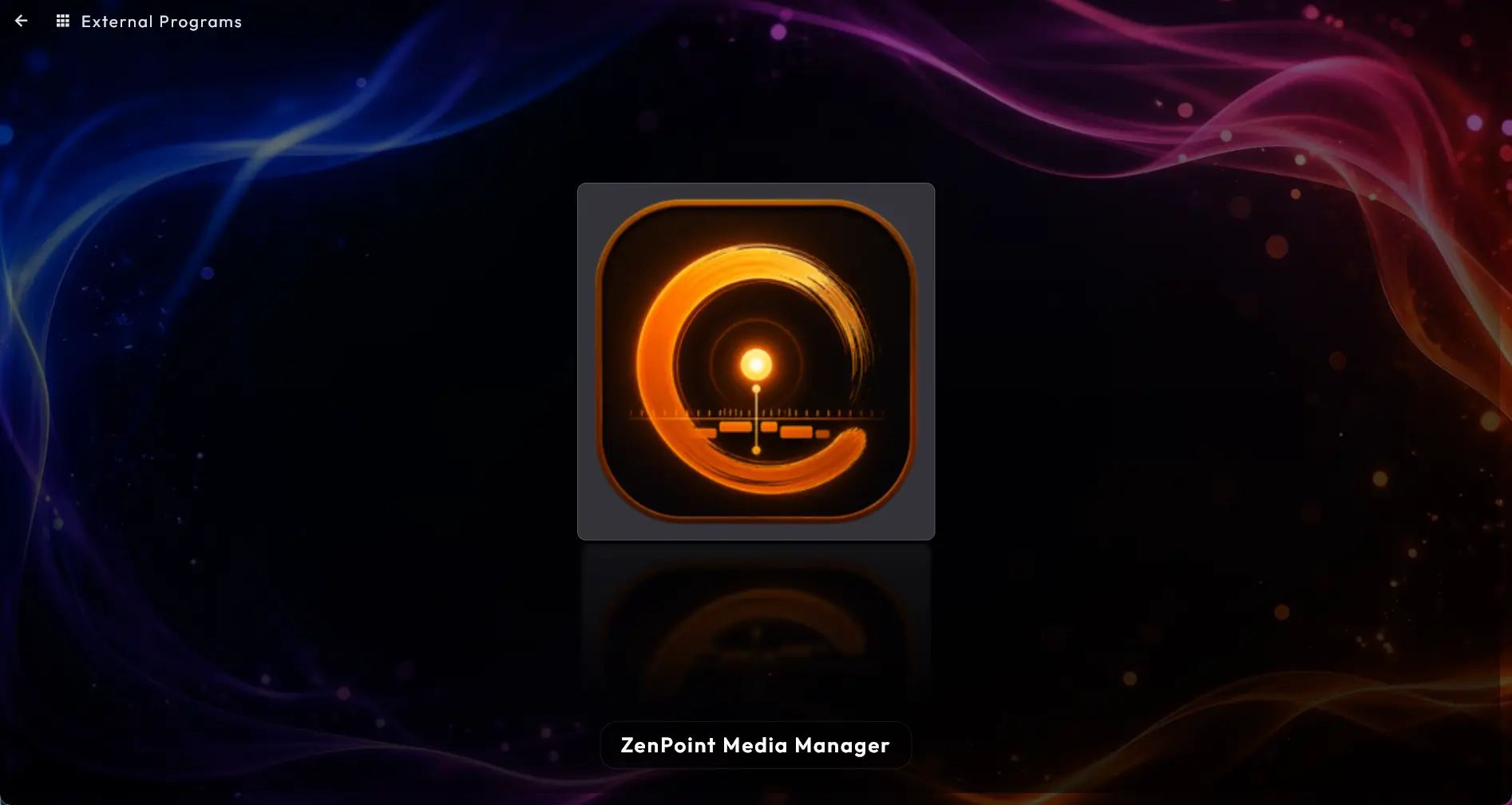
The External Programs center lets you launch any external apps directly from the Digital Center home screen. While the program is running, Digital Center elegantly steps aside - and is ready again when you are done. Perfect for gathering all your favorite apps in one place.
Included in: Home and Professional.
A closer look
Your own programs, on the home screen
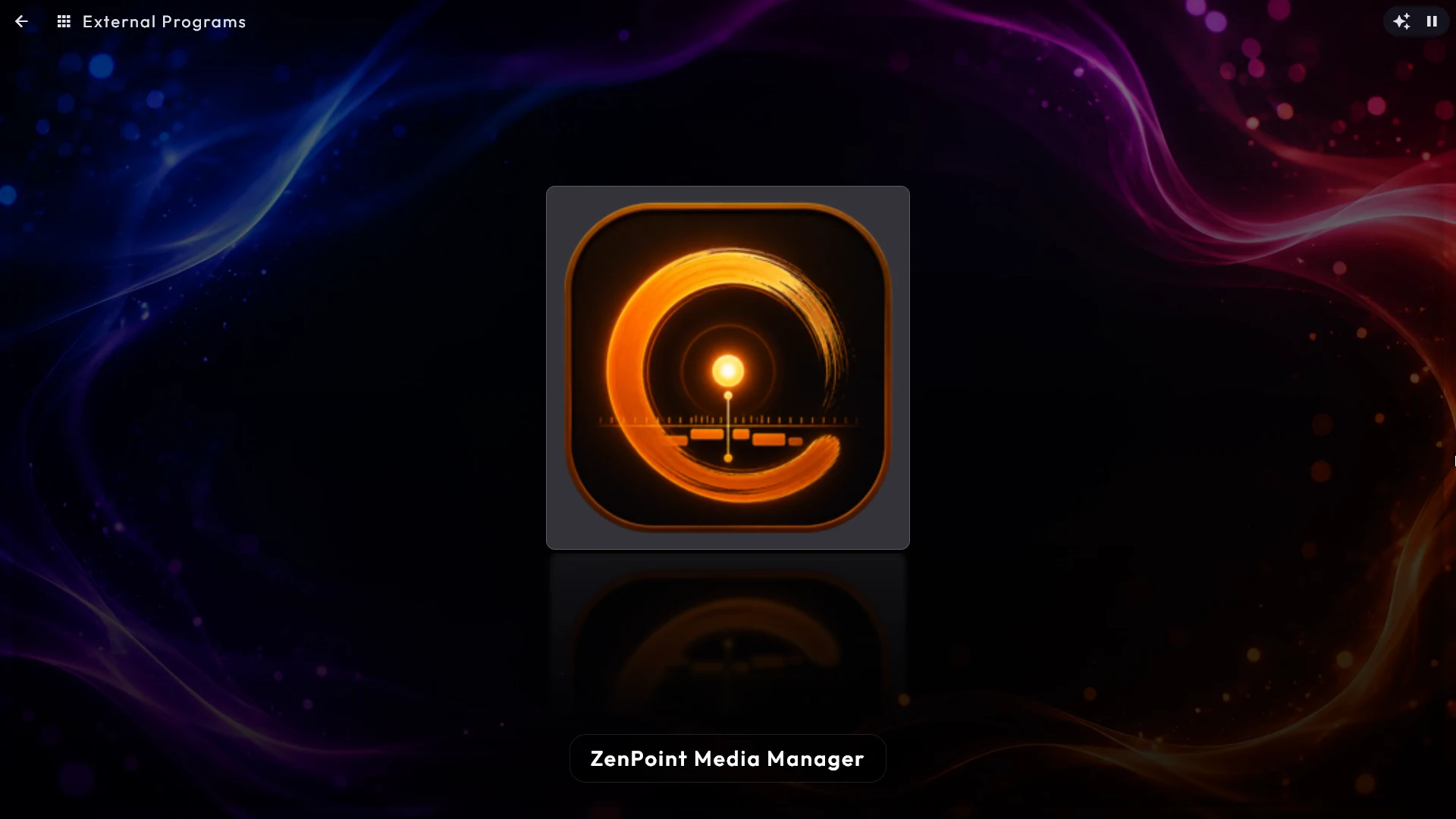
Anything you run often can live inside Digital Center: a browser, a spreadsheet, a game, or a small command you keep reaching for. The programs are shown with cover images and the same browse effects as everything else. Tap one to start it - and if it opens a normal window, Digital Center steps politely aside while you use it and comes back by itself the moment you close it again.
Set up once, and it stays out of the way
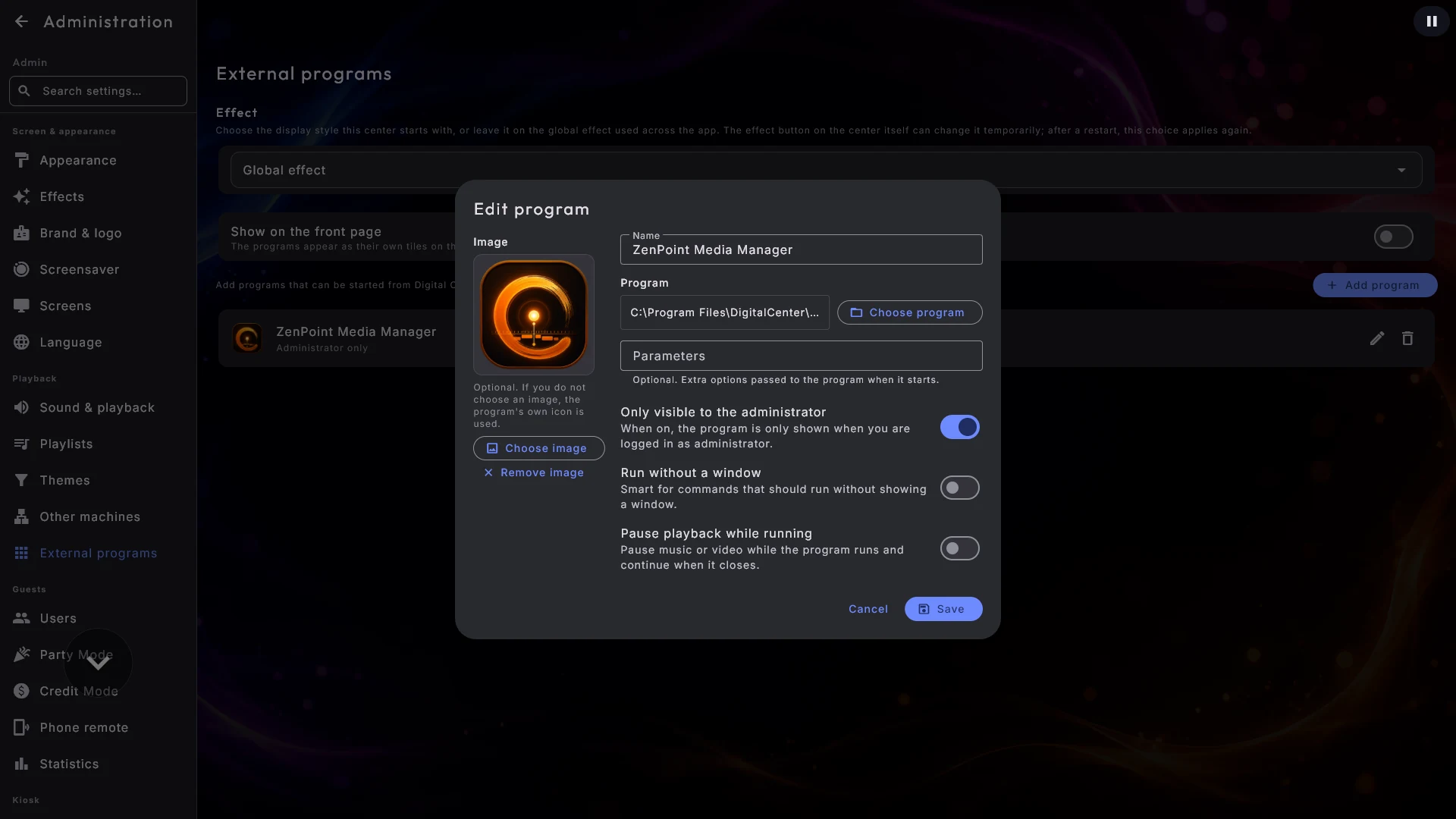
You add the programs under Settings, where each gets its own name and cover image. The center only appears on the home screen once there is something to show, so an empty tile never clutters the screen - and programs marked administrator-only are hidden entirely while Party Mode is on, so a guest cannot slip out of the jukebox and into Windows.
Highlights
- Launch any Windows program from the home screen
- A browser, a game, an office app or a small script
- Your programs shown as covers, like everything else
- Digital Center steps aside, then returns when you close the program
- Give each program its own name and cover image
- Set it up once under Settings
- Administrator-only programs, hidden from guests
- Locked away completely while Party Mode is on
- The center hides itself when there is nothing to show
- Gather all your favourite apps in one place
Frequently asked questions
Which programs can I add?
Any Windows program or command you like - a browser, a game, an office program or a script. You give each one a name and a cover image under Settings, and it appears on the home screen.
Can a guest launch my programs at a party?
Only if you let them. Programs marked administrator-only are hidden completely while Party Mode is on, so the jukebox stays locked and no one gets out into Windows.
What happens to Digital Center while the program runs?
It steps aside so the program gets the screen, and returns automatically the moment you close the program again - you never have to find your way back by hand.
How do I add a program?
Under Settings you point to the program, give it a name and a cover image, and it appears as a tile on the home screen - ready to launch like any other center.
What if I have not added any programs?
Then the center simply stays off the home screen. It only appears once there is something to show, so you never get an empty tile cluttering the screen.
Can I launch scripts or commands, not just apps?
Yes. Alongside ordinary programs you can launch a command or a small script you keep reaching for, each with its own name and cover.
Other centers
Audio
Music
Play your whole music collection - MP3, FLAC and more - with a living audio visualizer and album art.
See details
Audio
Karaoke
Full-screen karaoke with a bouncing ball and word-by-word coloring.
See details
Video
Movies
Movie library as a cover wall with posters and details filled in automatically.
See details
Video
Music Video
Your music videos as a cover gallery, with living thumbnails.
See details